
Getting Started with Data

The Data module in Cosmic Frog is where all model inputs and outputs live. Here you can enter, import, export, review, filter, aggregate, edit, and delete data.

The data contained in the Data module is essential to a Cosmic Frog model as the input data is used when the model is run and therefore determines the outcomes. Additionally, all other modules build upon it:

  • Scenarios – scenarios are set up where you define changes to column values for a subset of input records. Learn more about scenarios in this Getting Started with Scenarios article.
  • Maps – the layers that are drawn on maps use data pulled from the model’s input and output tables. Learn more about maps in this Getting Started with Maps article.
  • Analytics – the source data for the graphs, charts, and tables that make up dashboards in the Analytics module comes from the model’s input and output tables. Learn more about analytics in this Getting Started with Analytics article.
  • Utilities – the utilities available in this module add or transform specific input data. Learn more about utilities in this How to use & create Cosmic Frog Model Utilities article.
  • Leapfrog – Leapfrog lets you query and edit data using natural language. Learn more about Leapfrog in this Getting Started with Leapfrog AI article.

A Cosmic Frog model is a Postgres database under the hood. Model databases use a specific schema called “Anura” that Cosmic Frog understands and can use with its multiple engines. You can learn more about Anura and the modeling schema in these articles on Anura Inputs and Anura Outputs.

After the Quick Start section, this documentation starts with an overview of the components of the Data module and then gets into the details of the technology filter, tables list, and table grid. Multiple options for data transfer, how to filter a table, and additional menus and context menus are covered next. The document wraps up with an overview of available data validation tools, tips on configuring the data module based on your role, and best practices.

Quick Start

Follow these steps to get your first data into a model:

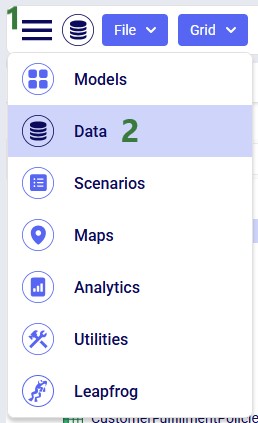
  1. Open the Data module from the Module menu (top left).
  2. Use the Technology Filter (top toolbar) to enable only the engine(s) you are building for — this narrows the tables and columns to what is relevant.
  3. Select a table from the list on the left to open it in the grid.
  4. Enter records by typing into the top (data entry) row, or import data in bulk via File > Import.
  5. Use a filter on any column(s) to check or narrow down what you have entered.
  6. Once your core tables are populated, run the Integrity Checker (Grid menu) to catch data issues before running the model.

Pro tip

For large or messy source data, Ada or DataStar can populate input tables from raw files using natural language or repeatable workflows — no manual entry required.

‍

Overview

To open the Data module within Cosmic Frog, click on the Module menu’s hamburger icon, and select Data from the list:
The layout of the Data module is as follows:
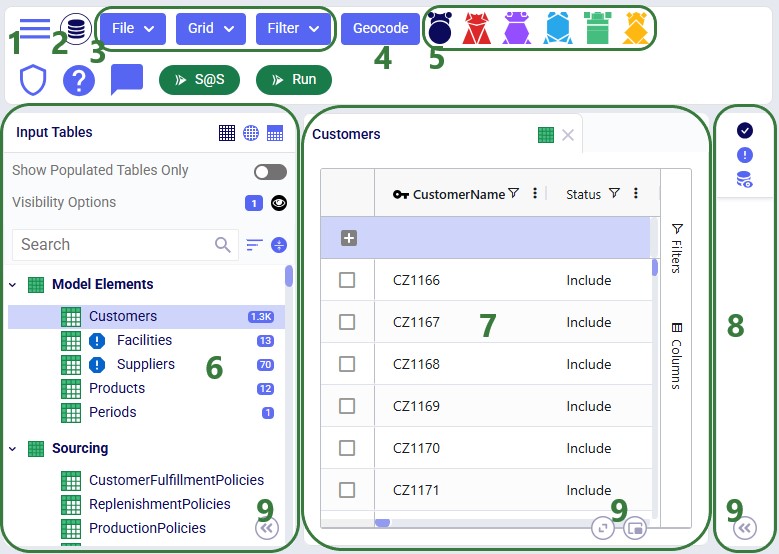
  1. The hamburger icon which opens the Module drop-down list.
  2. This database icon indicates the Data module is the active module.
  3. There are 3 menus available while in the Data module. We will cover each in more detail later in this documentation, but as a quick overview:
    1. File – this menu has options for bulk importing/exporting data from/to CSV and Excel files. See this Cosmic Frog – Importing and Exporting Data Help Center article.
    2. Grid – lets you perform actions like copying, deleting, and aggregating records in the active table, which is the one that is showing in the center of the screen.
    3. Filter – to manage filters applied to the active table, options such as saving, duplicating, and removing filters are included in this menu.
  4. Geocode – this button is available when the Customers, Facilities, or Suppliers table is active and allows you to look up a location’s coordinates based on location information such as country, city, postal code, and/or address.
  5. Technology Filter – use this to only see the applicable tables and columns for the technology/technologies that are toggled on. For more details, see the Technology Filter section further down.
  6. The pane on the left-hand side shows the tables list. Details are covered in the next section.
  7. In the center of the Data module, the active table is shown in a grid. See the Table Grid section.
  8. A pane containing tools to help with entering and checking data is located on the right-hand side; it is collapsed in the screenshot, which is the default.
  9. The panes on the left and right can be expanded/collapsed using the chevron icons at the bottom of the panes. The grid in the center can be maximized/minimized and made full-screen by using the icons at its bottom right.

Technology Filter

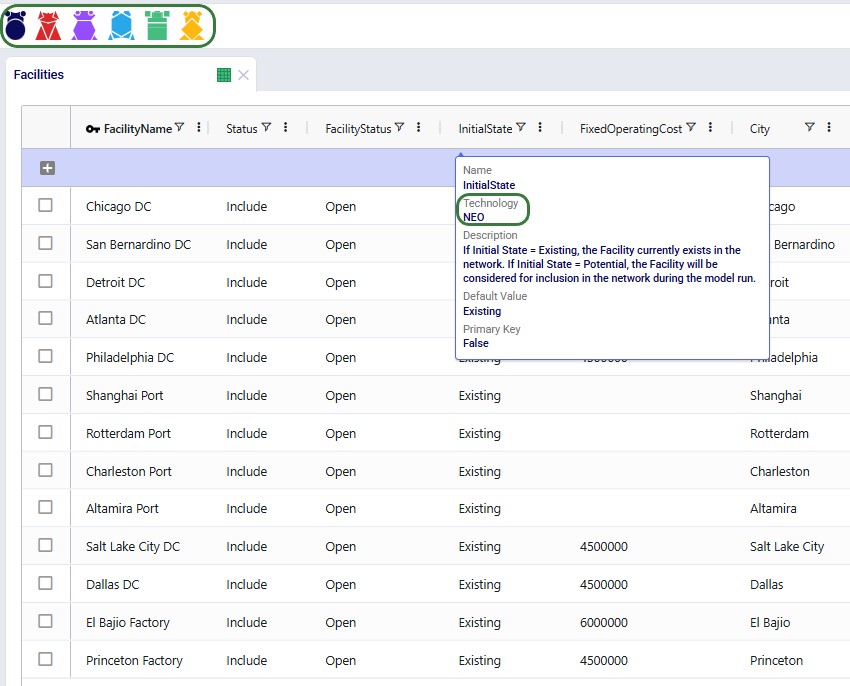
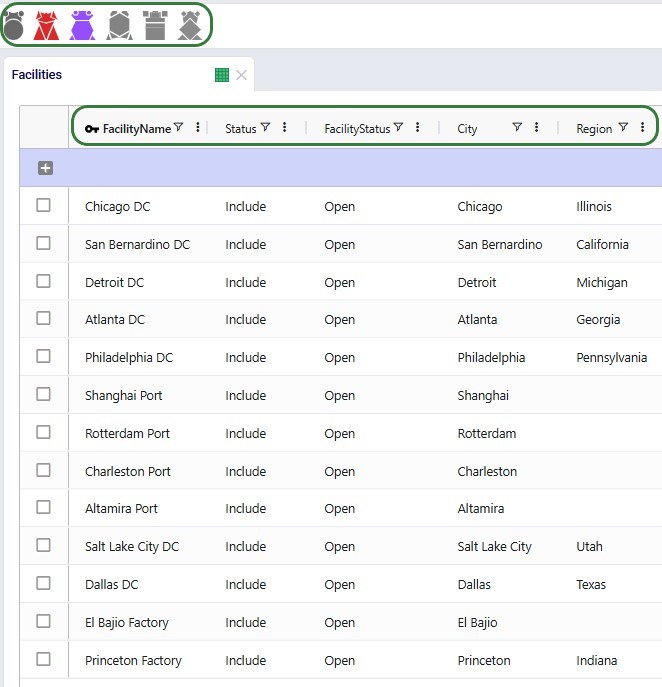
The Technology Filter, in the top toolbar, controls which tables and columns are shown based on the technologies you are using. Each technology is run by its own engine and has its own icon in the filter:
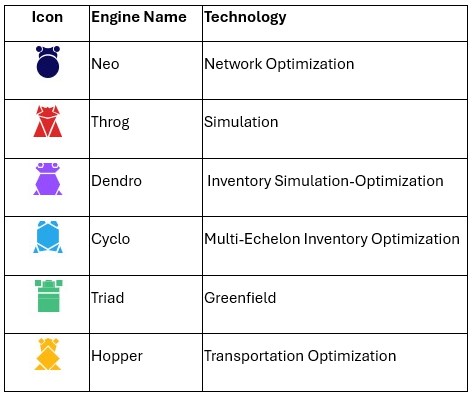
  • A colored icon = that engine is enabled; a grey icon = disabled.
  • Click an icon to toggle it.
  • A table or column shows if at least one enabled engine uses it, even if others do not.

Example in the next 2 screenshots: with all engines enabled, the Facilities table shows both Initial State (used only by Neo) and Fixed Operating Cost (used by Neo and Triad). Disable everything except Throg and Dendro, and both columns disappear — neither engine uses them.
Heads up

The Technology Filter works alongside the Visibility Options  — only tables/columns matching all active filters are shown. See the Using the Technology Filter and Visibility Options Together section below.

‍

Tables List

As shown in the overview above, the list with tables that are present in the model is located on the left-hand side:
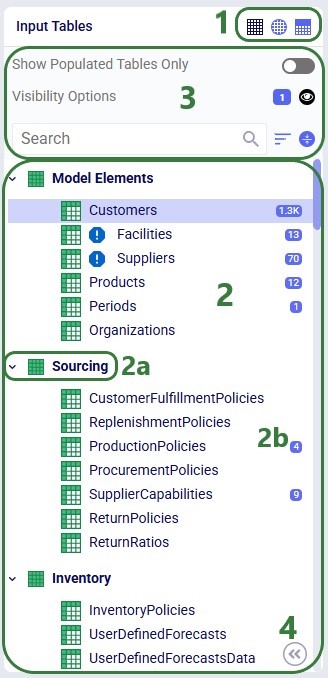
  1. There are 3 types of tables in a Cosmic Frog model, and they can be shown by using the icons at the top right of the tables list; the one that is selected is darker blue than the other 2:
    1. The square grid icon on the left will show the input tables
    2. The round grid icon in the middle will show the output tables
    3. The square grid with solid top half icon on the right will show the custom tables. By default, a Cosmic Frog model does not contain any custom tables; you can add them if needed, see the Grid Menu section.
  2. The list of tables itself is shown here:
    1. By default, tables are grouped into functional sections, such as sourcing and inventory. These sections can be collapsed/expanded by using the chevron icon to the left of the section’s name.
    2. The blue squares with white numbers indicate how many records a table contains; if a table does not have a blue square with a number associated with it, it is empty.
  3. This section above the tables list gives you options for configuring, searching, and sorting the list of tables. The next screenshot covers the options available here in more detail.
  4. The tables list pane can be collapsed/expanded by using the chevron icon at the bottom right of the pane.

Note that right-clicking on a table brings up a context menu with many options from the File, Grid, and Filter menus. This context menu is covered in the Table Context Menu subsection.

The following configuration options are available at the top of the tables list:
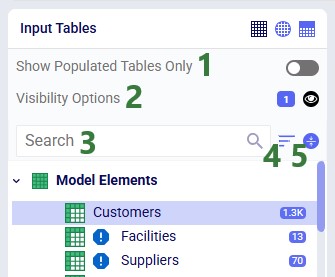
  1. Toggle “Show Populated Tables Only” to ON to hide all empty tables.
  2. Clicking on Visibility Options opens an additional form where Table/Column options can be configured, the next screenshot shows these.
  3. To quickly find a certain table in the list, type text contained in the table’s name into the Search box and the tables list will be filtered down.
  4. Use this icon to change the sort order of the tables. Options are:
    1. Default: grouped by function; both the sections and the tables within them are listed in order from most to least commonly used.
    2. A-Z Name: sorts alphabetically, first by functional section name and within the functional section alphabetically by table name. Selecting this option again reverts the sort.
  5. Collapse/Expand All: collapses or expands all functional sections with one click.

Visibility Options

The Visibility Options when opened for input tables are shown here:
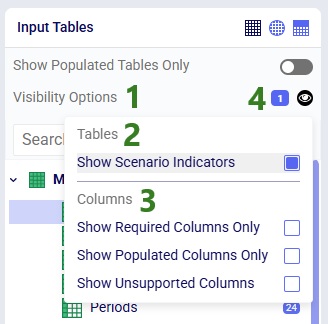
  1. To have the form pop up, click anywhere on the Visibility Options line.
  2. The top section of the form pertains to Tables and has 1 option for Input tables:
    1. Show Scenario Indicators – ON: if any scenarios have been run and they resulted in any records being written to the Validation Error Report for the specific technology run, icons to the left of the table name(s) for which warning(s) were written are shown. See next screenshot for examples. Default: ON.
  3. The bottom section pertains to Columns and has 3 options for Input tables:
    1. Show Required Columns Only – ON: shows only the columns that must be populated for the enabled technologies to run successfully. Default: OFF.
    2. Show Populated Columns Only – ON: in each table in the list, all columns that only have blank values will be hidden. Default: OFF.
    3. Show Unsupported Columns – ON: columns that are already in the model’s Anura schema but not yet used/populated by any of Cosmic Frog’s technologies will be shown. Default: OFF.
  4. The number of visibility options that are turned on is shown in the blue square.

Heads up

Column specific settings are automatically applied to tables if there is a table-level equivalent. For example, if Show Populated Columns Only is ON, this also means that only populated tables are shown and empty tables are hidden. Same goes for Show Required Columns Only and Show Unsupported Columns.

‍

In addition to the visibility options listed under bullets 2 and 3 above, there is an additional output table-specific one:

  • Hide Zero Columns – ON: columns where the only value for all records in the table is 0 will be hidden. Default: OFF.

This table shows which of the visibility options are available for which table type(s):
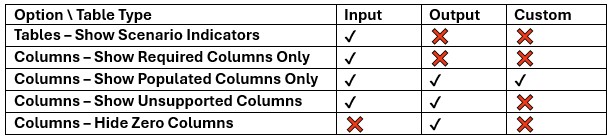
Heads up

When an option that is available to more than 1 table type is changed for 1 type, it is also changed for the other type(s) – i.e. these are global settings. For example, if you switch the Show Unsupported Columns option to ON for output tables, it is also turned on for input tables.

‍

Next, we have a look at the scenario indicators mentioned under bullet 2b above:
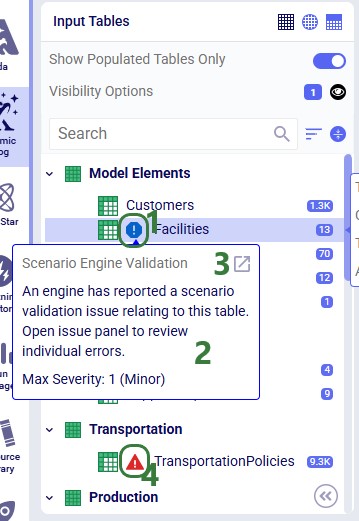
  1. The Facilities table has a blue scenario indicator with it.
  2. Hovering over the indicator brings up a tooltip which states there was a validation issue related to this table reported in at least 1 scenario. The highest severity of any errors is stated too, which is 1 (minor) here. The severity range for scenario errors if from 0 (lowest) to 3 (highest).
  3. Clicking on this pop-out icon will open the Scenario Errors pane on the right-hand side of the screen. On that pane, you can dig into the details of the reported scenario errors more and from there can optionally open the Validation Error Report output table the error is listed in. See also the Understanding the Validation Error Report article.

Using the Technology Filter and Visibility Options Together

The Technology Filter and Visibility Options both control which tables and columns are shown, and they combine — only tables/columns that satisfy every active filter appear.

For example, with only Neo enabled and Show Required Columns Only, Show Populated Tables Only, and Show Populated Columns Only all ON: the tables list shows only tables that are both required for Neo and populated, and each grid shows only columns that are both required for Neo and populated. Because these filters combine, a table or column that is genuinely required for Neo could still be hidden if it is not populated yet — worth remembering when something seems to be missing.

For the recommended filter settings at each stage of building a model, see Build in Stages under Best Practices.

If you cannot find a table or column you expect to see, clear everything that could be hiding it:

  • Enable all technologies in the Technology Filter
  • Turn off Show Populated Tables Only, Show Required Columns Only, Show Populated Columns Only, and Hide Zero Columns
  • Use Expand All at the top of the Tables list
  • Use the search box at the top of the Tables list, or in the Choose Columns option in the grid

Table Grid

When tables are opened, they are shown in the grid in the center part of the Cosmic Frog UI. This screenshot gives an overview of the grid; we will cover more details of each part in later sections with more screenshots:
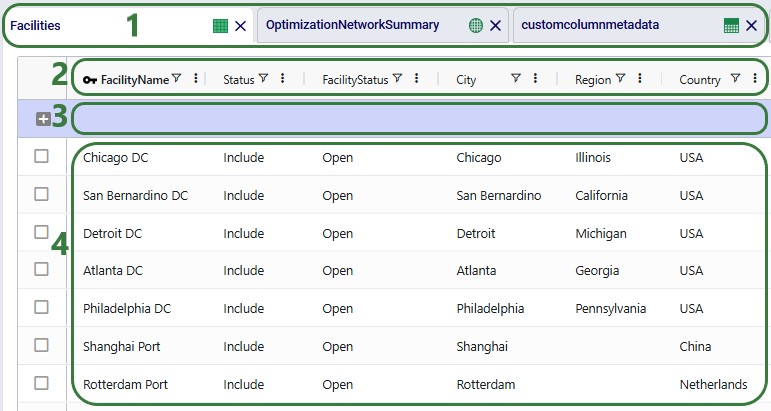
  1. Multiple tables can be open simultaneously, clicking on a table’s tab makes it the active table which is then shown in the grid below.
  2. The table’s column names are shown at the top of the grid.
  3. In the first row, which has a darker background color, you can manually enter data into the table, which is covered in more detail in the Getting Data In and Out section.
  4. The data already present in the table is located here; this screenshot shows 7 records. Note that the background color for input tables and custom tables is light whereas for output tables it is darker to distinguish the read-only element of output tables.

Table Tabs

As seen in the previous screenshot, the tabs of the tables that are open can be seen at the top of the grid:
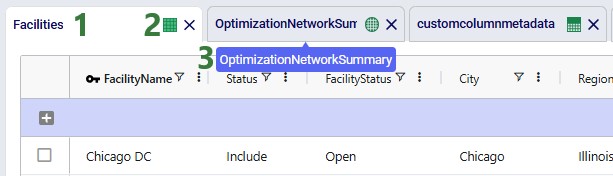
  1. The tab of the active table is white; tabs of other tables have a darker color.
  2. From the icons located on the right side of the tab you can tell the type of table:
    1. Square grid, evenly colored – input table
    2. Round grid – output table
    3. Square grid, solid upper half – custom table
  3. If a table name is not shown completely, you can hover over it to bring up a blue tooltip showing the entire name.

To close tables:

  1. To close an individual table, click on the cross icon all the way right on the table’s tab.
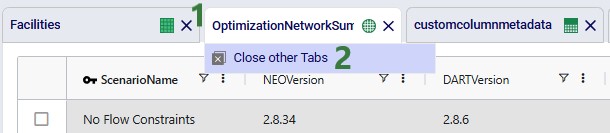
  2. To close all but one table, right-click on the tab of the table that needs to stay open and then select Close other Tabs.

Columns and their Options

We can learn a lot about a column by hovering over its name to bring up a tooltip:
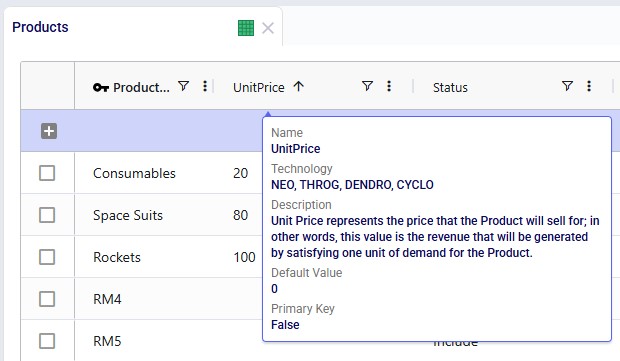
From top to bottom the tooltip, shown for Unit Price on the Products table, contains:

  • Name – repeats the name of the column.
  • Technology – which technology/technologies use(s) this column. If a technology does not use the column, its values are ignored during any model runs.
  • Description – explains how the column is used in plain English.
  • DefaultValue (input tables only) – when a value is not entered, this value will be used when the model is run.
  • Primary Key – True if the column is part of the table’s primary key; False if it is not. A table’s primary key is 1 column or a set of columns that uniquely identifies every row in the table.

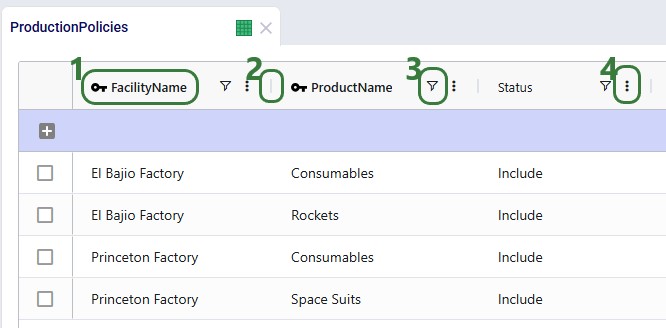
When looking at the column headers, we see:
‍

  1. Columns that are part of the primary key of the table are bold and have a key icon to the left of their name.
  2. Columns are separated by a vertical bar, see also the next screenshot.
  3. There is a filter icon, which when clicked on will bring up a form to configure filters on the table based on the values in this column. Learn more about table filters in the Filtering a Table section further down.
  4. This icon with 3 vertical dots or right-clicking anywhere on the column header will bring up a context menu containing options such as sorting, pinning, auto-sizing, and choosing columns. All options available here are shown in a screenshot a bit further down in this section.

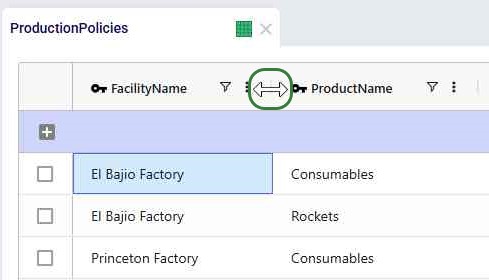
Resizing columns: when hovering over the vertical bar, the cursor changes to 2 arrows pointing away from each other. Now you can drag the column separator to resize the columns; drop it when the desired width is reached:
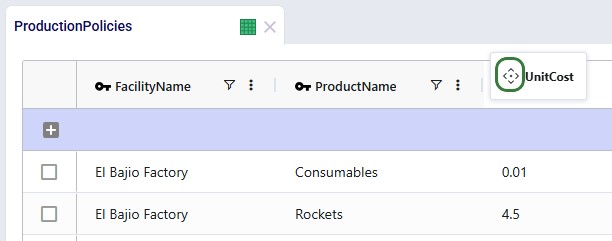
Re-ordering columns: you can drag and drop columns to change their order in the grid. The move symbol will be showing when you are moving the column around:
Freezing panes: you can pin 1 or multiple columns to the left or right of the grid, so they stay visible when scrolling. Drag and drop the column all the way left or right, until the pin icon appears next to the column name, then drop the column:
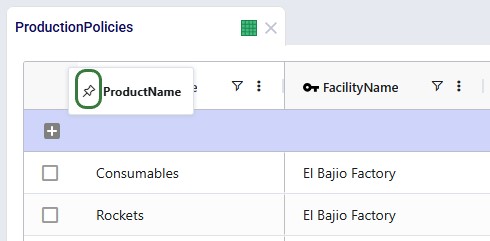
To unfreeze/unpin: drag and drop the column until the pin icon disappears.

Sorting by individual columns: clicking on a column once will sort it in ascending order and an arrow pointing upwards will appear next to the column name. Clicking on it again will sort it in descending order, and the arrow will now point downwards. Clicking a third time will remove the sort and the arrow.

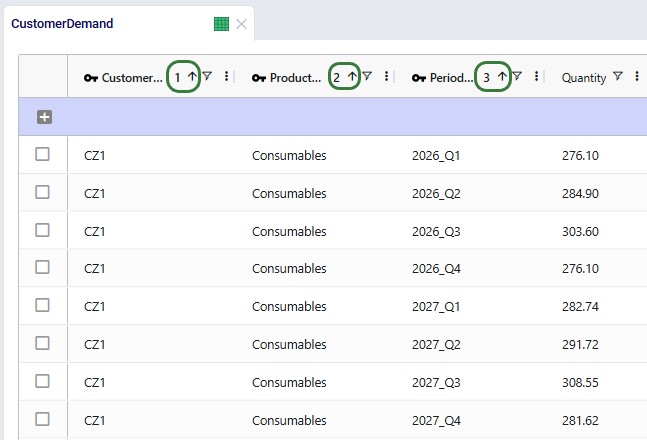
Sorting by multiple columns: click once or twice on the first column to sort by, then holding Ctrl+Shift down, click once or twice on the second column to sort by, etc. The sorted columns will again show arrows pointing up or down indicating the sort order, and now they will also have a number which indicates the order in which the columns were sorted:
Options from the context menu:
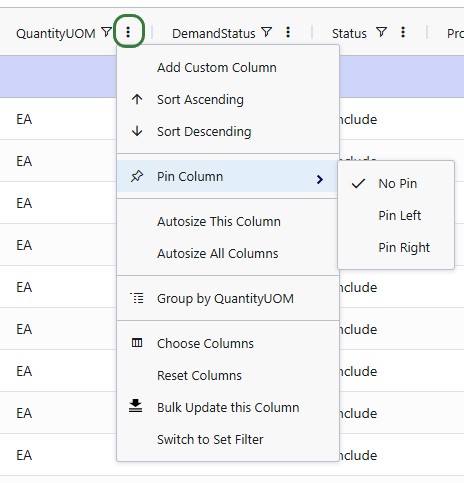
From top to bottom:

  1. Add Custom Column: if there is data external to the model that would be good to add to a particular table, for example to filter or sort on, 1 or multiple custom columns can be added to hold this data. Note that you cannot apply scenario items to custom columns and they are not read by the engines when running a model either. Note that if a table contains any custom columns, additional options of Edit Custom Column and Delete Custom Column become available in this list too.
  2. Sort Ascending: alternative way to sort a table ascendingly by the selected column. If already sorted in ascending order, the option changes to Sort Descending, and the next option to Clear Sort.
  3. Sort Descending: alternative way to sort a table in descending order by the selected column. If already sorted in descending order, the option changes to Clear Sort.
  4. Pin Column: alternative way to pin and unpin a column.
  5. Autosize This Column: automatically sizes the column based on the length of the column’s name and its values.
  6. Autosize All Columns: automatically sizes all columns based on the length of each column’s name and its values.
  7. Group by <ColumnName>: you can group by one or multiple column names to aggregate data, see this article on row grouping, aggregation, and pivoting for more details.
  8. Choose Columns: brings up a form where you can quickly configure which columns are shown in the grid and allows them to re-order them as well. See next screenshot below.
  9. Reset Columns: unhides any columns that were hidden and puts all columns in the original order.
  10. Bulk Update this Column (input and custom tables only): change the value of this column for all (filtered) records to one specific value. See second screenshot below.
  11. Switch to Set Filter: there are 2 types of filters that can be applied to a column, called Default and Set. This option lets you switch between those 2. See the Filtering a Table section for details on filtering, Default filters, and Set filters.

When selecting Choose Columns from the context menu, the following form comes up:
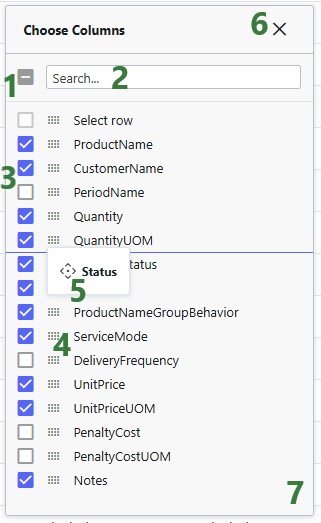
  1. To enable or disable all columns simultaneously, use this checkbox.
  2. To find specific columns quickly, use the search box to find columns with certain text in their names.
  3. A column with the checkbox enabled will be shown in the grid; those with disabled checkboxes will be hidden.
  4. To move a column up or down in the list (resulting in moving it left or right in the grid), put the cursor on top of this 4x3 dotted grid to the left of the column’s name, and drag and drop the column.
  5. When a column is being moved it looks like this. The line indicates where the column will be located if it is dropped now.
  6. When done configuring the columns, click on the cross at the right top to close the form.
  7. Note that if not all columns are visible, you can resize this form by clicking on a corner and dragging it.

When selecting Bulk Update this Column from a column’s context menu, the following pane opens on the right-hand side:
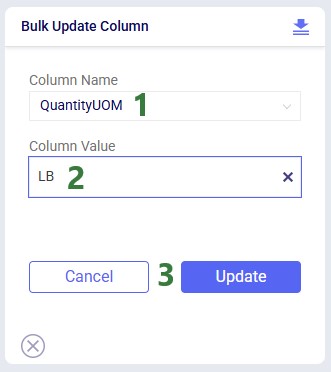
  1. The Column Name will by default be that of the column from which the bulk update option was selected. You can however change it to another column present in the table by using the drop-down list.
  2. Enter the value the (filtered) records should be updated to. If the column has a drop-down list with available options, it will automatically appear.
  3. You can hit Update when ready to make the update or otherwise choose Cancel if not wanting to proceed with any changes.

Getting Data In and Out

Bulk Import and Export

For more than a few records, use one of these bulk options instead of manual entry (covered below):

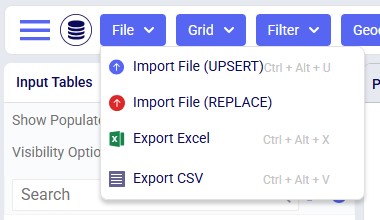
Bulk Import/Export from/to Excel and CSV Files

This can be done via Cosmic Frog’s File menu. See the details on how to use these options in this Cosmic Frog – Importing and Exporting Data Help Center article.
Ada

Ada is Optilogic’s agentic AI. Use it on the next generation Optilogic platform or through AI agents such as Claude, ChatGPT, Copilot, Mistral, or Grok via the Optilogic MCP Connector. For example, you can attach raw data and ask Ada to populate a model’s input tables.

DataStar

DataStar is Optilogic’s AI-powered data product in which you can build repeatable workflows which take care of importing, cleansing, and transforming data into the Anura format for use in Cosmic Frog models. Automated output analysis workflows can be set up too. Learn more about DataStar in the Navigating DataStar section on the Help Center.

Using Postgres Queries

A Cosmic Frog model is a Postgres database under the hood, which uses the Anura schema. You can use SQL queries to transform their raw data into the Anura schema and populate a model’s input tables in this way. One option is to use the SQL Editor application available on the Optilogic platform.

Similarly, queries can be used to examine, summarize, and aggregate results of scenario runs which are present in a model’s output tables.

Manual Entry, Editing, and Copying

This section covers data entry, editing, and removal done purely by hand; the Grid Menu section further down contains several options to speed some of these actions up.

Note that following sections only apply to input and custom tables, since output tables are read-only. The only exception is the Copying Data section, which also applies to output tables.

Entering Data Manually

In an open input table, the top record which has a darker color can be used to enter records manually:
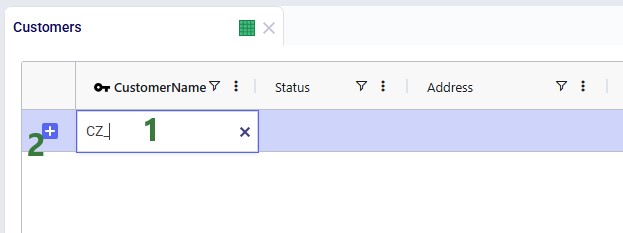
  1. Put the cursor in a cell of the top record for data entry and type the desired value in or paste a copied value in using Ctrl+V. Use Tab to go to the cell to the right.
  2. Either hit Enter or click on the plus-icon to the left of the data entry record to commit the record to the input table.

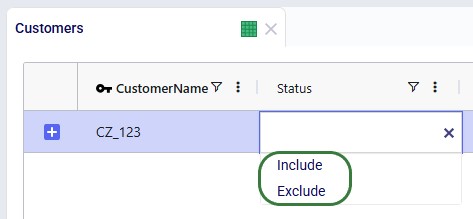
For columns where the value needs to be one of a specific list of values, a drop-down list will automatically appear when you move the cursor to the cell. You can use the up/down arrows to choose the desired value and use Tab to select it and move to the next cell or Enter to select it and commit the record.
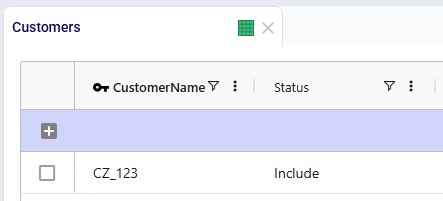
The committed record appears in the grid below the data entry row, which clears for the next record:
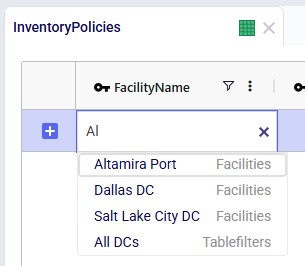
When starting to type in a column that needs to have a value that exists in another table, the options containing the typed text will automatically be populated in a dynamic drop-down list – it is updated as you type more characters. This will contain entity names (e.g. Facility Name or Customer Name), group names (see explanation in the Grid Menu section), and table filter names (see the Named Filters in Cosmic Frog article) based on the allowed entity/entities for the column.
Pasting Data

Single cell or single row:

  1. Ensure the order of the columns of the data to be copied matches the input table where the data will be pasted into
  2. Copy the value(s) from the source
  3. Select the leftmost cell of the input table to paste the data into, by left-clicking on it
    1. Do this in the top data entry row to append this as a new record
    2. Do this in an existing record to overwrite the data of this record
  4. Use Ctrl+V to paste
  5. Alternatively for steps 3 and 4: right-click on the leftmost cell and choose Paste from the context menu

Data for multiple columns and/or rows can also be pasted from for example an Excel file if it is in the right format, including the order of the columns:

  • In an empty input table: copy the data in Excel, then right-click on the top data entry row and choose Paste.
  • To overwrite data in a populated input table: select the right number of cells in the correct order in the Excel file, copy them, and select a same size area in already existing records in the input table to be overwritten, then paste (either use Ctrl+V or right-click > Paste).

Note that pasting multiple records as new records (i.e. to append) in an already populated table does not work. In general, using the Import/Export options under the File menu is recommended over manually pasting in more than one record as it is less error-prone.

Editing Data

To edit data, you can go into the cell to be edited and manually change the value or use the steps from the previous section to update the data by pasting the new values in from another source.

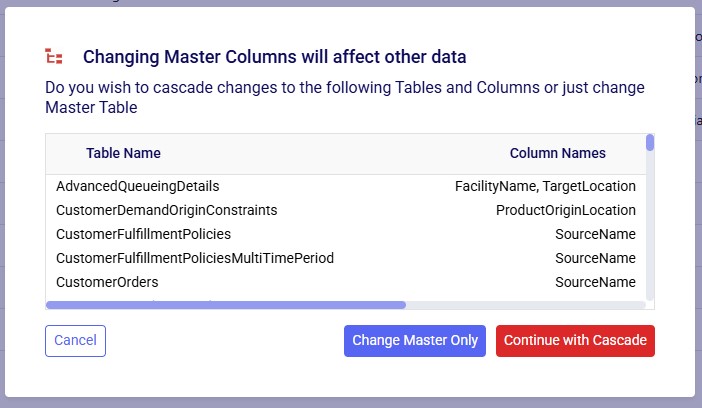
If you are changing the values of fields that can be used by other input tables, you will be prompted if you want to update this value in any dependent tables too. Choose Continue with Cascade if so; otherwise choose Change Master Only.
Copying Data

Copying data is simply done by selecting the cells to be copied and using Ctrl+C. Options to include headers when copying are available from the Grid menu and the right-click context menu, see the Grid Menu section which follows this one.
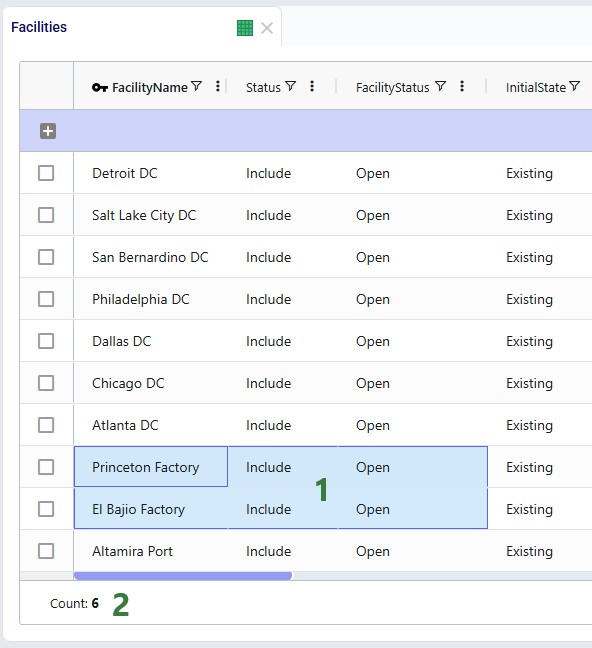
  1. Use your cursor to select 1 or multiple cells. You can select multiple cells by drawing a box around the ones you want to select; for discontinuous selections, hold down the Ctrl key while selecting cells.
  2. A count at the bottom of the grid tells you how many cells are selected.

Deleting Data

Options for deleting cell contents and entire rows include:
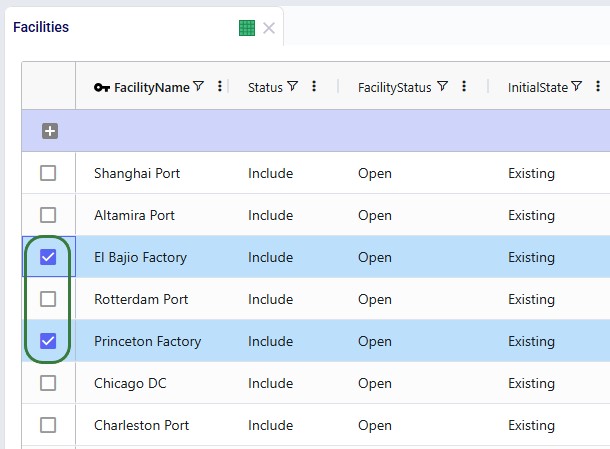
  • Select a single cell or multiple holding down the Ctrl key and then use the Delete key to remove the contents of the selected cell(s).
  • Select a single row or multiple by their checkboxes and then use the Ctrl+Alt+T shortcut to delete them.

Filtering a Table

Filter a table on one or more columns to show a subset of its records. Filters can be saved as Named Filters for reuse in the same table, as dynamic groups, and as conditions in scenario items and maps (see Named Filters in Cosmic Frog). This section covers building and applying filters.

When you click on the filter icon to the right of the column name, the following filter configuration form comes up:
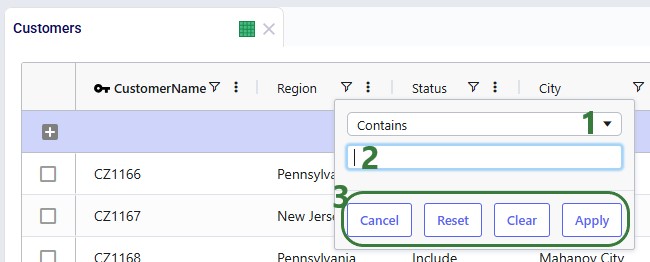
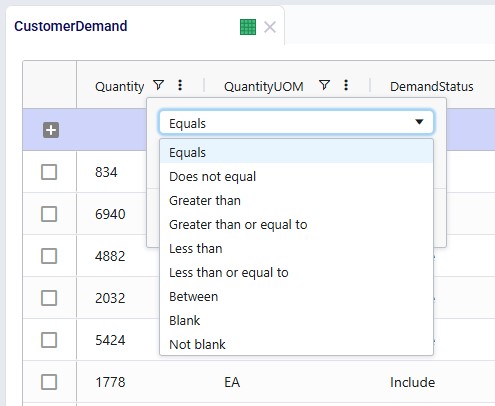
  1. At the top there is a drop-down list with options on how to filter on the values present in this column. See the full list of options for both text-based and numeric columns in the next 2 screenshots.
  2. In this textbox, you type the condition the filtered records need to match.
  3. The 4 buttons at the bottom of the form:
    1. Cancel – if a filter has been applied previously and changes are being made to it after re-opening the form, hitting Cancel will revert to the filter as last applied. This undoes the changes made to the filter after re-opening the form. The filter form will be closed.
    2. Reset – removes all specified filter conditions on this column and closes the filter form.
    3. Clear – removes all specified filter conditions on this column and reverts the top drop-down to the default of Contains (Equals for numeric columns); keeps the filter form open.
    4. Apply – applies the specified filter and closes the filter form.

The next 2 screenshots show the filtering condition options for text-based columns (top) and numeric columns (bottom):
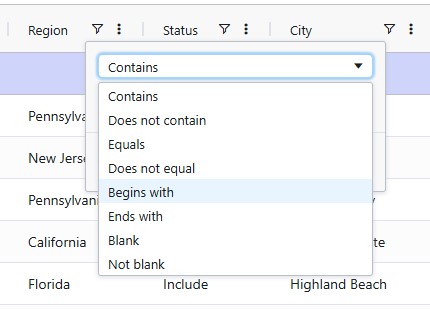
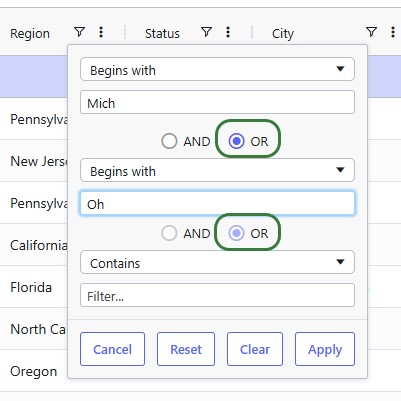
Once a filter condition has been entered, Begins with “Mich” in the screenshot below, the form automatically adds fields to allow you to add another filtering condition. You can choose if these conditions should be treated as AND or OR. Once one is chosen, it will be applied for all following conditions too.

  • AND: choose AND when only records that meet all the conditions should be shown.
  • OR: choose OR when records that meet any (1 or multiple) of the conditions should be shown.

In the screenshot below, the filter is on the Region column in the Customers table. The filter reads “Region Begins with Mich OR Region Begins with Oh”. Since the values of the Region column are the names of US States, the filter should result in showing records where the region is either Michigan or Ohio.
After applying the filter, the Customers table looks as follows:
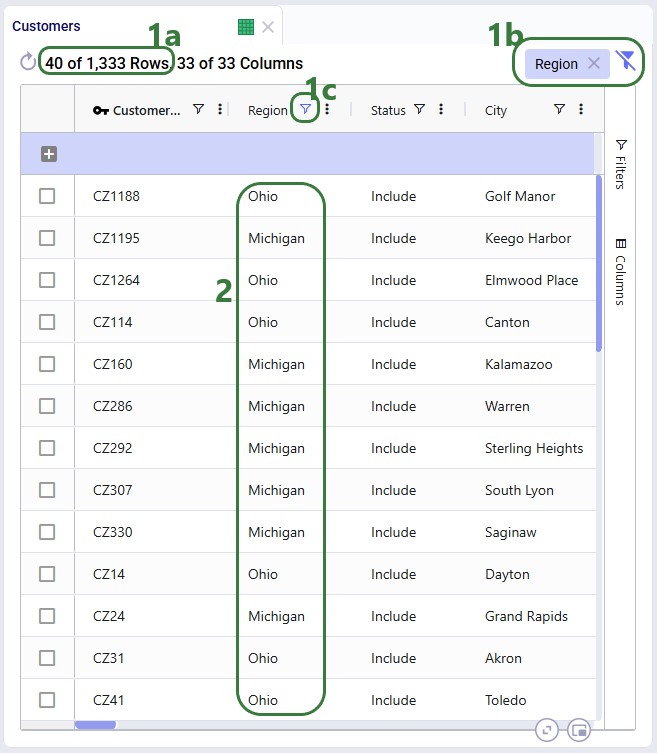
  1. There are multiple indications a filter has been applied:
    1. The number of rows that is shown out of the total in the table is printed here. In our example 40 of a total of 1,333 records match the filter.
    2. At the right top of the table, a Region tag indicates a filter is applied to this column. You can click on the cross inside the tag to remove the filter from the Region field. When multiple filters are applied to different columns, you can click on the crossed out filter icon on the right to remove all filters with one click.
    3. The filter icon to the right of the Region column name is colored blue instead of black.
  2. We see that indeed only records where the region is Michigan or Ohio are now showing in the grid.

Filters can be applied to multiple columns in a table; these work as an AND statement: only records that match all filters will be shown. In the next 2 screenshots the filtered table from the previous screenshot is used, and an additional filter is added to the Customer Name column: Customer Name Contains “CZ2” or Customer Name Contains “CZ3”:
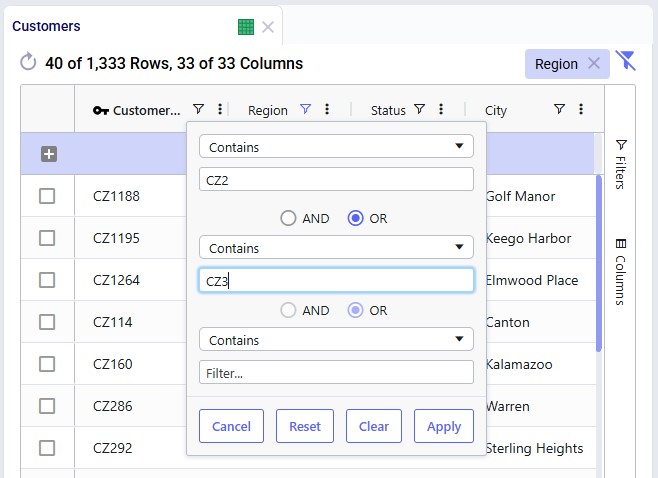
After applying the filter, we see the same indicators that filters have been applied, plus the resulting records:
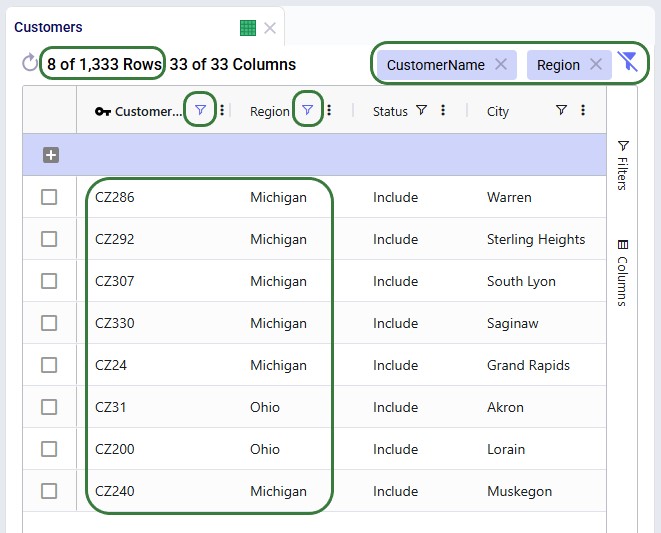
  • Now only 8 records match all filters,
  • Both Customer Name and Region filter tags are at the right top of the table.
  • For both fields, the filter icon is blue.
  • We see that only customers containing CZ2 or CZ3 which are located in either Michigan or Ohio are shown.

What we have discussed above uses what is called the Default filter. Besides this filter, we can instead also use a Set filter, where values can be enabled and disabled by checkboxes – especially useful for cases where there are several distinct values present. The last option in a column’s context menu allows you to switch to the Set filter:
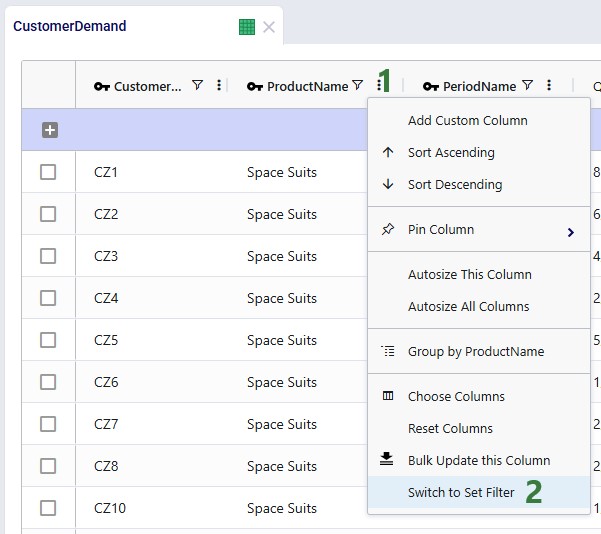
  1. Click on the icon with 3 vertical dots to open the context menu.
  2. Choose “Switch to Set Filter”.

Now, when clicking on the filter icon next to the column’s name (Product Name on the Customer Demand table here), the following filter form comes up:
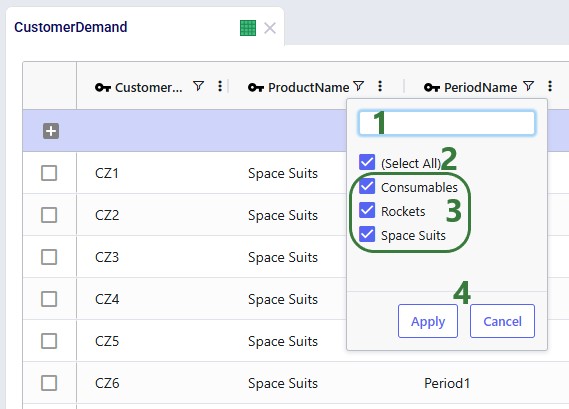
  1. Should the list of values be long, the search box can help to quickly find the value(s) of interest.
  2. Use the select all option to check and uncheck the checkboxes of all values in one click.
  3. You can check and uncheck the boxes of the individual values to indicate which ones should be shown.
  4. Click on Apply when ready to apply filter; click on Cancel if deciding not to apply a filter at this time.

A convenient way to quickly set up filters on multiple columns in a table is to use the Filters fold-out pane on the right-hand side of a table:
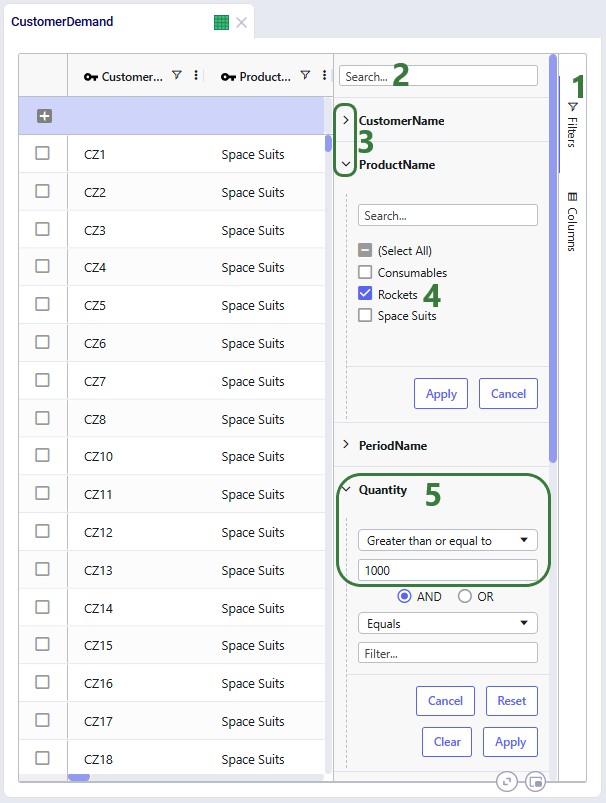
  1. Click on Filters on the right-hand side of the table to open the pane.
  2. Use the search box to quickly find the column(s) to filter on.
  3. Collapse/expand the columns as desired, e.g. keep them all collapsed except the ones you are applying filters to.
  4. For the Product Name column, we have switched to the Set filter option prior to opening the Filters pane and we are choosing to filter for records where the product name is Rockets.
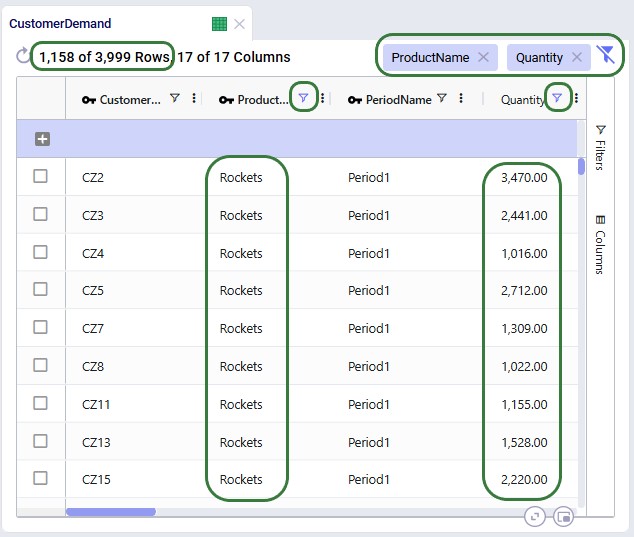
  5. In addition, the table will also be filtered for records where the value of the Quantity column is greater than or equal to 1,000.

Clicking on the Filters pane again folds it back in. After applying the filters shown in the previous screenshot, the Customer Demand table looks as follows. The same indicators that filters are present can be seen and we do indeed only see records for Rockets with quantities of at least 1,000:
Finally, we have a look at the Filter menu and its options:
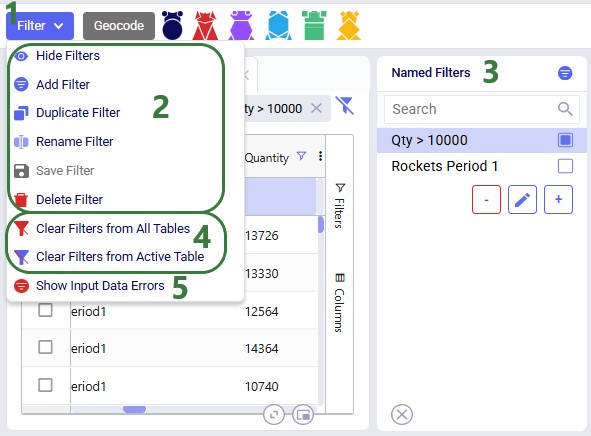
  1. Click on the Filter menu in the top toolbar.
  2. The first options listed pertain to managing Named Filters, please see Named Filters in Cosmic Frog.
  3. When Show Filters is chosen, a Named Filters panel to the right of the table will be shown. This is also covered in the Help Center article linked in the previous bullet.
  4. To quickly remove filters from all tables or the active table, use these 2 options.
  5. The Show Input Data Errors option creates a special filter named ERRORS and filters out records in the input table it is applied to that have errors in the input data. For more details see the Input Data Errors section in the Named Filters article.

Grid Menu

Next, we will cover the options available under the Grid menu. Please note that:

  • these overlap with many of the options in the context menu that comes up when right-clicking on a grid. This grid context menu will be covered in the next section.
  • for output tables, several options in the Grid menu and its sub-menus are automatically greyed out. This is because output tables are read-only.

When clicking on the Grid menu, the following options are shown:
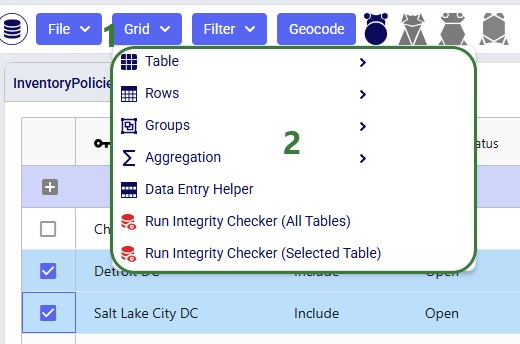
  1. Click on the Grid menu to open its drop-down.
  2. From top to bottom the options available are:
    1. Table – folds out to more options that apply to the whole table, see next screenshot.
    2. Rows – folds out to more options that apply to the (selected) records, see screenshot further below in this section.
    3. Groups – folds out to more options to create and replace groups, see screenshot further below in this section.
    4. Aggregation - folds out to more options to summarize data at the bottom of the grid, see screenshot further below in this section.
    5. Data Entry Helper – this opens the Data Entry Helper pane to the right of the grid. When you select a cell in the grid that can have a finite number of values, the data entry helper pane shows all these possible values, and you can select the one to use for the cell.
    6. Run Integrity Checker (All Tables) and Run Integrity Checker (Selected Table) – the Integrity Checker tool can check 1 or multiple input tables of a model for data issues such as referential integrity, incorrect values, etc. To learn more, please see Cosmic Frog’s Integrity Checker Help Center article.

When selecting Table from the Grid menu, a sub-menu with 5 options folds out:
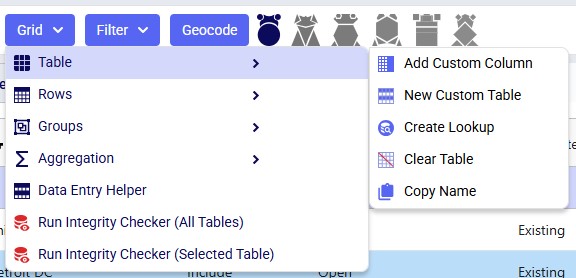
From top to bottom:

  • Add Custom Column - if there is data external to the model that would be good to add to a particular table, for example to filter or sort on, 1 or multiple custom columns can be added to hold this data. Note that you cannot apply scenario items to custom columns and they are not read by the engines when running a model either. The next screenshot shows the Add Custom Column pane that opens on the right of the grid when choosing this option.
  • New Custom Table – similar to a custom column under the previous bullet, a custom table can hold data that is not used by any model runs but can be helpful for creating dashboards or looking up data for example. Creating a custom table works like adding a custom column: after naming your custom table, you just repeat adding custom columns until all the required ones have been added.
  • Create Lookup –with this feature, you can add values from a column in one input table to a column in another input table based on matching values in other columns on the source and destination table. This is the equivalent of performing a SQL Update statement that contains a Join.
  • Clear Table – this option can be used to delete all (filtered) records from the active table. You will be prompted to confirm they want to delete X amount of (filtered) rows.
  • Copy Name – copies the name of the table to the clipboard.

Choosing the Add Custom Column option brings up the following pane to the right of the grid:
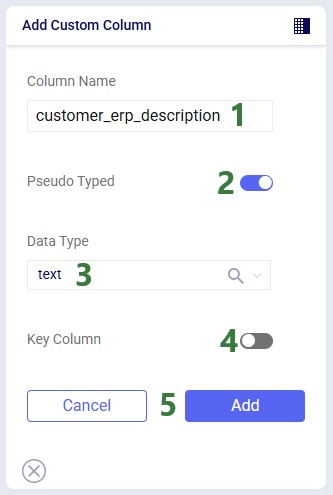
  1. Column Name - specify the name of the custom column.
  2. Pseudo Typed – when ON, the column is stored with the specified data type in a view with the same name as the table suffixed with _typed in the database, while the column is stored with data type of text in the table itself. Recommended to keep this option set to ON.
  3. Data Type – specify what data format the column’s values will be.
  4. Key Column – set to ON when the column is part of the table’s primary key; leave at the default of OFF otherwise.
  5. Add/Cancel – when ready to add the column, click on Add. Otherwise click on Cancel to not add a column at this time.

When selecting Rows from the Grid menu, a sub-menu with 4 options folds out:
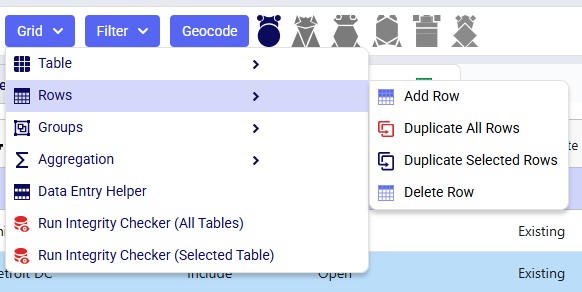
From top to bottom:

  • Add Row – puts the cursor in the first cell of the data entry row at the top of the grid.
  • Duplicate All Rows – copies all rows and adds them to the grid as new rows. This includes rows which are not shown in case any filters are applied. A Duplicate pane on the right of the grid will open where you need to choose a column and set its value for the copied rows, so they are not exact duplicates of the originals. See also the “Duplicate Selected Rows” example in the Grid Context Menu section below.
  • Duplicate Selected Rows – copies the rows that have been selected by checking their checkbox to the left of the record. The Duplicate pane to select a column and set its value so the copied records are not exact duplicates of the originals comes up in this case too.
  • Delete Row – removes the selected rows from the table immediately.

Heads up

When using Delete Row, the selected row(s) are immediately removed from the table, you are not first asked to confirm. This action cannot be undone.

‍

When selecting Groups from the Grid menu, a sub-menu with 2 options folds out:
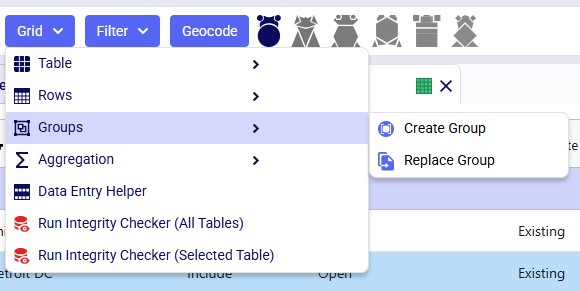
From top to bottom:

  • Create Group – creates a new group with the (filtered) records of the table as members. It brings up a Create Group pane to the right of the grid, see next screenshot.
  • Replace Group – overwrites an existing group with the (filtered) records of the table as the new members. It brings up a Replace Group pane to the right of the grid where you can choose the group to replace from a drop-down list of groups.

This screenshot shows Create Group pane that opens when choosing the Create Group option:
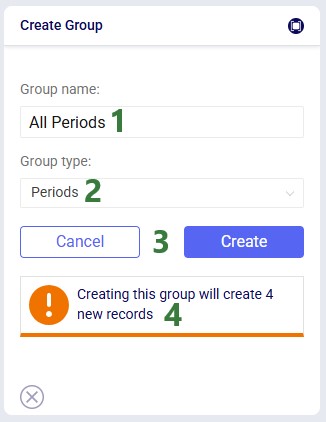
  1. Group Name – enter the name for the new group here
  2. Group Type – choose the type of group here, the drop-down list will contain the options based on the table you are on. In this case, Periods is the only option as the group is created on the Periods table. For a group created on the Facilities table for example, Group Type would include Facilities, but also Sources and Destinations as options.
  3. Create/Cancel – when ready to create the group, click on Create. Otherwise, click on Cancel to not create a new group at this time.
  4. Message – a message indicates how many new records will be created in the Groups table.

When selecting Aggregation from the Grid menu, a sub-menu with 4 options folds out:
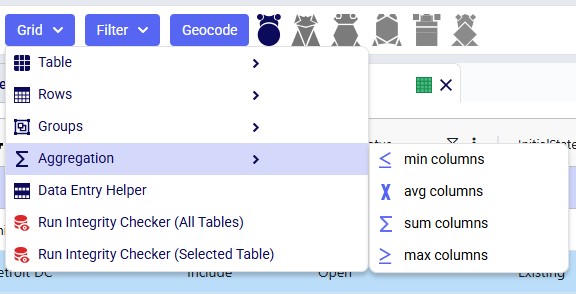
Aggregation shows the minimum (Min), average (Avg), summed (Sum), or maximum (Max) values of each numeric column in the (filtered) records at the bottom of the grid

This screenshot shows an example of a filtered grid that has the “sum columns” aggregation option turned on:
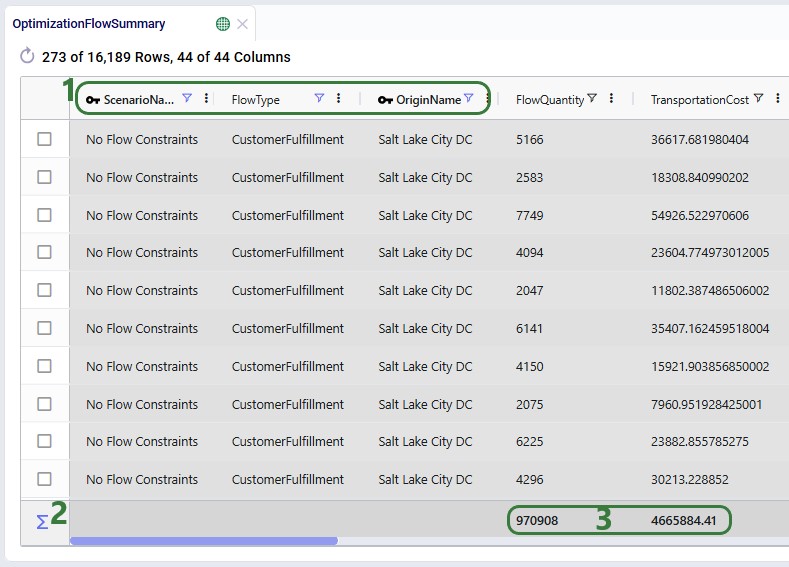
  1. This Optimization Flow Summary output table is filtered for Scenario Name = No Flow Constraints, Flow Type = Customer Fulfillment and Origin Name = Salt Lake City DC.
  2. The sum columns aggregation has been turned on and this sum symbol at the bottom left of the grid is a visual indication.
  3. Two numerical columns are shown with their summed total of the 273 filtered rows shown at the bottom of the grid.

Grid Context Menu

Right-clicking the grid brings up a context menu with most of the options from the Grid menu (covered in the previous section). The differences are highlighted in the next screenshot:
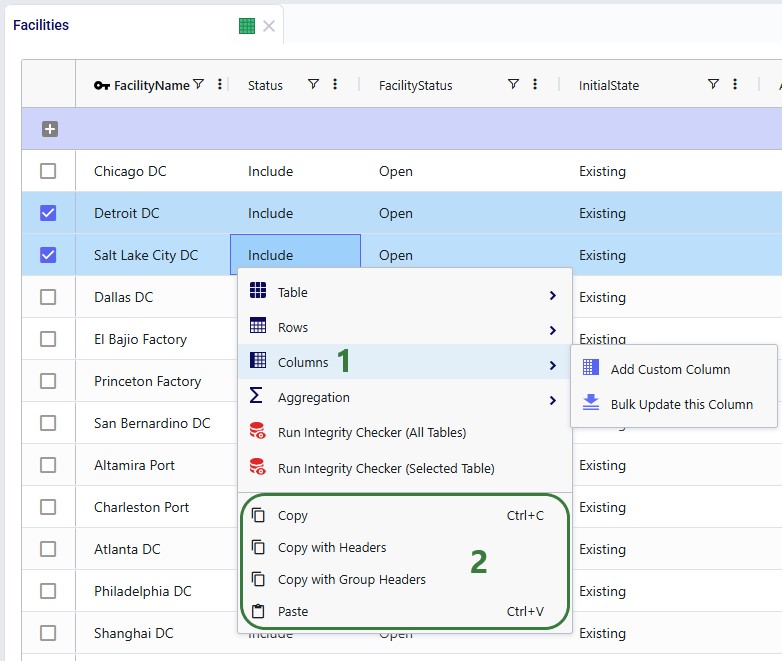
  1. This context menu has an additional Columns entry with 2 options (input and custom tables only):
    1. Add Custom Column – this option is available under the Table option in the Grid menu and can be used to add a user-defined column to the currently active table. For an example, see the Grid Menu section above.
    2. Bulk Update this Column – use this to update all values of all (filtered) rows for one column to the same value. For an example, see the Columns and their Options section above.
  2. Additional copy and paste options are available here, from top to bottom:
    1. Copy (Ctrl+C) – copies the selected cell(s) to the clipboard.
    2. Copy with Headers and Copy with Group Headers – both copy the selected cell(s) with their column names to the clipboard. On tables that use Pivot Mode (see Cosmic Frog Data Tables – Row Grouping, Aggregation, and Pivoting), only Copy with Group Headers includes the top-level columns, so it is the better default there.
    3. Paste (Ctrl+V) (input and custom tables only) – pastes the contents of the clipboard into the selected cell(s). Ensure the shape of the number of selected cell(s) matches those of the copied contents (e.g. same number of cells across and same number of cells down).

The next 3 screenshots show how Duplicate Selected Rows works. It is selected via the grid’s right-click context menu here but works the same when chosen from the Grid menu. Our aim is to duplicate 5 records on the Customer Demand table.
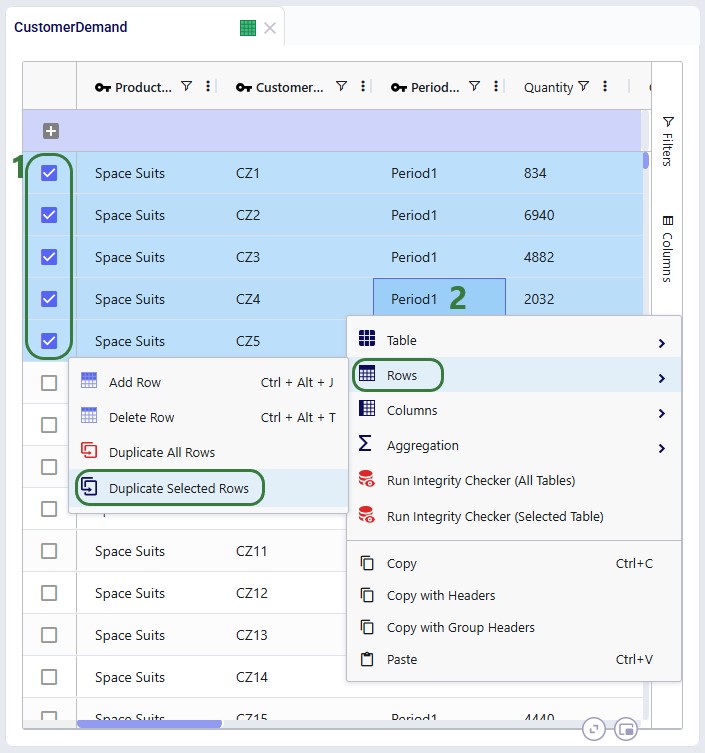
  1. Enable the checkboxes of the rows to be duplicated.
  2. Right-click on the grid and choose Rows > Duplicate Selected Rows.

This brings up the Duplicate pane to the right of the grid:
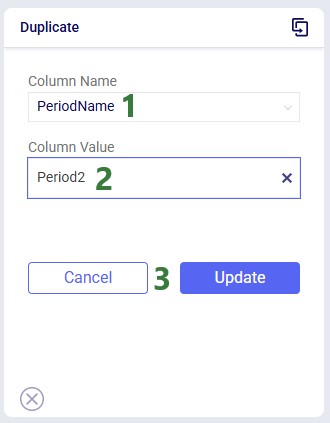
  1. Column Name – select the column that will have a different value in the copied row as compared to the value of the original row that is being copied. By default, the column that was right clicked on will be selected, but you can change this.
  2. Column Value – enter the value the duplicated rows should have for this column. We are changing the Period Name from Period1 (in the original records) to Period2 (in the duplicated records) here.
  3. Update/Cancel – click on the Update button when ready to duplicate the rows or otherwise on Cancel to not duplicate any rows at this time.

The resulting duplicated rows are shown in this screenshot:
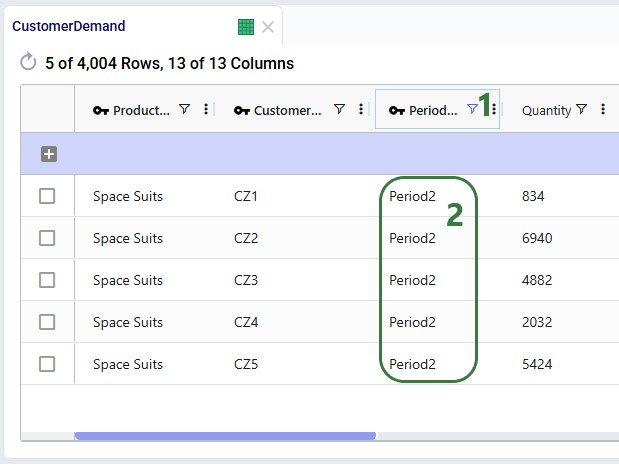
  1. We have filtered the table for Period Name = Period2.
  2. The 5 duplicated records are shown in the grid. Except for Period Name, the values of all other columns of these records are the same as those of the original records.

Pro tip

Often you will want to have multiple columns in the duplicated records to have different values from the original records (e.g. Status, Notes, Period Name, a cost number, etc.). A quick way to achieve this is to choose the Notes field as the Column Name on the Duplicate pane to essentially tag the duplicated records. Next, you can filter the table on the Notes field and use the Bulk Update this Column functionality to update the other columns that need to have different values.

‍

Geocode Button

The Geocode button is only available on the Customers, Facilities, and Suppliers input tables. Based on location information, such as Address, City, Region, and Country entered into these tables, the geocoding provider looks up a location’s latitude and longitude and saves those in the table. These can be used to draw locations in the correct location on a map and for distance calculations.

Consider the following Customers table:
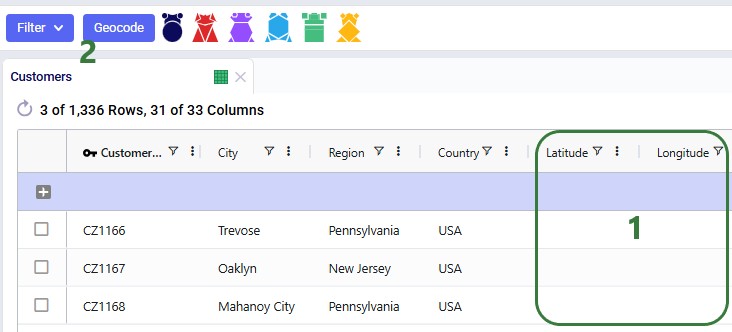
  1. These customers do have city, region, and country specified, but do not yet have a latitude and longitude associated with them.
  2. Click on the Geocode button to start looking up the coordinates for these locations.

By default, the MapBox geoprovider will be used to look up coordinates. You are prompted to indicate if you only want to get results where MapBox finds a 100% match. When this option is left unchecked, the best match (closest to 100%) will be used in case a 100% match is not found:

Once the geocoding is finished, the latitude and longitude columns of these records are populated:
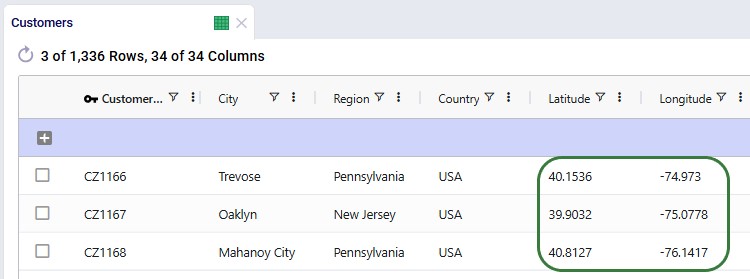
Note that Geoproviders other than MapBox can be configured to be used for geocoding and distance lookups, see the Using Alternate Geocoding Providers Help Center article.

Table Context Menu

Right-clicking on a table in the Tables list brings up a context menu which contains the options we have already seen and covered above from the File, Grid, and Filter menus that are applicable to the table. Again, multiple options that do not apply to output tables are automatically greyed out in this context menu.
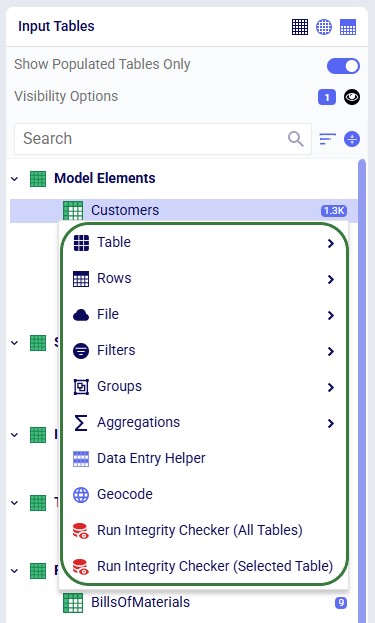
From top to bottom:

  • Table – fold-out menu has the same options as the Grid menu > Table option does.
  • Rows – fold-out menu has 2 options which are also part of the Grid menu > Rows options: Duplicate All Rows and Duplicate Selected Rows.
  • File – fold-out menu has the same options as the File menu does.
  • Filters – fold-out menu has the same options as the Filter menu does.
  • Groups – fold-out menu has the same options as the Grid menu > Groups option does.
  • Aggregations – fold-out menu has the same options as the Grid menu > Aggregation option does.
  • Data Entry Helper – opens the Data Entry Helper pane, same as the Grid menu > Data Entry Helper option does.
  • Geocode – looks up coordinates for locations that do not have any yet when on the Customers, Facilities, or Suppliers table, same as the Geocode button in the toolbar does.
  • Run Integrity Checker (All Tables) and Run Integrity Checker (Selected Table) – runs the Integrity Checker tool, same as selecting these options from the Grid menu does.

Data Validation Tools

There are several tools within Cosmic Frog which can help find problems with the model’s data and overall construction. The table below gives an overview of how these tools compare to each other to help you choose the most suitable one for your situation:
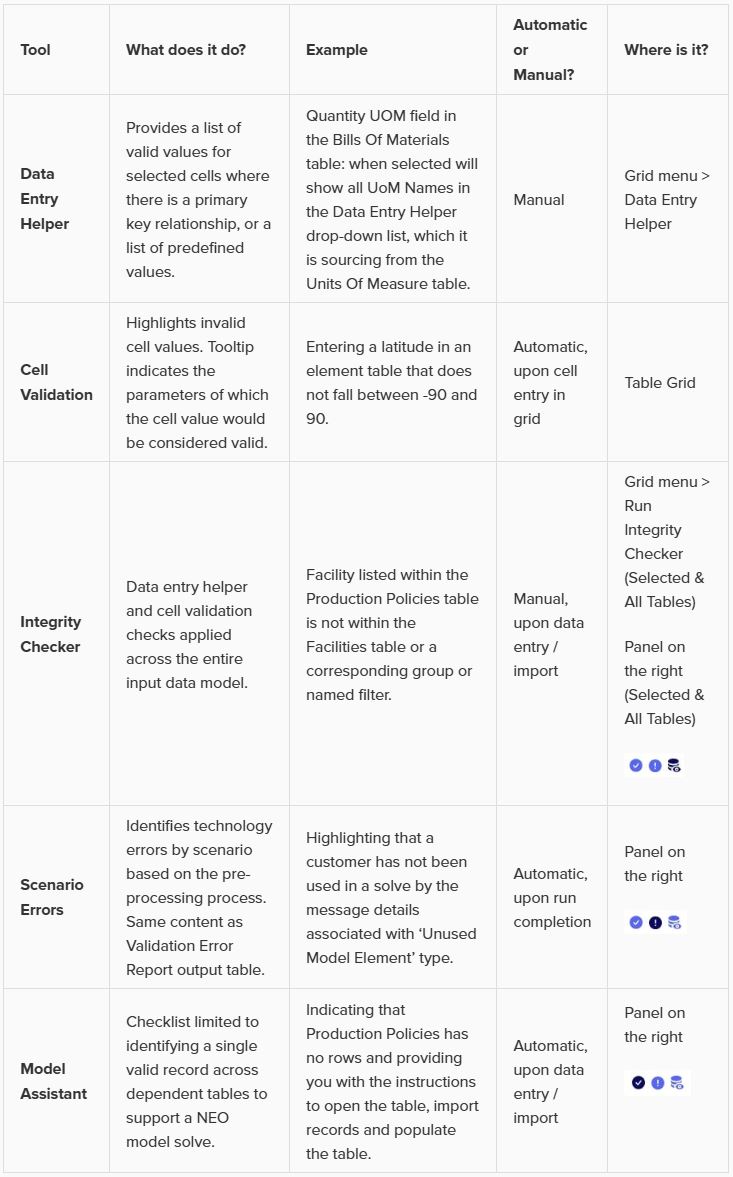
These Help Center articles contain more details on some of these tools:

Configuring the Data Module for Your Role

The Data module has many configuration options as covered above. Following suggested setups are starting points by role.

Model Builder (constructing a new model)

  • Technology Filter: only the engine(s) you are building for
  • Show Required Columns Only: ON — build the minimum viable model first
  • Once it runs fine, turn this off to also populate optional tables

Data Analyst / Data Engineer (loading and cleaning external data)

  • Leans on File > Import/Export, Ada, and/or DataStar rather than manual entry
  • Utilizes the Integrity Checker to pre-emptively identify issues that would prevent a model run
  • Is aware of additional agents that can speed up the process: Data Profiler AI Agent and Data Cleansing AI Agent

Scenario Modeler (testing what-if changes)

  • Technology Filter: the engine(s) the scenarios run against
  • Uses Status + Notes fields on input tables to include/exclude the correct scenario-specific records (see the Scenarios article)
  • Relies on Named Filters (Filter menu) to facilitate scenario item creation and filtering of map layers for specific subsets of records

Reviewer / Business Stakeholder (checking outputs, not building)

  • Technology Filter: all engines enabled, to see everything
  • Show Populated Tables Only, Show Populated Columns Only, and Hide Zero Columns: ON — cuts the noise down to what has data
  • Uses Grid > Aggregation (Sum/Avg) to sanity-check totals and the Row Grouping/Aggregation/Pivoting features to slice and dice data as desired without leaving the grid

Best Practices

A few habits make working in the Data module faster and your models easier for others (or future you) to pick up.

Build in stages, not all at once

  1. Set the Technology Filter to only the engine(s) you are building for.
  2. Turn on Show Required Columns Only and populate just the minimum inputs needed for a run.
  3. Once that runs successfully, turn Show Required Columns only off and expand into the other tables your analysis needs.
  4. When the model is complete, turn on Show Populated Tables Only and Show Populated Columns Only to review it with the noise cut out.

This avoids the common trap of populating dozens of tables before confirming the model even runs.

Use Status and Notes fields deliberately
Most input tables include Status and Notes columns. Rather than deleting records you might need later, set Status = Exclude and tag them with a Notes value (e.g., a scenario name or a data source). This keeps your baseline data intact while letting you filter, bulk-update, or scenario-toggle those records later. See the Scenarios article for how this pattern powers scenario items.

Save filters as Named Filters, do not recreate them
If you find yourself typing the same filter condition more than once — on a table, a scenario item, or a map layer — save it as a Named Filter instead. It is pre-validated, reusable across the model, and shows a record-count preview so you can confirm it is selecting what you expect. See Named Filters in Cosmic Frog.

Validate early, not just before a run
Do not wait until a model fails to run to check your data. Run the Integrity Checker (Grid menu) after any significant data load or edit, not only at the end. Catching an issue right after an import is far faster to fix than tracing it back after a failed solve. See Cosmic Frog's Integrity Checker and the Data Validation Tools section above for guidance on choosing the right tool.

Prefer bulk tools over manual entry for anything beyond a few rows
Pasting or typing in more than a handful of records is error-prone and does not scale. Use File > Import for structured Excel/CSV files, Ada or DataStar for messier source data and repeatable workflows, or a Postgres query via the SQL Editor when you need to transform data into the Anura schema.

Use custom columns to stage data, not to feed the model
Custom columns are a convenient place to keep source values, growth factors, or notes external to the model — but remember they are not read by any engine and cannot be used in scenario items. If a value needs to affect a model run, it needs to live in a real Anura column, even if a custom column feeds into it via a scenario item's Actions field.

Pro tip

Combine a custom column with a scenario item to apply calculated changes without hand-editing every record — for example, a growth_pct custom column on Customer Demand referenced in an Actions field like quantity = quantity * (1 + (growth_pct / 100)).

‍

Happy modeling! As always, please contact our Support team at support@optilogic.com for any questions or feedback.

The Data module in Cosmic Frog is where all model inputs and outputs live. Here you can enter, import, export, review, filter, aggregate, edit, and delete data.

The data contained in the Data module is essential to a Cosmic Frog model as the input data is used when the model is run and therefore determines the outcomes. Additionally, all other modules build upon it:

  • Scenarios – scenarios are set up where you define changes to column values for a subset of input records. Learn more about scenarios in this Getting Started with Scenarios article.
  • Maps – the layers that are drawn on maps use data pulled from the model’s input and output tables. Learn more about maps in this Getting Started with Maps article.
  • Analytics – the source data for the graphs, charts, and tables that make up dashboards in the Analytics module comes from the model’s input and output tables. Learn more about analytics in this Getting Started with Analytics article.
  • Utilities – the utilities available in this module add or transform specific input data. Learn more about utilities in this How to use & create Cosmic Frog Model Utilities article.
  • Leapfrog – Leapfrog lets you query and edit data using natural language. Learn more about Leapfrog in this Getting Started with Leapfrog AI article.

A Cosmic Frog model is a Postgres database under the hood. Model databases use a specific schema called “Anura” that Cosmic Frog understands and can use with its multiple engines. You can learn more about Anura and the modeling schema in these articles on Anura Inputs and Anura Outputs.

After the Quick Start section, this documentation starts with an overview of the components of the Data module and then gets into the details of the technology filter, tables list, and table grid. Multiple options for data transfer, how to filter a table, and additional menus and context menus are covered next. The document wraps up with an overview of available data validation tools, tips on configuring the data module based on your role, and best practices.

Quick Start

Follow these steps to get your first data into a model:

  1. Open the Data module from the Module menu (top left).
  2. Use the Technology Filter (top toolbar) to enable only the engine(s) you are building for — this narrows the tables and columns to what is relevant.
  3. Select a table from the list on the left to open it in the grid.
  4. Enter records by typing into the top (data entry) row, or import data in bulk via File > Import.
  5. Use a filter on any column(s) to check or narrow down what you have entered.
  6. Once your core tables are populated, run the Integrity Checker (Grid menu) to catch data issues before running the model.

Pro tip

For large or messy source data, Ada or DataStar can populate input tables from raw files using natural language or repeatable workflows — no manual entry required.

‍

Overview

To open the Data module within Cosmic Frog, click on the Module menu’s hamburger icon, and select Data from the list:

The layout of the Data module is as follows:

  1. The hamburger icon which opens the Module drop-down list.
  2. This database icon indicates the Data module is the active module.
  3. There are 3 menus available while in the Data module. We will cover each in more detail later in this documentation, but as a quick overview:
    1. File – this menu has options for bulk importing/exporting data from/to CSV and Excel files. See this Cosmic Frog – Importing and Exporting Data Help Center article.
    2. Grid – lets you perform actions like copying, deleting, and aggregating records in the active table, which is the one that is showing in the center of the screen.
    3. Filter – to manage filters applied to the active table, options such as saving, duplicating, and removing filters are included in this menu.
  4. Geocode – this button is available when the Customers, Facilities, or Suppliers table is active and allows you to look up a location’s coordinates based on location information such as country, city, postal code, and/or address.
  5. Technology Filter – use this to only see the applicable tables and columns for the technology/technologies that are toggled on. For more details, see the Technology Filter section further down.
  6. The pane on the left-hand side shows the tables list. Details are covered in the next section.
  7. In the center of the Data module, the active table is shown in a grid. See the Table Grid section.
  8. A pane containing tools to help with entering and checking data is located on the right-hand side; it is collapsed in the screenshot, which is the default.
  9. The panes on the left and right can be expanded/collapsed using the chevron icons at the bottom of the panes. The grid in the center can be maximized/minimized and made full-screen by using the icons at its bottom right.

Technology Filter

The Technology Filter, in the top toolbar, controls which tables and columns are shown based on the technologies you are using. Each technology is run by its own engine and has its own icon in the filter:

  • A colored icon = that engine is enabled; a grey icon = disabled.
  • Click an icon to toggle it.
  • A table or column shows if at least one enabled engine uses it, even if others do not.

Example in the next 2 screenshots: with all engines enabled, the Facilities table shows both Initial State (used only by Neo) and Fixed Operating Cost (used by Neo and Triad). Disable everything except Throg and Dendro, and both columns disappear — neither engine uses them.

Heads up

The Technology Filter works alongside the Visibility Options  — only tables/columns matching all active filters are shown. See the Using the Technology Filter and Visibility Options Together section below.

‍

Tables List

As shown in the overview above, the list with tables that are present in the model is located on the left-hand side:

  1. There are 3 types of tables in a Cosmic Frog model, and they can be shown by using the icons at the top right of the tables list; the one that is selected is darker blue than the other 2:
    1. The square grid icon on the left will show the input tables
    2. The round grid icon in the middle will show the output tables
    3. The square grid with solid top half icon on the right will show the custom tables. By default, a Cosmic Frog model does not contain any custom tables; you can add them if needed, see the Grid Menu section.
  2. The list of tables itself is shown here:
    1. By default, tables are grouped into functional sections, such as sourcing and inventory. These sections can be collapsed/expanded by using the chevron icon to the left of the section’s name.
    2. The blue squares with white numbers indicate how many records a table contains; if a table does not have a blue square with a number associated with it, it is empty.
  3. This section above the tables list gives you options for configuring, searching, and sorting the list of tables. The next screenshot covers the options available here in more detail.
  4. The tables list pane can be collapsed/expanded by using the chevron icon at the bottom right of the pane.

Note that right-clicking on a table brings up a context menu with many options from the File, Grid, and Filter menus. This context menu is covered in the Table Context Menu subsection.

The following configuration options are available at the top of the tables list:

  1. Toggle “Show Populated Tables Only” to ON to hide all empty tables.
  2. Clicking on Visibility Options opens an additional form where Table/Column options can be configured, the next screenshot shows these.
  3. To quickly find a certain table in the list, type text contained in the table’s name into the Search box and the tables list will be filtered down.
  4. Use this icon to change the sort order of the tables. Options are:
    1. Default: grouped by function; both the sections and the tables within them are listed in order from most to least commonly used.
    2. A-Z Name: sorts alphabetically, first by functional section name and within the functional section alphabetically by table name. Selecting this option again reverts the sort.
  5. Collapse/Expand All: collapses or expands all functional sections with one click.

Visibility Options

The Visibility Options when opened for input tables are shown here:

  1. To have the form pop up, click anywhere on the Visibility Options line.
  2. The top section of the form pertains to Tables and has 1 option for Input tables:
    1. Show Scenario Indicators – ON: if any scenarios have been run and they resulted in any records being written to the Validation Error Report for the specific technology run, icons to the left of the table name(s) for which warning(s) were written are shown. See next screenshot for examples. Default: ON.
  3. The bottom section pertains to Columns and has 3 options for Input tables:
    1. Show Required Columns Only – ON: shows only the columns that must be populated for the enabled technologies to run successfully. Default: OFF.
    2. Show Populated Columns Only – ON: in each table in the list, all columns that only have blank values will be hidden. Default: OFF.
    3. Show Unsupported Columns – ON: columns that are already in the model’s Anura schema but not yet used/populated by any of Cosmic Frog’s technologies will be shown. Default: OFF.
  4. The number of visibility options that are turned on is shown in the blue square.

Heads up

Column specific settings are automatically applied to tables if there is a table-level equivalent. For example, if Show Populated Columns Only is ON, this also means that only populated tables are shown and empty tables are hidden. Same goes for Show Required Columns Only and Show Unsupported Columns.

‍

In addition to the visibility options listed under bullets 2 and 3 above, there is an additional output table-specific one:

  • Hide Zero Columns – ON: columns where the only value for all records in the table is 0 will be hidden. Default: OFF.

This table shows which of the visibility options are available for which table type(s):

Heads up

When an option that is available to more than 1 table type is changed for 1 type, it is also changed for the other type(s) – i.e. these are global settings. For example, if you switch the Show Unsupported Columns option to ON for output tables, it is also turned on for input tables.

‍

Next, we have a look at the scenario indicators mentioned under bullet 2b above:

  1. The Facilities table has a blue scenario indicator with it.
  2. Hovering over the indicator brings up a tooltip which states there was a validation issue related to this table reported in at least 1 scenario. The highest severity of any errors is stated too, which is 1 (minor) here. The severity range for scenario errors if from 0 (lowest) to 3 (highest).
  3. Clicking on this pop-out icon will open the Scenario Errors pane on the right-hand side of the screen. On that pane, you can dig into the details of the reported scenario errors more and from there can optionally open the Validation Error Report output table the error is listed in. See also the Understanding the Validation Error Report article.

Using the Technology Filter and Visibility Options Together

The Technology Filter and Visibility Options both control which tables and columns are shown, and they combine — only tables/columns that satisfy every active filter appear.

For example, with only Neo enabled and Show Required Columns Only, Show Populated Tables Only, and Show Populated Columns Only all ON: the tables list shows only tables that are both required for Neo and populated, and each grid shows only columns that are both required for Neo and populated. Because these filters combine, a table or column that is genuinely required for Neo could still be hidden if it is not populated yet — worth remembering when something seems to be missing.

For the recommended filter settings at each stage of building a model, see Build in Stages under Best Practices.

If you cannot find a table or column you expect to see, clear everything that could be hiding it:

  • Enable all technologies in the Technology Filter
  • Turn off Show Populated Tables Only, Show Required Columns Only, Show Populated Columns Only, and Hide Zero Columns
  • Use Expand All at the top of the Tables list
  • Use the search box at the top of the Tables list, or in the Choose Columns option in the grid

Table Grid

When tables are opened, they are shown in the grid in the center part of the Cosmic Frog UI. This screenshot gives an overview of the grid; we will cover more details of each part in later sections with more screenshots:

  1. Multiple tables can be open simultaneously, clicking on a table’s tab makes it the active table which is then shown in the grid below.
  2. The table’s column names are shown at the top of the grid.
  3. In the first row, which has a darker background color, you can manually enter data into the table, which is covered in more detail in the Getting Data In and Out section.
  4. The data already present in the table is located here; this screenshot shows 7 records. Note that the background color for input tables and custom tables is light whereas for output tables it is darker to distinguish the read-only element of output tables.

Table Tabs

As seen in the previous screenshot, the tabs of the tables that are open can be seen at the top of the grid:

  1. The tab of the active table is white; tabs of other tables have a darker color.
  2. From the icons located on the right side of the tab you can tell the type of table:
    1. Square grid, evenly colored – input table
    2. Round grid – output table
    3. Square grid, solid upper half – custom table
  3. If a table name is not shown completely, you can hover over it to bring up a blue tooltip showing the entire name.

To close tables:

  1. To close an individual table, click on the cross icon all the way right on the table’s tab.
  2. To close all but one table, right-click on the tab of the table that needs to stay open and then select Close other Tabs.

Columns and their Options

We can learn a lot about a column by hovering over its name to bring up a tooltip:

From top to bottom the tooltip, shown for Unit Price on the Products table, contains:

  • Name – repeats the name of the column.
  • Technology – which technology/technologies use(s) this column. If a technology does not use the column, its values are ignored during any model runs.
  • Description – explains how the column is used in plain English.
  • DefaultValue (input tables only) – when a value is not entered, this value will be used when the model is run.
  • Primary Key – True if the column is part of the table’s primary key; False if it is not. A table’s primary key is 1 column or a set of columns that uniquely identifies every row in the table.

When looking at the column headers, we see:

‍

  1. Columns that are part of the primary key of the table are bold and have a key icon to the left of their name.
  2. Columns are separated by a vertical bar, see also the next screenshot.
  3. There is a filter icon, which when clicked on will bring up a form to configure filters on the table based on the values in this column. Learn more about table filters in the Filtering a Table section further down.
  4. This icon with 3 vertical dots or right-clicking anywhere on the column header will bring up a context menu containing options such as sorting, pinning, auto-sizing, and choosing columns. All options available here are shown in a screenshot a bit further down in this section.

Resizing columns: when hovering over the vertical bar, the cursor changes to 2 arrows pointing away from each other. Now you can drag the column separator to resize the columns; drop it when the desired width is reached:

Re-ordering columns: you can drag and drop columns to change their order in the grid. The move symbol will be showing when you are moving the column around:

Freezing panes: you can pin 1 or multiple columns to the left or right of the grid, so they stay visible when scrolling. Drag and drop the column all the way left or right, until the pin icon appears next to the column name, then drop the column:

To unfreeze/unpin: drag and drop the column until the pin icon disappears.

Sorting by individual columns: clicking on a column once will sort it in ascending order and an arrow pointing upwards will appear next to the column name. Clicking on it again will sort it in descending order, and the arrow will now point downwards. Clicking a third time will remove the sort and the arrow.

Sorting by multiple columns: click once or twice on the first column to sort by, then holding Ctrl+Shift down, click once or twice on the second column to sort by, etc. The sorted columns will again show arrows pointing up or down indicating the sort order, and now they will also have a number which indicates the order in which the columns were sorted:

Options from the context menu:

From top to bottom:

  1. Add Custom Column: if there is data external to the model that would be good to add to a particular table, for example to filter or sort on, 1 or multiple custom columns can be added to hold this data. Note that you cannot apply scenario items to custom columns and they are not read by the engines when running a model either. Note that if a table contains any custom columns, additional options of Edit Custom Column and Delete Custom Column become available in this list too.
  2. Sort Ascending: alternative way to sort a table ascendingly by the selected column. If already sorted in ascending order, the option changes to Sort Descending, and the next option to Clear Sort.
  3. Sort Descending: alternative way to sort a table in descending order by the selected column. If already sorted in descending order, the option changes to Clear Sort.
  4. Pin Column: alternative way to pin and unpin a column.
  5. Autosize This Column: automatically sizes the column based on the length of the column’s name and its values.
  6. Autosize All Columns: automatically sizes all columns based on the length of each column’s name and its values.
  7. Group by <ColumnName>: you can group by one or multiple column names to aggregate data, see this article on row grouping, aggregation, and pivoting for more details.
  8. Choose Columns: brings up a form where you can quickly configure which columns are shown in the grid and allows them to re-order them as well. See next screenshot below.
  9. Reset Columns: unhides any columns that were hidden and puts all columns in the original order.
  10. Bulk Update this Column (input and custom tables only): change the value of this column for all (filtered) records to one specific value. See second screenshot below.
  11. Switch to Set Filter: there are 2 types of filters that can be applied to a column, called Default and Set. This option lets you switch between those 2. See the Filtering a Table section for details on filtering, Default filters, and Set filters.

When selecting Choose Columns from the context menu, the following form comes up:

  1. To enable or disable all columns simultaneously, use this checkbox.
  2. To find specific columns quickly, use the search box to find columns with certain text in their names.
  3. A column with the checkbox enabled will be shown in the grid; those with disabled checkboxes will be hidden.
  4. To move a column up or down in the list (resulting in moving it left or right in the grid), put the cursor on top of this 4x3 dotted grid to the left of the column’s name, and drag and drop the column.
  5. When a column is being moved it looks like this. The line indicates where the column will be located if it is dropped now.
  6. When done configuring the columns, click on the cross at the right top to close the form.
  7. Note that if not all columns are visible, you can resize this form by clicking on a corner and dragging it.

When selecting Bulk Update this Column from a column’s context menu, the following pane opens on the right-hand side:

  1. The Column Name will by default be that of the column from which the bulk update option was selected. You can however change it to another column present in the table by using the drop-down list.
  2. Enter the value the (filtered) records should be updated to. If the column has a drop-down list with available options, it will automatically appear.
  3. You can hit Update when ready to make the update or otherwise choose Cancel if not wanting to proceed with any changes.

Getting Data In and Out

Bulk Import and Export

For more than a few records, use one of these bulk options instead of manual entry (covered below):

Bulk Import/Export from/to Excel and CSV Files

This can be done via Cosmic Frog’s File menu. See the details on how to use these options in this Cosmic Frog – Importing and Exporting Data Help Center article.

Ada

Ada is Optilogic’s agentic AI. Use it on the next generation Optilogic platform or through AI agents such as Claude, ChatGPT, Copilot, Mistral, or Grok via the Optilogic MCP Connector. For example, you can attach raw data and ask Ada to populate a model’s input tables.

DataStar

DataStar is Optilogic’s AI-powered data product in which you can build repeatable workflows which take care of importing, cleansing, and transforming data into the Anura format for use in Cosmic Frog models. Automated output analysis workflows can be set up too. Learn more about DataStar in the Navigating DataStar section on the Help Center.

Using Postgres Queries

A Cosmic Frog model is a Postgres database under the hood, which uses the Anura schema. You can use SQL queries to transform their raw data into the Anura schema and populate a model’s input tables in this way. One option is to use the SQL Editor application available on the Optilogic platform.

Similarly, queries can be used to examine, summarize, and aggregate results of scenario runs which are present in a model’s output tables.

Manual Entry, Editing, and Copying

This section covers data entry, editing, and removal done purely by hand; the Grid Menu section further down contains several options to speed some of these actions up.

Note that following sections only apply to input and custom tables, since output tables are read-only. The only exception is the Copying Data section, which also applies to output tables.

Entering Data Manually

In an open input table, the top record which has a darker color can be used to enter records manually:

  1. Put the cursor in a cell of the top record for data entry and type the desired value in or paste a copied value in using Ctrl+V. Use Tab to go to the cell to the right.
  2. Either hit Enter or click on the plus-icon to the left of the data entry record to commit the record to the input table.

For columns where the value needs to be one of a specific list of values, a drop-down list will automatically appear when you move the cursor to the cell. You can use the up/down arrows to choose the desired value and use Tab to select it and move to the next cell or Enter to select it and commit the record.

The committed record appears in the grid below the data entry row, which clears for the next record:

When starting to type in a column that needs to have a value that exists in another table, the options containing the typed text will automatically be populated in a dynamic drop-down list – it is updated as you type more characters. This will contain entity names (e.g. Facility Name or Customer Name), group names (see explanation in the Grid Menu section), and table filter names (see the Named Filters in Cosmic Frog article) based on the allowed entity/entities for the column.

Pasting Data

Single cell or single row:

  1. Ensure the order of the columns of the data to be copied matches the input table where the data will be pasted into
  2. Copy the value(s) from the source
  3. Select the leftmost cell of the input table to paste the data into, by left-clicking on it
    1. Do this in the top data entry row to append this as a new record
    2. Do this in an existing record to overwrite the data of this record
  4. Use Ctrl+V to paste
  5. Alternatively for steps 3 and 4: right-click on the leftmost cell and choose Paste from the context menu

Data for multiple columns and/or rows can also be pasted from for example an Excel file if it is in the right format, including the order of the columns:

  • In an empty input table: copy the data in Excel, then right-click on the top data entry row and choose Paste.
  • To overwrite data in a populated input table: select the right number of cells in the correct order in the Excel file, copy them, and select a same size area in already existing records in the input table to be overwritten, then paste (either use Ctrl+V or right-click > Paste).

Note that pasting multiple records as new records (i.e. to append) in an already populated table does not work. In general, using the Import/Export options under the File menu is recommended over manually pasting in more than one record as it is less error-prone.

Editing Data

To edit data, you can go into the cell to be edited and manually change the value or use the steps from the previous section to update the data by pasting the new values in from another source.

If you are changing the values of fields that can be used by other input tables, you will be prompted if you want to update this value in any dependent tables too. Choose Continue with Cascade if so; otherwise choose Change Master Only.

Copying Data

Copying data is simply done by selecting the cells to be copied and using Ctrl+C. Options to include headers when copying are available from the Grid menu and the right-click context menu, see the Grid Menu section which follows this one.

  1. Use your cursor to select 1 or multiple cells. You can select multiple cells by drawing a box around the ones you want to select; for discontinuous selections, hold down the Ctrl key while selecting cells.
  2. A count at the bottom of the grid tells you how many cells are selected.

Deleting Data

Options for deleting cell contents and entire rows include:

  • Select a single cell or multiple holding down the Ctrl key and then use the Delete key to remove the contents of the selected cell(s).
  • Select a single row or multiple by their checkboxes and then use the Ctrl+Alt+T shortcut to delete them.

Filtering a Table

Filter a table on one or more columns to show a subset of its records. Filters can be saved as Named Filters for reuse in the same table, as dynamic groups, and as conditions in scenario items and maps (see Named Filters in Cosmic Frog). This section covers building and applying filters.

When you click on the filter icon to the right of the column name, the following filter configuration form comes up:

  1. At the top there is a drop-down list with options on how to filter on the values present in this column. See the full list of options for both text-based and numeric columns in the next 2 screenshots.
  2. In this textbox, you type the condition the filtered records need to match.
  3. The 4 buttons at the bottom of the form:
    1. Cancel – if a filter has been applied previously and changes are being made to it after re-opening the form, hitting Cancel will revert to the filter as last applied. This undoes the changes made to the filter after re-opening the form. The filter form will be closed.
    2. Reset – removes all specified filter conditions on this column and closes the filter form.
    3. Clear – removes all specified filter conditions on this column and reverts the top drop-down to the default of Contains (Equals for numeric columns); keeps the filter form open.
    4. Apply – applies the specified filter and closes the filter form.

The next 2 screenshots show the filtering condition options for text-based columns (top) and numeric columns (bottom):

Once a filter condition has been entered, Begins with “Mich” in the screenshot below, the form automatically adds fields to allow you to add another filtering condition. You can choose if these conditions should be treated as AND or OR. Once one is chosen, it will be applied for all following conditions too.

  • AND: choose AND when only records that meet all the conditions should be shown.
  • OR: choose OR when records that meet any (1 or multiple) of the conditions should be shown.

In the screenshot below, the filter is on the Region column in the Customers table. The filter reads “Region Begins with Mich OR Region Begins with Oh”. Since the values of the Region column are the names of US States, the filter should result in showing records where the region is either Michigan or Ohio.

After applying the filter, the Customers table looks as follows:

  1. There are multiple indications a filter has been applied:
    1. The number of rows that is shown out of the total in the table is printed here. In our example 40 of a total of 1,333 records match the filter.
    2. At the right top of the table, a Region tag indicates a filter is applied to this column. You can click on the cross inside the tag to remove the filter from the Region field. When multiple filters are applied to different columns, you can click on the crossed out filter icon on the right to remove all filters with one click.
    3. The filter icon to the right of the Region column name is colored blue instead of black.
  2. We see that indeed only records where the region is Michigan or Ohio are now showing in the grid.

Filters can be applied to multiple columns in a table; these work as an AND statement: only records that match all filters will be shown. In the next 2 screenshots the filtered table from the previous screenshot is used, and an additional filter is added to the Customer Name column: Customer Name Contains “CZ2” or Customer Name Contains “CZ3”:

After applying the filter, we see the same indicators that filters have been applied, plus the resulting records:

  • Now only 8 records match all filters,
  • Both Customer Name and Region filter tags are at the right top of the table.
  • For both fields, the filter icon is blue.
  • We see that only customers containing CZ2 or CZ3 which are located in either Michigan or Ohio are shown.

What we have discussed above uses what is called the Default filter. Besides this filter, we can instead also use a Set filter, where values can be enabled and disabled by checkboxes – especially useful for cases where there are several distinct values present. The last option in a column’s context menu allows you to switch to the Set filter:

  1. Click on the icon with 3 vertical dots to open the context menu.
  2. Choose “Switch to Set Filter”.

Now, when clicking on the filter icon next to the column’s name (Product Name on the Customer Demand table here), the following filter form comes up:

  1. Should the list of values be long, the search box can help to quickly find the value(s) of interest.
  2. Use the select all option to check and uncheck the checkboxes of all values in one click.
  3. You can check and uncheck the boxes of the individual values to indicate which ones should be shown.
  4. Click on Apply when ready to apply filter; click on Cancel if deciding not to apply a filter at this time.

A convenient way to quickly set up filters on multiple columns in a table is to use the Filters fold-out pane on the right-hand side of a table:

  1. Click on Filters on the right-hand side of the table to open the pane.
  2. Use the search box to quickly find the column(s) to filter on.
  3. Collapse/expand the columns as desired, e.g. keep them all collapsed except the ones you are applying filters to.
  4. For the Product Name column, we have switched to the Set filter option prior to opening the Filters pane and we are choosing to filter for records where the product name is Rockets.
  5. In addition, the table will also be filtered for records where the value of the Quantity column is greater than or equal to 1,000.

Clicking on the Filters pane again folds it back in. After applying the filters shown in the previous screenshot, the Customer Demand table looks as follows. The same indicators that filters are present can be seen and we do indeed only see records for Rockets with quantities of at least 1,000:

Finally, we have a look at the Filter menu and its options:

  1. Click on the Filter menu in the top toolbar.
  2. The first options listed pertain to managing Named Filters, please see Named Filters in Cosmic Frog.
  3. When Show Filters is chosen, a Named Filters panel to the right of the table will be shown. This is also covered in the Help Center article linked in the previous bullet.
  4. To quickly remove filters from all tables or the active table, use these 2 options.
  5. The Show Input Data Errors option creates a special filter named ERRORS and filters out records in the input table it is applied to that have errors in the input data. For more details see the Input Data Errors section in the Named Filters article.

Grid Menu

Next, we will cover the options available under the Grid menu. Please note that:

  • these overlap with many of the options in the context menu that comes up when right-clicking on a grid. This grid context menu will be covered in the next section.
  • for output tables, several options in the Grid menu and its sub-menus are automatically greyed out. This is because output tables are read-only.

When clicking on the Grid menu, the following options are shown:

  1. Click on the Grid menu to open its drop-down.
  2. From top to bottom the options available are:
    1. Table – folds out to more options that apply to the whole table, see next screenshot.
    2. Rows – folds out to more options that apply to the (selected) records, see screenshot further below in this section.
    3. Groups – folds out to more options to create and replace groups, see screenshot further below in this section.
    4. Aggregation - folds out to more options to summarize data at the bottom of the grid, see screenshot further below in this section.
    5. Data Entry Helper – this opens the Data Entry Helper pane to the right of the grid. When you select a cell in the grid that can have a finite number of values, the data entry helper pane shows all these possible values, and you can select the one to use for the cell.
    6. Run Integrity Checker (All Tables) and Run Integrity Checker (Selected Table) – the Integrity Checker tool can check 1 or multiple input tables of a model for data issues such as referential integrity, incorrect values, etc. To learn more, please see Cosmic Frog’s Integrity Checker Help Center article.

When selecting Table from the Grid menu, a sub-menu with 5 options folds out:

From top to bottom:

  • Add Custom Column - if there is data external to the model that would be good to add to a particular table, for example to filter or sort on, 1 or multiple custom columns can be added to hold this data. Note that you cannot apply scenario items to custom columns and they are not read by the engines when running a model either. The next screenshot shows the Add Custom Column pane that opens on the right of the grid when choosing this option.
  • New Custom Table – similar to a custom column under the previous bullet, a custom table can hold data that is not used by any model runs but can be helpful for creating dashboards or looking up data for example. Creating a custom table works like adding a custom column: after naming your custom table, you just repeat adding custom columns until all the required ones have been added.
  • Create Lookup –with this feature, you can add values from a column in one input table to a column in another input table based on matching values in other columns on the source and destination table. This is the equivalent of performing a SQL Update statement that contains a Join.
  • Clear Table – this option can be used to delete all (filtered) records from the active table. You will be prompted to confirm they want to delete X amount of (filtered) rows.
  • Copy Name – copies the name of the table to the clipboard.

Choosing the Add Custom Column option brings up the following pane to the right of the grid:

  1. Column Name - specify the name of the custom column.
  2. Pseudo Typed – when ON, the column is stored with the specified data type in a view with the same name as the table suffixed with _typed in the database, while the column is stored with data type of text in the table itself. Recommended to keep this option set to ON.
  3. Data Type – specify what data format the column’s values will be.
  4. Key Column – set to ON when the column is part of the table’s primary key; leave at the default of OFF otherwise.
  5. Add/Cancel – when ready to add the column, click on Add. Otherwise click on Cancel to not add a column at this time.

When selecting Rows from the Grid menu, a sub-menu with 4 options folds out:

From top to bottom:

  • Add Row – puts the cursor in the first cell of the data entry row at the top of the grid.
  • Duplicate All Rows – copies all rows and adds them to the grid as new rows. This includes rows which are not shown in case any filters are applied. A Duplicate pane on the right of the grid will open where you need to choose a column and set its value for the copied rows, so they are not exact duplicates of the originals. See also the “Duplicate Selected Rows” example in the Grid Context Menu section below.
  • Duplicate Selected Rows – copies the rows that have been selected by checking their checkbox to the left of the record. The Duplicate pane to select a column and set its value so the copied records are not exact duplicates of the originals comes up in this case too.
  • Delete Row – removes the selected rows from the table immediately.

Heads up

When using Delete Row, the selected row(s) are immediately removed from the table, you are not first asked to confirm. This action cannot be undone.

‍

When selecting Groups from the Grid menu, a sub-menu with 2 options folds out:

From top to bottom:

  • Create Group – creates a new group with the (filtered) records of the table as members. It brings up a Create Group pane to the right of the grid, see next screenshot.
  • Replace Group – overwrites an existing group with the (filtered) records of the table as the new members. It brings up a Replace Group pane to the right of the grid where you can choose the group to replace from a drop-down list of groups.

This screenshot shows Create Group pane that opens when choosing the Create Group option:

  1. Group Name – enter the name for the new group here
  2. Group Type – choose the type of group here, the drop-down list will contain the options based on the table you are on. In this case, Periods is the only option as the group is created on the Periods table. For a group created on the Facilities table for example, Group Type would include Facilities, but also Sources and Destinations as options.
  3. Create/Cancel – when ready to create the group, click on Create. Otherwise, click on Cancel to not create a new group at this time.
  4. Message – a message indicates how many new records will be created in the Groups table.

When selecting Aggregation from the Grid menu, a sub-menu with 4 options folds out:

Aggregation shows the minimum (Min), average (Avg), summed (Sum), or maximum (Max) values of each numeric column in the (filtered) records at the bottom of the grid

This screenshot shows an example of a filtered grid that has the “sum columns” aggregation option turned on:

  1. This Optimization Flow Summary output table is filtered for Scenario Name = No Flow Constraints, Flow Type = Customer Fulfillment and Origin Name = Salt Lake City DC.
  2. The sum columns aggregation has been turned on and this sum symbol at the bottom left of the grid is a visual indication.
  3. Two numerical columns are shown with their summed total of the 273 filtered rows shown at the bottom of the grid.

Grid Context Menu

Right-clicking the grid brings up a context menu with most of the options from the Grid menu (covered in the previous section). The differences are highlighted in the next screenshot:

  1. This context menu has an additional Columns entry with 2 options (input and custom tables only):
    1. Add Custom Column – this option is available under the Table option in the Grid menu and can be used to add a user-defined column to the currently active table. For an example, see the Grid Menu section above.
    2. Bulk Update this Column – use this to update all values of all (filtered) rows for one column to the same value. For an example, see the Columns and their Options section above.
  2. Additional copy and paste options are available here, from top to bottom:
    1. Copy (Ctrl+C) – copies the selected cell(s) to the clipboard.
    2. Copy with Headers and Copy with Group Headers – both copy the selected cell(s) with their column names to the clipboard. On tables that use Pivot Mode (see Cosmic Frog Data Tables – Row Grouping, Aggregation, and Pivoting), only Copy with Group Headers includes the top-level columns, so it is the better default there.
    3. Paste (Ctrl+V) (input and custom tables only) – pastes the contents of the clipboard into the selected cell(s). Ensure the shape of the number of selected cell(s) matches those of the copied contents (e.g. same number of cells across and same number of cells down).

The next 3 screenshots show how Duplicate Selected Rows works. It is selected via the grid’s right-click context menu here but works the same when chosen from the Grid menu. Our aim is to duplicate 5 records on the Customer Demand table.

  1. Enable the checkboxes of the rows to be duplicated.
  2. Right-click on the grid and choose Rows > Duplicate Selected Rows.

This brings up the Duplicate pane to the right of the grid:

  1. Column Name – select the column that will have a different value in the copied row as compared to the value of the original row that is being copied. By default, the column that was right clicked on will be selected, but you can change this.
  2. Column Value – enter the value the duplicated rows should have for this column. We are changing the Period Name from Period1 (in the original records) to Period2 (in the duplicated records) here.
  3. Update/Cancel – click on the Update button when ready to duplicate the rows or otherwise on Cancel to not duplicate any rows at this time.

The resulting duplicated rows are shown in this screenshot:

  1. We have filtered the table for Period Name = Period2.
  2. The 5 duplicated records are shown in the grid. Except for Period Name, the values of all other columns of these records are the same as those of the original records.

Pro tip

Often you will want to have multiple columns in the duplicated records to have different values from the original records (e.g. Status, Notes, Period Name, a cost number, etc.). A quick way to achieve this is to choose the Notes field as the Column Name on the Duplicate pane to essentially tag the duplicated records. Next, you can filter the table on the Notes field and use the Bulk Update this Column functionality to update the other columns that need to have different values.

‍

Geocode Button

The Geocode button is only available on the Customers, Facilities, and Suppliers input tables. Based on location information, such as Address, City, Region, and Country entered into these tables, the geocoding provider looks up a location’s latitude and longitude and saves those in the table. These can be used to draw locations in the correct location on a map and for distance calculations.

Consider the following Customers table:

  1. These customers do have city, region, and country specified, but do not yet have a latitude and longitude associated with them.
  2. Click on the Geocode button to start looking up the coordinates for these locations.

By default, the MapBox geoprovider will be used to look up coordinates. You are prompted to indicate if you only want to get results where MapBox finds a 100% match. When this option is left unchecked, the best match (closest to 100%) will be used in case a 100% match is not found:

Once the geocoding is finished, the latitude and longitude columns of these records are populated:

Note that Geoproviders other than MapBox can be configured to be used for geocoding and distance lookups, see the Using Alternate Geocoding Providers Help Center article.

Table Context Menu

Right-clicking on a table in the Tables list brings up a context menu which contains the options we have already seen and covered above from the File, Grid, and Filter menus that are applicable to the table. Again, multiple options that do not apply to output tables are automatically greyed out in this context menu.

From top to bottom:

  • Table – fold-out menu has the same options as the Grid menu > Table option does.
  • Rows – fold-out menu has 2 options which are also part of the Grid menu > Rows options: Duplicate All Rows and Duplicate Selected Rows.
  • File – fold-out menu has the same options as the File menu does.
  • Filters – fold-out menu has the same options as the Filter menu does.
  • Groups – fold-out menu has the same options as the Grid menu > Groups option does.
  • Aggregations – fold-out menu has the same options as the Grid menu > Aggregation option does.
  • Data Entry Helper – opens the Data Entry Helper pane, same as the Grid menu > Data Entry Helper option does.
  • Geocode – looks up coordinates for locations that do not have any yet when on the Customers, Facilities, or Suppliers table, same as the Geocode button in the toolbar does.
  • Run Integrity Checker (All Tables) and Run Integrity Checker (Selected Table) – runs the Integrity Checker tool, same as selecting these options from the Grid menu does.

Data Validation Tools

There are several tools within Cosmic Frog which can help find problems with the model’s data and overall construction. The table below gives an overview of how these tools compare to each other to help you choose the most suitable one for your situation:

These Help Center articles contain more details on some of these tools:

Configuring the Data Module for Your Role

The Data module has many configuration options as covered above. Following suggested setups are starting points by role.

Model Builder (constructing a new model)

  • Technology Filter: only the engine(s) you are building for
  • Show Required Columns Only: ON — build the minimum viable model first
  • Once it runs fine, turn this off to also populate optional tables

Data Analyst / Data Engineer (loading and cleaning external data)

  • Leans on File > Import/Export, Ada, and/or DataStar rather than manual entry
  • Utilizes the Integrity Checker to pre-emptively identify issues that would prevent a model run
  • Is aware of additional agents that can speed up the process: Data Profiler AI Agent and Data Cleansing AI Agent

Scenario Modeler (testing what-if changes)

  • Technology Filter: the engine(s) the scenarios run against
  • Uses Status + Notes fields on input tables to include/exclude the correct scenario-specific records (see the Scenarios article)
  • Relies on Named Filters (Filter menu) to facilitate scenario item creation and filtering of map layers for specific subsets of records

Reviewer / Business Stakeholder (checking outputs, not building)

  • Technology Filter: all engines enabled, to see everything
  • Show Populated Tables Only, Show Populated Columns Only, and Hide Zero Columns: ON — cuts the noise down to what has data
  • Uses Grid > Aggregation (Sum/Avg) to sanity-check totals and the Row Grouping/Aggregation/Pivoting features to slice and dice data as desired without leaving the grid

Best Practices

A few habits make working in the Data module faster and your models easier for others (or future you) to pick up.

Build in stages, not all at once

  1. Set the Technology Filter to only the engine(s) you are building for.
  2. Turn on Show Required Columns Only and populate just the minimum inputs needed for a run.
  3. Once that runs successfully, turn Show Required Columns only off and expand into the other tables your analysis needs.
  4. When the model is complete, turn on Show Populated Tables Only and Show Populated Columns Only to review it with the noise cut out.

This avoids the common trap of populating dozens of tables before confirming the model even runs.

Use Status and Notes fields deliberately
Most input tables include Status and Notes columns. Rather than deleting records you might need later, set Status = Exclude and tag them with a Notes value (e.g., a scenario name or a data source). This keeps your baseline data intact while letting you filter, bulk-update, or scenario-toggle those records later. See the Scenarios article for how this pattern powers scenario items.

Save filters as Named Filters, do not recreate them
If you find yourself typing the same filter condition more than once — on a table, a scenario item, or a map layer — save it as a Named Filter instead. It is pre-validated, reusable across the model, and shows a record-count preview so you can confirm it is selecting what you expect. See Named Filters in Cosmic Frog.

Validate early, not just before a run
Do not wait until a model fails to run to check your data. Run the Integrity Checker (Grid menu) after any significant data load or edit, not only at the end. Catching an issue right after an import is far faster to fix than tracing it back after a failed solve. See Cosmic Frog's Integrity Checker and the Data Validation Tools section above for guidance on choosing the right tool.

Prefer bulk tools over manual entry for anything beyond a few rows
Pasting or typing in more than a handful of records is error-prone and does not scale. Use File > Import for structured Excel/CSV files, Ada or DataStar for messier source data and repeatable workflows, or a Postgres query via the SQL Editor when you need to transform data into the Anura schema.

Use custom columns to stage data, not to feed the model
Custom columns are a convenient place to keep source values, growth factors, or notes external to the model — but remember they are not read by any engine and cannot be used in scenario items. If a value needs to affect a model run, it needs to live in a real Anura column, even if a custom column feeds into it via a scenario item's Actions field.

Pro tip

Combine a custom column with a scenario item to apply calculated changes without hand-editing every record — for example, a growth_pct custom column on Customer Demand referenced in an Actions field like quantity = quantity * (1 + (growth_pct / 100)).

‍

Happy modeling! As always, please contact our Support team at support@optilogic.com for any questions or feedback.

Have More Questions?

Contact Support

Get in touch

Contact Sales

Get in touch

Visit Frogger Pond Community

Visit our Community