

Ada is Optilogic’s next-generation agentic AI, enabling supply chain teams to work faster and with greater confidence across the full modeling lifecycle — from raw data preparation to optimization runs to executive reporting — all through natural language interactions.
Unlike traditional UI chat assistants, it deploys purpose-built agents that can pursue multi-step goals, use specialized skills, maintain conversational context, and coordinate with each other to complete workflows that previously required significant manual effort. This dramatically reduces the time required to move from raw data to recommendations.
As a core part of Optilogic’s Next Generation User InterfacePlatform, Ada provides a more intelligent and conversational approach to supply chain design work.
Ada is named after Ada Lovelace, widely regarded as the world’s first computer programmer and one of the earliest visionaries to recognize the potential of computational systems beyond pure calculation. The name reflects Optilogic’s goal of building intelligent systems that help people solve complex problems through collaboration between human expertise and advanced computing.
Ada is your AI-first supply chain modeling partner, designed specifically for the Optilogic platform. Through a conversational interface, Ada helps users build, validate, analyze, and improve supply chain models.
You can think of Ada as a chat agent like for example Claude and ChatGPT. But, unlike general-purpose AI chat tools, Ada is trained around supply chain modelling workflows and has access to Optilogic-specific tools, applications, databases, schemas, and platform capabilities.
Today, Ada includes three specialized AI Agents:
The Select the AI Agent part of the Create Your First Prompt section further below includes guidance on which agent to use for what type of question/task.
For a deeper technical explanation of how AI agents, tools, and skills work together, see the AI Agents: Architecture and Components help center article.
Teams commonly use Ada for:
Ada works best for:
Ada is less suited for:
Ada is best thought of as:
Ada does not automatically understand:
The clearer the context you provide, the better the results typically become.
Ada can connect to:
Ada operates entirely within the Optilogic platform and your connected databases. It does not access the internet or any data or systems outside of the Optilogic environment. It does not send your data to third parties beyond what is required by the underlying GPT family model API (see AI Data Security & Privacy).
Ada may:
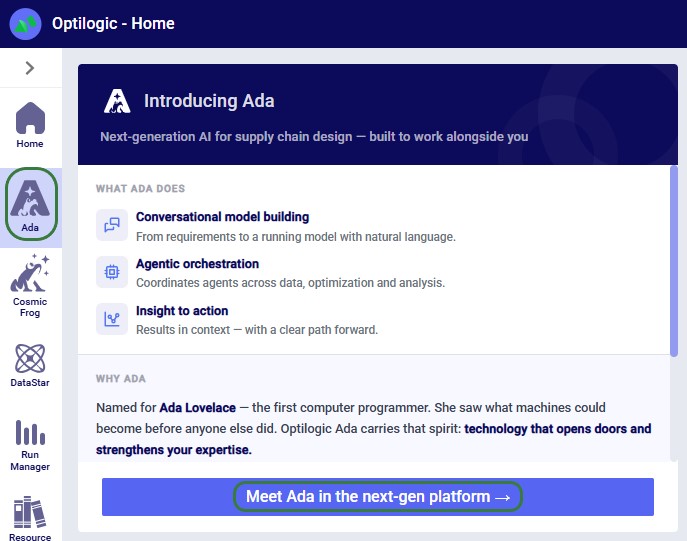
To start using Ada, log into the next generation Optilogic platform at https://ai.optilogic.app or navigate there by clicking on the Ada icon in the navigation sidebar while on the current Optilogic platform (https://optilogic.app):
Besides this documentation, you can also get a guided tour on how to use Ada from within the platform itself. In the sidebar on the left, click on the Apps Launcher icon:

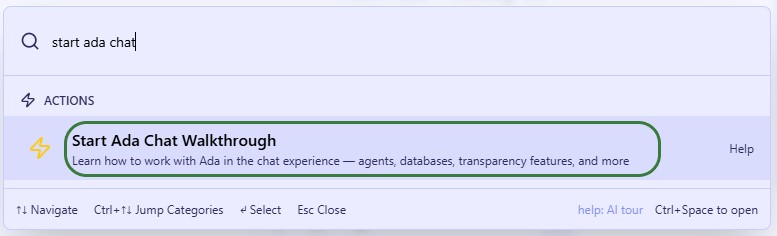
Then search for “Start Ada chat” and click on the Start Ada Chat Walkthrough item in the Actions list to start the tour:
When logged into the next-gen platform at https://ai.optilogic.app, there are 2 main ways to start using Ada:
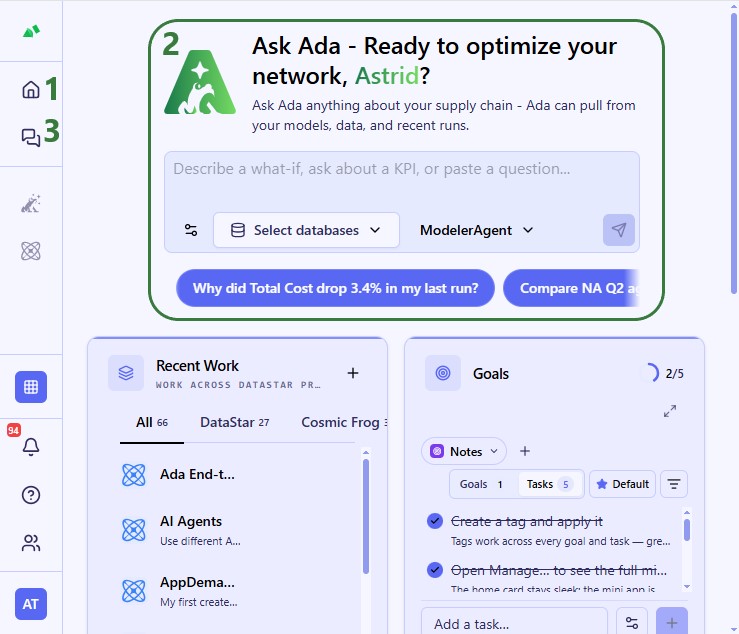
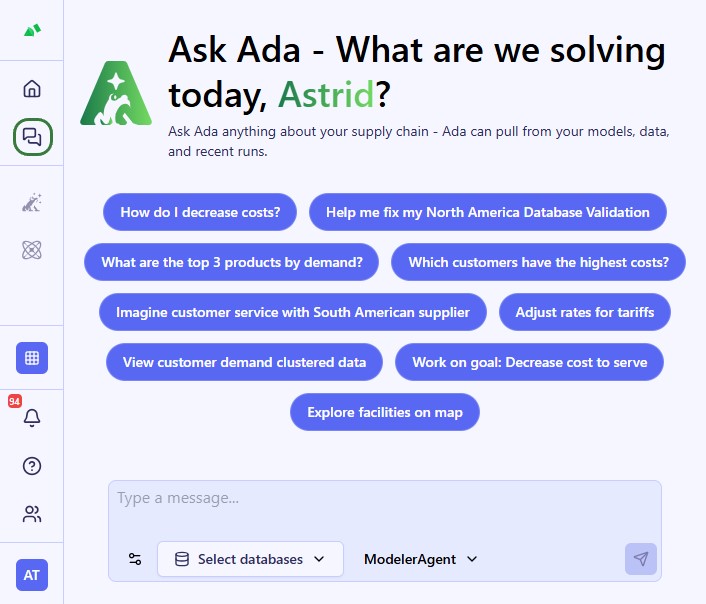
In a new conversation, you first need to configure chat style (optional), select your database(s), choose your agent, and then enter your question/task for Ada.
Note that for any further questions within the same conversation, the chat style, database(s), and agent do not need to be configured again – they will remain as they were set for the first prompt.
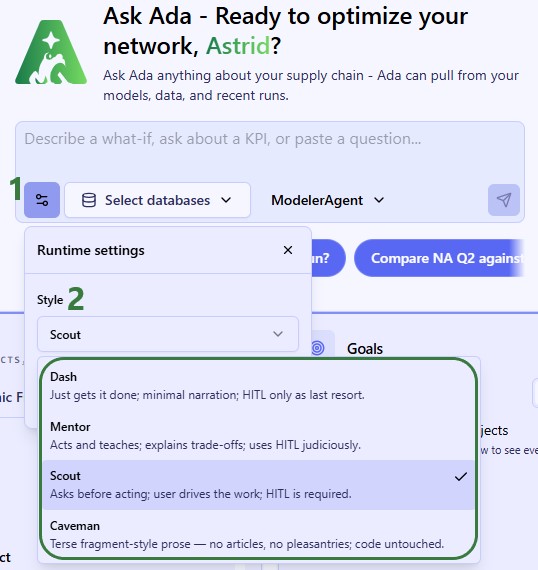
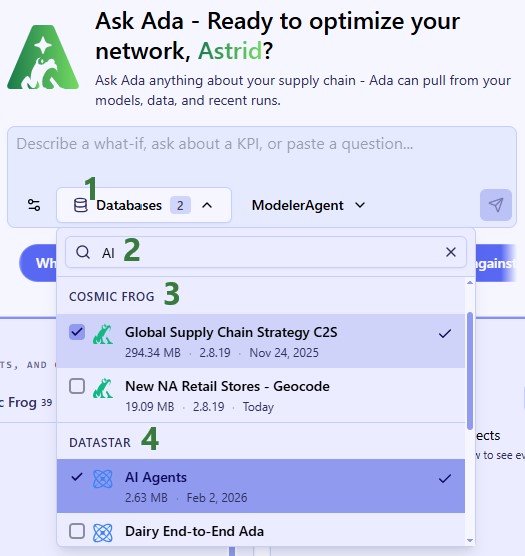
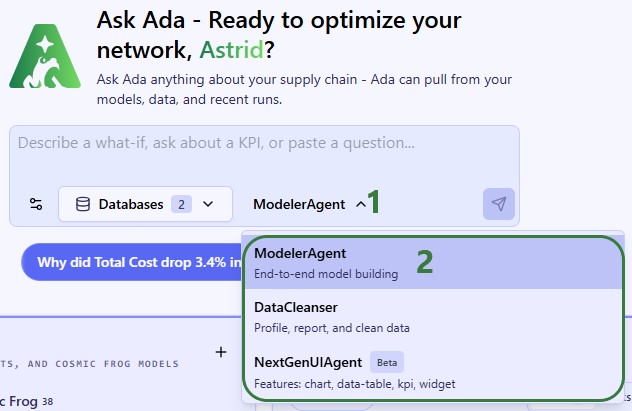
To guide you on choosing the best agent for the task, here is an overview of what each is good at.
Modeler Agent:
Data Cleanser:
Next Gen UI Agent:
Once a prompt has been submitted, Ada will process it and formulate a response. Responses can have different formats, here we will see a text only result, while other response types are covered in the next section.
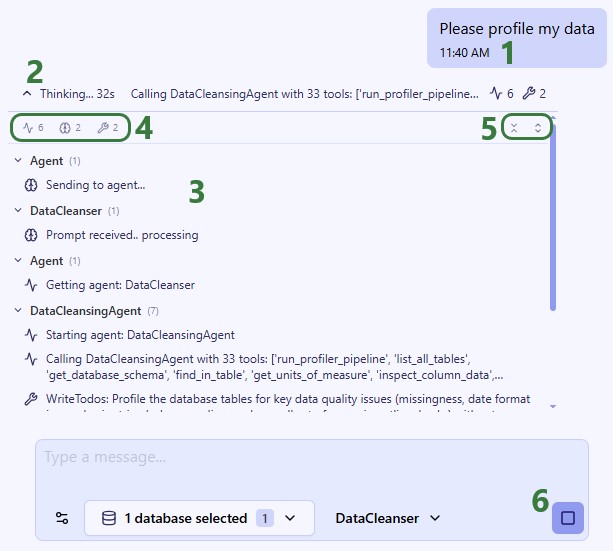
Once Ada is done processing the prompt, the response will be displayed:
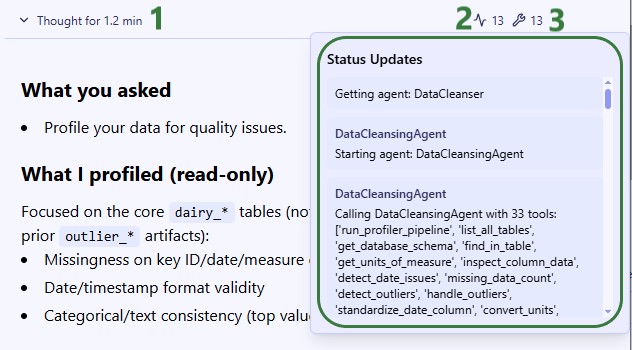
The full response for this prompt is shown in the next 2 screenshots:
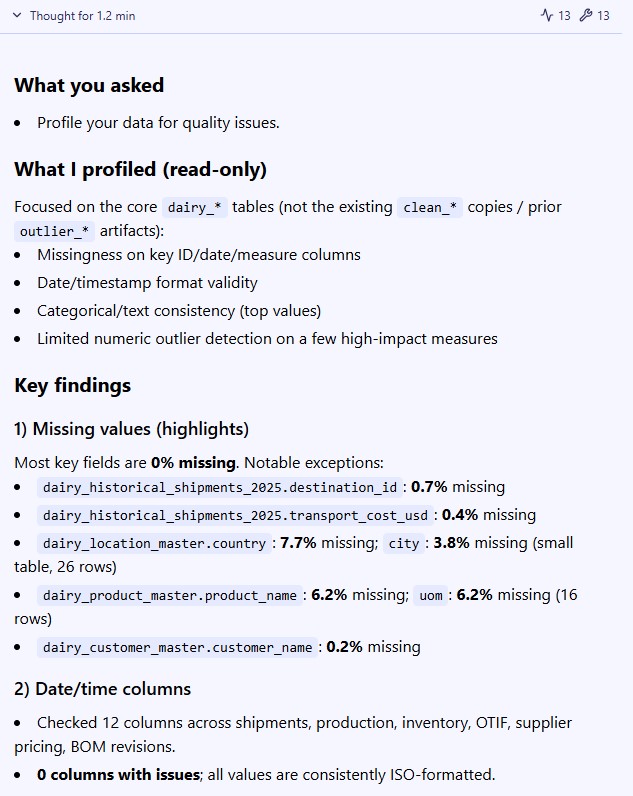
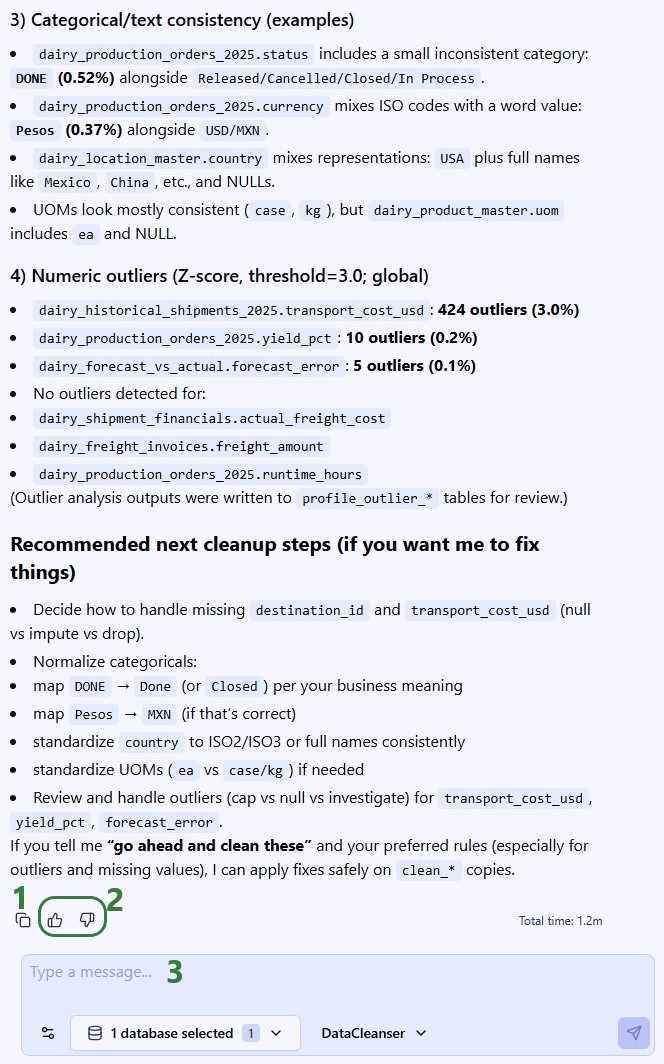
Besides responses that are purely text-based, you will come across other types too. For example, when your input is needed, Ada will pause the response and ask you for feedback:
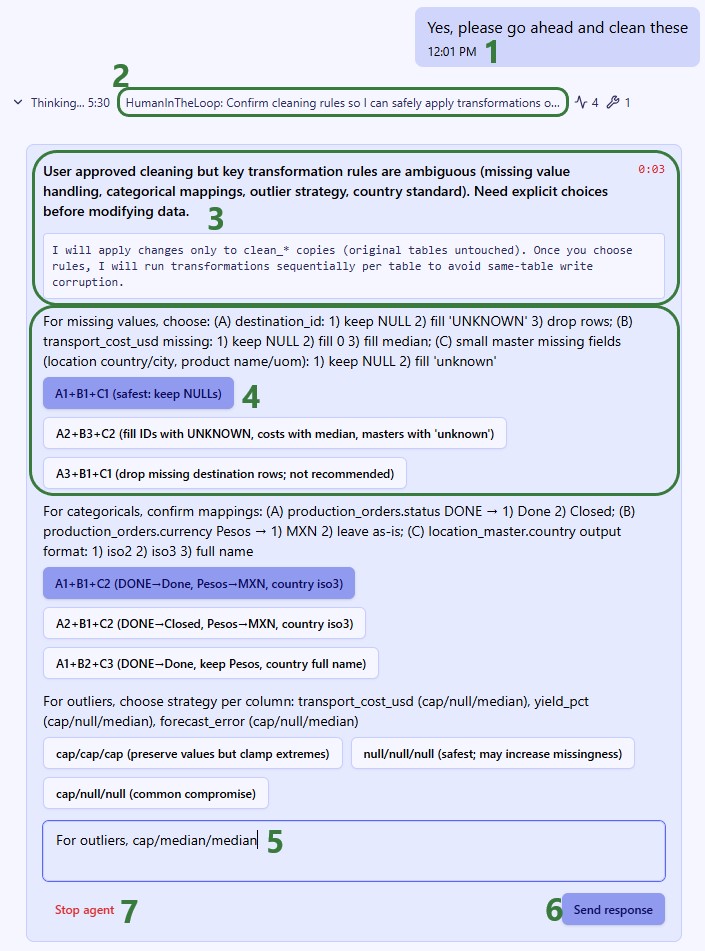
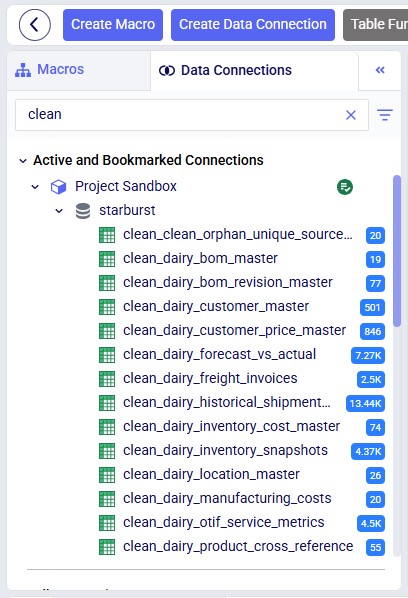
When Ada modifies a Cosmic Frog model or a DataStar project sandbox, users can verify these in the respective applications on the current platform (https://optilogic.app). Here, we are checking if the data cleaning step indeed created the clean_ tables in the sandbox of the connected DataStar project:
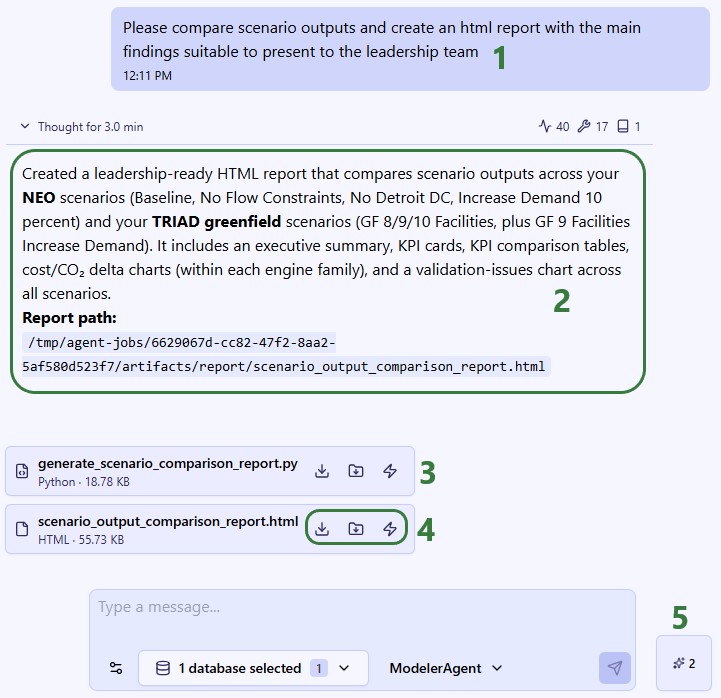
Responses can also contain files:
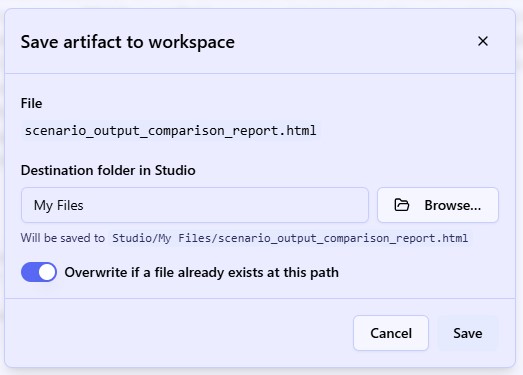
When saving an artifact to your workspace, the following modal will come up where you can choose the location to save it and indicate if any pre-existing files with the same name at the chosen location should be overwritten or not:
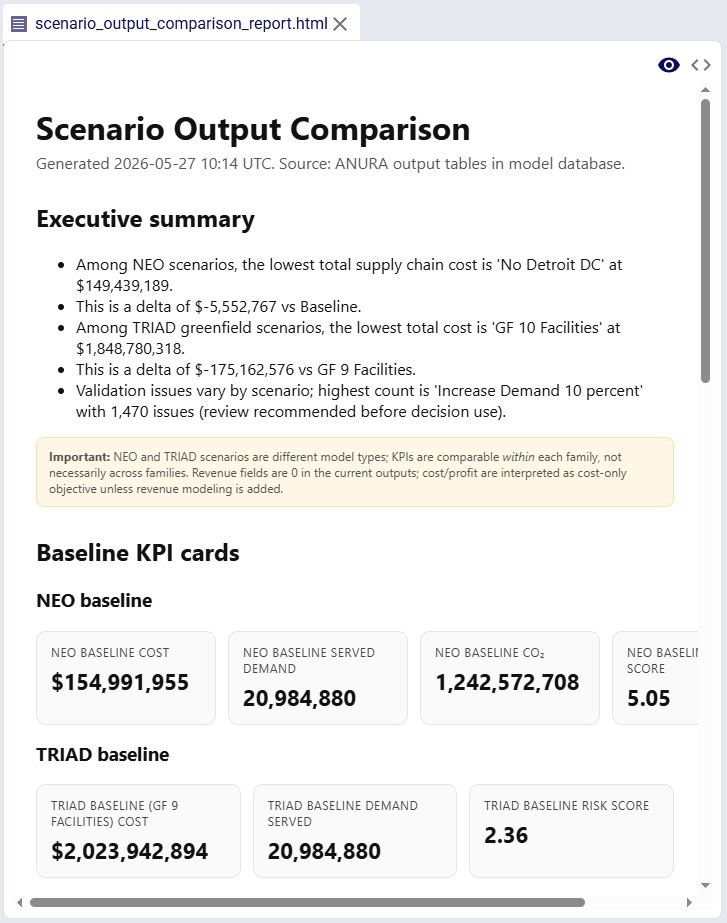
When choosing to open the report in Lightning Editor, it does so in the new platform, to the right of the conversation with Ada so users do not need to change context:
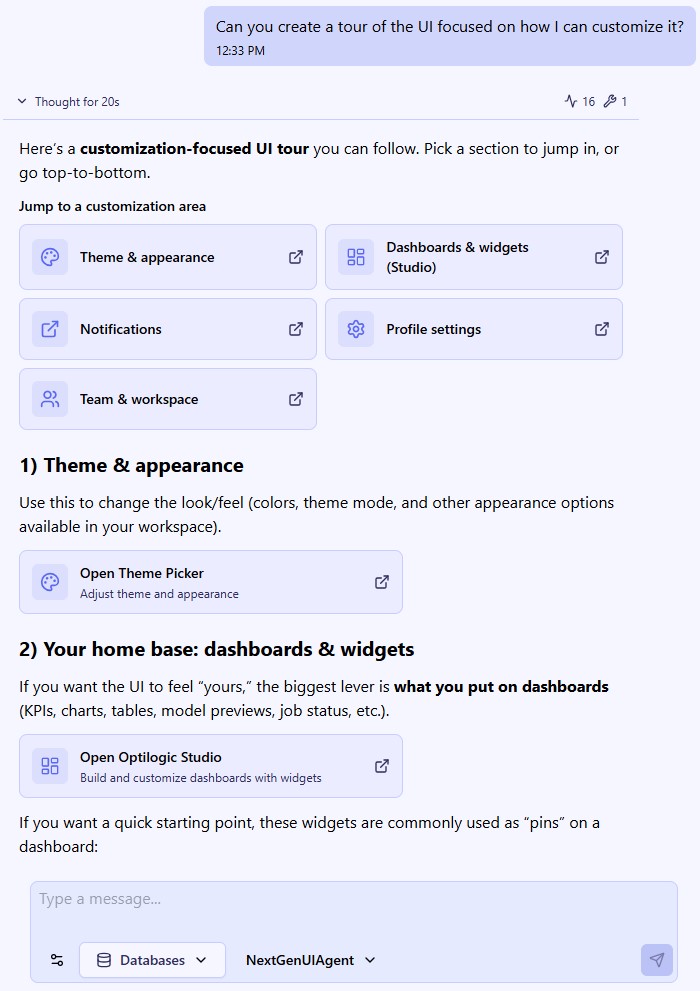
The Next Gen UI Agent can help you for example with changing the look and feel of the platform’s UI. In this example it created a tour on how to customize the UI where the user can click on the buttons in the response to be taken directly to that part of the UI. Note that only part of Ada's response is shown in the screenshot:
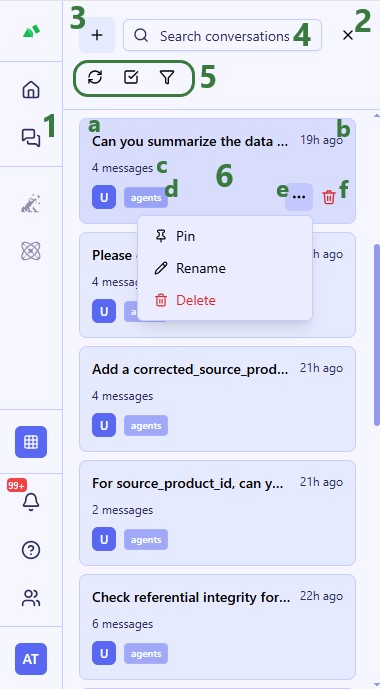
Conversations with Ada are by default saved and users can return to them to review, audit, or continue the conversation.
Keep Conversations Focused
Ada performs best when conversations stay centered on a single task or workflow. Avoid mixing unrelated activities — such as model building, reporting, and data cleansing — in the same chat.
Focused conversations improve response quality, reduce confusion, and make it easier for Ada to maintain context.
Give Context Before the Task
Provide business context, objectives, constraints, and relevant background before asking Ada to perform work.
Better prompts typically include:
Example: Instead of: “Build scenarios for this model.”
Try: “This model evaluates manufacturing diversification risk across LATAM and EMEA. The goal is to reduce China dependency while minimizing transportation cost increases. Create several realistic diversification scenarios.”
Ask Ada to Explore Before Acting
For complex workflows, first ask Ada to explore, profile, summarize, or analyze the environment before making changes.
Examples:
This gives both you and Ada better shared context before execution and reduces downstream errors.
Plan First for Multi-Step Workflows
For larger workflows, ask Ada to propose a plan before executing actions.
Example: “Before making changes, provide a step-by-step plan for how you would approach this workflow.”
This allows you to:
Be Explicit About Constraints
Clearly state any important rules or limitations.
Examples:
Explicit constraints improve consistency and reduce unintended actions.
Ask Ada Clarifying Questions
If a workflow is complex or ambiguous, invite Ada to ask clarifying questions before proceeding.
Example: “Before executing, ask any clarifying questions needed to complete this task correctly.”
This often improves first-pass accuracy significantly.
Start a New Conversation When Switching Contexts
Create a new conversation when:
Long conversations can dilute context and reduce response quality over time.
Ask for Multiple Options
Instead of requesting a single recommendation, ask Ada for multiple approaches and trade-offs.
Example: “Provide three approaches for supplier diversification and explain the trade-offs of each.”
This helps surface alternatives and improves decision-making.
Re-State Important Constraints During Long Workflows
In long conversations, periodically remind Ada about key requirements.
Examples:
This helps reduce context drift.
Generate a Summary Before Starting a New Chat
If a conversation becomes long or complex, ask Ada to summarize:
You can paste this summary into a new conversation to preserve context without carrying forward unnecessary noise.
Helpful prompt: “Summarize this conversation into a clean handoff document including goals, technical decisions, constraints, and next steps.”
Avoid Overloading Prompts
More information is not always better.
Instead:
Focused prompts generally produce better results than overly large or unstructured requests.
Ask Ada What It Can Do
If you are unsure how to approach a task, ask Ada directly.
Examples:
Ada can often suggest workflows, prompts, and capabilities you may not know are available.
Ada is evolving rapidly, and some platform capabilities are still in active development.
File Attachments in Chat
Files cannot currently be uploaded directly into Ada conversations.
File Explorer Data Access
Data stored in your account (accessible through the Explorer application) is not directly accessible in chat workflows. Data first needs to be imported into a DataStar project or connected database.
DataStar and Cosmic Frog Integration
The Next Gen platform does not yet provide fully seamless integration of the DataStar and Cosmic Frog applications. For some processes, users will need to open these in the current platform (https://optilogic.app).
UI Rendering Requires the Next Gen UI Agent
Advanced inline visualizations and UI rendering features currently require selecting the Next Gen UI Agent explicitly.
Long Conversations Can Degrade Performance
As conversations grow longer, Ada may lose context, become repetitive, or produce less reliable responses.
Starting a fresh conversation for new workflows or projects generally improves results.
AI Responses Should Always Be Reviewed
Like all AI systems, Ada can occasionally produce incorrect or misleading outputs.
Always validate:
before using outputs in production or customer-facing work.
Session Stability
Leaving the platform idle for extended periods can interrupt workflows or produce unexpected behavior.
If the platform becomes unstable:
We hope you are going to have many productive conversations with Ada! Please do not hesitate to contact our Support team via support@optilogic.com if you have any questions or concerns.
Applies to all Optilogic AI systems.
No confidential client information will be used as inputs or part of model training and validation datasets. In addition:
Data Minimization: The amount of data shared with the AI provider depends on the task being performed. Optilogic's agents are engineered to query and pass only the minimum data required for each specific operation — ranging from structural metadata (table and column names, data types, statistical summaries) for schema-level tasks, to slices of actual data values for operations that require it, such as data cleansing, outlier detection, or name matching.
Optilogic does not transmit your entire dataset to the AI provider in a single operation. However, over the course of a session, the AI provider may process portions of your data as needed to complete the tasks you request.
No Model Training: Optilogic does not use your data to train AI models. Optilogic’s current AI provider (OpenAI) does not use API-submitted data for model training under their enterprise API terms. Refer to OpenAI policies here: https://openai.com/policies/.
Built-in Agent Safety Instructions: Optilogic agents include standing safety instructions in their core configuration to guard against prompt injection — attempts to manipulate agent behavior through user messages or data the agent processes. These instructions:
Best Practices: Users should avoid including sensitive information (PII, credentials, etc.) in table/column names or prompts, as these are shared with the AI provider.

Ada is Optilogic’s next-generation agentic AI, enabling supply chain teams to work faster and with greater confidence across the full modeling lifecycle — from raw data preparation to optimization runs to executive reporting — all through natural language interactions.
Unlike traditional UI chat assistants, it deploys purpose-built agents that can pursue multi-step goals, use specialized skills, maintain conversational context, and coordinate with each other to complete workflows that previously required significant manual effort. This dramatically reduces the time required to move from raw data to recommendations.
As a core part of Optilogic’s Next Generation User InterfacePlatform, Ada provides a more intelligent and conversational approach to supply chain design work.
Ada is named after Ada Lovelace, widely regarded as the world’s first computer programmer and one of the earliest visionaries to recognize the potential of computational systems beyond pure calculation. The name reflects Optilogic’s goal of building intelligent systems that help people solve complex problems through collaboration between human expertise and advanced computing.
Ada is your AI-first supply chain modeling partner, designed specifically for the Optilogic platform. Through a conversational interface, Ada helps users build, validate, analyze, and improve supply chain models.
You can think of Ada as a chat agent like for example Claude and ChatGPT. But, unlike general-purpose AI chat tools, Ada is trained around supply chain modelling workflows and has access to Optilogic-specific tools, applications, databases, schemas, and platform capabilities.
Today, Ada includes three specialized AI Agents:
The Select the AI Agent part of the Create Your First Prompt section further below includes guidance on which agent to use for what type of question/task.
For a deeper technical explanation of how AI agents, tools, and skills work together, see the AI Agents: Architecture and Components help center article.
Teams commonly use Ada for:
Ada works best for:
Ada is less suited for:
Ada is best thought of as:
Ada does not automatically understand:
The clearer the context you provide, the better the results typically become.
Ada can connect to:
Ada operates entirely within the Optilogic platform and your connected databases. It does not access the internet or any data or systems outside of the Optilogic environment. It does not send your data to third parties beyond what is required by the underlying GPT family model API (see AI Data Security & Privacy).
Ada may:
To start using Ada, log into the next generation Optilogic platform at https://ai.optilogic.app or navigate there by clicking on the Ada icon in the navigation sidebar while on the current Optilogic platform (https://optilogic.app):
Besides this documentation, you can also get a guided tour on how to use Ada from within the platform itself. In the sidebar on the left, click on the Apps Launcher icon:
Then search for “Start Ada chat” and click on the Start Ada Chat Walkthrough item in the Actions list to start the tour:
When logged into the next-gen platform at https://ai.optilogic.app, there are 2 main ways to start using Ada:
In a new conversation, you first need to configure chat style (optional), select your database(s), choose your agent, and then enter your question/task for Ada.
Note that for any further questions within the same conversation, the chat style, database(s), and agent do not need to be configured again – they will remain as they were set for the first prompt.
To guide you on choosing the best agent for the task, here is an overview of what each is good at.
Modeler Agent:
Data Cleanser:
Next Gen UI Agent:
Once a prompt has been submitted, Ada will process it and formulate a response. Responses can have different formats, here we will see a text only result, while other response types are covered in the next section.
Once Ada is done processing the prompt, the response will be displayed:
The full response for this prompt is shown in the next 2 screenshots:
Besides responses that are purely text-based, you will come across other types too. For example, when your input is needed, Ada will pause the response and ask you for feedback:
When Ada modifies a Cosmic Frog model or a DataStar project sandbox, users can verify these in the respective applications on the current platform (https://optilogic.app). Here, we are checking if the data cleaning step indeed created the clean_ tables in the sandbox of the connected DataStar project:
Responses can also contain files:
When saving an artifact to your workspace, the following modal will come up where you can choose the location to save it and indicate if any pre-existing files with the same name at the chosen location should be overwritten or not:
When choosing to open the report in Lightning Editor, it does so in the new platform, to the right of the conversation with Ada so users do not need to change context:
The Next Gen UI Agent can help you for example with changing the look and feel of the platform’s UI. In this example it created a tour on how to customize the UI where the user can click on the buttons in the response to be taken directly to that part of the UI. Note that only part of Ada's response is shown in the screenshot:
Conversations with Ada are by default saved and users can return to them to review, audit, or continue the conversation.
Keep Conversations Focused
Ada performs best when conversations stay centered on a single task or workflow. Avoid mixing unrelated activities — such as model building, reporting, and data cleansing — in the same chat.
Focused conversations improve response quality, reduce confusion, and make it easier for Ada to maintain context.
Give Context Before the Task
Provide business context, objectives, constraints, and relevant background before asking Ada to perform work.
Better prompts typically include:
Example: Instead of: “Build scenarios for this model.”
Try: “This model evaluates manufacturing diversification risk across LATAM and EMEA. The goal is to reduce China dependency while minimizing transportation cost increases. Create several realistic diversification scenarios.”
Ask Ada to Explore Before Acting
For complex workflows, first ask Ada to explore, profile, summarize, or analyze the environment before making changes.
Examples:
This gives both you and Ada better shared context before execution and reduces downstream errors.
Plan First for Multi-Step Workflows
For larger workflows, ask Ada to propose a plan before executing actions.
Example: “Before making changes, provide a step-by-step plan for how you would approach this workflow.”
This allows you to:
Be Explicit About Constraints
Clearly state any important rules or limitations.
Examples:
Explicit constraints improve consistency and reduce unintended actions.
Ask Ada Clarifying Questions
If a workflow is complex or ambiguous, invite Ada to ask clarifying questions before proceeding.
Example: “Before executing, ask any clarifying questions needed to complete this task correctly.”
This often improves first-pass accuracy significantly.
Start a New Conversation When Switching Contexts
Create a new conversation when:
Long conversations can dilute context and reduce response quality over time.
Ask for Multiple Options
Instead of requesting a single recommendation, ask Ada for multiple approaches and trade-offs.
Example: “Provide three approaches for supplier diversification and explain the trade-offs of each.”
This helps surface alternatives and improves decision-making.
Re-State Important Constraints During Long Workflows
In long conversations, periodically remind Ada about key requirements.
Examples:
This helps reduce context drift.
Generate a Summary Before Starting a New Chat
If a conversation becomes long or complex, ask Ada to summarize:
You can paste this summary into a new conversation to preserve context without carrying forward unnecessary noise.
Helpful prompt: “Summarize this conversation into a clean handoff document including goals, technical decisions, constraints, and next steps.”
Avoid Overloading Prompts
More information is not always better.
Instead:
Focused prompts generally produce better results than overly large or unstructured requests.
Ask Ada What It Can Do
If you are unsure how to approach a task, ask Ada directly.
Examples:
Ada can often suggest workflows, prompts, and capabilities you may not know are available.
Ada is evolving rapidly, and some platform capabilities are still in active development.
File Attachments in Chat
Files cannot currently be uploaded directly into Ada conversations.
File Explorer Data Access
Data stored in your account (accessible through the Explorer application) is not directly accessible in chat workflows. Data first needs to be imported into a DataStar project or connected database.
DataStar and Cosmic Frog Integration
The Next Gen platform does not yet provide fully seamless integration of the DataStar and Cosmic Frog applications. For some processes, users will need to open these in the current platform (https://optilogic.app).
UI Rendering Requires the Next Gen UI Agent
Advanced inline visualizations and UI rendering features currently require selecting the Next Gen UI Agent explicitly.
Long Conversations Can Degrade Performance
As conversations grow longer, Ada may lose context, become repetitive, or produce less reliable responses.
Starting a fresh conversation for new workflows or projects generally improves results.
AI Responses Should Always Be Reviewed
Like all AI systems, Ada can occasionally produce incorrect or misleading outputs.
Always validate:
before using outputs in production or customer-facing work.
Session Stability
Leaving the platform idle for extended periods can interrupt workflows or produce unexpected behavior.
If the platform becomes unstable:
We hope you are going to have many productive conversations with Ada! Please do not hesitate to contact our Support team via support@optilogic.com if you have any questions or concerns.
Applies to all Optilogic AI systems.
No confidential client information will be used as inputs or part of model training and validation datasets. In addition:
Data Minimization: The amount of data shared with the AI provider depends on the task being performed. Optilogic's agents are engineered to query and pass only the minimum data required for each specific operation — ranging from structural metadata (table and column names, data types, statistical summaries) for schema-level tasks, to slices of actual data values for operations that require it, such as data cleansing, outlier detection, or name matching.
Optilogic does not transmit your entire dataset to the AI provider in a single operation. However, over the course of a session, the AI provider may process portions of your data as needed to complete the tasks you request.
No Model Training: Optilogic does not use your data to train AI models. Optilogic’s current AI provider (OpenAI) does not use API-submitted data for model training under their enterprise API terms. Refer to OpenAI policies here: https://openai.com/policies/.
Built-in Agent Safety Instructions: Optilogic agents include standing safety instructions in their core configuration to guard against prompt injection — attempts to manipulate agent behavior through user messages or data the agent processes. These instructions:
Best Practices: Users should avoid including sensitive information (PII, credentials, etc.) in table/column names or prompts, as these are shared with the AI provider.