
AI Agents and Utilities - Overview

Introduction

Exciting tools that drastically shorten the time spent wrangling data, building supply chain models for Cosmic Frog, and analyzing outputs of these models are now available on the Optilogic platform.

This documentation briefly explains how to access these AI Agents and Utilities, lists the available tools with a short description of each, and provides links to detailed documentation for several of these tools.

Helpful Resources

Before we dive into how to access the AI Agents & Utilities, here are a few links you may find helpful:

Accessing Agents & Utilities

Currently, the available Agents and Utilities are accessed by using Run Utility tasks in DataStar. At a high level, the steps are as follows (screenshots follow beneath):

  1. Open the DataStar application on the Optilogic platform
  2. Create a new project in DataStar, see the "Creating Projects & Data Connections" section in the DataStar Overview documentation.
  3. Create a new macro in the project.
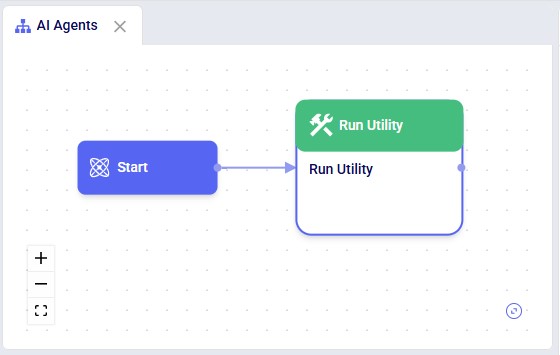
  4. From the Tasks tab on the right, drag and drop a run Utility task onto the macro canvas.
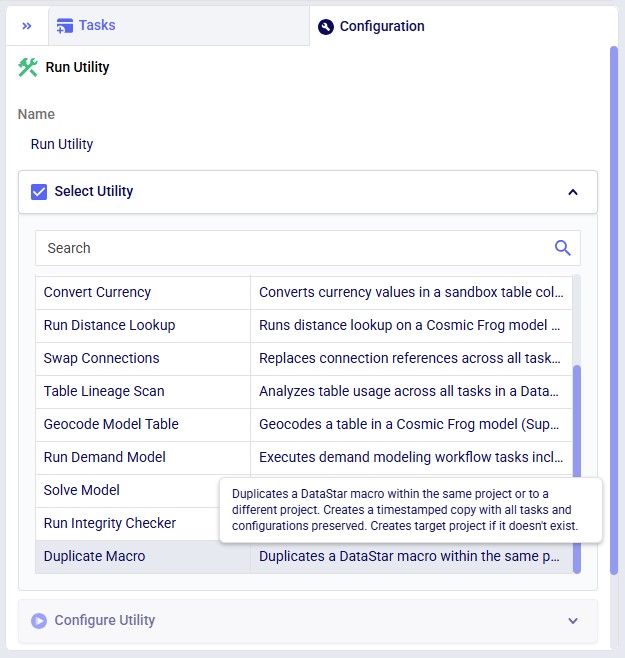
  5. In the configuration of the task, choose the Agent or Utility you want to use from the list in the Select Utility section.
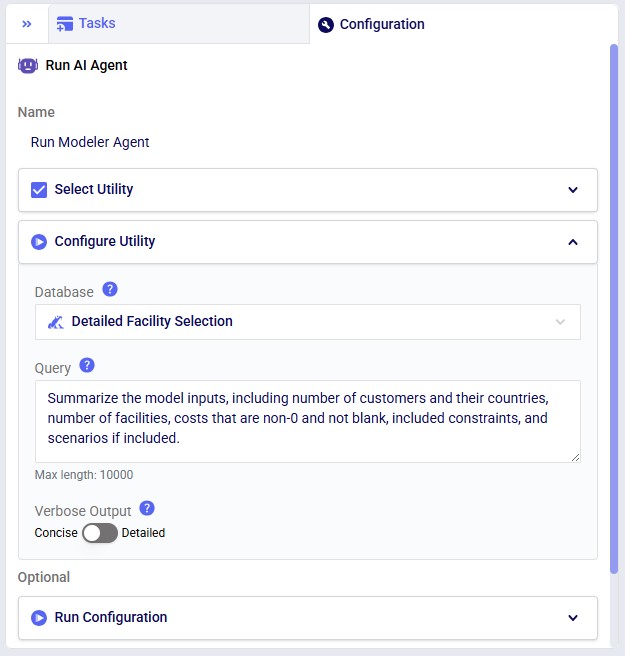
  6. Configure the Agent/Utility inputs in the Configure Utility section.
  7. Run the macro or just the Run Utility task by itself to execute the selected Agent/Utility.

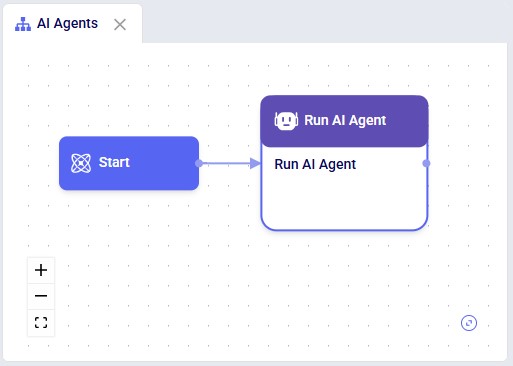
Your macro canvas will look similar to the following screenshot after step #4:
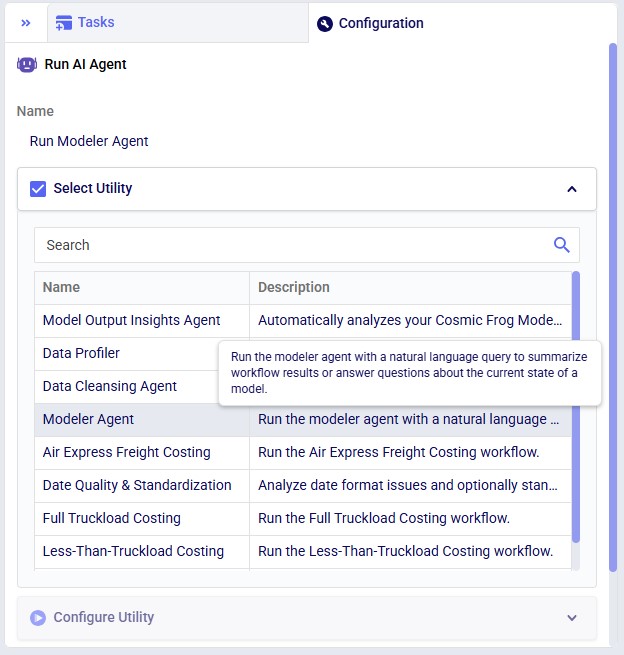
After adding a task, its configuration tab is automatically shown on the right-hand side. Give the task a name, and then select the Agent or Utility you want to use from the list of available Agents/Utilities in the Select Utility section. You can also use the Search box to quickly find any Agent/Utility that contains certain text in its name or description. Hover over the description of an Agent/Utility to see the full description in case it is not entirely visible:
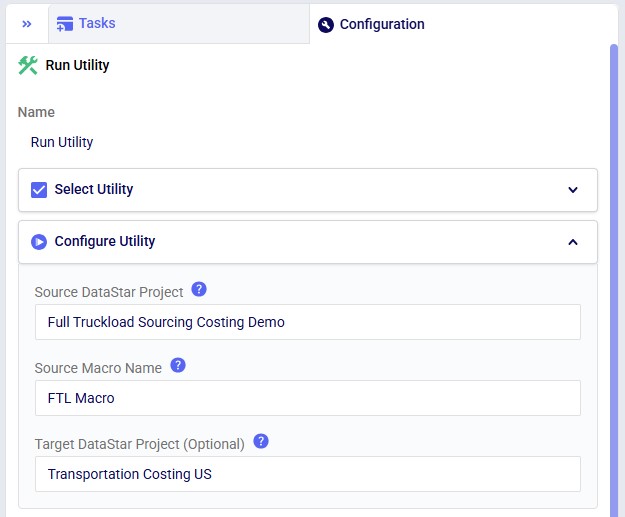
Once an Agent/Utility has been selected by clicking on it, the Configure Utility section becomes available. The inputs here will differ based on the Agent/Utility that has been selected. In the next screenshot the Configure Utility section of the Duplicate Macro utility is shown:

Provide the inputs for at least the required parameters, and if desired for any optional ones. Note that hovering over a blue question mark icon will bring up a hover box with a description of the parameter. For example, hovering over the blue question mark of the Source Macro Name parameter brings up "Name of the macro to duplicate (case-sensitive)".

Available Agents & Utilities

The following AI Agents and Utilities are currently available. More are being added as they come available. For each a short description is given and for those that have more detailed documentation to go with them, a link to this documentation is included.

AI Agents

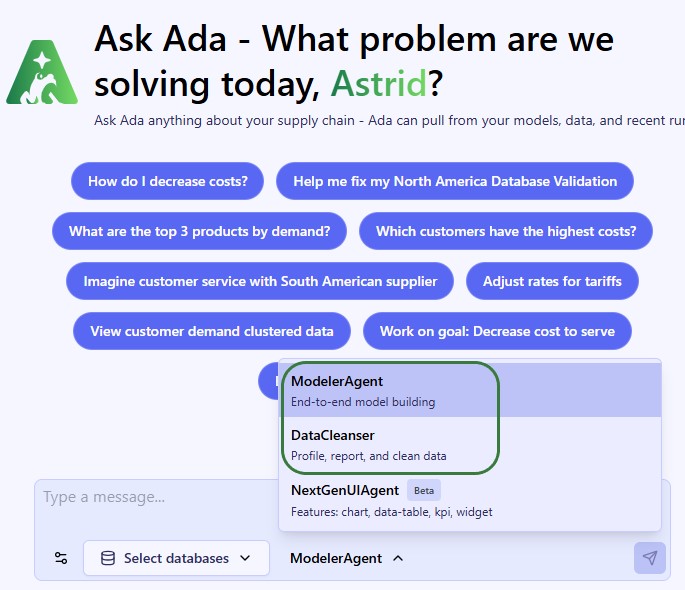
  • Model Output Insights Agent: Automatically analyzes your Cosmic Frog Model outputs and generates a report. Detailed documentation for this agent can be found here.
  • Data Cleansing Agent: Run an AI-powered data cleansing agent with natural language prompts to intelligently analyze and fix data quality issues. Detailed documentation for this agent can be found here.

Utilities

  • Convert Currency: Converts currency values in a sandbox table column using current exchange rates. Creates a new column with converted values. Non-numeric values are saved as NaN. Requires storing a secret with key name 'DATASTAR_EXCHANGE_RATE_API_KEY' and value fetched from https://www.exchangerate-api.com/.
  • Run Distance Lookup: Runs distance lookup on a Cosmic Frog model and stores distance records in the model's TransitMatrix table. Supports multiple geo providers (GreatCircle, PCMiler, Bing, Azure, OLRouting), configurable distance units, arc defining tables, and routing preferences.
  • Geocode Model Table: Geocodes a table in a Cosmic Frog model (Suppliers, Facilities, or Customers). Waits for completion and reports results by default. Supports fire-and-forget mode to skip waiting.
  • Duplicate Macro: Duplicates a DataStar macro within the same project or to a different project. Creates a timestamped copy with all tasks and configurations preserved. Creates target project if it doesn't exist.
  • Run Integrity Checker: Runs integrity checker against a Cosmic Frog model and writes results to DataStar. Validates the entire model or a single table, then saves table errors, run metadata, and table status to the project's sandbox.
  • Solve Model: Solves a Cosmic Frog model by running one or more scenarios. Runs all scenarios by default or a specified list. Supports custom engine, resource size, and infeasibility check options. Waits for completion and reports results.
  • Convert Data Guru project into DataStar: Converts Data Guru logic documented in DG Documenter into DataStar. Reach out to support@optilogic.com for access to DG Documenter and for help migrating from Data Guru to DataStar.
  • Swap Connections: Replaces connection references across all tasks in a DataStar project. Updates source/destination connections in Import/Export tasks and connection in RunSQL tasks. Validates connections exist and are the same type. Automatically updates table paths for file-based connections.
  • Table Lineage Scan: Analyzes table usage across all tasks in a DataStar project. Categorizes usage as source (task reads from table), destination (task writes to table), or sql (table referenced in SQL query). Provides high-level summary and detailed task breakdown with execution order.
  • Run Demand Model: Executes demand modeling workflow tasks including hierarchy generation, forecasting, and reconciliation. Supports CSV, Parquet, and DataStar adapters for flexible data I/O.
  • Full Truckload Costing: Run the Full Truckload Costing workflow. Detailed documentation for this utility can be found here.
  • Less-Than-Truckload Costing: Run the Less-Than-Truckload Costing workflow. Detailed documentation for this utility can be found here.
  • Regression: Predict a continuous numeric value from input features.
  • Classification: Assign each input to one of several predefined categories.
  • Clustering: Group unlabeled data into clusters based on similarity.
  • Run Macro: Executes a DataStar macro in a specified project. Connects to the project, retrieves the macro, runs it, and waits for completion. Reports run status and errors if execution fails.
  • Geographic Clustering: Cluster locations geographically using latitude and longitude.

Introduction

Exciting tools that drastically shorten the time spent wrangling data, building supply chain models for Cosmic Frog, and analyzing outputs of these models are now available on the Optilogic platform.

This documentation briefly explains how to access these AI Agents and Utilities, lists the available tools with a short description of each, and provides links to detailed documentation for several of these tools.

Helpful Resources

Before we dive into how to access the AI Agents & Utilities, here are a few links you may find helpful:

Accessing Agents & Utilities

Currently, the available Agents and Utilities are accessed by using Run Utility tasks in DataStar. At a high level, the steps are as follows (screenshots follow beneath):

  1. Open the DataStar application on the Optilogic platform
  2. Create a new project in DataStar, see the "Creating Projects & Data Connections" section in the DataStar Overview documentation.
  3. Create a new macro in the project.
  4. From the Tasks tab on the right, drag and drop a run Utility task onto the macro canvas.
  5. In the configuration of the task, choose the Agent or Utility you want to use from the list in the Select Utility section.
  6. Configure the Agent/Utility inputs in the Configure Utility section.
  7. Run the macro or just the Run Utility task by itself to execute the selected Agent/Utility.

Your macro canvas will look similar to the following screenshot after step #4:

After adding a task, its configuration tab is automatically shown on the right-hand side. Give the task a name, and then select the Agent or Utility you want to use from the list of available Agents/Utilities in the Select Utility section. You can also use the Search box to quickly find any Agent/Utility that contains certain text in its name or description. Hover over the description of an Agent/Utility to see the full description in case it is not entirely visible:

Once an Agent/Utility has been selected by clicking on it, the Configure Utility section becomes available. The inputs here will differ based on the Agent/Utility that has been selected. In the next screenshot the Configure Utility section of the Duplicate Macro utility is shown:

Provide the inputs for at least the required parameters, and if desired for any optional ones. Note that hovering over a blue question mark icon will bring up a hover box with a description of the parameter. For example, hovering over the blue question mark of the Source Macro Name parameter brings up "Name of the macro to duplicate (case-sensitive)".

Available Agents & Utilities

The following AI Agents and Utilities are currently available. More are being added as they come available. For each a short description is given and for those that have more detailed documentation to go with them, a link to this documentation is included.

AI Agents

  • Model Output Insights Agent: Automatically analyzes your Cosmic Frog Model outputs and generates a report. Detailed documentation for this agent can be found here.
  • Data Cleansing Agent: Run an AI-powered data cleansing agent with natural language prompts to intelligently analyze and fix data quality issues. Detailed documentation for this agent can be found here.

Utilities

  • Convert Currency: Converts currency values in a sandbox table column using current exchange rates. Creates a new column with converted values. Non-numeric values are saved as NaN. Requires storing a secret with key name 'DATASTAR_EXCHANGE_RATE_API_KEY' and value fetched from https://www.exchangerate-api.com/.
  • Run Distance Lookup: Runs distance lookup on a Cosmic Frog model and stores distance records in the model's TransitMatrix table. Supports multiple geo providers (GreatCircle, PCMiler, Bing, Azure, OLRouting), configurable distance units, arc defining tables, and routing preferences.
  • Geocode Model Table: Geocodes a table in a Cosmic Frog model (Suppliers, Facilities, or Customers). Waits for completion and reports results by default. Supports fire-and-forget mode to skip waiting.
  • Duplicate Macro: Duplicates a DataStar macro within the same project or to a different project. Creates a timestamped copy with all tasks and configurations preserved. Creates target project if it doesn't exist.
  • Run Integrity Checker: Runs integrity checker against a Cosmic Frog model and writes results to DataStar. Validates the entire model or a single table, then saves table errors, run metadata, and table status to the project's sandbox.
  • Solve Model: Solves a Cosmic Frog model by running one or more scenarios. Runs all scenarios by default or a specified list. Supports custom engine, resource size, and infeasibility check options. Waits for completion and reports results.
  • Convert Data Guru project into DataStar: Converts Data Guru logic documented in DG Documenter into DataStar. Reach out to support@optilogic.com for access to DG Documenter and for help migrating from Data Guru to DataStar.
  • Swap Connections: Replaces connection references across all tasks in a DataStar project. Updates source/destination connections in Import/Export tasks and connection in RunSQL tasks. Validates connections exist and are the same type. Automatically updates table paths for file-based connections.
  • Table Lineage Scan: Analyzes table usage across all tasks in a DataStar project. Categorizes usage as source (task reads from table), destination (task writes to table), or sql (table referenced in SQL query). Provides high-level summary and detailed task breakdown with execution order.
  • Run Demand Model: Executes demand modeling workflow tasks including hierarchy generation, forecasting, and reconciliation. Supports CSV, Parquet, and DataStar adapters for flexible data I/O.
  • Full Truckload Costing: Run the Full Truckload Costing workflow. Detailed documentation for this utility can be found here.
  • Less-Than-Truckload Costing: Run the Less-Than-Truckload Costing workflow. Detailed documentation for this utility can be found here.
  • Regression: Predict a continuous numeric value from input features.
  • Classification: Assign each input to one of several predefined categories.
  • Clustering: Group unlabeled data into clusters based on similarity.
  • Run Macro: Executes a DataStar macro in a specified project. Connects to the project, retrieves the macro, runs it, and waits for completion. Reports run status and errors if execution fails.
  • Geographic Clustering: Cluster locations geographically using latitude and longitude.

Have More Questions?

Contact Support

Get in touch

Contact Sales

Get in touch

Visit Frogger Pond Community

Visit our Community