
Less-Than-Truckload Costing Utility

Overview

The Less Than Truckload Costing utility solves the challenge of pricing less-than-truckload shipments when carrier rate data is complex and varies by service level, distance, and weight. Rather than manually looking up rates in carrier tariff tables, this workflow automates the entire process using FedEx Express Freight standard list rates. The utility expects a lanes-to-cost table containing shipment details including origin, destination, distance, weight, and desired service level. After running the utility, users receive a fully costed table with calculated transportation costs.

What's Included

Sample Data

  • Sample lanes_to_cost CSV file (5,000 lanes across the US)

System Utility

  • Less Than Truckload Costing utility accessible via the "Run Utility" task in DataStar
  • Built-in FedEx Express Freight rate tables (automatically loaded by the utility)

How To Use

The steps to use this utility are as follows. These are illustrated with screenshots below.

  1. Prepare your input data:
    • Create a lanes_to_cost table with all required columns (see Input Requirements)
    • Ensure distances are calculated in miles
    • Assign appropriate service levels to each shipment
    • Set the destination_rural flag correctly for Alaska/Hawaii destinations, see also the Tups & Notes section
  2. Upload your data to a database in DataStar
  3. Run the utility:
    • Open the "Run Utility" task in DataStar
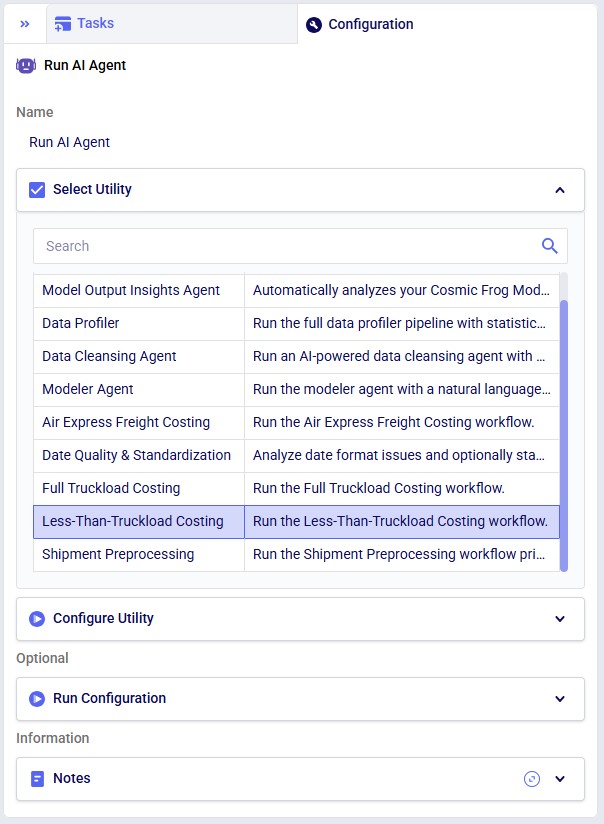
    • Select "Less Than Truckload Costing" from the available utilities
    • Configure the parameters:
      • Database: Enter your database name
      • Schema: Select the schema containing your table
      • Lanes Table: Select your lanes_to_cost table
      • Output Table: Specify the output table name
      • Keep Working Tables: Toggle on to retain intermediate tables for debugging
      • Verbose: Toggle on for detailed logging
  4. Review the output table containing costed lanes

Screenshots of the steps:

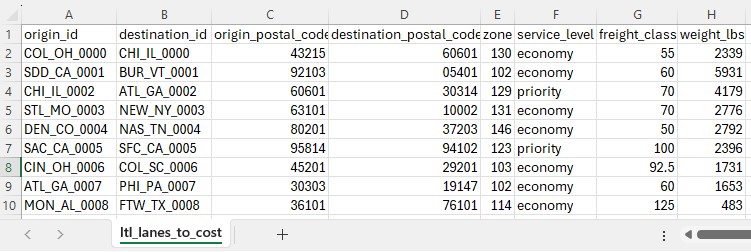
The first 10 records in the ltl_lanes_to_cost.csv; not all columns are shown, see also the next screenshot.
Again, the first 10 records of the ltl_lanes_to_cost.csv file, now showing the rest of the columns (G-K).
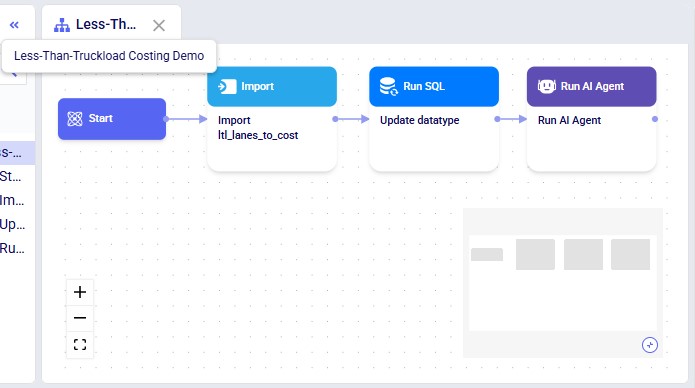
After creating a data connection to the ltl_lanes_cost.csv, this macro is created in DataStar: the "Import ltl_lanes_to_cost" Import task imports the data from the CSV data connection into the Project Sandbox with table name "ltl_lanes_to_cost", the "Update datatype" Run SQL task changes the data type of the Cost column, and the "LTL Costing" Run Utility task looks up the LTL costs and adds them to the data in a new output table named "ltl_lanes_to_cost_output". The configuration of this Run Utility task is shown in the next screenshot.
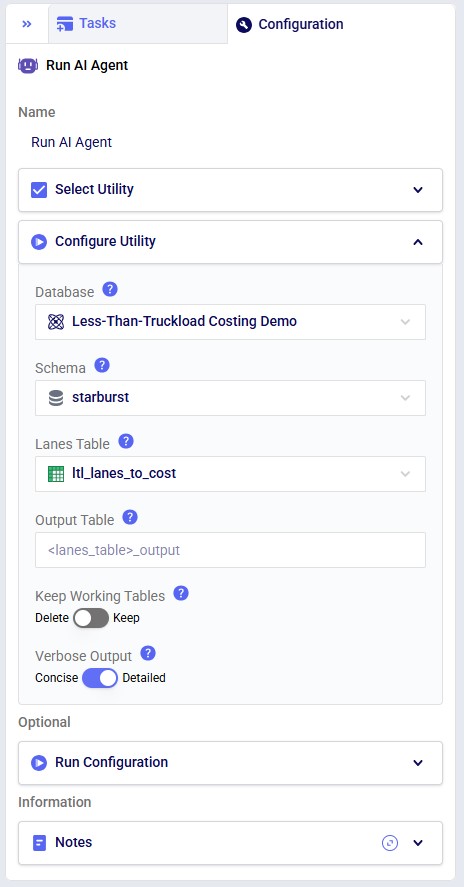
Configuration of the "LTL Costing" Run Utility task. The Database is the Project Sandbox of the DataStar project, the ltl_lanes_to_cost table is used as the input table for which LTL rates need to be looked up, the output table is left at the default and will therefore be named ltl_lanes_to_cost_output. The user has chosen to keep working tables (appended with _working) and to see detailed outputs in the Run Manager > Job Log for when this task is executed.
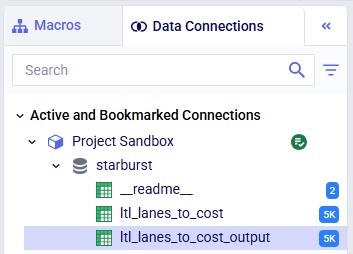
On the Data Connections tab we see the CSV connection with original data at the bottom. In the Project Sandbox, the ltl_lanes_to_cost table contains the imported data from the CSV connection, and the ltl_lanes_to_cost_output table contains the original data with the looked up costs added.
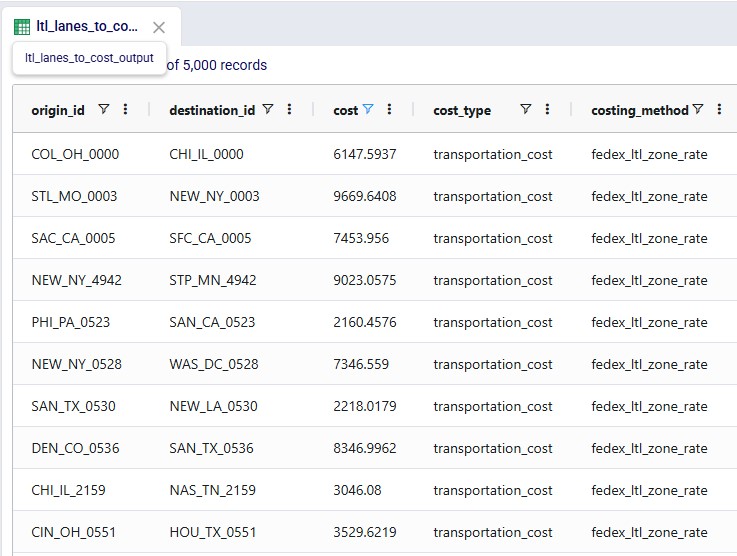
The first 4 records of the 5,000 in the ltl_lanes_to_cost_output table, where we see the populated cost and costing_method columns.

Input Requirements

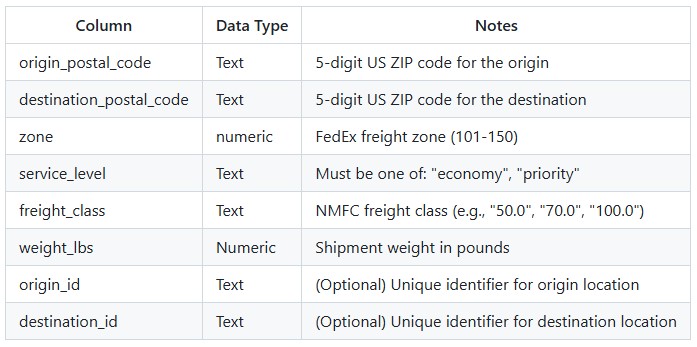
Lanes to Cost Table (Required)

Key Constraints:

  • Each combination of (service_level, origin_id, destination_id, shipment_weight) must be unique
  • No NULL values allowed in any required column
  • Service level values are case-sensitive and must match exactly
  • Weights must be positive numbers in pounds
  • Distances must be in miles

Output Description

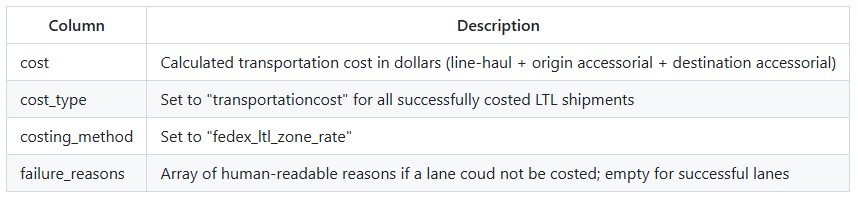
The utility produces an output table containing all lanes from the input with the following columns populated:

Zone Determination

Zones are determined automatically based on the following priority:

Special Zones (for Alaska/Hawaii):

  1. Destination AK/HI + rural=True: Zone "11 (To AK rural)"
  2. Destination AK/HI + rural=False: Zone "9-10 (To AK/HI metro)"
  3. Origin AK/HI: Zone "13-16 (From AK/HI)"

Standard Distance-Based Zones:

Cost Calculation

Costs are calculated using the following formula:

  • base_charge = shipment_weight x price_per_lb
  • final_cost = MAX(base_charge, minimum_charge)

Effective Weight: If the shipment weight is below the minimum weight for a service/zone combination, the utility uses the minimum weight band's rate but calculates the charge based on the actual shipment weight.

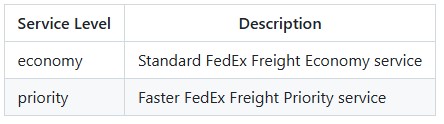
Service Levels

Tips & Notes

  • The workflow is fully deterministic - given the same inputs, it will always produce the same outputs.
  • Original input tables are never modified. The utility creates working copies for all processing.
  • The FedEx rate tables are built into the utility and are automatically loaded. You do not need to provide rate data.
  • For Alaska and Hawaii destinations, the destination_rural flag is important. Set it to True for rural Alaska locations, False for metro areas. This determines whether the "11 (To AK rural)" or "9-10 (To AK/HI metro)" zone rates apply.
  • Service level values must match exactly (case-sensitive). Use the exact strings: "1Day Freight", "2Day Freight", "3Day Freight", or "First Overnight Freight".
  • The minimum charge floor ensures that very light shipments still meet the carrier's minimum pricing requirements.
  • If a shipment weight is below the minimum weight threshold for a service/zone, the rate from the lowest weight band is used, but the cost is still calculated using the actual shipment weight (not the minimum weight).
  • This utility currently supports US domestic less-than-truckload shipments only. The rate structure includes special handling for Alaska and Hawaii.

Other Helpful Resources

Overview

The Less Than Truckload Costing utility solves the challenge of pricing less-than-truckload shipments when carrier rate data is complex and varies by service level, distance, and weight. Rather than manually looking up rates in carrier tariff tables, this workflow automates the entire process using FedEx Express Freight standard list rates. The utility expects a lanes-to-cost table containing shipment details including origin, destination, distance, weight, and desired service level. After running the utility, users receive a fully costed table with calculated transportation costs.

What's Included

Sample Data

  • Sample lanes_to_cost CSV file (5,000 lanes across the US)

System Utility

  • Less Than Truckload Costing utility accessible via the "Run Utility" task in DataStar
  • Built-in FedEx Express Freight rate tables (automatically loaded by the utility)

How To Use

The steps to use this utility are as follows. These are illustrated with screenshots below.

  1. Prepare your input data:
    • Create a lanes_to_cost table with all required columns (see Input Requirements)
    • Ensure distances are calculated in miles
    • Assign appropriate service levels to each shipment
    • Set the destination_rural flag correctly for Alaska/Hawaii destinations, see also the Tups & Notes section
  2. Upload your data to a database in DataStar
  3. Run the utility:
    • Open the "Run Utility" task in DataStar
    • Select "Less Than Truckload Costing" from the available utilities
    • Configure the parameters:
      • Database: Enter your database name
      • Schema: Select the schema containing your table
      • Lanes Table: Select your lanes_to_cost table
      • Output Table: Specify the output table name
      • Keep Working Tables: Toggle on to retain intermediate tables for debugging
      • Verbose: Toggle on for detailed logging
  4. Review the output table containing costed lanes

Screenshots of the steps:

The first 10 records in the ltl_lanes_to_cost.csv; not all columns are shown, see also the next screenshot.
Again, the first 10 records of the ltl_lanes_to_cost.csv file, now showing the rest of the columns (G-K).
After creating a data connection to the ltl_lanes_cost.csv, this macro is created in DataStar: the "Import ltl_lanes_to_cost" Import task imports the data from the CSV data connection into the Project Sandbox with table name "ltl_lanes_to_cost", the "Update datatype" Run SQL task changes the data type of the Cost column, and the "LTL Costing" Run Utility task looks up the LTL costs and adds them to the data in a new output table named "ltl_lanes_to_cost_output". The configuration of this Run Utility task is shown in the next screenshot.
Configuration of the "LTL Costing" Run Utility task. The Database is the Project Sandbox of the DataStar project, the ltl_lanes_to_cost table is used as the input table for which LTL rates need to be looked up, the output table is left at the default and will therefore be named ltl_lanes_to_cost_output. The user has chosen to keep working tables (appended with _working) and to see detailed outputs in the Run Manager > Job Log for when this task is executed.
On the Data Connections tab we see the CSV connection with original data at the bottom. In the Project Sandbox, the ltl_lanes_to_cost table contains the imported data from the CSV connection, and the ltl_lanes_to_cost_output table contains the original data with the looked up costs added.
The first 4 records of the 5,000 in the ltl_lanes_to_cost_output table, where we see the populated cost and costing_method columns.

Input Requirements

Lanes to Cost Table (Required)

Key Constraints:

  • Each combination of (service_level, origin_id, destination_id, shipment_weight) must be unique
  • No NULL values allowed in any required column
  • Service level values are case-sensitive and must match exactly
  • Weights must be positive numbers in pounds
  • Distances must be in miles

Output Description

The utility produces an output table containing all lanes from the input with the following columns populated:

Zone Determination

Zones are determined automatically based on the following priority:

Special Zones (for Alaska/Hawaii):

  1. Destination AK/HI + rural=True: Zone "11 (To AK rural)"
  2. Destination AK/HI + rural=False: Zone "9-10 (To AK/HI metro)"
  3. Origin AK/HI: Zone "13-16 (From AK/HI)"

Standard Distance-Based Zones:

Cost Calculation

Costs are calculated using the following formula:

  • base_charge = shipment_weight x price_per_lb
  • final_cost = MAX(base_charge, minimum_charge)

Effective Weight: If the shipment weight is below the minimum weight for a service/zone combination, the utility uses the minimum weight band's rate but calculates the charge based on the actual shipment weight.

Service Levels

Tips & Notes

  • The workflow is fully deterministic - given the same inputs, it will always produce the same outputs.
  • Original input tables are never modified. The utility creates working copies for all processing.
  • The FedEx rate tables are built into the utility and are automatically loaded. You do not need to provide rate data.
  • For Alaska and Hawaii destinations, the destination_rural flag is important. Set it to True for rural Alaska locations, False for metro areas. This determines whether the "11 (To AK rural)" or "9-10 (To AK/HI metro)" zone rates apply.
  • Service level values must match exactly (case-sensitive). Use the exact strings: "1Day Freight", "2Day Freight", "3Day Freight", or "First Overnight Freight".
  • The minimum charge floor ensures that very light shipments still meet the carrier's minimum pricing requirements.
  • If a shipment weight is below the minimum weight threshold for a service/zone, the rate from the lowest weight band is used, but the cost is still calculated using the actual shipment weight (not the minimum weight).
  • This utility currently supports US domestic less-than-truckload shipments only. The rate structure includes special handling for Alaska and Hawaii.

Other Helpful Resources

Have More Questions?

Contact Support

Get in touch

Contact Sales

Get in touch

Visit Frogger Pond Community

Visit our Community