

Overview

The Modeler Agent is one of Ada’s AI-powered supply chain modeling specialists. It helps users build, validate, troubleshoot, run, analyze, and automate Cosmic Frog network optimization (Neo) and transportation optimization (Hopper) models. The Modeler Agent accelerates the entire modeling lifecycle – from raw operational data to optimization-ready model construction and scenario analysis – while improving model quality, traceability, and reproducibility. By combining supply chain domain knowledge with direct platform capabilities, it helps teams move from messy source data to solver-ready models faster and with fewer manual hand-offs.

The agent can be accessed by chatting with Ada in the next generation Optilogic platform and via Run AI Agent tasks in DataStar.

Why It’s Useful

Users get leverage in these main areas:

  1. Faster model construction: The agent helps users build Cosmic Frog models (ANURA schema) more quickly by guiding schema mapping, validation, and preprocessing readiness.
  1. Schema-first correctness: The agent will push to verify the actual  table/column requirements instead of guessing.
  1. Faster debugging: When outputs are empty or a run fails, the agent focuses on the most common root causes: preprocessing/validation drops, missing connectivity, wrong enumerations/UOM, period mistakes, or broken relationships.
  1. Repeatable pipelines: If you want automation, the Agent can help create a Datastar macro so your model build is reproducible (build → validate → export → run).
  1. Better visibility and traceability: The platform logs agent plans, tool usage, actions, and outputs so modeling work can be reviewed and audited.

Key Capabilities

Data → Model mapping

  • Map raw/staging tables to ANURA inputs (customers, facilities, products, demand, shipments, policies, etc.)
  • Identify missing structure and propose the least-assumptive proxy inputs (with clear labeling)

Validation & feasibility checks

  • Check required fields, enumerations, master-table relationships, UOM consistency, and period/horizon alignment
  • Pre-solve viability checks (e.g., demand has a feasible path to supply)

Scenario & policy authoring (conceptual + implementation guidance)

  • Help design and create scenarios (what changes, where, and expected affected-row counts)
  • Help interpret how policies/constraints change the feasible network

Engine execution support

  • Guide Neo/Hopper run readiness and interpret outputs (and treat “empty outputs” as a failure signal to diagnose)

Workflow automation (DataStar)

  • Create repeatable model-build workflows (Macros & Tasks) in DataStar
  • Emphasize “transform in staging, export final tables to ANURA”

Reporting and documentation

  • Generate markdown summaries of assumptions and findings
  • Document trade-offs and validation outcomes

Using the Modeler Agent

There are two ways to access the Modeler Agent:

  1. Through chatting with Ada in the next generation Optilogic platform
  2. By using Run AI Agent tasks within DataStar

Both ways will be explained: via chat first, then the DataStar workflow, followed by an overview of the main differences between the 2 methods.

Using the Modeler Agent within the Chat UI

It is recommended to be somewhat familiar with Ada and how to talk to her in the chat UI before diving into this content. Please see the Getting Started with Ada & Agentic AI article, and in particular its How to Use Ada section.

Once logged into the next generation Optilogic platform at https://ai.optilogic.app, you can start chatting with Ada leveraging the Modeler Agent right away from the central part of the Home page.

Here, our example is of a new modeler who inherited a work in progress model to evaluate and optimize their company's manufacturing footprint. They have the Cosmic Frog model which is partially built and a DataStar project with both raw historical and master data, and a set of previously cleaned tables.
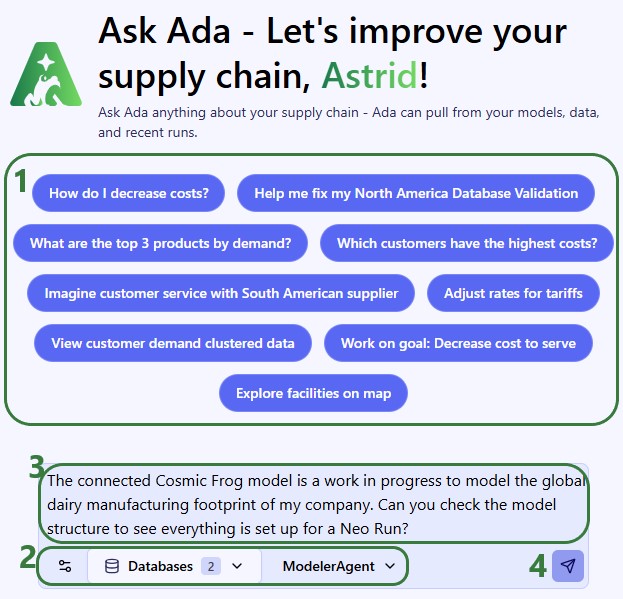
  1. If unsure how to start, or if you are just exploring, you can use 1 of the example prompts to get going.
  2. Underneath the prompt textbox, we can:
    1. Select the interaction Style to use. These behave differently in how verbose the agent’s answers will be and how often user confirmation/feedback will be sought before proceeding. See the Create your First Prompt section in the Getting Started with Ada article for more details. Typically, Scout (the default style) works well for users experienced with Optilogic tools who are starting to use AI.
    2. Connect to 1 or multiple Cosmic Frog models, DataStar projects, or Postgres databases. The prompt can refer to these and data can be moved from one database to another. In this example, we have connected to 2 databases: 1 Cosmic Frog model and 1 DataStar project; see next screenshot.
    3. Choose the agent to use for the prompt; we are using the Modeler Agent here.
  3. Type your question/task into the prompt textbox.
  4. Click on the submit button.

Our 2 connected databases are shown in this screenshot:
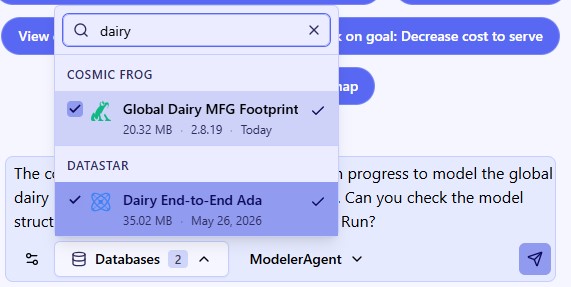
After submitting a prompt, the Modeler Agent will start processing and formulating a response; the following 3 screenshots show the full response:
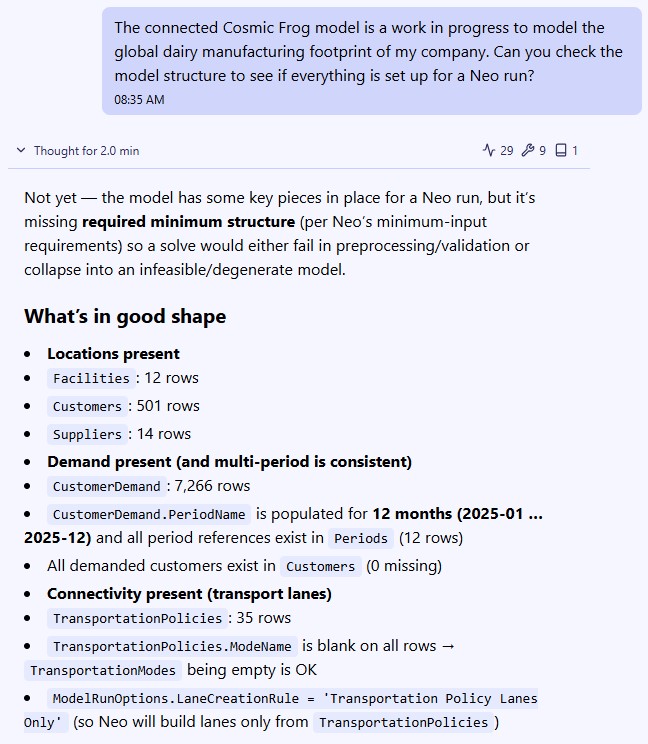
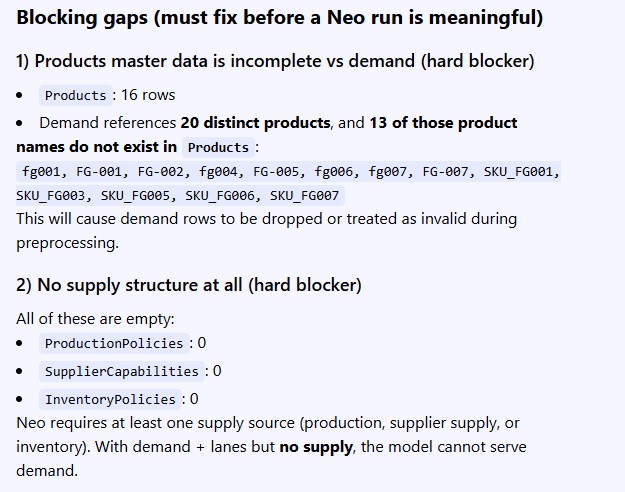
We now understand there are several issues that need to be addressed before we can attempt a first model run. First, the user decides to focus on the product name problem identified in the Customer Demand table. To understand the problem, we first have a look at the Customer Demand table in the Cosmic Frog model and notice that whereas all finished goods should follow the naming convention of FGXXX, many do not:

Since we are not familiar with the data in the DataStar project, we ask the Modeler Agent if there are tables that can help resolve the product naming problem:

We then have a look at the mentioned tables in the DataStar project and identify the 2 we think can be used as lookups to fix the incorrect product names:

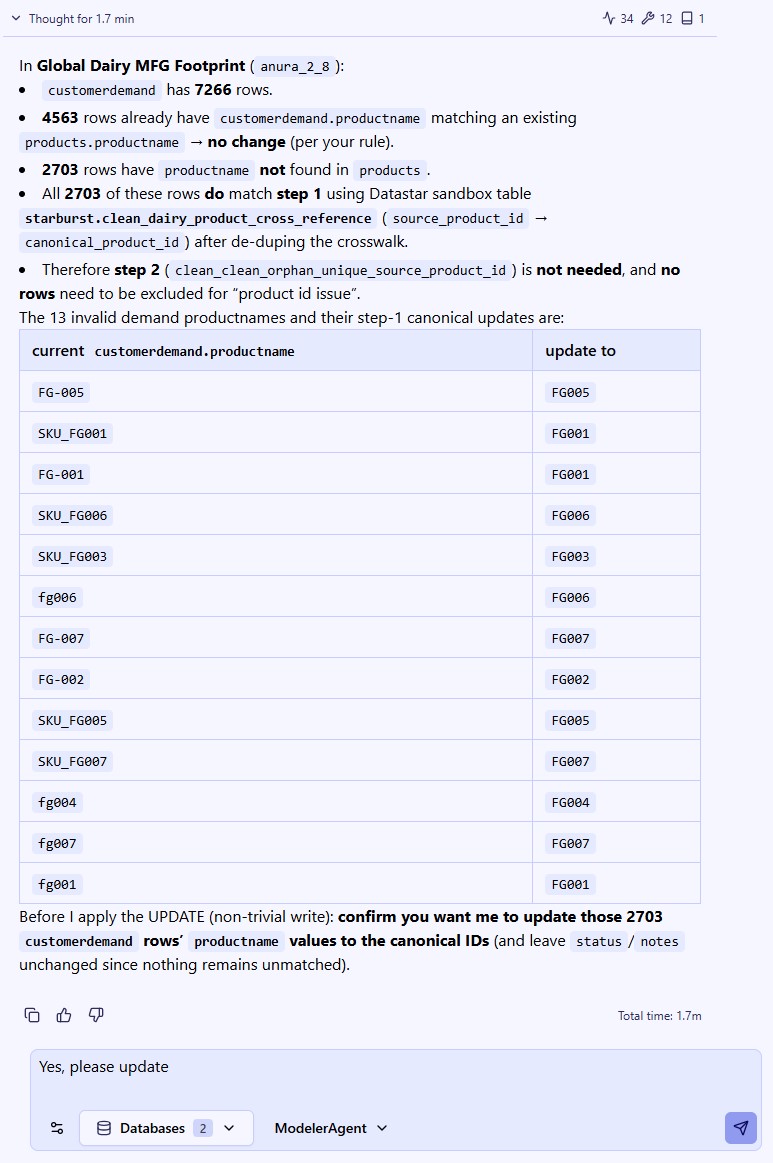
The response does not yet make any changes, but summarizes what they will be and asks us to confirm before making the changes:

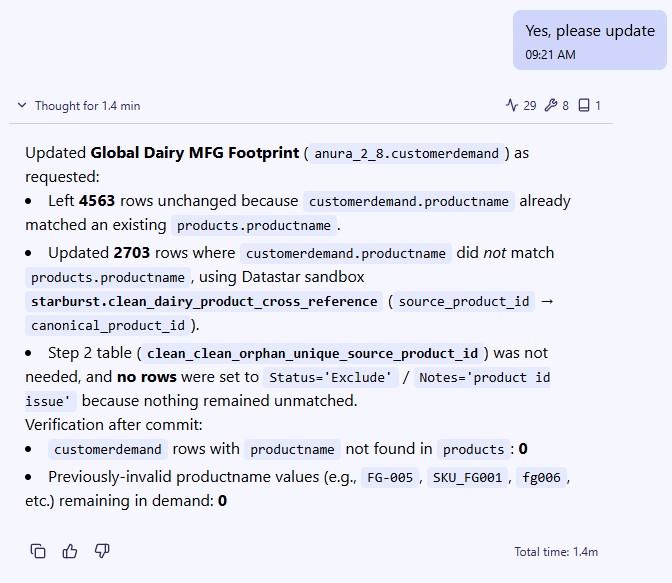
After submitting the confirmation, the changes are made:

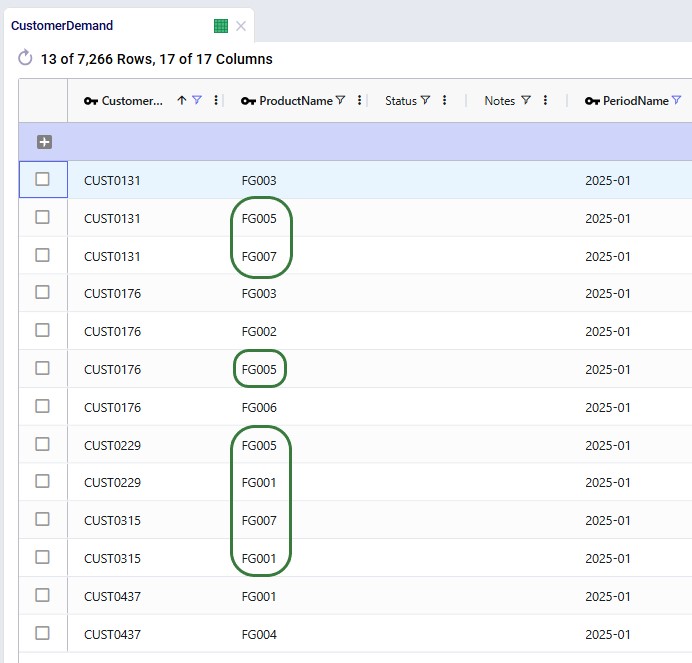
And checking the Customer Demand table in Cosmic Frog, we see the product naming is now consistent. The names outlined in green were incorrect previously (see screenshot above):

Using the Modeler Agent within DataStar

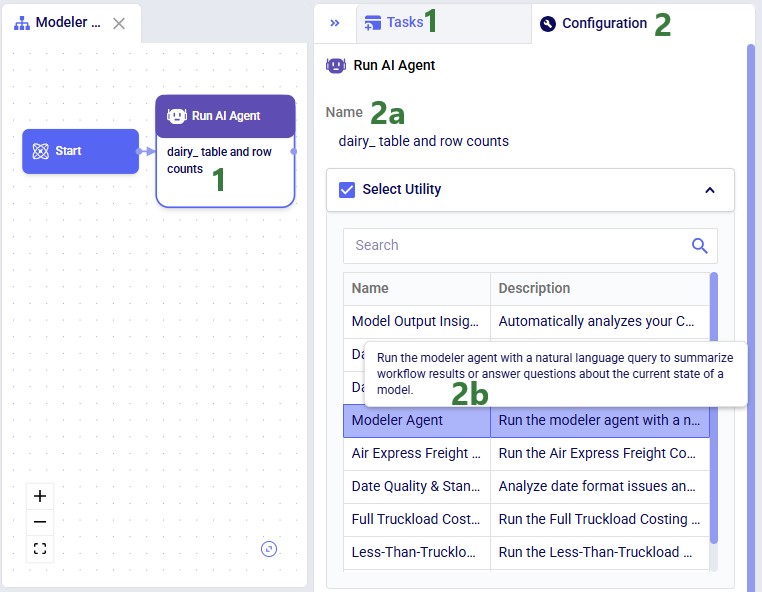
Accessing the Modeler Agent through DataStar is done via a Run AI Agent task:

  1. From the Tasks tab, click on a Run AI Agent task and drag it onto the Macro canvas to add it to your active Macro.
  2. Start configuring the task on the Configuration tab that is now active:
    1. Type the task’s name in the Name textbox.
    2. In the Select Utility section, choose Modeler Agent from the list of available agents by clicking on it.

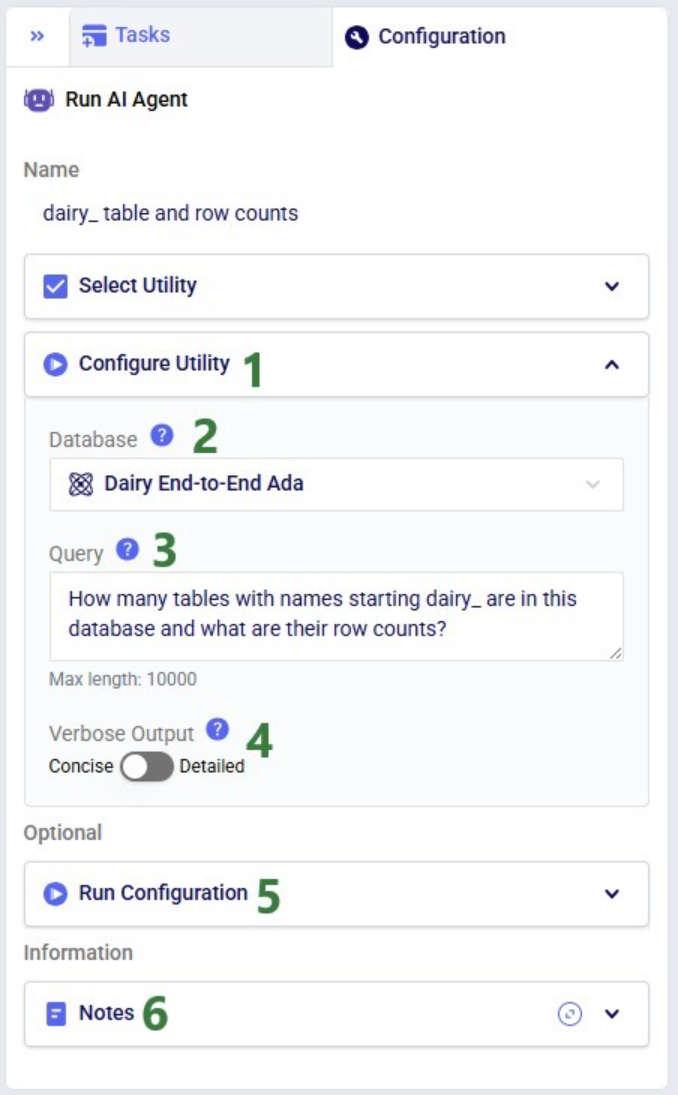
Next, configure the other parts of the task:

  1. Expand the Configure Utility part if not yet expanded.
  2. From the drop-down list, select the database you want the modeler agent to use. This can be a Cosmic Frog model, a DataStar project, or a Postgres database.
  3. Type your question/task in the Query field.
  4. Choose how verbose the agent’s output should be, concise or detailed.
  5. In the Run Configuration section, users can add Tags to facilitate finding job runs, set a Timeout for the task, and set the Resource Size to use. Note that for most Run AI Agent tasks, the Resource Size will need to be set to XS or higher.
  6. Optionally, add notes about this task in the Notes part.

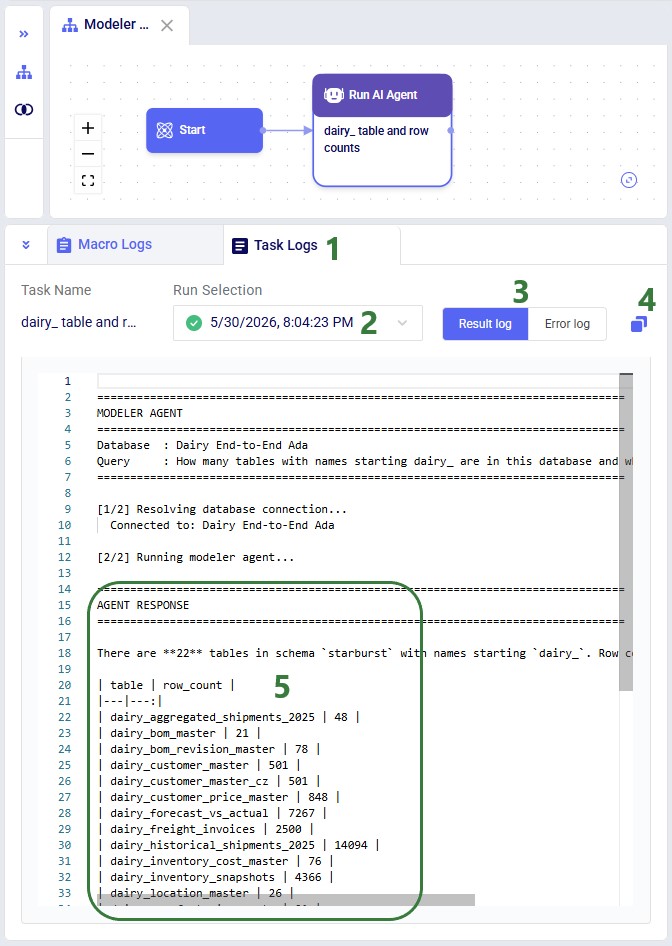
After running a Run AI Agent task, the Task Logs tab located underneath the Macro canvas will show the log that contains the Modeler Agent’s response:

  1. Click on the Task Logs tab.
  2. The log of the most recent run of the task will be shown, use the Run Selection drop-down to see results of prior runs.
  3. The Result Log will be shown by default. When troubleshooting any issues, clicking on the Error log to review it can be helpful.
  4. To copy the task log, use this copy button.
  5. The asked for output (row counts of tables starting with dairy_) are listed in the Agent Response part of the log.

Pro tip

If the Modeler Agent response indicates it needs feedback before proceeding, it is recommended to go back to your Query input and update it to include your feedback and re-run.

Pro tip

When adding a Run AI Agent task to a Macro that will be used repeatedly in DataStar, it is recommended to check the prompt behaves as intended through chat with Ada first.

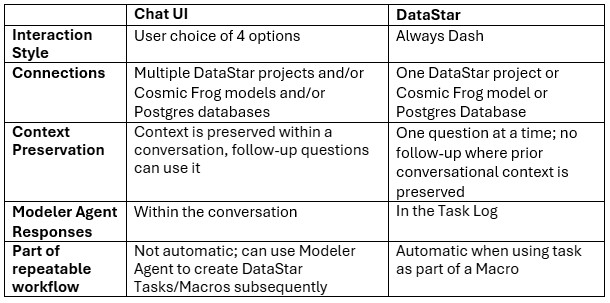
Modeler Agent Usage: Chat UI vs DataStar

There are a few differences to keep in mind when running the Modeler Agent either via the chat with Ada UI or from within DataStar:

Best Practices for Prompt Writing

The general Best Practices, Tips & Tricks, and Current Limitations and Known Behaviors included in the Getting Started with Ada documentation also apply to the Modeler Agent. In addition, we recommend providing the Modeler Agent with structured context. The more structured context provided, the faster and more accurately it can help.

Specify the engine and objective

Better:
“Using Neo, minimize total landed cost while meeting all customer demand.”

Worse:
“Optimize my supply chain.”

Specify grain and keys

Better:
“Demand is customer-product-month keyed by (customer_id, sku, month).”

Worse:
“Here’s demand data.”

Clarify constraints and assumptions

Examples:

  • Can demand go unmet?
  • Is single-sourcing required?
  • Can products co-load on vehicles?
  • Are facilities fixed or selectable?

Separate staging from ANURA model tables

Transform and cleanse data in staging layers whenever possible and export finalized structures into ANURA.

Ask for evidence

Request:

  • Row counts
  • Distinct keys
  • Validation summaries
  • Failing rows

rather than only asking:
“Is it valid?”

Prefer incremental changes

Better:
“Fix these 3 fields.”

Worse:
“Rebuild the whole model.”

Top 10 Starter Prompts

Inspect an existing model

“Inspect my model {database name}: what ANURA tables are populated, and what are row counts by table?”

Identify minimum required inputs

“I want to run {Neo|Hopper} for {problem statement}. What are the minimum ANURA input tables and critical required fields?”

Map raw source data into ANURA

“Here are my source tables {table list} with keys {keys}. Propose a mapping into ANURA tables for {engine} and list assumptions and gaps.”

Validate referential integrity

“Check that all {demand table} references exist in {Customers, Products} and show missing keys.”

Diagnose empty outputs

“My run completed but outputs are (partially) empty. Walk me through the most likely causes and the checks to confirm each.”

Troubleshoot Infeasibility (Neo) / Unrouted Shipments (Hopper)

“My model is infeasible. Help me troubleshoot.”

“About 60% of shipments in scenarios 2 and 3 are unrouted. Diagnose why.”

Create scenarios

“Create a set of scenarios where the 5 currently excluded DCs are set to Consider and demand is increased by 10%, 30%, and 50%.”

Configure Hopper inputs

“I have shipments at the weekly level and 5 different types of assets. What ANURA tables do I need for Hopper?”

Build a DataStar workflow

“Design a DataStar macro that builds Cosmic Frog model-ready Facilities and Products tables from the clean_DC_Master, clean_MFG_Master and clean_SKU_Master tables in this DataStar project’s sandbox and exports them into the EMEA Neo Cosmic Frog model.”

Output analysis and reporting

“Analyze the outputs of the Neo scenarios in the Global Supply Chain Strategy model. Generate a report for the leadership team which compares the scenarios and focuses on the biggest shifts and main KPIs.”

Pro tip: You can also ask Ada for any prompt suggestions and feedback on how to clarify/improve a prompt

Common Pitfalls Avoided

Modeling Mistakes

The Modeler Agent helps supply chain modeleres avoid common modeling mistakes such as:

  • Guessing ANURA schema instead of reading metadata
  • Populating fields that preprocessing derives automatically based on defaults
  • Treating sentinel values like ALL as real master-data values
  • Performing transformations directly inside ANURA model tables
  • Launching solves before confirming connectivity (e.g. demand has a valid supply path)
  • Mixing incompatible units of measure
  • Misaligning periods or horizons in multi-period models

Running a Model Too Soon

Many optimization issues originate during preprocessing rather than inside the solver itself. Preprocessing typically:

  • Applies defaults
  • Validates relationships
  • Resolves references
  • Validates enumerations
  • Filters invalid records
  • Builds optimization-ready structures

Common preprocessing-related symptoms include:

  • Empty outputs
  • Missing flows
  • Dropped rows
  • Missing periods
  • Zero-row intermediate structures

The Modeler Agent is designed to diagnose these issues before expensive solves are executed whenever possible.

Example Typical Model Build Workflow

  1. State the decision question
    • Example: “We need to build a Cosmic Frog model to answer the question of which DC should serve which customer(s) to minimize cost subject to capacity.”
  2. Name the engine
    • Neo for network optimization; Hopper for transportation optimization
  1. Describe your data and where it lives
    • What tables exist, what connection/schema, what grain (SKU vs product family?, day / week / month?)
  1. Ask for a check before running
    • “Review the data populated in the model and check if it is ready to run Neo.”
  1. Only then run
    • Runs can be time-consuming; the agent will typically recommend doing pre-solve checks first.
    • “Run the baseline and first scenario.”
  1. Iterate on policies, assumptions, scenarios
    • “Run sensitivity scenarios where North America demand increases by 5%, 10%, and 20%, EMEA demand decreases by 10% and 20%, and vary transportation costs to increase by 20% and 40%.”
  1. Analyze outputs and create reports
    • “Create a report comparing Neo scenario outputs for the leadership team, include main KPIs and emphasize the biggest changes”
  1. Automate repeatable workflows in DataStar
    • “Create a Macro that automates the steps of the 3 previous prompts in this conversation.”

Other Helpful Resources

Questions or feedback? Please contact the Optilogic Support team on support@optilogic.com.

Overview

The Modeler Agent is one of Ada’s AI-powered supply chain modeling specialists. It helps users build, validate, troubleshoot, run, analyze, and automate Cosmic Frog network optimization (Neo) and transportation optimization (Hopper) models. The Modeler Agent accelerates the entire modeling lifecycle – from raw operational data to optimization-ready model construction and scenario analysis – while improving model quality, traceability, and reproducibility. By combining supply chain domain knowledge with direct platform capabilities, it helps teams move from messy source data to solver-ready models faster and with fewer manual hand-offs.

The agent can be accessed by chatting with Ada in the next generation Optilogic platform and via Run AI Agent tasks in DataStar.

Why It’s Useful

Users get leverage in these main areas:

  1. Faster model construction: The agent helps users build Cosmic Frog models (ANURA schema) more quickly by guiding schema mapping, validation, and preprocessing readiness.
  1. Schema-first correctness: The agent will push to verify the actual  table/column requirements instead of guessing.
  1. Faster debugging: When outputs are empty or a run fails, the agent focuses on the most common root causes: preprocessing/validation drops, missing connectivity, wrong enumerations/UOM, period mistakes, or broken relationships.
  1. Repeatable pipelines: If you want automation, the Agent can help create a Datastar macro so your model build is reproducible (build → validate → export → run).
  1. Better visibility and traceability: The platform logs agent plans, tool usage, actions, and outputs so modeling work can be reviewed and audited.

Key Capabilities

Data → Model mapping

  • Map raw/staging tables to ANURA inputs (customers, facilities, products, demand, shipments, policies, etc.)
  • Identify missing structure and propose the least-assumptive proxy inputs (with clear labeling)

Validation & feasibility checks

  • Check required fields, enumerations, master-table relationships, UOM consistency, and period/horizon alignment
  • Pre-solve viability checks (e.g., demand has a feasible path to supply)

Scenario & policy authoring (conceptual + implementation guidance)

  • Help design and create scenarios (what changes, where, and expected affected-row counts)
  • Help interpret how policies/constraints change the feasible network

Engine execution support

  • Guide Neo/Hopper run readiness and interpret outputs (and treat “empty outputs” as a failure signal to diagnose)

Workflow automation (DataStar)

  • Create repeatable model-build workflows (Macros & Tasks) in DataStar
  • Emphasize “transform in staging, export final tables to ANURA”

Reporting and documentation

  • Generate markdown summaries of assumptions and findings
  • Document trade-offs and validation outcomes

Using the Modeler Agent

There are two ways to access the Modeler Agent:

  1. Through chatting with Ada in the next generation Optilogic platform
  2. By using Run AI Agent tasks within DataStar

Both ways will be explained: via chat first, then the DataStar workflow, followed by an overview of the main differences between the 2 methods.

Using the Modeler Agent within the Chat UI

It is recommended to be somewhat familiar with Ada and how to talk to her in the chat UI before diving into this content. Please see the Getting Started with Ada & Agentic AI article, and in particular its How to Use Ada section.

Once logged into the next generation Optilogic platform at https://ai.optilogic.app, you can start chatting with Ada leveraging the Modeler Agent right away from the central part of the Home page.

Here, our example is of a new modeler who inherited a work in progress model to evaluate and optimize their company's manufacturing footprint. They have the Cosmic Frog model which is partially built and a DataStar project with both raw historical and master data, and a set of previously cleaned tables.

  1. If unsure how to start, or if you are just exploring, you can use 1 of the example prompts to get going.
  2. Underneath the prompt textbox, we can:
    1. Select the interaction Style to use. These behave differently in how verbose the agent’s answers will be and how often user confirmation/feedback will be sought before proceeding. See the Create your First Prompt section in the Getting Started with Ada article for more details. Typically, Scout (the default style) works well for users experienced with Optilogic tools who are starting to use AI.
    2. Connect to 1 or multiple Cosmic Frog models, DataStar projects, or Postgres databases. The prompt can refer to these and data can be moved from one database to another. In this example, we have connected to 2 databases: 1 Cosmic Frog model and 1 DataStar project; see next screenshot.
    3. Choose the agent to use for the prompt; we are using the Modeler Agent here.
  3. Type your question/task into the prompt textbox.
  4. Click on the submit button.

Our 2 connected databases are shown in this screenshot:

After submitting a prompt, the Modeler Agent will start processing and formulating a response; the following 3 screenshots show the full response:
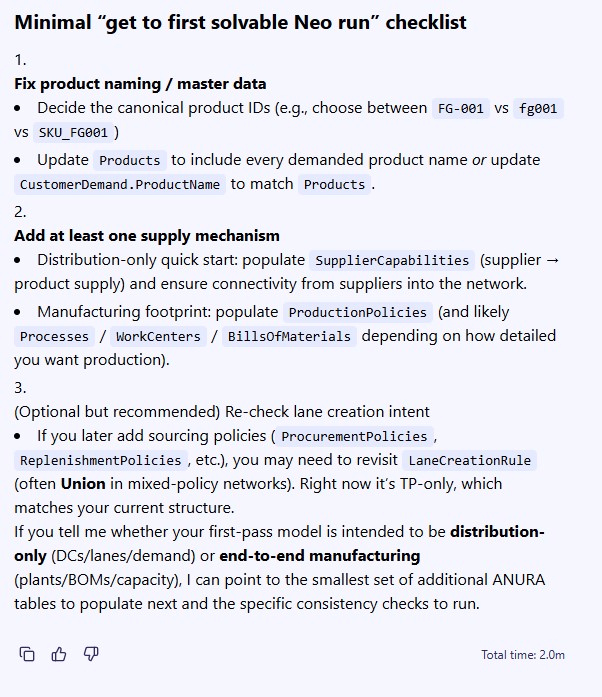
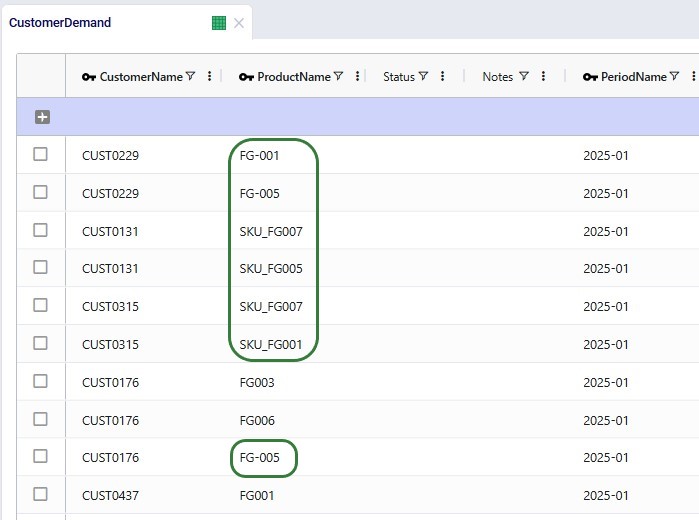
We now understand there are several issues that need to be addressed before we can attempt a first model run. First, the user decides to focus on the product name problem identified in the Customer Demand table. To understand the problem, we first have a look at the Customer Demand table in the Cosmic Frog model and notice that whereas all finished goods should follow the naming convention of FGXXX, many do not:
Since we are not familiar with the data in the DataStar project, we ask the Modeler Agent if there are tables that can help resolve the product naming problem:
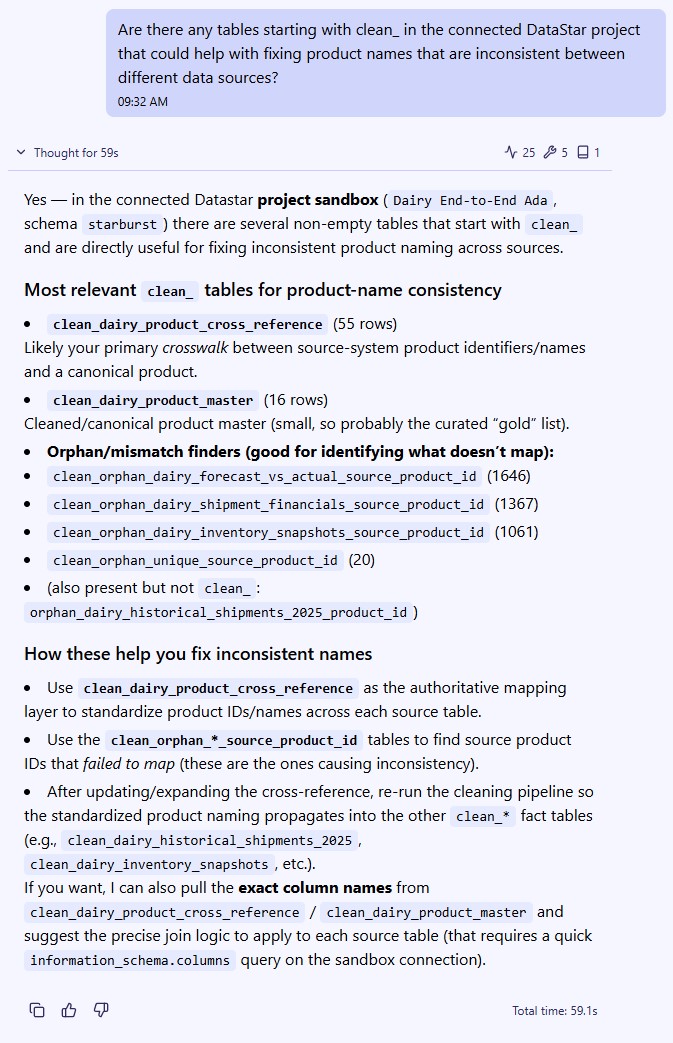
We then have a look at the mentioned tables in the DataStar project and identify the 2 we think can be used as lookups to fix the incorrect product names:
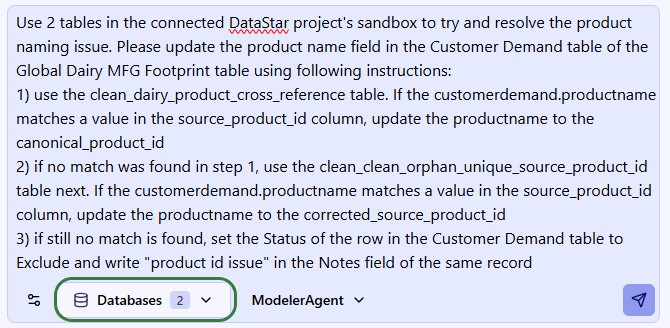
The response does not yet make any changes, but summarizes what they will be and asks us to confirm before making the changes:
After submitting the confirmation, the changes are made:
And checking the Customer Demand table in Cosmic Frog, we see the product naming is now consistent. The names outlined in green were incorrect previously (see screenshot above):
Using the Modeler Agent within DataStar

Accessing the Modeler Agent through DataStar is done via a Run AI Agent task:
  1. From the Tasks tab, click on a Run AI Agent task and drag it onto the Macro canvas to add it to your active Macro.
  2. Start configuring the task on the Configuration tab that is now active:
    1. Type the task’s name in the Name textbox.
    2. In the Select Utility section, choose Modeler Agent from the list of available agents by clicking on it.

Next, configure the other parts of the task:
  1. Expand the Configure Utility part if not yet expanded.
  2. From the drop-down list, select the database you want the modeler agent to use. This can be a Cosmic Frog model, a DataStar project, or a Postgres database.
  3. Type your question/task in the Query field.
  4. Choose how verbose the agent’s output should be, concise or detailed.
  5. In the Run Configuration section, users can add Tags to facilitate finding job runs, set a Timeout for the task, and set the Resource Size to use. Note that for most Run AI Agent tasks, the Resource Size will need to be set to XS or higher.
  6. Optionally, add notes about this task in the Notes part.

After running a Run AI Agent task, the Task Logs tab located underneath the Macro canvas will show the log that contains the Modeler Agent’s response:
  1. Click on the Task Logs tab.
  2. The log of the most recent run of the task will be shown, use the Run Selection drop-down to see results of prior runs.
  3. The Result Log will be shown by default. When troubleshooting any issues, clicking on the Error log to review it can be helpful.
  4. To copy the task log, use this copy button.
  5. The asked for output (row counts of tables starting with dairy_) are listed in the Agent Response part of the log.

Pro tip

If the Modeler Agent response indicates it needs feedback before proceeding, it is recommended to go back to your Query input and update it to include your feedback and re-run.

Pro tip

When adding a Run AI Agent task to a Macro that will be used repeatedly in DataStar, it is recommended to check the prompt behaves as intended through chat with Ada first.

Modeler Agent Usage: Chat UI vs DataStar

There are a few differences to keep in mind when running the Modeler Agent either via the chat with Ada UI or from within DataStar:
Best Practices for Prompt Writing

The general Best Practices, Tips & Tricks, and Current Limitations and Known Behaviors included in the Getting Started with Ada documentation also apply to the Modeler Agent. In addition, we recommend providing the Modeler Agent with structured context. The more structured context provided, the faster and more accurately it can help.

Specify the engine and objective

Better:
“Using Neo, minimize total landed cost while meeting all customer demand.”

Worse:
“Optimize my supply chain.”

Specify grain and keys

Better:
“Demand is customer-product-month keyed by (customer_id, sku, month).”

Worse:
“Here’s demand data.”

Clarify constraints and assumptions

Examples:

  • Can demand go unmet?
  • Is single-sourcing required?
  • Can products co-load on vehicles?
  • Are facilities fixed or selectable?

Separate staging from ANURA model tables

Transform and cleanse data in staging layers whenever possible and export finalized structures into ANURA.

Ask for evidence

Request:

  • Row counts
  • Distinct keys
  • Validation summaries
  • Failing rows

rather than only asking:
“Is it valid?”

Prefer incremental changes

Better:
“Fix these 3 fields.”

Worse:
“Rebuild the whole model.”

Top 10 Starter Prompts

Inspect an existing model

“Inspect my model {database name}: what ANURA tables are populated, and what are row counts by table?”

Identify minimum required inputs

“I want to run {Neo|Hopper} for {problem statement}. What are the minimum ANURA input tables and critical required fields?”

Map raw source data into ANURA

“Here are my source tables {table list} with keys {keys}. Propose a mapping into ANURA tables for {engine} and list assumptions and gaps.”

Validate referential integrity

“Check that all {demand table} references exist in {Customers, Products} and show missing keys.”

Diagnose empty outputs

“My run completed but outputs are (partially) empty. Walk me through the most likely causes and the checks to confirm each.”

Troubleshoot Infeasibility (Neo) / Unrouted Shipments (Hopper)

“My model is infeasible. Help me troubleshoot.”

“About 60% of shipments in scenarios 2 and 3 are unrouted. Diagnose why.”

Create scenarios

“Create a set of scenarios where the 5 currently excluded DCs are set to Consider and demand is increased by 10%, 30%, and 50%.”

Configure Hopper inputs

“I have shipments at the weekly level and 5 different types of assets. What ANURA tables do I need for Hopper?”

Build a DataStar workflow

“Design a DataStar macro that builds Cosmic Frog model-ready Facilities and Products tables from the clean_DC_Master, clean_MFG_Master and clean_SKU_Master tables in this DataStar project’s sandbox and exports them into the EMEA Neo Cosmic Frog model.”

Output analysis and reporting

“Analyze the outputs of the Neo scenarios in the Global Supply Chain Strategy model. Generate a report for the leadership team which compares the scenarios and focuses on the biggest shifts and main KPIs.”

Pro tip: You can also ask Ada for any prompt suggestions and feedback on how to clarify/improve a prompt

Common Pitfalls Avoided

Modeling Mistakes

The Modeler Agent helps supply chain modeleres avoid common modeling mistakes such as:

  • Guessing ANURA schema instead of reading metadata
  • Populating fields that preprocessing derives automatically based on defaults
  • Treating sentinel values like ALL as real master-data values
  • Performing transformations directly inside ANURA model tables
  • Launching solves before confirming connectivity (e.g. demand has a valid supply path)
  • Mixing incompatible units of measure
  • Misaligning periods or horizons in multi-period models

Running a Model Too Soon

Many optimization issues originate during preprocessing rather than inside the solver itself. Preprocessing typically:

  • Applies defaults
  • Validates relationships
  • Resolves references
  • Validates enumerations
  • Filters invalid records
  • Builds optimization-ready structures

Common preprocessing-related symptoms include:

  • Empty outputs
  • Missing flows
  • Dropped rows
  • Missing periods
  • Zero-row intermediate structures

The Modeler Agent is designed to diagnose these issues before expensive solves are executed whenever possible.

Example Typical Model Build Workflow

  1. State the decision question
    • Example: “We need to build a Cosmic Frog model to answer the question of which DC should serve which customer(s) to minimize cost subject to capacity.”
  2. Name the engine
    • Neo for network optimization; Hopper for transportation optimization
  1. Describe your data and where it lives
    • What tables exist, what connection/schema, what grain (SKU vs product family?, day / week / month?)
  1. Ask for a check before running
    • “Review the data populated in the model and check if it is ready to run Neo.”
  1. Only then run
    • Runs can be time-consuming; the agent will typically recommend doing pre-solve checks first.
    • “Run the baseline and first scenario.”
  1. Iterate on policies, assumptions, scenarios
    • “Run sensitivity scenarios where North America demand increases by 5%, 10%, and 20%, EMEA demand decreases by 10% and 20%, and vary transportation costs to increase by 20% and 40%.”
  1. Analyze outputs and create reports
    • “Create a report comparing Neo scenario outputs for the leadership team, include main KPIs and emphasize the biggest changes”
  1. Automate repeatable workflows in DataStar
    • “Create a Macro that automates the steps of the 3 previous prompts in this conversation.”

Other Helpful Resources

Questions or feedback? Please contact the Optilogic Support team on support@optilogic.com.

Have More Questions?

Contact Support

Get in touch

Contact Sales

Get in touch

Visit Frogger Pond Community

Visit our Community