

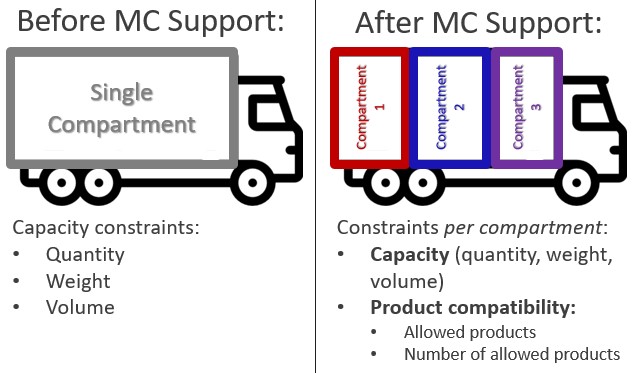
The Multiple Compartments (MC) feature allows a single transportation asset (e.g., truck, trailer) to be divided into independent compartments, each with its own capacity and compatibility constraints. This enables Hopper to produce more accurate, feasible, and operationally realistic transportation plans.
Get up and running in 4 steps:
Use this feature when one or more of your transportation assets have physically separate sections that must be loaded independently. Common examples:
Without Multiple Compartments, Hopper checks only that the total shipment fits the total asset capacity. This can produce plans that look valid in the optimizer but cannot be executed operationally because individual compartments are overloaded or contain incompatible products.
Three changes have been made to Hopper's data model: one new input table, one new field on an existing input table, and one new field on an existing output table.
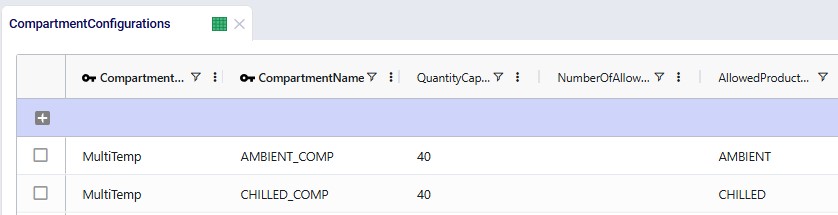
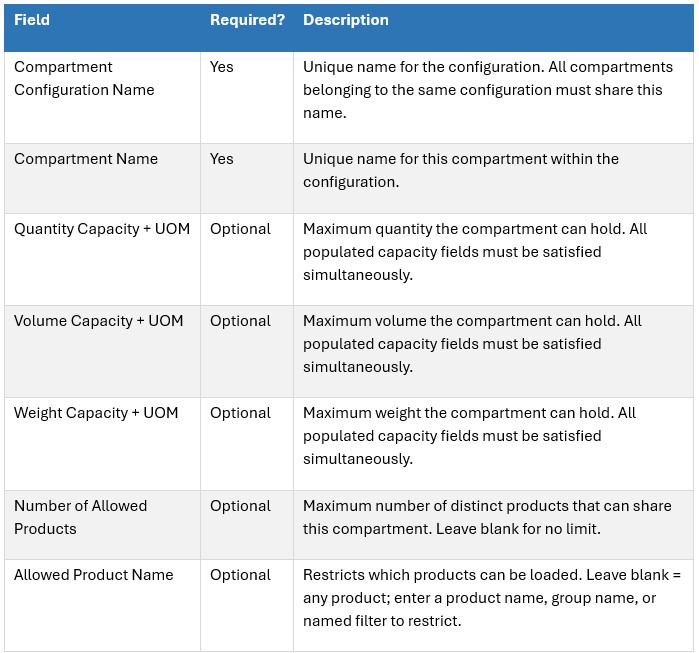
This table defines the structure and rules of the compartments that make up each configuration. Add one row per compartment; rows with the same Compartment Configuration Name form a single configuration.
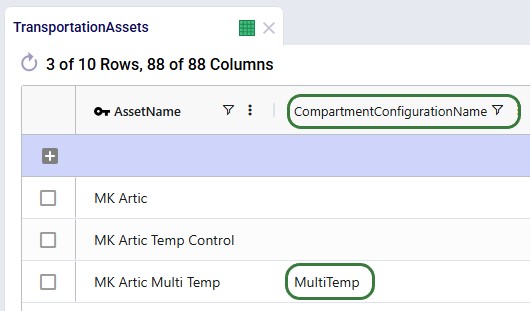
A new Compartment Configuration Name field has been added to the Transportation Assets table. Populate it with the name of a configuration defined in the Compartment Configurations table to enable compartment-level modeling for that asset.
Effect on Hopper's solver:
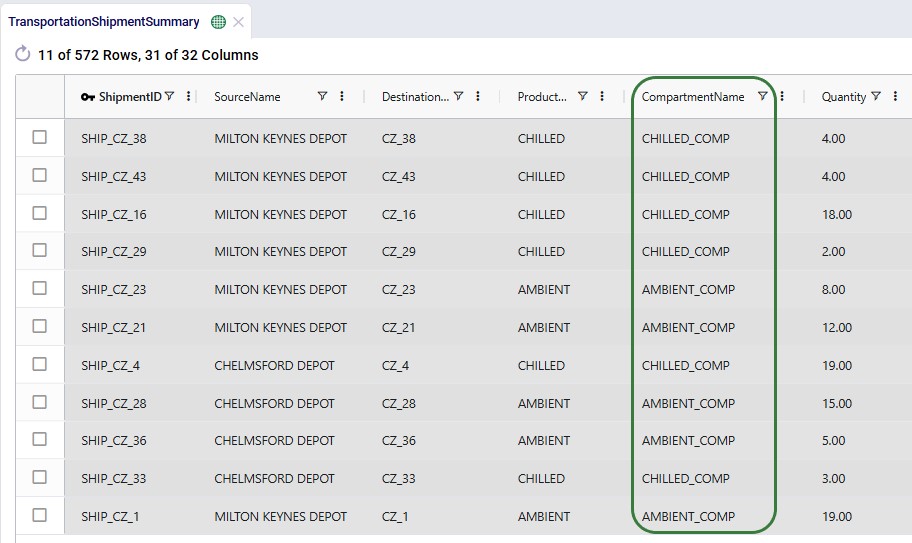
The Transportation Optimization Shipment Summary output table now includes a Compartment Name column. For any shipment transported on a multi-compartment asset, this column shows which compartment it was assigned to.
This field enables:
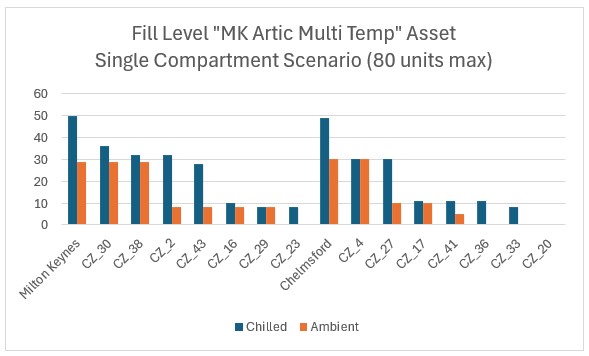
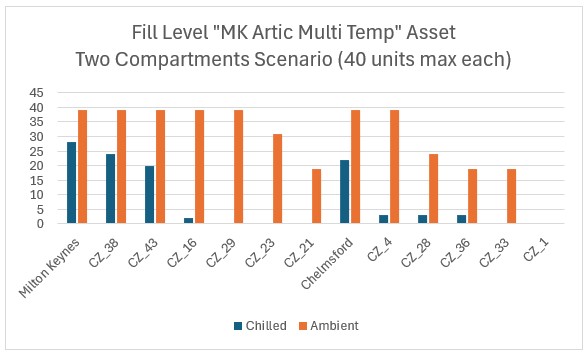
The following example runs two scenarios with the same "MK Artic Multi Temp" asset to illustrate the difference:
Both scenarios have other single-compartment assets available. In each scenario, the MK Artic Multi Temp asset is used for one route. The charts below show how much of each product is on board at each stop along that route (stops are ordered by route sequence on the x-axis; the asset is loaded at Milton Keynes and Chelmsford depots and delivers to the CZ locations).
Key observations:
Multiple Compartments moves Hopper from aggregate capacity modeling to granular compartment-level modeling. This means:
Questions? Contact the Optilogic support team at support@optilogic.com.

The Multiple Compartments (MC) feature allows a single transportation asset (e.g., truck, trailer) to be divided into independent compartments, each with its own capacity and compatibility constraints. This enables Hopper to produce more accurate, feasible, and operationally realistic transportation plans.
Get up and running in 4 steps:
Use this feature when one or more of your transportation assets have physically separate sections that must be loaded independently. Common examples:
Without Multiple Compartments, Hopper checks only that the total shipment fits the total asset capacity. This can produce plans that look valid in the optimizer but cannot be executed operationally because individual compartments are overloaded or contain incompatible products.
Three changes have been made to Hopper's data model: one new input table, one new field on an existing input table, and one new field on an existing output table.
This table defines the structure and rules of the compartments that make up each configuration. Add one row per compartment; rows with the same Compartment Configuration Name form a single configuration.
A new Compartment Configuration Name field has been added to the Transportation Assets table. Populate it with the name of a configuration defined in the Compartment Configurations table to enable compartment-level modeling for that asset.
Effect on Hopper's solver:
The Transportation Optimization Shipment Summary output table now includes a Compartment Name column. For any shipment transported on a multi-compartment asset, this column shows which compartment it was assigned to.
This field enables:
The following example runs two scenarios with the same "MK Artic Multi Temp" asset to illustrate the difference:
Both scenarios have other single-compartment assets available. In each scenario, the MK Artic Multi Temp asset is used for one route. The charts below show how much of each product is on board at each stop along that route (stops are ordered by route sequence on the x-axis; the asset is loaded at Milton Keynes and Chelmsford depots and delivers to the CZ locations).
Key observations:
Multiple Compartments moves Hopper from aggregate capacity modeling to granular compartment-level modeling. This means:
Questions? Contact the Optilogic support team at support@optilogic.com.