

In just a few clicks, you can create a free account on the Optilogic platform, which includes Cosmic Frog and DataStar among other applications. This document walks you through the steps.
If you just want the fastest way to get started:
You will go through 3 main stages:
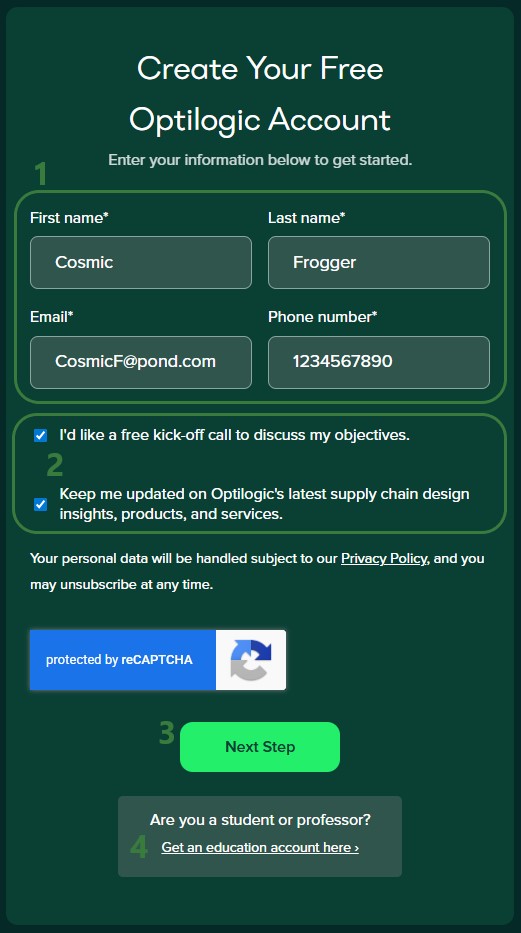
To start, go to the Create a Free Account page on Optilogic's website. You will see the following form on the right-hand side:
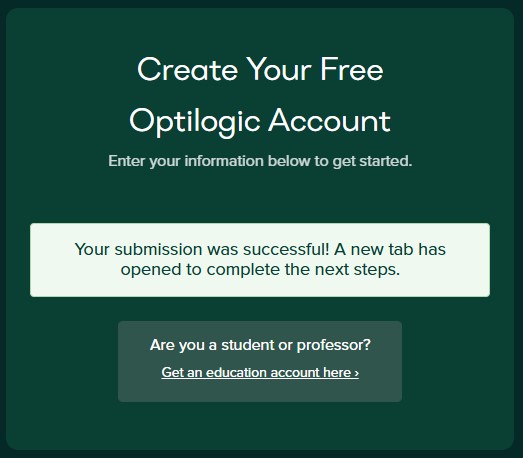
After clicking on the Next Step button, the form changes to the following message. In addition, a new browser tab has been opened and has automatically become the active tab (see screenshot below this one):
The new active tab shows the following Create An Account form:
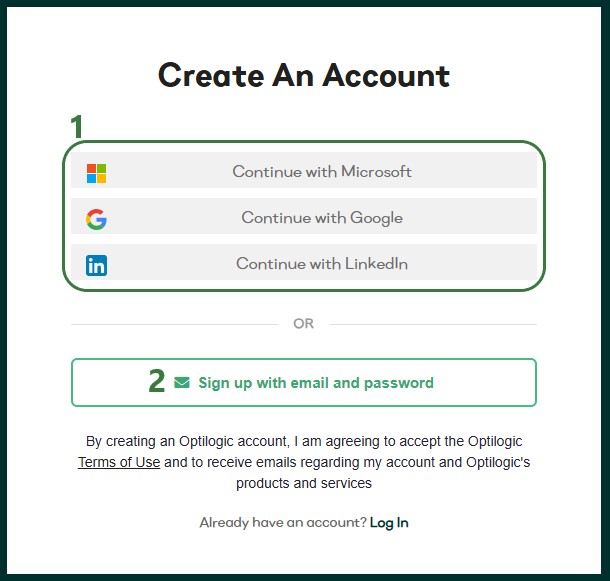
We will first go through the Single Sign-On steps using Google as the example in the next section. In the section after, Email and Password Steps, we will cover the email and password sign-up option.
We will illustrate the single sign-on process by going through the steps using a Google account. These steps are similar when using a Microsoft or LinkedIn account.
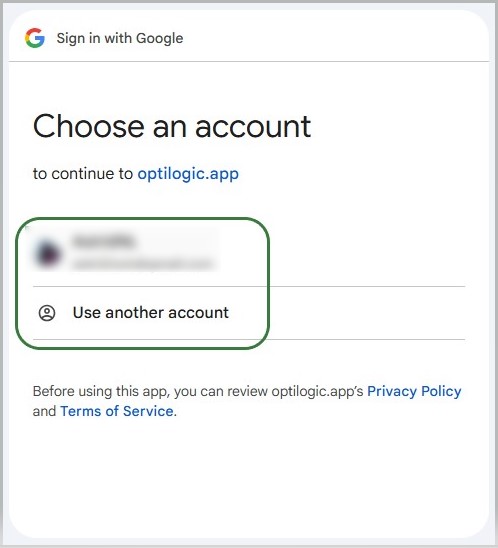
First, you will be prompted which Google account you want to use. The one you are currently logged into will be listed and you can click on it to select it. If you want to use another Google account, click on the "Use another account" option.
After selecting the Google account to use, the following form will appear:
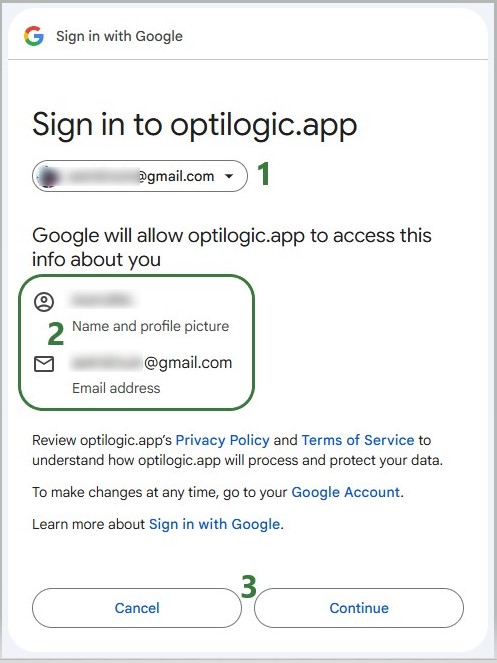
If you have clicked on the Continue button, the following form with user account information will come up. If any details are missing, please fill them out and then click on the Submit button.
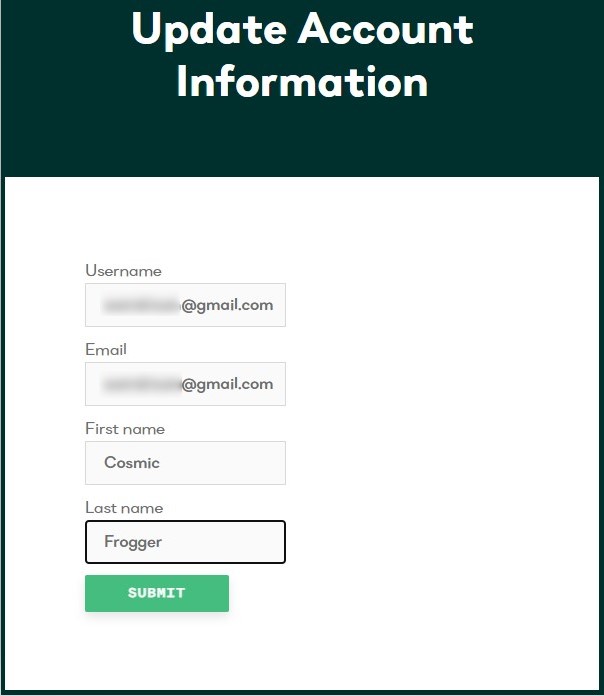
You have now signed up for an Optilogic account. The next step is to verify your email address, see the Verify Email and Configure Account section further below (link).
If you have chosen the option to sign-up using your email address and a password, the bottom part of the sign-up form will now look as follows:
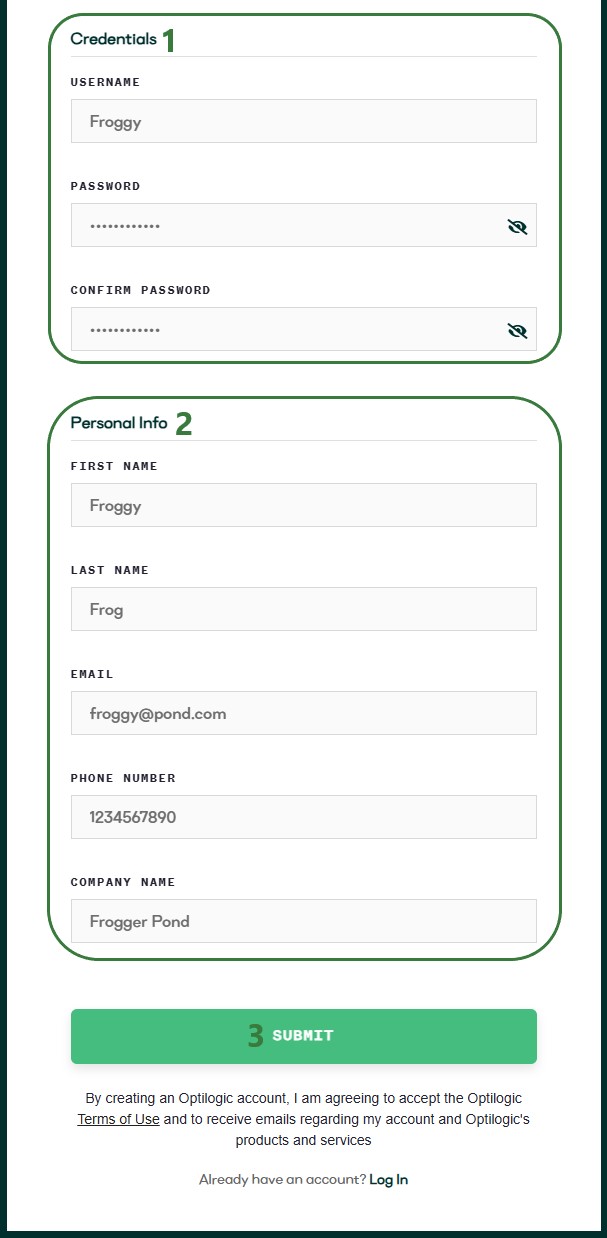
Regardless of if you used an SSO method or the username & password option to sign-up for an Optilogic account, the next steps are the same. After clicking on the Submit button, the following message will appear:
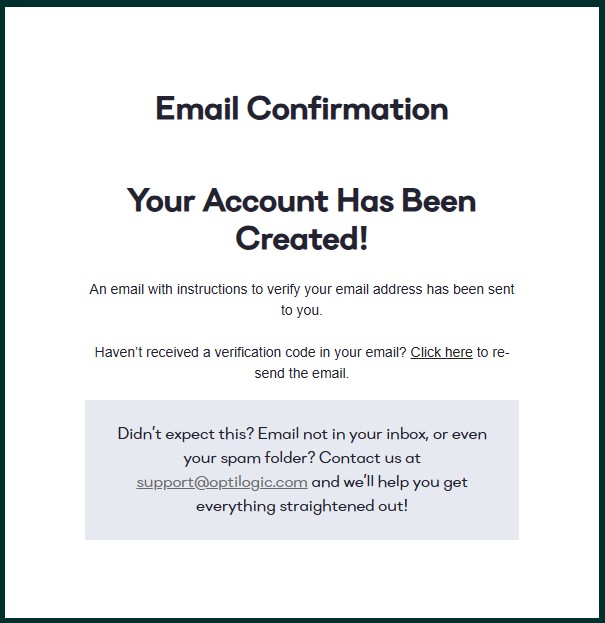
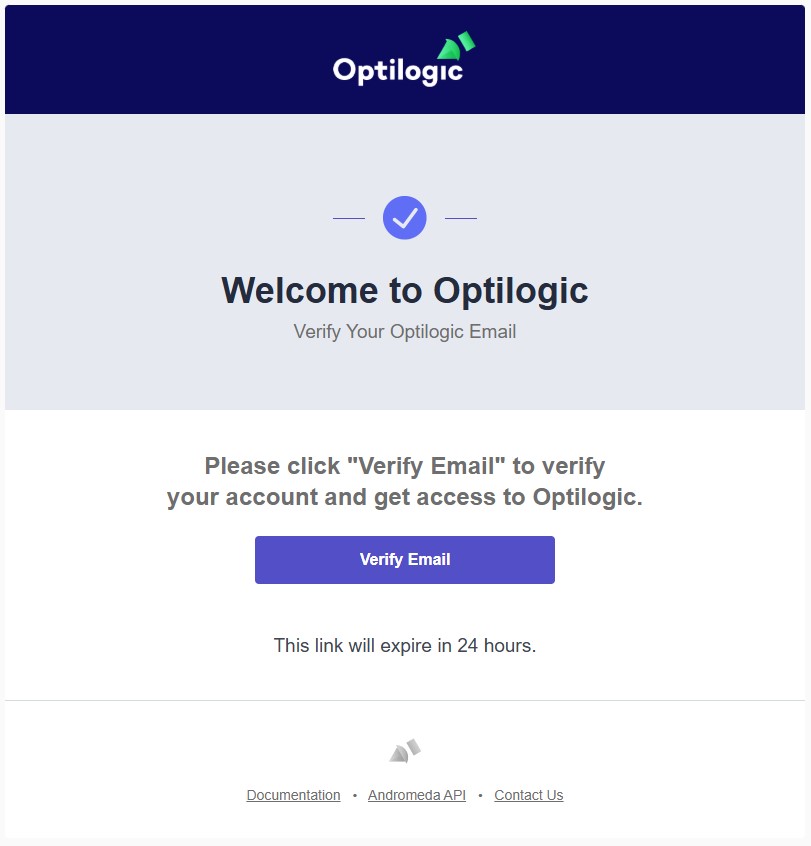
Go into your email account and find the email from Optilogic Support with the subject Verify Your Optilogic Email. In there, click on the Verify Email button:
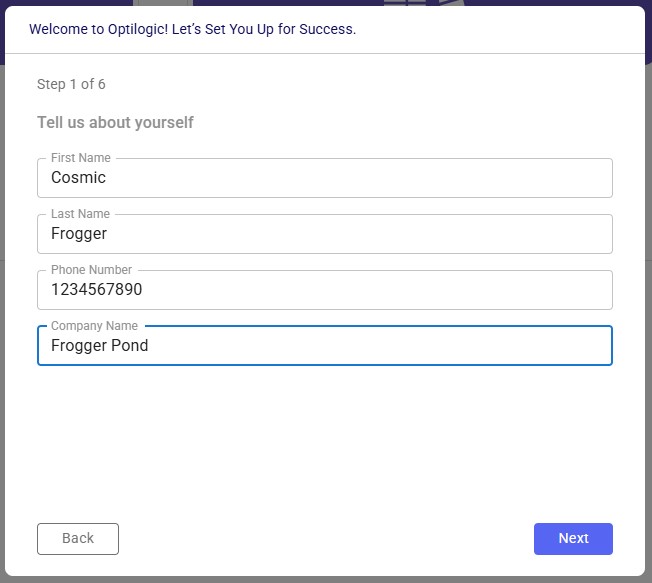
This will take you into the Optilogic platform, where you will be walked through a few quick questions to finalize your details and set up your account. Step 1 is pre-populated from your previous entries; if any are missing, please add them and then click on the Next button:
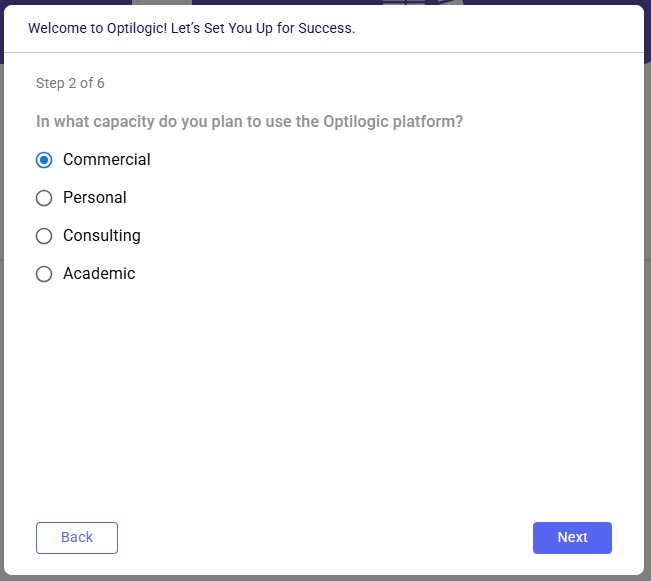
The next steps gather a bit more information:
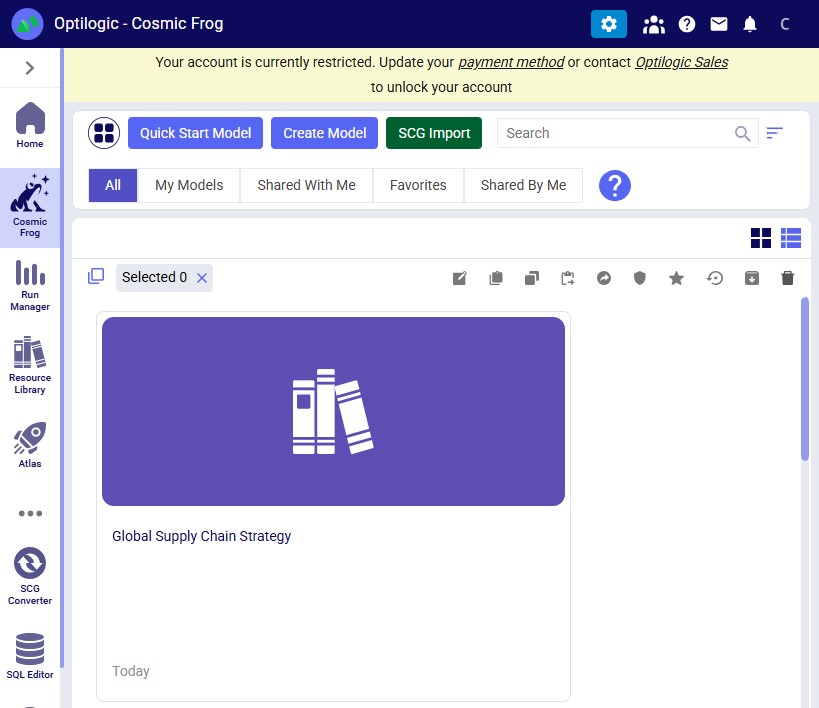
When completed, the Cosmic Frog application will be opened, and you can start exploring any of the 3 example models shown on the start page:
🎉 You're ready to start using Optilogic!
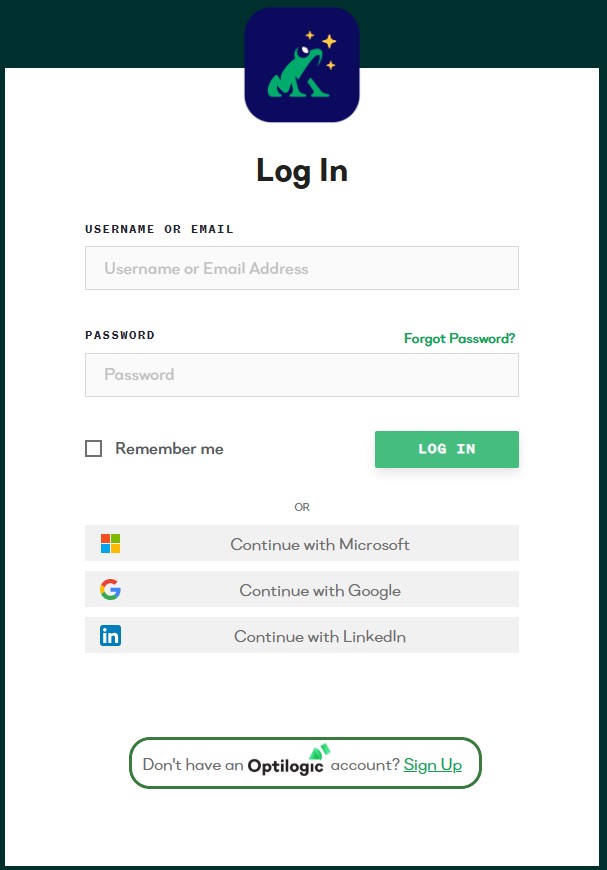
Note that you can also sign up for an Optilogic account from the platform's login page (https://optilogic.app) by clicking on the Sign-Up link at the bottom. The options and steps are the same as documented above.
Did not receive verification email?
Wrong SSO account selected?

In just a few clicks, you can create a free account on the Optilogic platform, which includes Cosmic Frog and DataStar among other applications. This document walks you through the steps.
If you just want the fastest way to get started:
You will go through 3 main stages:
To start, go to the Create a Free Account page on Optilogic's website. You will see the following form on the right-hand side:
After clicking on the Next Step button, the form changes to the following message. In addition, a new browser tab has been opened and has automatically become the active tab (see screenshot below this one):
The new active tab shows the following Create An Account form:
We will first go through the Single Sign-On steps using Google as the example in the next section. In the section after, Email and Password Steps, we will cover the email and password sign-up option.
We will illustrate the single sign-on process by going through the steps using a Google account. These steps are similar when using a Microsoft or LinkedIn account.
First, you will be prompted which Google account you want to use. The one you are currently logged into will be listed and you can click on it to select it. If you want to use another Google account, click on the "Use another account" option.
After selecting the Google account to use, the following form will appear:
If you have clicked on the Continue button, the following form with user account information will come up. If any details are missing, please fill them out and then click on the Submit button.
You have now signed up for an Optilogic account. The next step is to verify your email address, see the Verify Email and Configure Account section further below (link).
If you have chosen the option to sign-up using your email address and a password, the bottom part of the sign-up form will now look as follows:
Regardless of if you used an SSO method or the username & password option to sign-up for an Optilogic account, the next steps are the same. After clicking on the Submit button, the following message will appear:
Go into your email account and find the email from Optilogic Support with the subject Verify Your Optilogic Email. In there, click on the Verify Email button:
This will take you into the Optilogic platform, where you will be walked through a few quick questions to finalize your details and set up your account. Step 1 is pre-populated from your previous entries; if any are missing, please add them and then click on the Next button:
The next steps gather a bit more information:
When completed, the Cosmic Frog application will be opened, and you can start exploring any of the 3 example models shown on the start page:
🎉 You're ready to start using Optilogic!
Note that you can also sign up for an Optilogic account from the platform's login page (https://optilogic.app) by clicking on the Sign-Up link at the bottom. The options and steps are the same as documented above.
Did not receive verification email?
Wrong SSO account selected?