

Auto-Archiving Databases

The Auto-Archiving feature helps keep your account clean and efficient while ensuring Optilogic maintains a streamlined, cost-effective storage footprint. By automatically archiving inactive databases, we reduce unnecessary server load, improve overall performance, and free up space so you can always create new Cosmic Frog models or DataStar projects when you need them.

From your perspective, Auto-Archiving means less manual cleanup and more confidence that your account is organized, fast, and ready for your next project.

What Is Auto-Archiving?

Archiving moves a database from an active state into long-term storage. Once archived:

  • The database is no longer immediately available to query or use.
  • It is moved from high-availability servers to lower-cost infrastructure.
  • It does not count toward your database quota, giving you the ability to create more databases if you were at your limit.
  • It remains securely stored and can be restored (unarchived) at any time.

Important: Auto-archiving does not delete your data. You are always in control and can restore an archived database back into an active state.

With Auto-Archiving, you do not need to manually track and archive inactive databases. Our system will automatically archive any database that has been inactive for 90 days.

How the Auto-Archiving Process Works

  1. Warning Notice
    1. As a database approaches 90 days of inactivity, you will receive an in-app notification.
    2. A 7-day grace period gives you time to prevent archiving if you still need the database.
  2. In-App Alerts
    1. The Cloud Storage page will display a banner with details about databases scheduled for archiving.
    2. A new archive icon will appear on any database row marked for archiving.
  3. Archiving
    1. Once the inactivity threshold is reached, the system automatically archives the database.
    2. You will receive a confirmation notification once the archive is complete.

The screenshot below shows the notifications you will receive when 1) there are databases in your account that meet the criteria for an auto-archive event and 2) once databases have been archived:
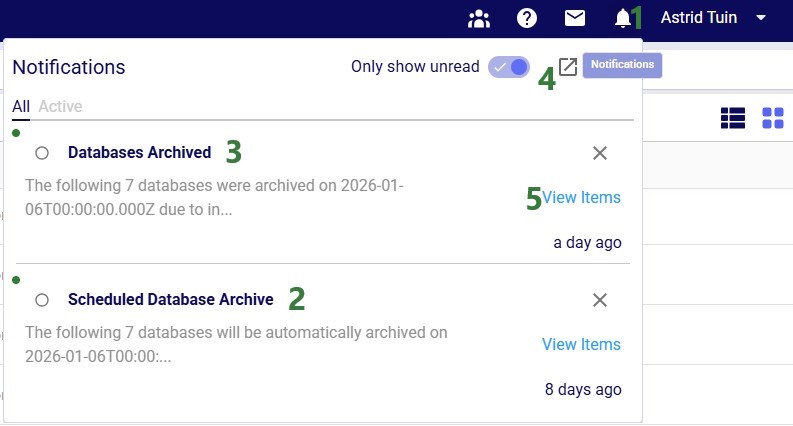
  1. You can find your Notifications under the Bell icon, which is to the left of your name at the top right in the toolbar.
  2. A “Scheduled Database Archive” notification was sent 8 days ago. It states that 7 databases will be automatically archived on January 6, 2026.
  3. A “Databases Archived” notification was sent a day ago, letting the user know that those 7 databases that were scheduled for auto-archiving have been auto-archived now.
  4. Clicking on this pop-out icon will open the Notifications Page where the user can see the full text of the notifications; we will look at this in the next screenshot.
  5. Clicking on the “View Items” link will take the user to the Cloud Storage application and show the databases that were auto-archived. We will show this in a screenshot further below.

Now, we will take a look at the Notifications Page, which is opened using the pop-out icon in the in-app notification, described under bullet #4 above:
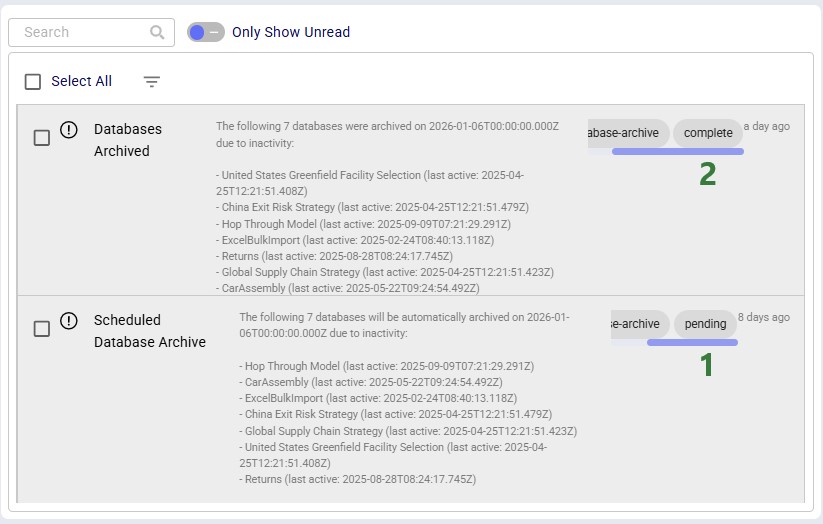
  1. The first notification from 8 days ago appears at the bottom and contains the details of all 7 databases that will be auto-archived on January 6th, 2026. The notification has 2tags: “database-archive” (not entirely visible) and “pending”.
  2. The second notification from a day ago appears at the top and details which databases were auto-archived. This notification also has 2 tags: “database-archive” and “complete”.

Clicking on the “View Items” link of a “Scheduled Database Archive” in-app notification (see bullet #5 of the first screenshot) will take you to a filtered view in the Cloud Storage application where you can see all the databases that will be auto-archived (note that this shows a different example with different databases to be archived as the previous screenshots):
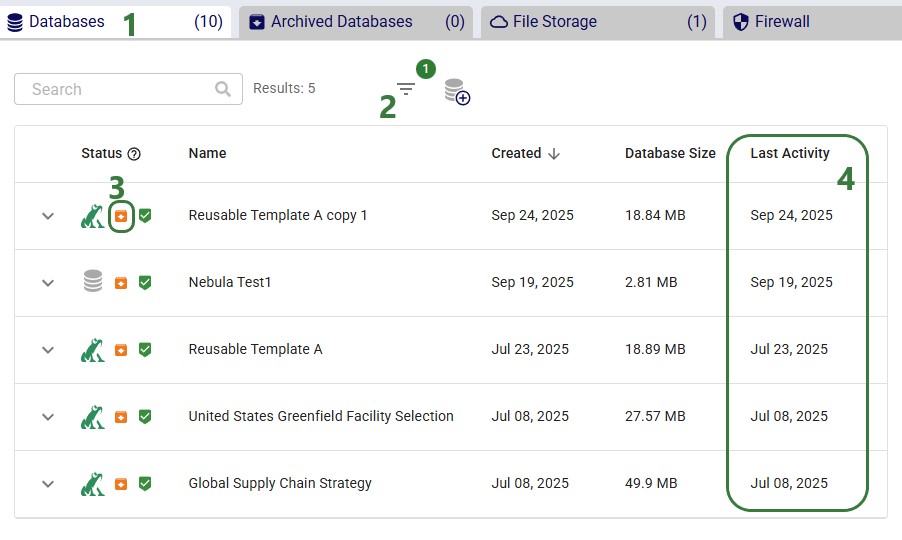
  1. The Databases tab in the Cloud Storage application has been opened after clicking on the “View Items” link.
  2. A filter has been automatically applied to filter for databases slated for auto-archiving; see also the next screenshot which shows the available filters.
  3. Note that these databases all have an orange archive icon associated with them.
  4. From the Last Activity column, we can see that these databases have indeed been inactive for over 90 days.

This next screenshot shows the filter that is applied on the Databases tab:
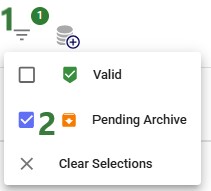
  1. Click on the Filter icon to bring up the available filters.
  2. In this case, the Pending Archive filter was automatically applied, which will only show all databases that are slated to be auto-archived.

Clicking on the “View Items” link of a “Databases Archived” in-app notification (see bullet #5 of the first screenshot) will again take you to a filtered view in the Cloud Storage application where you can see the databases that have been auto-archived:
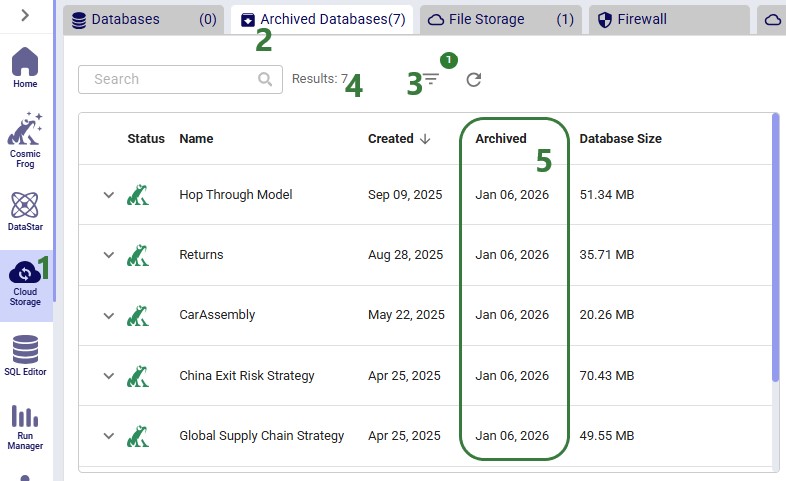
  1. The Cloud Storage application has been opened.
  2. We are on the Archived Databases tab.
  3. Automatically, a filter is applied to show the databases that were archived on January 6th,2026. The next screenshot shows the filter options.
  4. The Results summary indicates there are 7 databases matching the filter (not all shown in the list below).
  5. We see that these databases were indeed all archived on January 6th, 2026.

Finally, the following screenshot shows the filter that was applied on the Archived Databases tab:
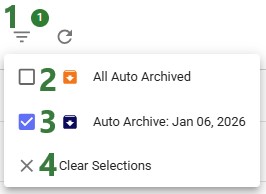
  1. Click on the Filter icon to bring up the available filters.
  2. The first option is to show all auto-archived databases.
  3. Additional options are to show subsets of databases based on when they were auto-archived, for example the ones auto-archived on January 6th, 2026.
  4. You can remove all applied filters by using the “Clear Selections” option.

How Auto-Archiving Improves Performance

Archiving is not just about organization — it also enhances performance across the platform. By reducing the number of idle databases consuming system resources, we lower the likelihood of “noisy neighbor” effects (when unused databases cause latency or compete with active ones).

With fewer inactive databases on high-availability servers, your active databases run faster and more reliably.

How to Prevent a Database from Being Archived

To keep a database active, simply interact with it. Any of the following actions will reset its inactivity timer:

  • Opening the database in Cosmic Frog, SQL Editor, or DataStar
  • Modifying data in the database
  • Running a job against the database
  • Performing a query

Performing any of these actions ensures the database will not be archived.

How to Unarchive a Database

Restoring an archived database is quick and straightforward:
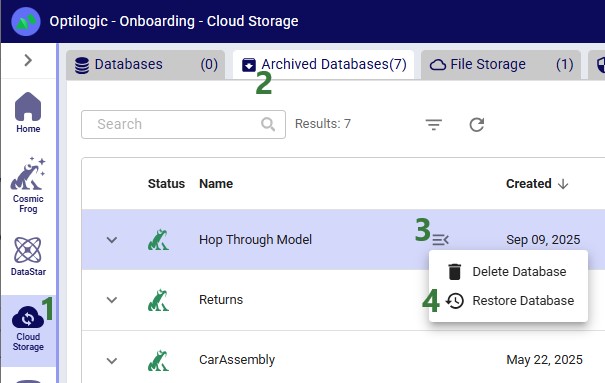
  1. Go to the Cloud Storage application.
  2. Open the Archived Databases tab and locate the database you wish to restore.
  3. Hover over the hamburger icon.
  4. Select Restore Database and confirm the action in the pop-up window.

The system will start a background job to restore the database. You can track progress at any time on the Account Activity page.

What to expect:

  • Most restores take just a few minutes.
  • If the database has been archived for a long period, it may take longer.
  • If the database was created under an older version of the Anura schema, we will also migrate it to the latest version during the restore process.
  • You can continue working on the platform while the restore runs in the background.

Quota reminder: To unarchive a database, you will need enough space in your database quota. If you have already reached your limit, you may need to archive or delete another database before restoring.

Summary

Auto-Archiving helps you:

  • Keep your account clutter-free
  • Free up quota to create new databases
  • Improve system performance by reducing idle load
  • Maintain full control, with the ability to restore at any time

It is a simple, automated way to ensure your workspace stays efficient while protecting your data.

 As always, please feel free to reach out to the Optilogic support team at support@optilogic.com for any questions or feedback.

The Auto-Archiving feature helps keep your account clean and efficient while ensuring Optilogic maintains a streamlined, cost-effective storage footprint. By automatically archiving inactive databases, we reduce unnecessary server load, improve overall performance, and free up space so you can always create new Cosmic Frog models or DataStar projects when you need them.

From your perspective, Auto-Archiving means less manual cleanup and more confidence that your account is organized, fast, and ready for your next project.

What Is Auto-Archiving?

Archiving moves a database from an active state into long-term storage. Once archived:

  • The database is no longer immediately available to query or use.
  • It is moved from high-availability servers to lower-cost infrastructure.
  • It does not count toward your database quota, giving you the ability to create more databases if you were at your limit.
  • It remains securely stored and can be restored (unarchived) at any time.

Important: Auto-archiving does not delete your data. You are always in control and can restore an archived database back into an active state.

With Auto-Archiving, you do not need to manually track and archive inactive databases. Our system will automatically archive any database that has been inactive for 90 days.

How the Auto-Archiving Process Works

  1. Warning Notice
    1. As a database approaches 90 days of inactivity, you will receive an in-app notification.
    2. A 7-day grace period gives you time to prevent archiving if you still need the database.
  2. In-App Alerts
    1. The Cloud Storage page will display a banner with details about databases scheduled for archiving.
    2. A new archive icon will appear on any database row marked for archiving.
  3. Archiving
    1. Once the inactivity threshold is reached, the system automatically archives the database.
    2. You will receive a confirmation notification once the archive is complete.

The screenshot below shows the notifications you will receive when 1) there are databases in your account that meet the criteria for an auto-archive event and 2) once databases have been archived:

  1. You can find your Notifications under the Bell icon, which is to the left of your name at the top right in the toolbar.
  2. A “Scheduled Database Archive” notification was sent 8 days ago. It states that 7 databases will be automatically archived on January 6, 2026.
  3. A “Databases Archived” notification was sent a day ago, letting the user know that those 7 databases that were scheduled for auto-archiving have been auto-archived now.
  4. Clicking on this pop-out icon will open the Notifications Page where the user can see the full text of the notifications; we will look at this in the next screenshot.
  5. Clicking on the “View Items” link will take the user to the Cloud Storage application and show the databases that were auto-archived. We will show this in a screenshot further below.

Now, we will take a look at the Notifications Page, which is opened using the pop-out icon in the in-app notification, described under bullet #4 above:

  1. The first notification from 8 days ago appears at the bottom and contains the details of all 7 databases that will be auto-archived on January 6th, 2026. The notification has 2tags: “database-archive” (not entirely visible) and “pending”.
  2. The second notification from a day ago appears at the top and details which databases were auto-archived. This notification also has 2 tags: “database-archive” and “complete”.

Clicking on the “View Items” link of a “Scheduled Database Archive” in-app notification (see bullet #5 of the first screenshot) will take you to a filtered view in the Cloud Storage application where you can see all the databases that will be auto-archived (note that this shows a different example with different databases to be archived as the previous screenshots):

  1. The Databases tab in the Cloud Storage application has been opened after clicking on the “View Items” link.
  2. A filter has been automatically applied to filter for databases slated for auto-archiving; see also the next screenshot which shows the available filters.
  3. Note that these databases all have an orange archive icon associated with them.
  4. From the Last Activity column, we can see that these databases have indeed been inactive for over 90 days.

This next screenshot shows the filter that is applied on the Databases tab:

  1. Click on the Filter icon to bring up the available filters.
  2. In this case, the Pending Archive filter was automatically applied, which will only show all databases that are slated to be auto-archived.

Clicking on the “View Items” link of a “Databases Archived” in-app notification (see bullet #5 of the first screenshot) will again take you to a filtered view in the Cloud Storage application where you can see the databases that have been auto-archived:

  1. The Cloud Storage application has been opened.
  2. We are on the Archived Databases tab.
  3. Automatically, a filter is applied to show the databases that were archived on January 6th,2026. The next screenshot shows the filter options.
  4. The Results summary indicates there are 7 databases matching the filter (not all shown in the list below).
  5. We see that these databases were indeed all archived on January 6th, 2026.

Finally, the following screenshot shows the filter that was applied on the Archived Databases tab:

  1. Click on the Filter icon to bring up the available filters.
  2. The first option is to show all auto-archived databases.
  3. Additional options are to show subsets of databases based on when they were auto-archived, for example the ones auto-archived on January 6th, 2026.
  4. You can remove all applied filters by using the “Clear Selections” option.

How Auto-Archiving Improves Performance

Archiving is not just about organization — it also enhances performance across the platform. By reducing the number of idle databases consuming system resources, we lower the likelihood of “noisy neighbor” effects (when unused databases cause latency or compete with active ones).

With fewer inactive databases on high-availability servers, your active databases run faster and more reliably.

How to Prevent a Database from Being Archived

To keep a database active, simply interact with it. Any of the following actions will reset its inactivity timer:

  • Opening the database in Cosmic Frog, SQL Editor, or DataStar
  • Modifying data in the database
  • Running a job against the database
  • Performing a query

Performing any of these actions ensures the database will not be archived.

How to Unarchive a Database

Restoring an archived database is quick and straightforward:

  1. Go to the Cloud Storage application.
  2. Open the Archived Databases tab and locate the database you wish to restore.
  3. Hover over the hamburger icon.
  4. Select Restore Database and confirm the action in the pop-up window.

The system will start a background job to restore the database. You can track progress at any time on the Account Activity page.

What to expect:

  • Most restores take just a few minutes.
  • If the database has been archived for a long period, it may take longer.
  • If the database was created under an older version of the Anura schema, we will also migrate it to the latest version during the restore process.
  • You can continue working on the platform while the restore runs in the background.

Quota reminder: To unarchive a database, you will need enough space in your database quota. If you have already reached your limit, you may need to archive or delete another database before restoring.

Summary

Auto-Archiving helps you:

  • Keep your account clutter-free
  • Free up quota to create new databases
  • Improve system performance by reducing idle load
  • Maintain full control, with the ability to restore at any time

It is a simple, automated way to ensure your workspace stays efficient while protecting your data.

 As always, please feel free to reach out to the Optilogic support team at support@optilogic.com for any questions or feedback.

Have More Questions?

Contact Support

Get in touch

Contact Sales

Get in touch

Visit Frogger Pond Community

Visit our Community