

Exciting new features which enable users to solve both network and transportation optimization in one solve have been added to Cosmic Frog. By optimizing multi-stop route optimization as part of Network Optimization, it enables users to streamline their analysis and make their Network Optimization more accurate. This is possible because the single optimization solve calculates multi-stop route costs by shipment/customer combination, uses this cost as part of another possible transportation mode in addition to OTR, Rail, Air, etc. and will result in more accurate answers by including better transportation costs in a single solve.

In addition to this documentation, these 2 videos cover the new Network Transportation Optimization (NTO) features too:

Network Transportation Optimization is particularly useful for two classic network design problems (both will be described in more detail in the next section):

  1. Sourcing decisions from distribution centers to customers when last mile deliveries are done using multi-stop routes. Regular NEO (network optimization) favors assigning customers to their closest distribution center, while NEO with multi-stop route will prefer assigning neighboring customers to the same distribution center, to allow opportunities to consolidate shipments in a single truck.
  2. Optimization of consolidating hubs or cross docks with multi-stop routes (inbound or outbound logistics). Combine the global scope of NEO and the detailed transportation costing from HOPPER (transportation optimization) to decide whether customers should be served directly from a plant or via a local hub.

This feature set includes 2 ways of running the Transportation Optimization (Hopper) and Network Optimization (Neo) engines together:

  1. Run Hopper within Neo: solve for multi-stop routes as part of a Neo run - the multi-stop route costs and capacities are taken into account during the solve.
  2. Run Hopper after Neo: first a network optimization is run using the Neo engine, and the outputs (assignments of the last-leg destinations) are used as inputs into the Hopper engine, which is immediately run after. Here, the Neo run is not taking multi-stop routes into consideration.

Following will be covered in this documentation for both the Hopper within Neo and Hopper after Neo NTO algorithms: example use cases, model inputs, how to use the new features, basics of the model used to show the NTO features, and walk through 2 example models, including their setup (input tables, scenarios), and analysis of the outputs using tables and maps.

Hopper within Neo - Example Use Cases

With this feature, users can consider routes as inputs in a Neo model, meaning that the model will optimize product flow sources based on all costs, including the cost of routes. Costs and asset capacities are taken into account for the routes.

Two example use cases which can be addressed using Hopper within Neo are customer consolidation and hub optimization, which will be illustrated with the images that follow.

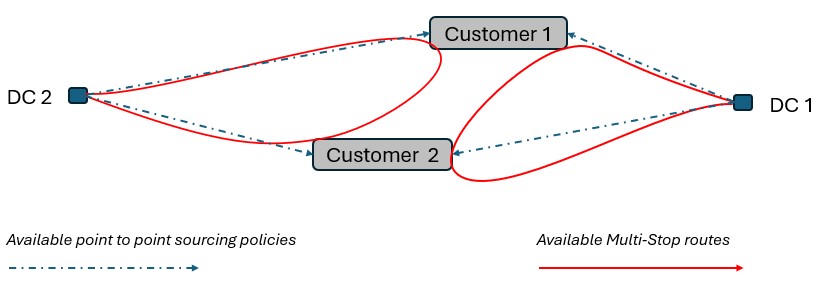
Consider a network where 2 distribution centers (DCs) are available to serve the customers. Two of these customers are in between the DCs and can either be serviced by the DCs directly (the blue dashed point to point lines) or product can be delivered to both of them as part of a multi-stop route from either DC (the red solid lines):
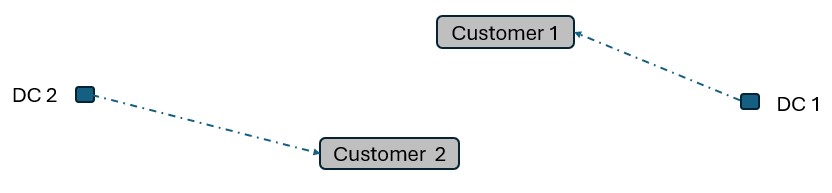
Running Neo without Hopper, not taking any route inputs into account, can lead to a solution where each DC serves 1 customer:
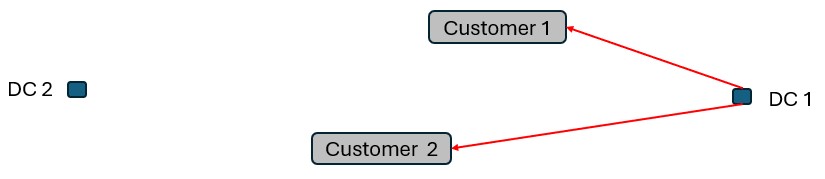
Whereas when taking route costs and capacities into account during a Hopper within Neo solve, it may be found that the overall cost solution is lower if one of the DCs (DC 1 in this example) serves both customers using a multi-stop route:
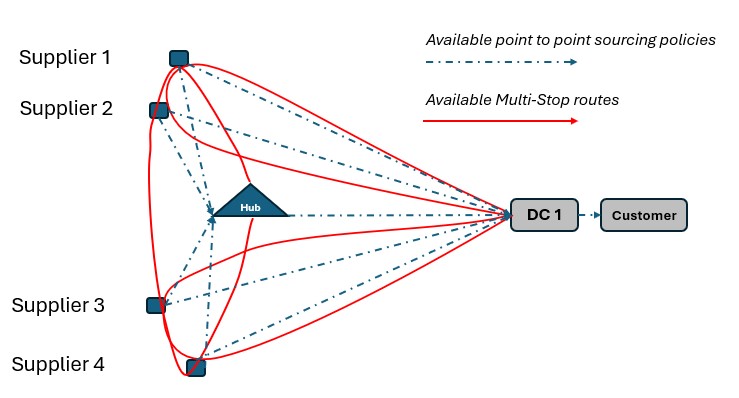
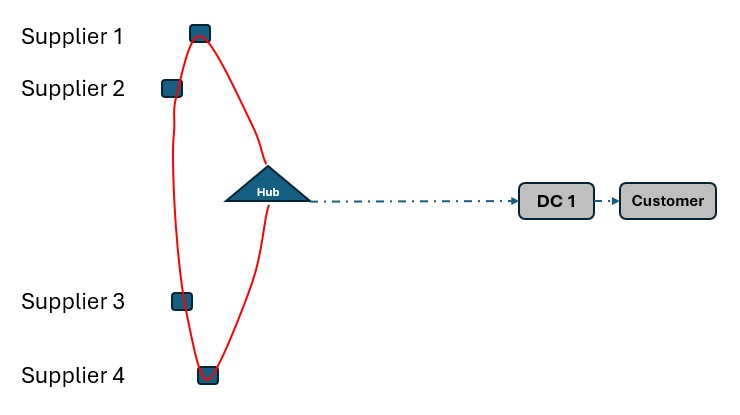
As a second example, consider a network where Suppliers can either deliver product to a Hub, either direct or on a multi-stop route from multiple suppliers, or direct/on multi-stop routes from multiple suppliers to a Distribution Center. Again, blue dashed lines indicate direct point to point deliveries and red lines indicate multi-stop route options:
Not taking route options into account when running Neo without Hopper can lead to a solution where each Supplier delivers to DC 1 directly:
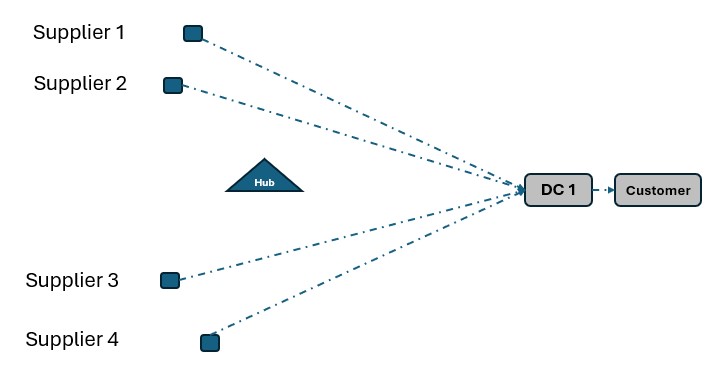
This solution can change to one where the Suppliers deliver to the Hub on a multi-stop route when taking the route options into account in a Neo within Hopper run if this is overall beneficial (e.g. lower total cost) to do:
Hopper within Neo - Inputs

The Hopper within Neo algorithm needs inputs in order to consider routes as part of the Neo network optimization run. These include:

  1. Shipments
    1. If the Shipments table is not populated, shipments will be created by the Hopper within Neo algorithm: for each customer-product pair for which demand exists, shipments from the 2 closest facilities will be created.
    2. If the Shipments table is populated, it will be used as input. The following fields in this table will be taken into account if a value is set in them:
      1. Source Name, Destination Name, Product Name - together define the lane and product that flows on it
      2. Shipment ID - unique identifier of a shipment
      3. Quantity, Weight, and Volume - define the dimensions of the shipment.
      4. Decomposition Name - used to group shipments together into a sub-problem run by itself to speed up solves
    3. Please note that a user needs to pick one method, either using the Shipments table for all or not using the Shipments table at all, a mix is currently not possible.
  2. Assets & Rates
    1. If the Transportation Assets table is populated, which is considered best practice, it will be used as input. All Hopper-fields on this table will be used by the algorithm if a value is set in them (hover over a column to see which technologies use it or use the Technology filters at the top of Cosmic Frog to only see Hopper-related tables and fields), with a few noted exceptions:
      1. The Transportation Stop Rate Name, Operating Schedule, and Operating Calendar fields are not used, regardless of whether a value specified for these matches a rate / schedule / calendar on its corresponding Hopper table.
      2. Re-use of assets is not considered since we do not yet know during the preprocessing phase how many trucks will be needed. Therefore, the Fixed Cost field is not used and fields related to tours are not used either. These fields related to tours include: Min / Max Routes per Tour, Max Time per Tour, Max Distance per Tour, Min Time Between Routes and Reset Shift at Route End.
    2. If a Transportation Asset uses a Transportation Rate Name which matches a rate on the Transportation Rates table, then it is used and all populated fields on the Transportation Rates table are used too.
    3. If the Transportation Assets table is not populated, 3 default vehicles which will be available at each facility are used. The only cost used in this case is a default distance cost of $1 per mile:
      1. Small: weight capacity = 20,000 lbs, max stops per route = 2.
      2. Medium: weight capacity = 50,000 lbs, max stops per route = 4.
      3. Large: weight capacity = 80,000 lbs, max stops per route = 6.
  3. Routes - there are 2 methods available to define routes:
    1. Hopper - the Hopper algorithm is used to generate potential routes, see the "Hopper Generated Routes" section below. This method can only be used on lanes going to customers.
    2. Fixed - the user defines the possible routes using the Fixed Routes Definitions and Fixed Routes input tables. See the "User-defined Routes" section below. This method can be used for customer-facing lanes and lanes further upstream in the network.

In all cases, additional records need to be added to the Transportation Policies table as well (explained in more detail below), and if the Transit Matrix table is populated, it will also be used for Hopper within Neo runs.

Please note that any other Hopper related tables (e.g. relationship constraints, business hours, transportation stop rates, etc.), whether populated or not, are not used during a Hopper within Neo solve.

Hopper Generated Routes

To use the Hopper algorithm for route generation, the Transportation Route Planners table and Transportation Policies tables need to be used. Starting with the Transportation Route Planners table:
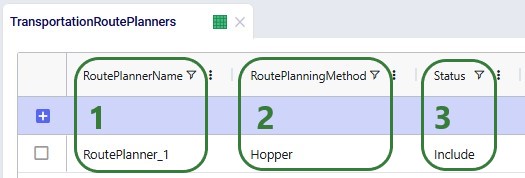
  1. Use a unique name as the Route Planner Name, this will be used to connect Transportation Policies to the Route Planner.
  2. Set Route Planning Method to Hopper so that the Hopper algorithm will be used to generate potential routes. The other option is Fixed, which will be discussed in the next section.
  3. To run the Hopper piece within the Neo solve, the Status of at least 1 route planner record needs to be set to Include, either directly in this table or through a scenario item in the scenario(s) that should consider multi-stop routes as input to the Neo solve.

In the Transportation Policies table, records need to be added to indicate which lanes will be considered to be part of a multi-stop route:
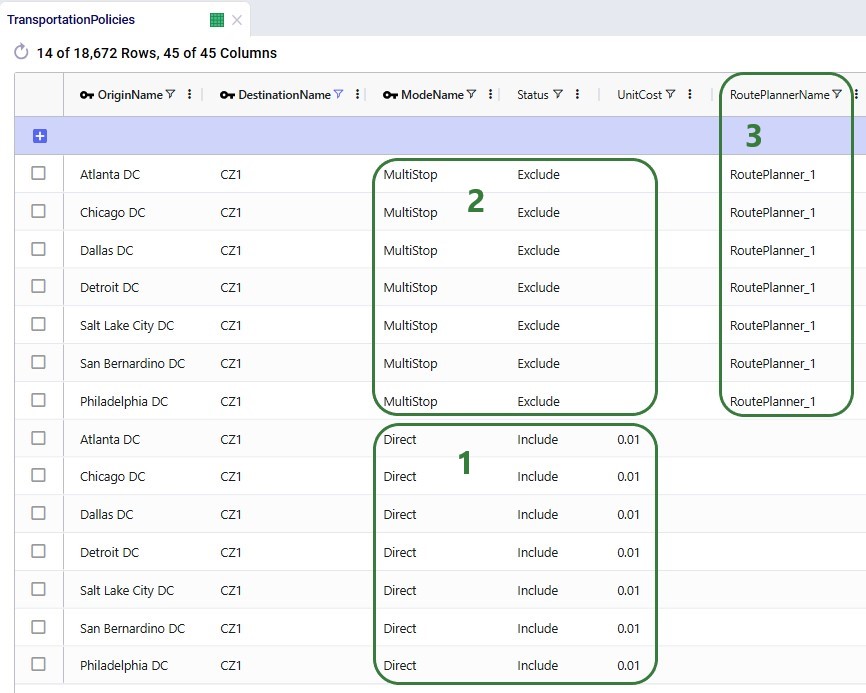
  1. In this example, all customers can be served by all 7 DCs directly, for a cost of 0.01 per unit per mile (bottom 7 records). This is shown for just customer CZ1 in the screenshot but is set up for all DC-CZ combinations. The UnitCostUOM field is omitted here; it is set to EA-MI for these records.
  2. Now we want to consider serving customers on multi-stop routes in addition to serving them directly. Additional DC-CZ records with a different Mode Name are set up to achieve this (top 7 records). The Status is set to Exclude initially; they are included through a scenario item used in the scenario(s) where we want to consider the multi-stop route option on the last leg of the network. Also note that the Unit Cost field is left empty on these policies; costs for these will be specified on the Transportation Rates table.
  3. To connect the policies with the route planner, we use the Route Planner Name field and set it to RoutePlanner_1, which is the route planner set up in the Transportation Route Planners table. And because the method for this route planner is set to Hopper, the solver now knows to use the Hopper algorithm to create possible multi-stop routes for the lanes of these transportation policies.

Under the hood, potential routes will be calculated based on the inputs provided by the user. For example, for a case where the shipments table is not populated, and the user has specified their own assets:

  1. Candidate routes will be generated from the 2 closest facilities out of all facilities available to serve the customer (e.g. based on the MultiStop mode Transportation Policies set up, in the above example screenshot that would be the 2 closest DCs of the 7 available to serve each customer).
  2. Each customer can be on up to 3 routes from each of these 2 closest DCs.
  3. The candidate routes adhere to all restrictions set on the Transportation Assets table (e.g. Min / Max Stops Per Route, Max Distance Per Route, etc.). Some level of restrictions, such as max stops, distance, or time per route, are recommended to create reasonable routes.
  4. Cost is not taken into account as a factor in the route generation and is calculated for each route after the candidate routes have been generated. For this cost calculation it takes into account all costs specified on the Transportation Rates Table, but not the Fixed Cost if specified on the Transportation Assets table.
  5. The Asset Capacities are also not taken into account during the pre-processing phase where potential routes are generated, which means that the demand quantities (when not using the Shipments table) and any shipment quantity/weight/volume inputs (when using the Shipments table) are not used during this phase either.

As a numbers example to illustrate this calculation of a candidate route, let us consider following:

  1. A given route uses an asset for which distance cost = $1/MI, and time cost = $20/hr.
  2. Besides driving time, there is also fixed time specified for pickup (15 minutes) as well as 5 minutes fixed time at delivery stops.
  3. The candidate route is as follows and has this order of stops: DC1 -> Customer Stop 1 -> Customer Stop 2 -> Customer Stop 3 -> Customer Stop 4 -> DC1.
  4. If the Transit Matrix is populated, the distance and time for each leg of the route is looked up from there. If the Transit Matrix is not used, then the distances and times are calculated based on the latitudes and longitudes of the source and destination (straight-line Haversine calculation) plus a circuity factor (set in the Model Settings table).
  5. Assume the total distance of the route based on all the legs, including back to DC1, is 237.15 miles, and the associated transport time is 4.67 hours. Then we add 15 minutes for the pickup stop at DC1 and 20 minutes for the 4 stops at the customers to the total time, which results in 4.67 + 35/60 = 5.25 hours.
  6. Finally, the route cost calculation is as follows: total route cost = distance cost + time cost = 237.15 MI * $1/MI + 5.25 HR * $20/HR = $237.15 + $105 = $342.15.

These costs are then used as inputs into the Network Optimization, together with costs for other transportation modes, and all are taken into account when optimizing the model.

User-defined Routes

To use routes that are defined by the user in the Neo solve, the user also needs to use the Transportation Route Planners table, in combination with the Fixed Routes, Fixed Routes Definitions, and Transportation Policies tables. Starting with the Transportation Route Planners table:
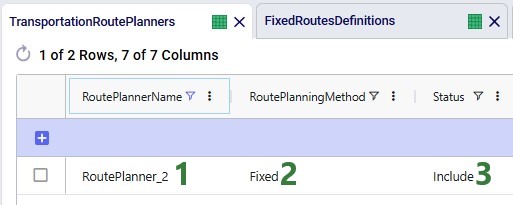
  1. Again, a unique name needs to be entered as the Route Planner Name to be able to connect this to the routes the user defines in the other tables.
  2. Since the user will define the routes, the Route Planning Method needs to be set to Fixed now.
  3. When set to Include, the routes the user defines will be considered during the Hopper within Neo solve.

The Fixed Routes table connects the names of the routes the user defines with the route planner name:
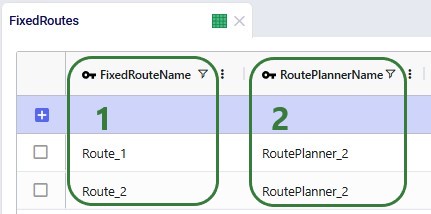
  1. For each fixed route that will be defined in the Fixed Routes Definitions table, the name needs to be entered in the Fixed Route Name field.
  2. The Route Planner Name field is used to connect each route to the correct route planner, which is RoutePlanner_2 in our example and since this uses the Fixed method, the user enters the fixed routes themselves into the Fixed Routes Definitions table, see next screenshot.

There are a few additional columns on the Fixed Routes table which are not shown in the screenshot above. These are:

  1. Route Capacity and Route Capacity UOM: these set the maximum volume that can be picked up / delivered using this fixed route
  2. Route Cost: specifies the total cost of the route
  3. Route Cost Rule: specifies how the costs are allocated based on the fill level of the asset. Currently 2 options (Prorate and Treat as Full) are available from the drop-down, however both are working the same, as "Treat as Full", currently. Treat as Full: the full cost of the route is always applied, regardless of how full the asset was on the route.

The Fixed Routes Definitions table needs to be used to indicate which stops are on a route together:
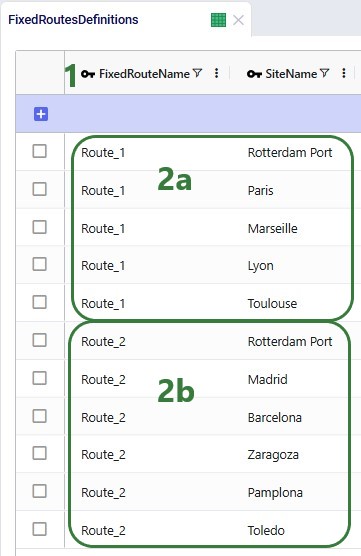
  1. The same Fixed Route Name is used for locations (Site Names) that are on a route together.
  2. In this example:
    1. Records 2-5 are Supplier locations in France, which are on a multi-stop route to deliver to the port in Rotterdam (record 1).
    2. Records 7-11 are Supplier locations in Spain, which are on a multi-stop route to deliver to the port in Rotterdam (record 6).

Please note that the Stop Number field on this table is currently not used by the Hopper within Neo functionality. The solve will determine the sequence of the stops.

Finally, to understand which locations function as sources (pickups) and which as drop-offs (deliveries) on a route, and to indicate that multi-stop routes are an option for these source-destination combinations, corresponding records need to be added to the transportation policies table too:
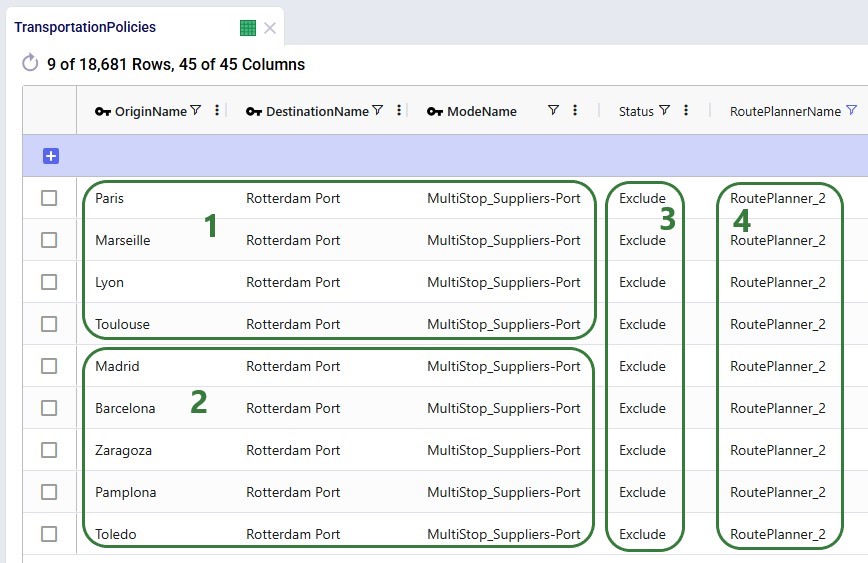
  1. These 4 records are for the 4 French Suppliers that are on a route going to Rotterdam Port; this is Route_1 from the previous screenshot.
  2. These 5 records are for the 5 Spanish Suppliers that are on a route going to Rotterdam Port; this is Route_2 from the previous screenshot.
  3. The Status field is set to Exclude for all records, to use them a scenario item will need to be used to switch it to Include.
  4. The Route Planner Name field needs to be used to connect these records to RoutePlanner_2, which was set up in the Transportation Route Planners table, where the method of Fixed was specified.

Model used to showcase Hopper within/after Neo Features

A copy of the Global Supply Chain Strategy model from the Resource Library was used as the starting point for both the Hopper within Neo and Hopper after Neo demo models. The original Global Supply Chain Strategy model can be found here on the Resource Library, and a video describing it can be found in this "Global Supply Chain Strategy Demo Model Review" Help Center article. The modified models showing the Hopper within and after Neo functionality can be found here on the Resource Library:

To learn more about the Resource Library and how to use it, please see the "How to use the Resource Library" Help Center article.

A short description of the main elements in this model is as follows:

  • There are 3 finished good products: Rockets, Space Suites, and Consumables.
  • Each finished good is made from 3 different raw materials.
  • The raw materials are supplied by suppliers based in EMEA and China; they ship them to their local ports in Rotterdam and Shanghai, respectively.
  • The raw materials are then imported into ports in the US (Charleston) and Mexico (Altamira), from which they are transported to the factories in Princeton, US, and El Bajio, Mexico.
  • The factories produce the finished goods from the raw materials, using bills of materials.
  • The factories ship the finished goods to 7 US distribution centers (DCs).
  • The DCs serve over 1.3k US-based customers (CZs); each customer has demand for all 3 finished goods.

We illustrate the locations and flow of product through the following 3 maps:
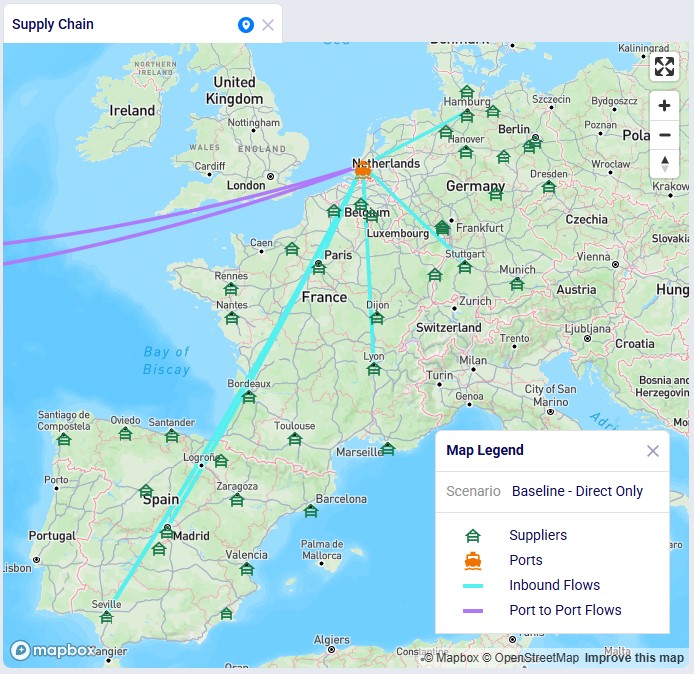
Even though around 35 suppliers are set up in the model in the EMEA region, only 6 of them are used based on the records in the Supplier Capabilities input table. We see the light blue lines from these suppliers delivering raw materials to the port in Rotterdam. From there, the 2 purple lines indicate the transport of the raw materials from Rotterdam to the US and Mexican ports.
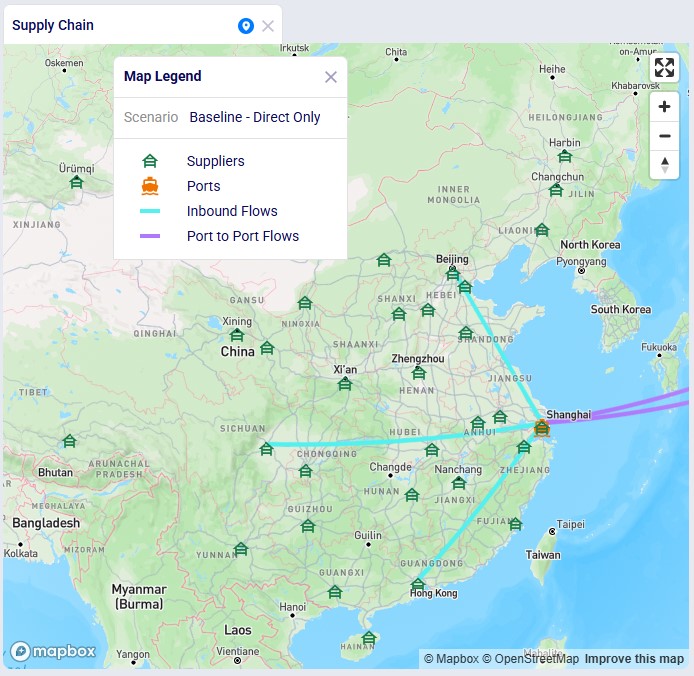
Similarly, around 35 suppliers are set up in China in the model, but only 3 of them are used per the set up in the Supplier Capabilities input table. The light blue lines are the transport of raw materials from the suppliers to the Shanghai port and the purple lines from the Shanghai port to the ports in Mexico and the US.
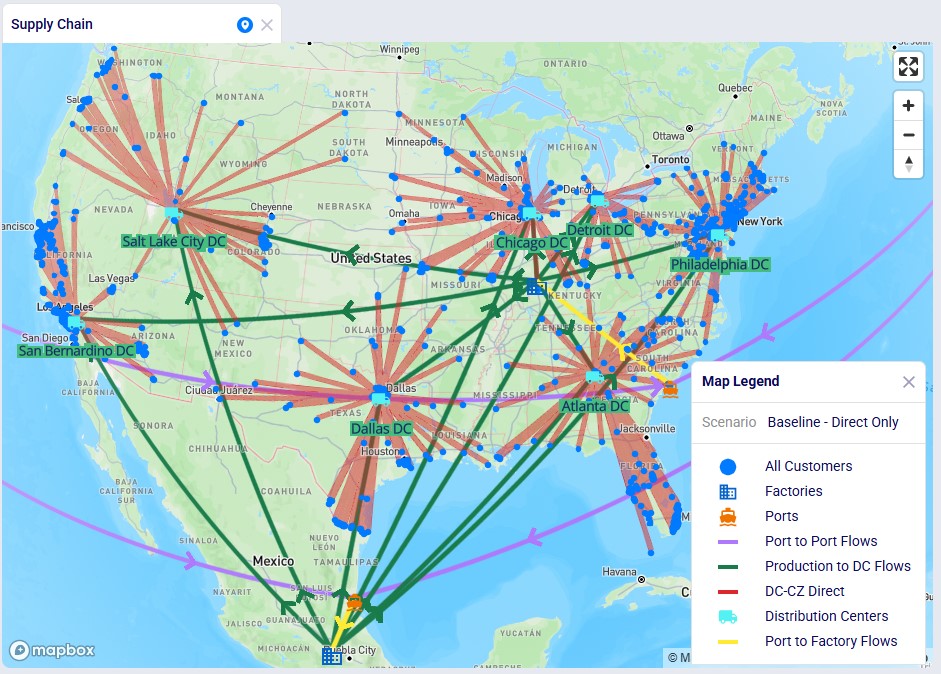
This map shows the flows into and within/between the US and Mexico locations:

  • Purple lines are the import of the raw materials from China/EMEA into the US and Mexican ports.
  • The yellow lines indicate the movement of the raw materials from the ports to the factories.
  • Transport of finished goods from the factories to the US DCs is indicated by the green lines.
  • The red lines represent the delivery of the finished goods from the DCs to the customers.

Hopper within Neo - Example Model

We will show how Hopper routes for the last leg of the network, from DCs to customers, can be taken into account during a Neo solve. Through a series of scenarios, we will explore if using multi-stop routes for this supply chain is beneficial:

  • Baseline - Direct Only: models the current situation which only ships to customers directly. The assignment of customers to DCs is optimized based on the direct shipping cost.
  • Baseline - MultiStop Only: sets up the option to use Hopper routes on the last leg of the network and is run to gauge if only using multi-stop routes would overall be cheaper or more expensive. This scenario keeps the assignments of customers to DC the same as in the previous scenario, the "baseline" assignments.
  • Baseline - Direct and MultiStop: if the previous scenario looks like it may be beneficial to use multi-stop routes at least to some extent, this scenario will be run to allow the model to choose between shipping to customers directly and using multi-stop routes. This scenario also keeps the "baseline" assignments of customers to DCs.
  • Optimal DCs - Direct and MultiStop: allows the model to choose between shipping directly and using multi-stop routes on the DC-CZ leg, plus allows re-assignment of customers to other DCs where this is beneficial.

Hopper within Neo - Model Modifications

After copying the Global Supply Chain Strategy model from the Resource Library, following changes/additions were made to be able to consider Hopper generated routes for the DC-CZ leg during the Neo solve. After listing these changes here, we will explain each in more detail through screenshots further below. Users can copy this modified model with the scenarios, outputs, and preconfigured maps from the Resource Library.
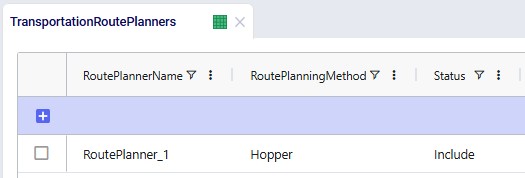
  1. Transportation Route Planners: populate this table so that Hopper generated routes will be considered during the Neo solve.
  2. Transportation Policies: add policies which allow Hopper generated routes for the DC-CZ leg of the network.
  3. Transportation Assets: instead of the 3 default assets, we specify 1 large asset ourselves which will be the vehicle used by the Hopper routes.
  4. Transportation Rates: add distance- and time-based costs for the asset.
  5. Transit Matrix: populate this table so that road distances are used in the solves.
  6. Customers: set all customers to be single sourcing, this will help reduce the solve time of the scenarios as they do not need to consider solutions where customers are being served by more than 1 DC.
  7. Flow Count Constraints: add a constraint which ensures that a customer is either served directly or on a multi-stop route and not a combination of the 2, which will also reduce solve times.

Transportation Route Planners Input Table

One record is added in this table where it is indicated that the route planner named "RoutePlanner_1" will use Hopper generated routes and is by default included during a Neo solve.

Transportation Policies Input Table

  1. In the Baseline - Direct Only scenario all customers can be served by all 7 DCs directly, for a cost of 0.01 per unit per mile. This is shown for just customer CZ1 in the screenshot but is set up for all DC-CZ combinations. The UnitCostUOM field is omitted here; it is set to EA-MI for these records. These are the pre-existing policies from the model copied from the Resource Library.
  2. In the other 3 scenarios, we want to also consider serving customers on multi-stop routes. Additional DC-CZ records with a different Mode Name, MultiStop, are set up to achieve this. The Status is set to Exclude initially; they are included through a scenario item used in the 3 scenarios where we want to consider the multi-stop route option on the last leg of the network.
  3. To connect the new policies with the route planner, we use the Route Planner Name field and set it to RoutePlanner_1, which is the route planner set up in the Transportation Route Planners table, see above. Because the method for this route planner is set to Hopper, the solver now knows to use the Hopper algorithm to create possible multi-stop routes for the lanes of these transportation policies.

Transportation Assets Input Table

We choose to add our own asset instead of the 3 defaults ones that will be used if the Transportation Assets table is left blank. The characteristics of our large vehicle are shown in the next 2 screenshots:
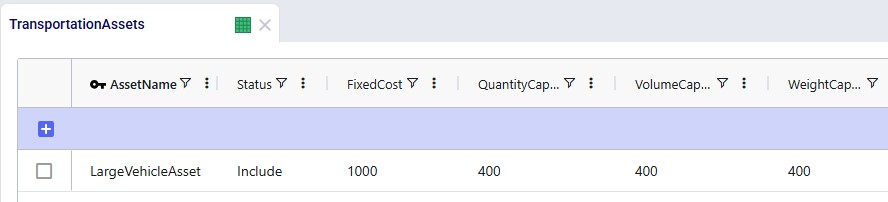
This large asset is included in the scenario runs as its Status = Include. The fixed cost of the asset is $1,000, with a capacity of 400 units / 400 cubic feet / 400 pounds.
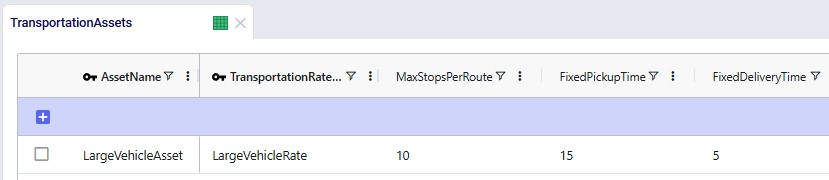
A rate record is set up in the Transportation Rates input table in order to model distance- and time-based costs. This is shown in the next screenshot. To use it, we link it to the asset by using the Transportation Rate Name field on the Transportation Assets table.

The Max Stops Per Route is set to 10. A Fixed Pickup Time of 15 minutes is entered, which will be applied once when picking up product at the DCs. Also, a Fixed Delivery Time of 5 minutes is set, this will be applied once at each customer when delivering product (the UOM fields are omitted in the screenshot; they are set to MIN).

Transportation Rates Input Table

Besides the fixed cost for the asset as specified in the Transportation Assets table, we also want to apply both distance- and time-based costs to the routes:
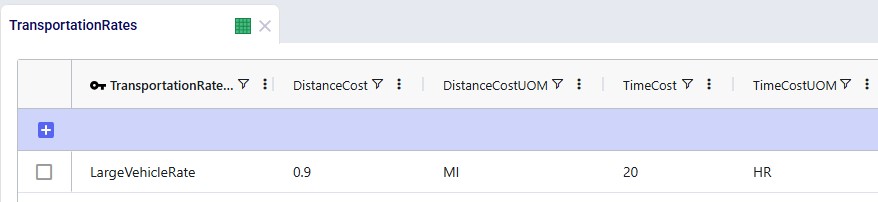
A record is set up in the Transportation Rates table where Transportation Rate Name is used in the Transportation Assets table to link the correct rate to the correct asset (e.g. LargeVehicleRate is used for the LargeVehicleAsset). The per distance cost is set to 0.9 per mile, and the time cost is set to 20 per hour; the latter mostly reflects the cost for the driver.

Transit Matrix Input Table

For the scenarios to use actual road distances and transport times, the Distance Lookup Utility in Cosmic Frog was used with following parameters:

  • Distance UoM: MI
  • Geo Provider: PCMiler-UltraFast
  • Arc Defining Table: All-to-All
  • Overwrite Existing Transit Matrix: Yes
  • Symmetric Distances: Yes
  • Max Neighbors Filter: 10

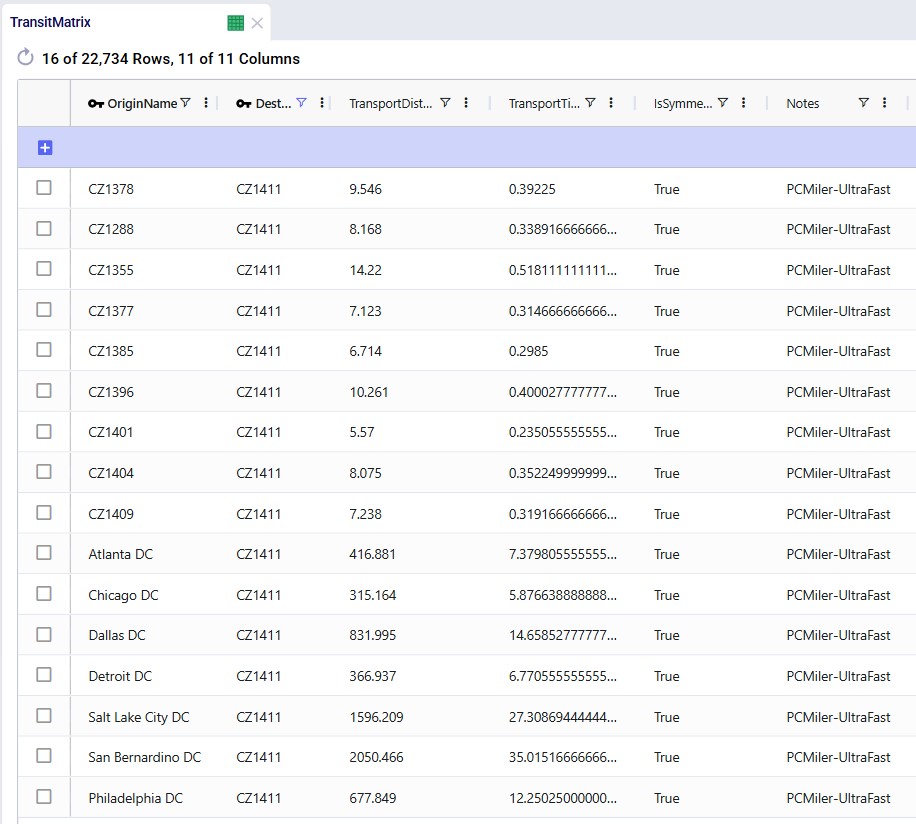
A subset of records filtered for 1 customer destination (CZ1411) is shown in this next screenshot where we see the distance and time from the 10 closest other customers to this customer, and also from all 7 DCs:
Customers Input Table

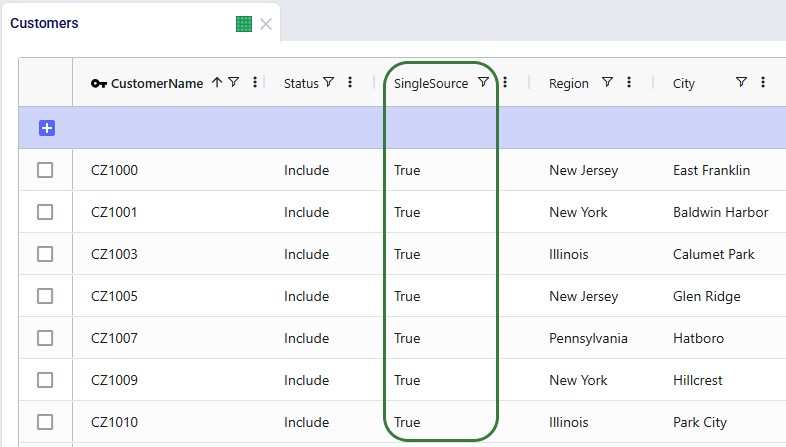
To remove potential dual sourcing, all customers are set to single sourcing (Single Source field is set to True on the Customers table), meaning they need to be served all product they demand from a single DC. In this model, setting customers to single sourcing also helps reduce the runtime of the scenarios:
Flow Count Constraints Input Table

To further help reduce solve times, a flow count constraint that allows the selection of at maximum 1 mode to each customer is added:
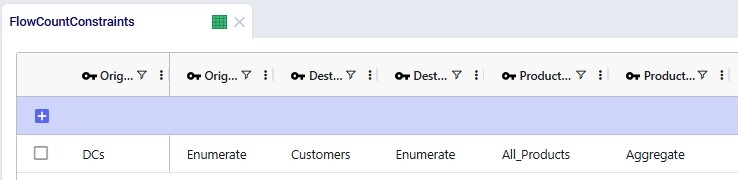
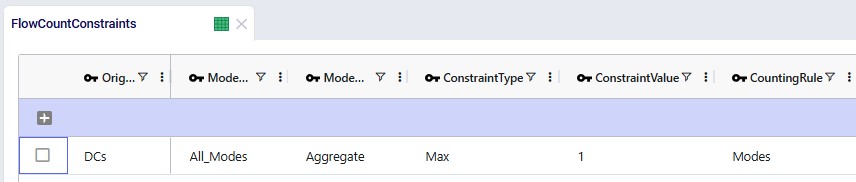
Groups for all DCs, all Customers, all Products, and all Modes (the 2 to customers, Direct and MultiStop) are being used in the Origin, Destination, Product, and Mode fields on the Flow Count Constraints table. The Group Behavior fields for Origin and Destination are set to Enumerate, meaning that under the hood, this constraint is expanded out into individual constraints for each DC-Customer combination. On the other hand, the Group Behavior fields for Product and Mode are set to aggregate, meaning that the constraint applies to all products and modes together. The Counting Rule indicates the combination of entities that "is counted on", in this case the number of modes, which is not allowed to be more than 1 (Type = Max and Value = 1), i.e. there can only be 1 mode selected on each DC-customer lane.

The Status field of the Flow Count Constraint is set to Exclude (not shown in the screenshots above), and the constraint will be included in 2 of the scenarios by changing the status through a scenario item.

Hopper within Neo - Scenario Setup and Run Parameters

The following screenshot shows the scenarios and which scenario items are associated with each of them. To learn more about creating scenarios and their items, please see these 2 help center articles: "Creating Scenarios in Cosmic Frog" and "Getting Started with Scenarios".
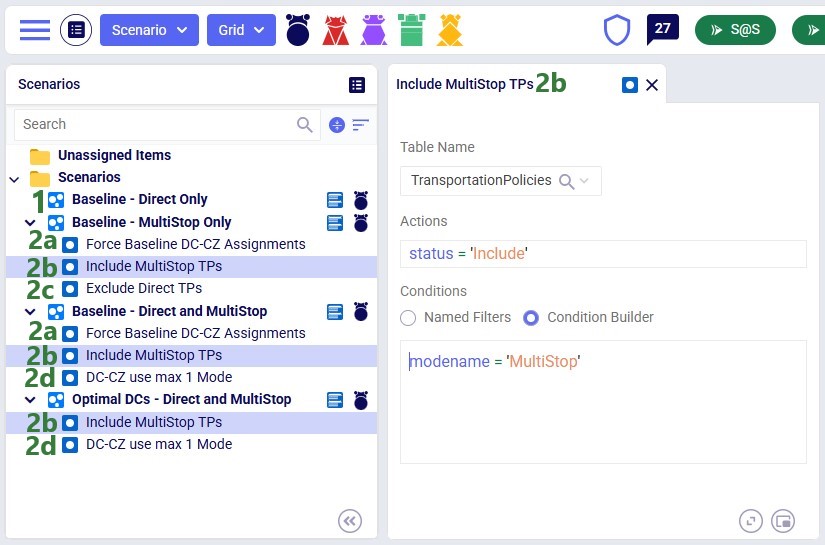
  1. When the model is run as-is, without any changes through scenario items, only the Direct transportation policies to customers are included, since the status of the MultiStop records is set to Exclude. No Hopper routes will be considered in this solve. This is the "Baseline - Direct Only" scenario.
  2. For the other 3 scenarios, following scenario items were created:
    1. After running the "Baseline - Direct Only" scenario, Flow Constraints which fix the DC-Customer assignments based on the assignments in this scenario were added to the model (these were already present in the model copied from the Resource Library, with Status = Exclude). A scenario item named "Force Baseline DC-CZ Assignments" is created to include these flow constraints in the next 2 scenarios ("Baseline - MultiStop Only" and "Baseline - Direct and MultiStop") where we want to keep the assignments equal to the optimal ones from the Baseline with only the Direct mode option. It is not included in the last scenario "Optimal DCs - Direct and MultiStop" as the re-assignment of customers to other DCs is allowed in this scenario in case it is beneficial to do so.
    2. To add the multi-stop option for DC-CZ lanes to scenarios, a scenario item "Include MultiStop TPs" is also created, the configuration of which is shown on the right-hand side in the screenshot. This scenario item filters the Transportation Policies table for those with ModeName = 'MultiStop' and sets the Status field of these records to 'Include'. This item is used in all 3 scenarios run after the "Baseline - Direct Only" one.
    3. For the "Baseline - MultiStop Only" scenario an additional scenario item "Exclude Direct TPs" is created, which ensures the Direct option is no longer available by changing the Status to 'Exclude' on transportation policy records where the ModeName = 'Direct'.
    4. Lastly, for the 2 scenarios where both the direct and multi-stop options are considered ("Baseline - Direct and MultiStop" and "Optimal DCs - Baseline and MultiStop"), a scenario item "DC-CZ use max 1 Mode" that includes the Flow Count Constraint is created.

To find a balance between running the model to a low enough gap to reduce any suboptimality in the solution and running for a reasonable amount of time, the following is set on the Run Settings modal which comes up after clicking on the green Run button at the top right in Cosmic Frog:
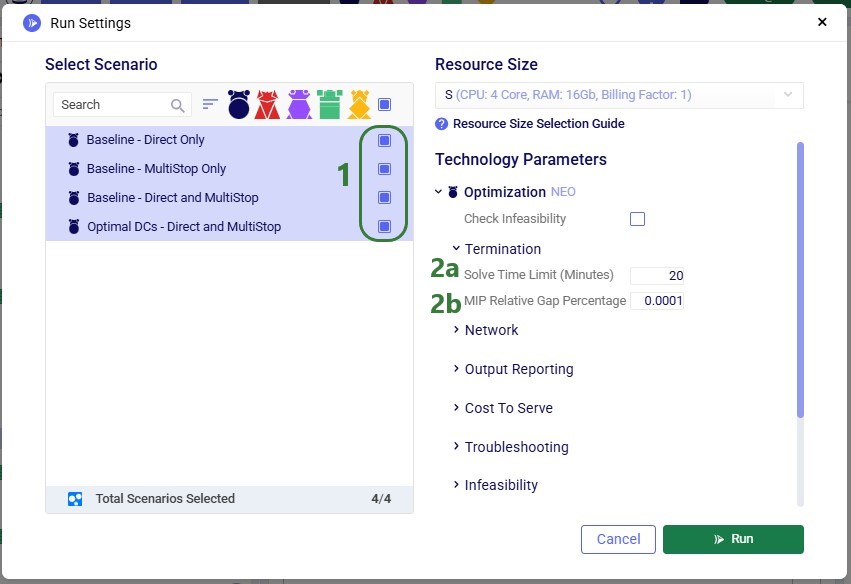
  1. All 4 scenarios are selected to be run.
  2. The Termination section of the Technology Parameters - Optimization Neo section is expanded:
    1. Solve Time Limit (Minutes) is set to 20, meaning that if the termination gap (next bullet) has not been reached within 20 minutes, the best solution so far will be returned.
    2. MIP Relative Gap Percentage is set to 0.0001. This difference between the best solution and best bound so far needs to be less than this gap for the best solution to be accepted as the solution. This is set lower than the default of 0.001 to reduce suboptimal solutions in the last scenario where differences in costs between sourcing a customer from either of 2 DCs can be small and fall within the gap.

Hopper within Neo - Outputs

We will first look at the Optimization Network Summary and Optimization Flow Summary output tables, and next at the maps of the last 2 scenarios. We will start with the Optimization Network Summary output table. This screenshot does not show the Production and Fixed Operating Costs as they are the same across all scenarios, and we will focus on the transportation related costs:
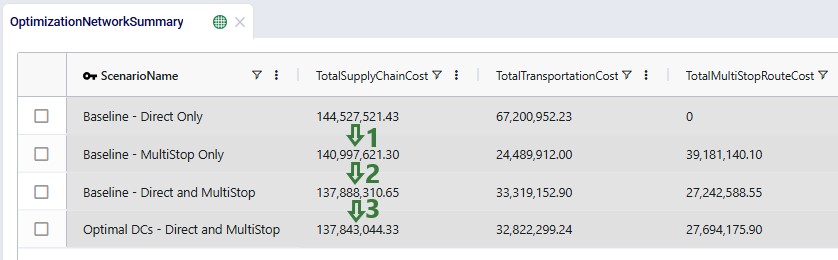
  1. Comparing the first scenario "Baseline - Direct Only" with the second one "Baseline - MultiStop Only", we see that delivering to all customers using multi-stop routes instead of direct to all, while keeping the customer to DC assignments the same, can reduce the total cost by about 3.5M. Seeing this, it makes sense to run the next 2 scenarios which allow both direct deliveries and multi-stop routes to see if further gains can be achieved.
  2. Keeping the customer to DC assignments the same as in the Baseline - Direct Only scenario and allowing both direct deliveries and multi-stop routes on the last leg to customers can further reduce costs by about 3.1M as compared to the MultiStop Only scenario.
  3. Another ~45k in savings can be found when both direct deliveries and multi-stop routes are considered, while also allowing customer to DC assignments to be changed if optimal to do so.

Next, the Optimization Flow Summary output table is filtered for 1 specific customer, CZ215, for which the DC assignment is changed in the final scenario. The table is also filtered for the Rockets product, for which the delivered quantity is the same for these 4 records (1,243 units):
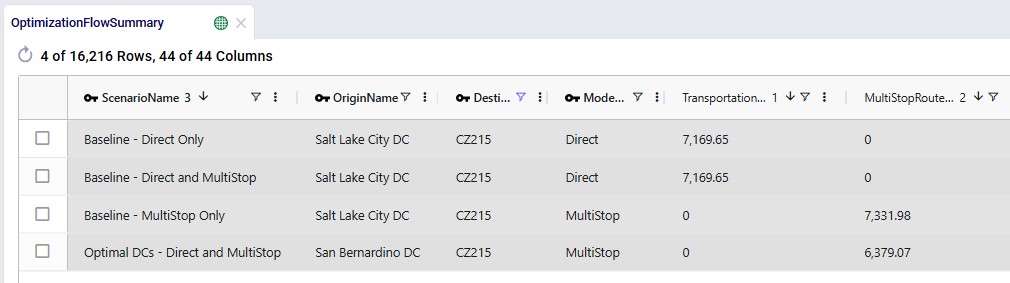
Salt Lake City is the optimal DC to source from for this customer based on just the direct delivery option; the transportation cost is ~7.2k. We see from the "Baseline - MultiStop Only" scenario that using a multi-stop route from Salt Lake City to this customer is a little more expensive (7.3k), so therefore the Direct mode is used in the "Baseline - Direct and MultiStop" scenario. In the "Optimal DCs - Direct and MultiStop" scenario, the customer swaps DC and is served using a multi-stop route from the San Bernardino DC, this results in a transportation cost of 6.4k, which is a reduction of almost $800 as compared to going direct from the Salt Lake City DC.

With a newly added output table named Optimization Flow Route Summary, we can see on which route from San Bernardino CZ215 is placed in this "Optimal" scenario:
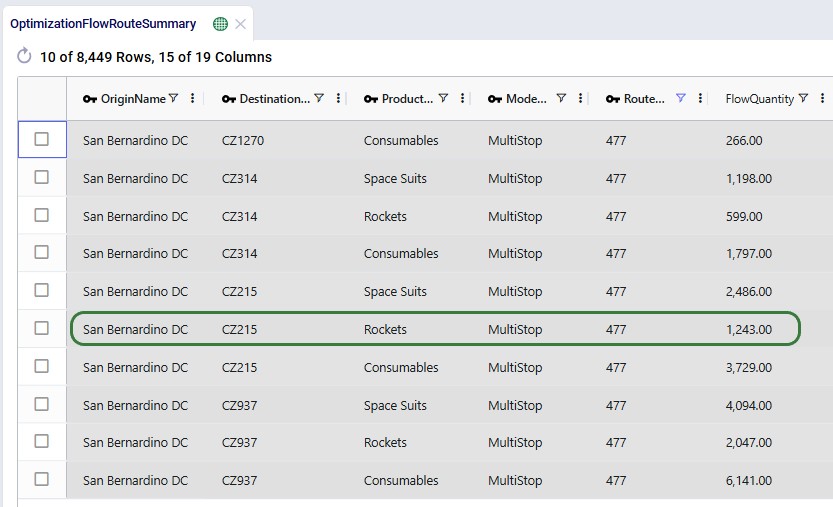
We see that CZ215 is a stop on route 477 from San Bernardino. The screenshot also shows the other stops on this route. Now we will retrace how the multi-stop route cost of $6.4k for this flow (see previous screenshot) is calculated:

When the possible routes are created during the model run, each customer is placed on up to 3 potential routes from its closest 2 DCs. These possible routes generated during preprocessing are listed in the HopperRouteSummary.csv input file which is generated when the "Write Input Solver" model run option (Troubleshooting section) is turned on. We can look up route 477 in it to see the cost for it:

  1. We can calculate the costs for each flow that is part of route 477 (see screenshot above this one) as follows then:
    1. First, we need to calculate how often the route is used, based on the total volume on it. Adding up the Flow Quantity column values, we find that the total number of units is 23,600. Since the asset has a capacity of 400 units, it means the route is used 23,600 / 400 = 59 times.
    2. The route cost = $1,998.03 as we see in the screenshot, so the total cost for using the route 59 times = 59 * $1,998.03 = $117,883.87.
    3. This total cost is then allocated to each flow prorated based on the weight*distance ratio of the flow as compared to the total weight*distance of all the flows on the route. In our example, the weight is the same as the quantity, and we can look the distances for each flow up from the Optimization Flow Summary output table. We will use CZ215 and the 1,243 units of Rockets flow as an example to calculate the cost that was shown in the screenshot above the previous one.
      1. Adding in the distances, we calculate the total distance * weight for all records of route 477 together as 14,779,728.43.
      2. The distance to CZ215 is 643.426 miles, so the weight * distance for the flow to this customer for 1,243 Rockets is 643.426 * 1,243 = 799,778.5751.
      3. Then we calculate the allocated cost for this flow as: total route costs route 477 * (weight * distance CZ215 Rockets) / (total weight * distance all flows on route 477) = $70,887.74 * 799,778.5751 / 14,779,728.43 = $6,379.07, which matches the number we saw in the screenshot above.

The following 2 maps show the DC-CZ flows for the "Baseline - Direct and MultiStop" and "Optimal DCs - Direct and MultiStop" scenarios. Multi-stop routes are shown with blue lines and direct deliveries with red lines. There are 15 customers that swap DCs and these are shown with larger red dots:
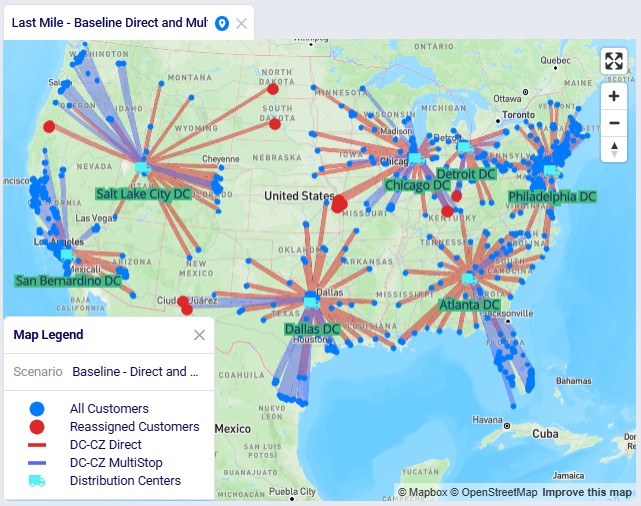
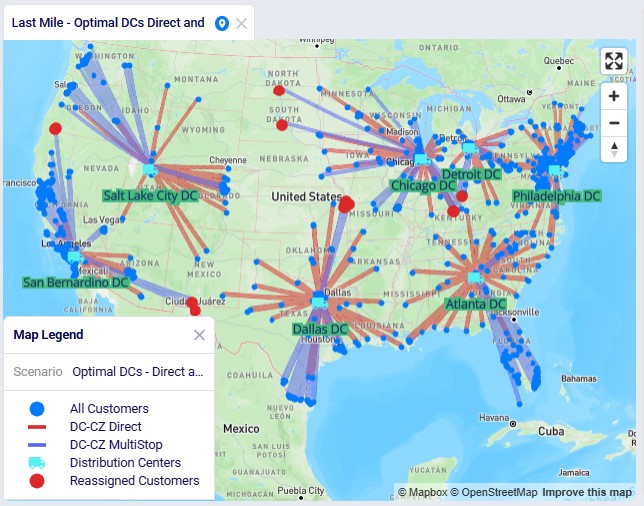
In total 15 CZs are swapping DCs in the "Optimal DCs - Direct and MultiStop" scenario. From west to east on the map:

  1. 2 are swapping from Salt Lake Direct to San Bernardino Multistop
  2. 2 are swapping from Dallas Multistop to San Bernardino Multistop
  3. 2 are swapping from Salt Lake Direct to Chicago Multistop
  4. A cluster of 6 are swapping from Chicago Direct & MultiStop to Dallas Multistop
  5. 2 are swapping from Chicago Multistop to Detroit Multistop
  6. 1 is swapping from Detroit Multistop to Chicago Multistop

The last 3 swaps cause some flow lines to be crossing each other on the map. This is due to the algorithm considering a finite number of possible routes.

Note that maps for the first 2 scenarios are also set up in this demo model.

Re-running these scenarios in future with a newer solver and/or after making (small) changes to the model can change the outputs such that the set of reassigned customers which are shown in larger red dots on the map changes. To visualize these on the map in the same way as is done above, the filter in the Condition Builder panel of the "Reassigned Customers" map layer needs to be updated manually. Currently the filter is as follows:
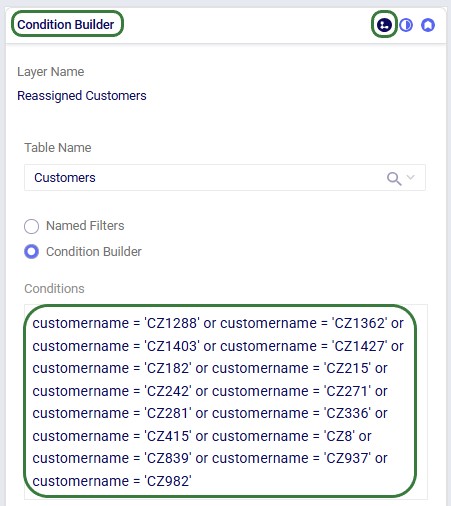
To determine which customers are being reassigned and need to be used in this filter, users can take following steps (which can be automated using for example DataStar):

  • Open the Optimization Flow Summary output table and filter for the 2 scenarios to be compared in the ScenarioName field (e.g. "Baseline - Direct and MultiStop" and "Optimal DCs - Direct and MultiStop") and for FlowType= CustomerFulfillment.
  • Export the filtered table to Excel using the File > Export Excel option
  • In Excel analyze which customers (DestinationName field) have a different source in the "Optimal..." scenario as compared to the "Baseline..." scenario. This can be done for example by:
    • Splitting the table out over 2 worksheets where one contains the outputs of 1 scenario and the other of the other scenario
    • In both tables add a column that contains the concatenation of the DestinationName and ProductName fields
    • Copy the OriginName field in the second table to the right of the field with the concatenation
    • Add a field to the first table which uses a vlookup on the field with the concatenation to look up the value of the OriginName field from the second table
    • Compare the OriginName field in the first table with the looked up one from the second table: the customers for which these are different are the ones to add to the Condition Builder filter on the Reassigned Customers map layer
      • Note that you will need to remove duplicates to see a unique list due to each customer being served 3 products

Hopper after Neo

With this new functionality, a transportation optimization (Hopper) run is started immediately after a network optimization (Neo) run has completed and this will be seen as one run to the user. Underneath, the assignments on the last leg of the network (e.g. customer to DC assignments) as determined optimal by the Neo run will be fixed for the Hopper run, and then multi-stop routes are generated for this last leg during the Hopper run. All existing Hopper functionality is taken into account while determining the optimal multi-stop routes and complete sets of outputs for both the network optimization and transportation optimization are generated at the end of a Hopper after Neo run. This saves users time where they do not need to go into the model to retrieve and manipulate Neo outputs to be used as input shipments for a subsequent Hopper run.

Hopper after Neo - Inputs

Besides needing the usual input for the network optimization (Neo) engine to be able to run, the Hopper after Neo algorithm needs some additional inputs in order to generate optimal multi-stop routes after the Neo run has completed. These include:

  1. Shipments
    1. If the Shipments table is not populated, which will be the most common use case, shipments will be created by the Hopper after Neo algorithm from the Customer Demand table:
      1. If the Delivery Frequency column on the Customer Demand is populated, shipments are created based on the Quantity and Delivery Frequency: shipment quantity = demand quantity / (365 days / time between deliveries in days).
      2. If the Delivery Frequency column on the Customer Demand table is not populated, weekly shipments are calculated from the demand quantity (e.g. demand quantity / 52).
      3. Please note that in either case, one shipment per customer-product combination will be generated. The Hopper outputs represent the tactical routes for 1 week (Delivery Frequency not set) or 1 period of different length (Delivery Frequency set)
    2. If the Shipments table is populated, it will be used as input. However, this will not be a very common use case, since the goal of a Hopper after Neo run is to automatically use the assignments on the last leg from the Neo run as input into the Hopper run. Using the Shipments table instead could override these Neo assignments. In other words: using the Shipments table will essentially result in Hopper running independently of Neo. If populated though, the following fields in the Shipments table will be taken into account if a value is set in them:
      1. Source Name, Destination Name, Product Name - together define the lane and product that flows on it
      2. Shipment ID - unique identifier of a shipment
      3. Quantity, Weight, and Volume - define the dimensions of the shipment
      4. Decomposition Name - used to group shipments together into a sub-problem run by itself to speed up solves
    3. Please note that, similar to the Hopper within Neo approach, users need to choose one approach or the other, a mix of having some shipments populated for some customer-product combinations and not others is not possible currently.
  2. Assets & Rates
    1. If the Transportation Assets table is populated, it will be used as input. All Hopper fields on this table will be used by the algorithm if a value is set in them.
    2. If the Transportation Assets table is not populated, 1 default vehicle (available at each facility) is used, and a default distance cost of $1/MI will be applied. This default asset's characteristics are:
      1. Weight capacity = 80,000 lbs
      2. Max stops per route = 6

In addition, all populated Hopper fields used on any other Hopper table will be used during the Hopper part of the solve.

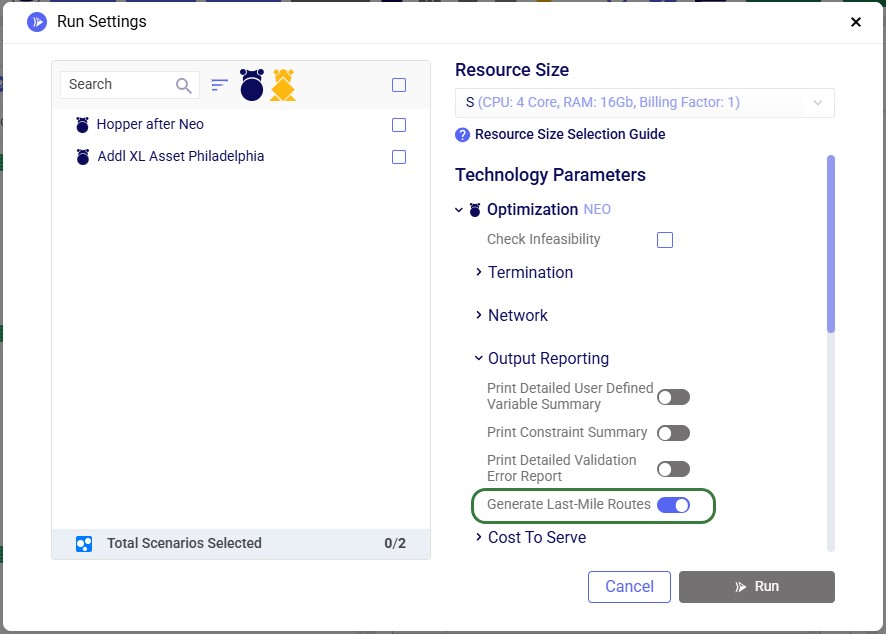
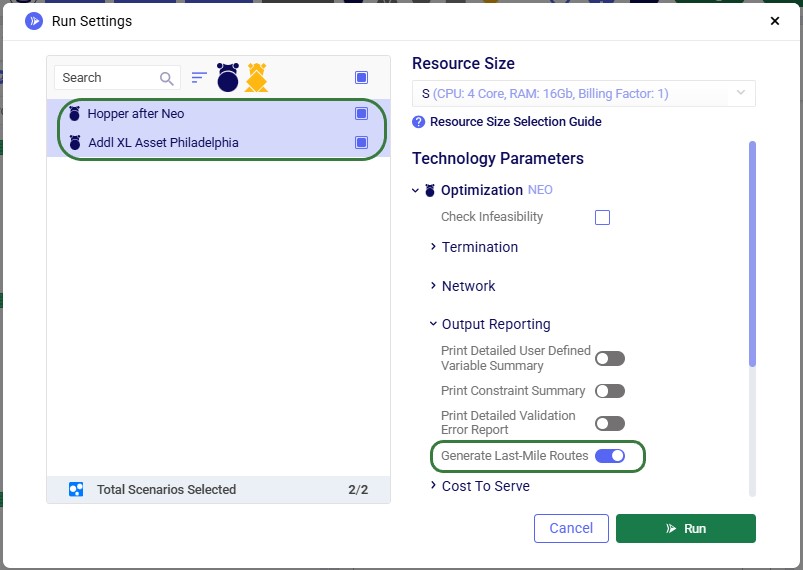
To turn on the Hopper after Neo functionality, one needs to enable the "Generate Last-Mile Routes" run setting in the Output Reporting section of the Optimization (NEO) Technology Parameters. These parameters are located on the right-hand side of the Run Settings modal which comes up after clicking on the green Run button at the right top in Cosmic Frog:
Hopper after Neo - Example Model

Please see the "Model used to showcase Hopper within/after Neo Features" section further above for the details of the starting point for the demo model for Hopper after Neo, which is the same one that was also the starting point for the Hopper within Neo demo model.

We will show how Hopper routes for the last leg of the network, from DCs to customers, can be created immediately after a Neo solve. Through 2 scenarios, we will explore which asset mix will be optimal for the generated multi-stop routes:

  1. Hopper after Neo scenario - has 2 vehicles available at all DCs, a large and a medium one.
  2. Addl XL Asset Philadelphia - same as the first scenario, but with an additional extra large asset available at the Philadelphia DC because the first scenario has several unrouted shipments due to not having a vehicle with large enough capacity for these shipments.

Hopper after Neo - Model Modifications

After copying the Global Supply Chain Strategy model from the Resource Library, following changes/additions were made to be able to use Hopper for multi-stop route generation for the DC-CZ leg after the Neo solve. After listing these changes here, we will explain each in more detail through screenshots further below. Users can copy this modified model with the scenarios and outputs from the Resource Library.

  1. Transportation Assets: instead of using the 1 default asset, we specify 2 assets ourselves initially, a large and a medium one, these will be the vehicles used by the Hopper routes. In the second scenario an additional extra-large vehicle is made available at the Philadelphia DC to resolve unrouted shipments from the first scenario.
  2. Transportation Rates: distance- and time-based costs for the assets are specified here.
  3. Transit Matrix: populate this table so that road distances are used in the solves - this is the same as described above for the Hopper within Neo solve, please refer back to the "Transit Matrix Input Table" sub-section in the "Hopper within Neo - Model Modifications" section further above for details.
  4. Customers: set all customers to be single sourcing, so customers will only be on a route from one DC for all products demanded. This is again the same change as described above in the Customers Input Table sub-section of the "Hopper within Neo - Model Modifications" section further above, please refer back to that section for more details.

Transportation Assets Input Table

Instead of using the 1 large default vehicle when leaving the Transportation Assets table blank, we decide to use 2 user-defined assets initially: a large and medium one. One additional extra large asset will be added after running the first scenario with the 2 assets; it will be added to resolve unrouted shipments seen in the first scenario. The assets and their settings are shown in the following 2 screenshots:
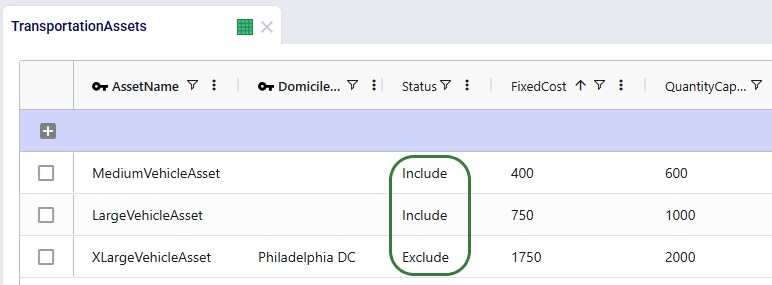
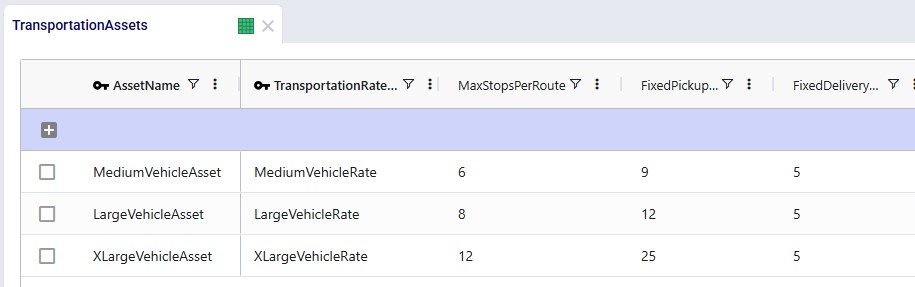
We see that both the Medium and Large vehicle are available at all locations (Domicile Location is left blank) and their Status is set to "include", whereas the Extra Large vehicle will only be available at the Philadelphia DC in the second scenario, and its initial Status is set to "Exclude". The assets have increasing fixed costs, quantity capacities, max number of stops per route, and fixed pickup times (in minutes) by increasing asset size. The fixed delivery time is the same for all: 5 minutes per stop.

Transportation Rates Input Table

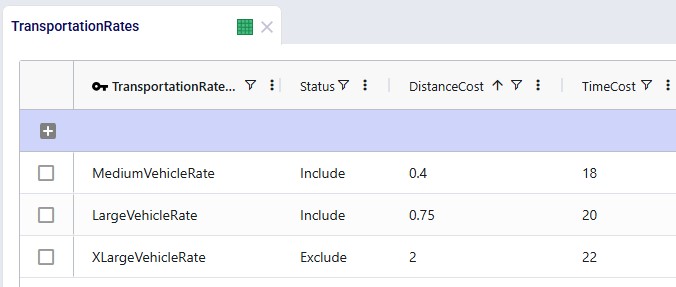
For each asset, a transportation rate is specified in the Transportation Rates input table. This rate is used in the Transportation Rate Name field in the Transportation Assets table (see screenshot above). The Distance and Time Costs are specified as follows, where the distance-based rate increases with the size of the vehicle to account for higher fuel usage. The Time Cost increases a bit with the size of the vehicle too to reflect the level of experience of the driver needed for larger vehicles:
Hopper after Neo - Scenario Setup and Run Parameters

Two scenarios will be run in this model:
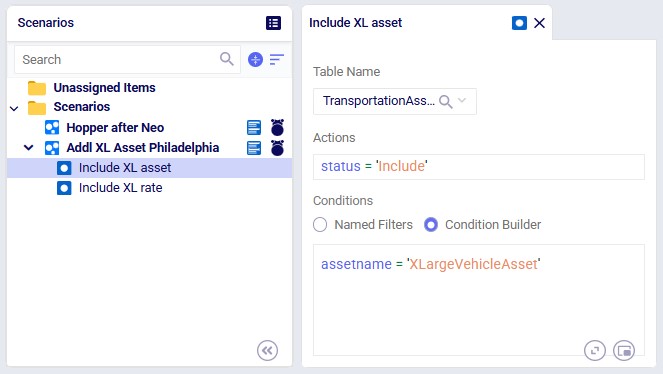
  1. "Hopper after Neo" scenario: run with the input tables as they are, no scenario items are added to make changes to any inputs.
  2. "Addl XL Asset Philadelphia" scenario: this scenario has 2 scenario items to include the XL asset at Philadelphia and its transportation rate.

When running the scenarios, the only additional input required to indicate that the Hopper engine should be run immediately after the Neo run, while taking its customer assignment decisions into account, is to turn on the "Generate Last-Mile Routes" option in the Output Reporting section of the Optimization Technology Parameters:
Hopper after Neo - Outputs

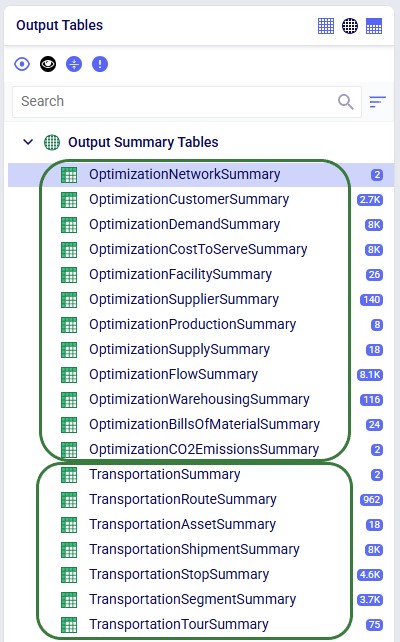
After running both scenarios, we see that full sets of outputs have been generated in the network optimization output tables and in the transportation optimization output tables:
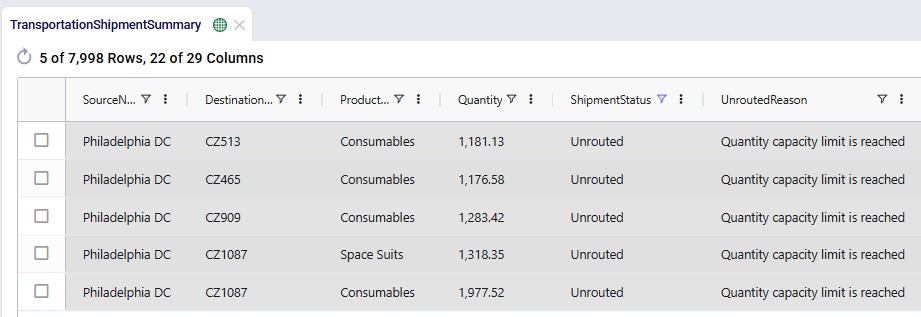
When looking through all outputs, we notice unrouted shipments in the Transportation Shipment Summary output table. Filtering these out, we find they are all shipments coming from Philadelphia DC, and the Unrouted Reason for all = "Quantity capacity limit is reached", see the next screenshot. The large vehicle asset has a capacity of 1000 units which is not big enough to fit these shipments. Therefore, the XL asset is added at Philadelphia DC in the second scenario.
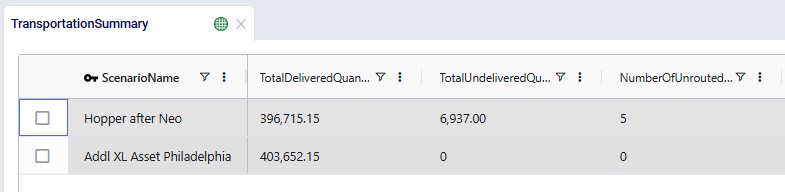
After running the second scenario, there are no more unrouted shipments and we take a look at the Transportation Summary output table which summarizes the Hopper part of the run at the scenario level. We can conclude from here that also delivering these 5 large shipments adds about $6.9k per week to the total transportation cost:
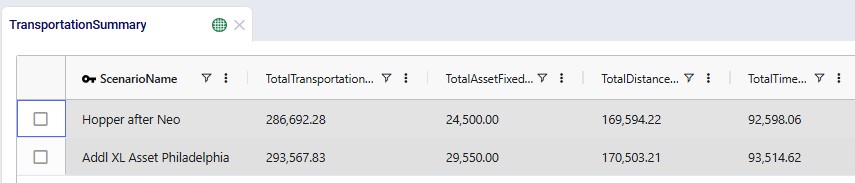
The following screenshot shows fields further to the right in the Transportation Summary output table, which confirm there are no more unrouted shipments in the second scenario, and therefore the total undelivered quantity is also 0 in this scenario:
Looking on a map, we can visualize the routes. In this example, they are colored based on which vehicle is used on the route. This is the map for the "Hopper after Neo" scenario. The map is called "Routes - Baseline" and is pre-configured when copying this model from the Resource Library:
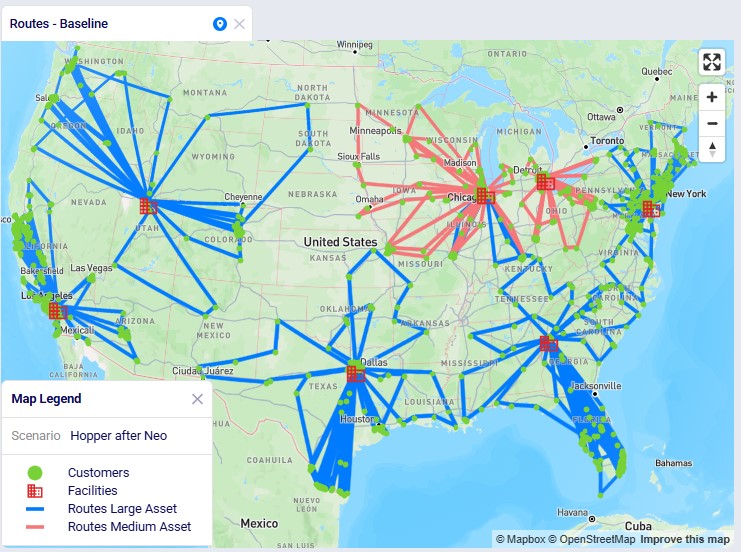
We see that the medium asset is used for most routes from the Chicago DC and all routes from the Detroit DC; the large asset is used on all other routes.

Finally, in the next screenshot we compare the 2 scenarios side-by-side, zoomed in on the Philadelphia DC and its routes. The darker routes are those that use the XL asset. Only the 10 customers which are served by the XL asset in the second scenario are shown on the map. Six of them were served by the large asset in the "Hopper after Neo" scenario; these are shown in orange on the map. The other 4 which are colored yellow had unrouted shipments for 1 or more products in the "Hopper after Neo" scenario; three of these are clustered together northeast of Philadelphia, while one is by itself southwest of Philadelphia:
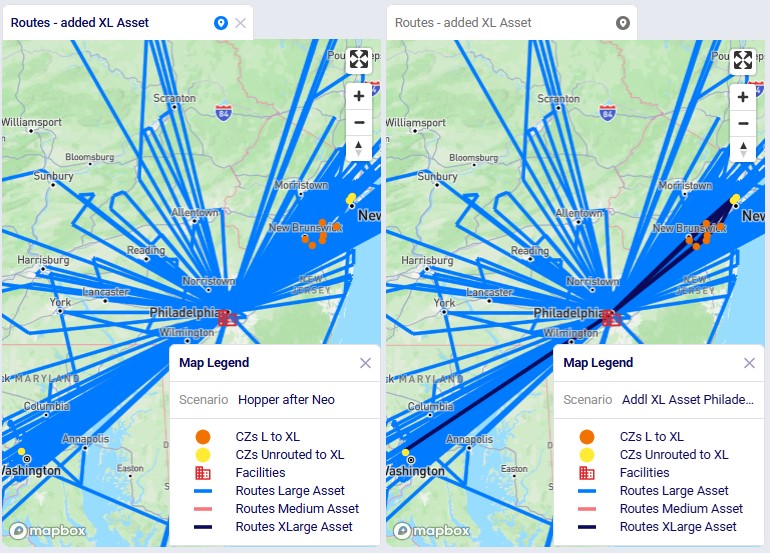
Please note that the "CZs L to XL" and "CZs Unrouted to XL" map layers contain filters on the Condition Builder pane that have been manually added after analyzing and comparing the outputs of the 2 scenarios to determine which customers to include in these layers. If the scenarios are re-run in future with a newer solver and/or after making (small) changes to the model, the outputs may change, including which customers switch from a large to extra-large vehicle and/or those going from being unrouted to using the extra-large vehicle. In that case the current condition builder filters will need to be updated to visualize those changes on the map. See the notes at the end of the "Hopper within Neo-Outputs" section which apply here in a similar way.

To determine which customers initially have unrouted shipments and are served by the extra-large vehicle in the second scenario:

  • Use the Transportation Shipment Summary output table, filter for the first scenario ("Hopper after Neo") and for ShipmentStatus = Unrouted
  • Double-check that these are served by the extra-large asset in the second scenario by filtering the same table for the second scenario ("Addl XL Asset Philadelphia") and the customers found under the previous bullet (the DestinationName column)

To determine which customers are served by a different asset in the second scenario as compared to the first:

  • Export the Transportation Shipment Summary output table to Excel using the File > Export Excel option
  • Split the table over 2 worksheets where each worksheet contains the outputs of 1 of the scenarios
  • In both tables add a column that contains the concatenation of the DestinationName and ProductName fields
  • Copy the TransportationAssetName field in the second table to the right of the field with the concatenation
  • Add a field to the first table which uses a vlookup on the field with the concatenation to look up the value of the TransportationAssetName field from the second table
  • Compare the TransportationAssetName field in the first table with the looked up one from the second table: the customers for which these are different are the ones of interest. Check if they all switch from the large to the extra-large asset and if so, use them for the Condition Builder filter on the "CZs L to XL" map layer. If they switch between other assets, you can add a new map layer with a descriptive name that filters for those customers.
    • Note that you will likely need to remove duplicates to see a unique list due to each customer being served 3 products

We hope this provides you with the guidance needed to start using the Hopper with Neo features yourself. In case of any questions, please do not hesitate to reach out to Optilogic's support team on support@optilogic.com.

Exciting new features which enable users to solve both network and transportation optimization in one solve have been added to Cosmic Frog. By optimizing multi-stop route optimization as part of Network Optimization, it enables users to streamline their analysis and make their Network Optimization more accurate. This is possible because the single optimization solve calculates multi-stop route costs by shipment/customer combination, uses this cost as part of another possible transportation mode in addition to OTR, Rail, Air, etc. and will result in more accurate answers by including better transportation costs in a single solve.

In addition to this documentation, these 2 videos cover the new Network Transportation Optimization (NTO) features too:

Network Transportation Optimization is particularly useful for two classic network design problems (both will be described in more detail in the next section):

  1. Sourcing decisions from distribution centers to customers when last mile deliveries are done using multi-stop routes. Regular NEO (network optimization) favors assigning customers to their closest distribution center, while NEO with multi-stop route will prefer assigning neighboring customers to the same distribution center, to allow opportunities to consolidate shipments in a single truck.
  2. Optimization of consolidating hubs or cross docks with multi-stop routes (inbound or outbound logistics). Combine the global scope of NEO and the detailed transportation costing from HOPPER (transportation optimization) to decide whether customers should be served directly from a plant or via a local hub.

This feature set includes 2 ways of running the Transportation Optimization (Hopper) and Network Optimization (Neo) engines together:

  1. Run Hopper within Neo: solve for multi-stop routes as part of a Neo run - the multi-stop route costs and capacities are taken into account during the solve.
  2. Run Hopper after Neo: first a network optimization is run using the Neo engine, and the outputs (assignments of the last-leg destinations) are used as inputs into the Hopper engine, which is immediately run after. Here, the Neo run is not taking multi-stop routes into consideration.

Following will be covered in this documentation for both the Hopper within Neo and Hopper after Neo NTO algorithms: example use cases, model inputs, how to use the new features, basics of the model used to show the NTO features, and walk through 2 example models, including their setup (input tables, scenarios), and analysis of the outputs using tables and maps.

Hopper within Neo - Example Use Cases

With this feature, users can consider routes as inputs in a Neo model, meaning that the model will optimize product flow sources based on all costs, including the cost of routes. Costs and asset capacities are taken into account for the routes.

Two example use cases which can be addressed using Hopper within Neo are customer consolidation and hub optimization, which will be illustrated with the images that follow.

Consider a network where 2 distribution centers (DCs) are available to serve the customers. Two of these customers are in between the DCs and can either be serviced by the DCs directly (the blue dashed point to point lines) or product can be delivered to both of them as part of a multi-stop route from either DC (the red solid lines):

Running Neo without Hopper, not taking any route inputs into account, can lead to a solution where each DC serves 1 customer:

Whereas when taking route costs and capacities into account during a Hopper within Neo solve, it may be found that the overall cost solution is lower if one of the DCs (DC 1 in this example) serves both customers using a multi-stop route:

As a second example, consider a network where Suppliers can either deliver product to a Hub, either direct or on a multi-stop route from multiple suppliers, or direct/on multi-stop routes from multiple suppliers to a Distribution Center. Again, blue dashed lines indicate direct point to point deliveries and red lines indicate multi-stop route options:

Not taking route options into account when running Neo without Hopper can lead to a solution where each Supplier delivers to DC 1 directly:

This solution can change to one where the Suppliers deliver to the Hub on a multi-stop route when taking the route options into account in a Neo within Hopper run if this is overall beneficial (e.g. lower total cost) to do:

Hopper within Neo - Inputs

The Hopper within Neo algorithm needs inputs in order to consider routes as part of the Neo network optimization run. These include:

  1. Shipments
    1. If the Shipments table is not populated, shipments will be created by the Hopper within Neo algorithm: for each customer-product pair for which demand exists, shipments from the 2 closest facilities will be created.
    2. If the Shipments table is populated, it will be used as input. The following fields in this table will be taken into account if a value is set in them:
      1. Source Name, Destination Name, Product Name - together define the lane and product that flows on it
      2. Shipment ID - unique identifier of a shipment
      3. Quantity, Weight, and Volume - define the dimensions of the shipment.
      4. Decomposition Name - used to group shipments together into a sub-problem run by itself to speed up solves
    3. Please note that a user needs to pick one method, either using the Shipments table for all or not using the Shipments table at all, a mix is currently not possible.
  2. Assets & Rates
    1. If the Transportation Assets table is populated, which is considered best practice, it will be used as input. All Hopper-fields on this table will be used by the algorithm if a value is set in them (hover over a column to see which technologies use it or use the Technology filters at the top of Cosmic Frog to only see Hopper-related tables and fields), with a few noted exceptions:
      1. The Transportation Stop Rate Name, Operating Schedule, and Operating Calendar fields are not used, regardless of whether a value specified for these matches a rate / schedule / calendar on its corresponding Hopper table.
      2. Re-use of assets is not considered since we do not yet know during the preprocessing phase how many trucks will be needed. Therefore, the Fixed Cost field is not used and fields related to tours are not used either. These fields related to tours include: Min / Max Routes per Tour, Max Time per Tour, Max Distance per Tour, Min Time Between Routes and Reset Shift at Route End.
    2. If a Transportation Asset uses a Transportation Rate Name which matches a rate on the Transportation Rates table, then it is used and all populated fields on the Transportation Rates table are used too.
    3. If the Transportation Assets table is not populated, 3 default vehicles which will be available at each facility are used. The only cost used in this case is a default distance cost of $1 per mile:
      1. Small: weight capacity = 20,000 lbs, max stops per route = 2.
      2. Medium: weight capacity = 50,000 lbs, max stops per route = 4.
      3. Large: weight capacity = 80,000 lbs, max stops per route = 6.
  3. Routes - there are 2 methods available to define routes:
    1. Hopper - the Hopper algorithm is used to generate potential routes, see the "Hopper Generated Routes" section below. This method can only be used on lanes going to customers.
    2. Fixed - the user defines the possible routes using the Fixed Routes Definitions and Fixed Routes input tables. See the "User-defined Routes" section below. This method can be used for customer-facing lanes and lanes further upstream in the network.

In all cases, additional records need to be added to the Transportation Policies table as well (explained in more detail below), and if the Transit Matrix table is populated, it will also be used for Hopper within Neo runs.

Please note that any other Hopper related tables (e.g. relationship constraints, business hours, transportation stop rates, etc.), whether populated or not, are not used during a Hopper within Neo solve.

Hopper Generated Routes

To use the Hopper algorithm for route generation, the Transportation Route Planners table and Transportation Policies tables need to be used. Starting with the Transportation Route Planners table:

  1. Use a unique name as the Route Planner Name, this will be used to connect Transportation Policies to the Route Planner.
  2. Set Route Planning Method to Hopper so that the Hopper algorithm will be used to generate potential routes. The other option is Fixed, which will be discussed in the next section.
  3. To run the Hopper piece within the Neo solve, the Status of at least 1 route planner record needs to be set to Include, either directly in this table or through a scenario item in the scenario(s) that should consider multi-stop routes as input to the Neo solve.

In the Transportation Policies table, records need to be added to indicate which lanes will be considered to be part of a multi-stop route:

  1. In this example, all customers can be served by all 7 DCs directly, for a cost of 0.01 per unit per mile (bottom 7 records). This is shown for just customer CZ1 in the screenshot but is set up for all DC-CZ combinations. The UnitCostUOM field is omitted here; it is set to EA-MI for these records.
  2. Now we want to consider serving customers on multi-stop routes in addition to serving them directly. Additional DC-CZ records with a different Mode Name are set up to achieve this (top 7 records). The Status is set to Exclude initially; they are included through a scenario item used in the scenario(s) where we want to consider the multi-stop route option on the last leg of the network. Also note that the Unit Cost field is left empty on these policies; costs for these will be specified on the Transportation Rates table.
  3. To connect the policies with the route planner, we use the Route Planner Name field and set it to RoutePlanner_1, which is the route planner set up in the Transportation Route Planners table. And because the method for this route planner is set to Hopper, the solver now knows to use the Hopper algorithm to create possible multi-stop routes for the lanes of these transportation policies.

Under the hood, potential routes will be calculated based on the inputs provided by the user. For example, for a case where the shipments table is not populated, and the user has specified their own assets:

  1. Candidate routes will be generated from the 2 closest facilities out of all facilities available to serve the customer (e.g. based on the MultiStop mode Transportation Policies set up, in the above example screenshot that would be the 2 closest DCs of the 7 available to serve each customer).
  2. Each customer can be on up to 3 routes from each of these 2 closest DCs.
  3. The candidate routes adhere to all restrictions set on the Transportation Assets table (e.g. Min / Max Stops Per Route, Max Distance Per Route, etc.). Some level of restrictions, such as max stops, distance, or time per route, are recommended to create reasonable routes.
  4. Cost is not taken into account as a factor in the route generation and is calculated for each route after the candidate routes have been generated. For this cost calculation it takes into account all costs specified on the Transportation Rates Table, but not the Fixed Cost if specified on the Transportation Assets table.
  5. The Asset Capacities are also not taken into account during the pre-processing phase where potential routes are generated, which means that the demand quantities (when not using the Shipments table) and any shipment quantity/weight/volume inputs (when using the Shipments table) are not used during this phase either.

As a numbers example to illustrate this calculation of a candidate route, let us consider following:

  1. A given route uses an asset for which distance cost = $1/MI, and time cost = $20/hr.
  2. Besides driving time, there is also fixed time specified for pickup (15 minutes) as well as 5 minutes fixed time at delivery stops.
  3. The candidate route is as follows and has this order of stops: DC1 -> Customer Stop 1 -> Customer Stop 2 -> Customer Stop 3 -> Customer Stop 4 -> DC1.
  4. If the Transit Matrix is populated, the distance and time for each leg of the route is looked up from there. If the Transit Matrix is not used, then the distances and times are calculated based on the latitudes and longitudes of the source and destination (straight-line Haversine calculation) plus a circuity factor (set in the Model Settings table).
  5. Assume the total distance of the route based on all the legs, including back to DC1, is 237.15 miles, and the associated transport time is 4.67 hours. Then we add 15 minutes for the pickup stop at DC1 and 20 minutes for the 4 stops at the customers to the total time, which results in 4.67 + 35/60 = 5.25 hours.
  6. Finally, the route cost calculation is as follows: total route cost = distance cost + time cost = 237.15 MI * $1/MI + 5.25 HR * $20/HR = $237.15 + $105 = $342.15.

These costs are then used as inputs into the Network Optimization, together with costs for other transportation modes, and all are taken into account when optimizing the model.

User-defined Routes

To use routes that are defined by the user in the Neo solve, the user also needs to use the Transportation Route Planners table, in combination with the Fixed Routes, Fixed Routes Definitions, and Transportation Policies tables. Starting with the Transportation Route Planners table:

  1. Again, a unique name needs to be entered as the Route Planner Name to be able to connect this to the routes the user defines in the other tables.
  2. Since the user will define the routes, the Route Planning Method needs to be set to Fixed now.
  3. When set to Include, the routes the user defines will be considered during the Hopper within Neo solve.

The Fixed Routes table connects the names of the routes the user defines with the route planner name:

  1. For each fixed route that will be defined in the Fixed Routes Definitions table, the name needs to be entered in the Fixed Route Name field.
  2. The Route Planner Name field is used to connect each route to the correct route planner, which is RoutePlanner_2 in our example and since this uses the Fixed method, the user enters the fixed routes themselves into the Fixed Routes Definitions table, see next screenshot.

There are a few additional columns on the Fixed Routes table which are not shown in the screenshot above. These are:

  1. Route Capacity and Route Capacity UOM: these set the maximum volume that can be picked up / delivered using this fixed route
  2. Route Cost: specifies the total cost of the route
  3. Route Cost Rule: specifies how the costs are allocated based on the fill level of the asset. Currently 2 options (Prorate and Treat as Full) are available from the drop-down, however both are working the same, as "Treat as Full", currently. Treat as Full: the full cost of the route is always applied, regardless of how full the asset was on the route.

The Fixed Routes Definitions table needs to be used to indicate which stops are on a route together:

  1. The same Fixed Route Name is used for locations (Site Names) that are on a route together.
  2. In this example:
    1. Records 2-5 are Supplier locations in France, which are on a multi-stop route to deliver to the port in Rotterdam (record 1).
    2. Records 7-11 are Supplier locations in Spain, which are on a multi-stop route to deliver to the port in Rotterdam (record 6).

Please note that the Stop Number field on this table is currently not used by the Hopper within Neo functionality. The solve will determine the sequence of the stops.

Finally, to understand which locations function as sources (pickups) and which as drop-offs (deliveries) on a route, and to indicate that multi-stop routes are an option for these source-destination combinations, corresponding records need to be added to the transportation policies table too:

  1. These 4 records are for the 4 French Suppliers that are on a route going to Rotterdam Port; this is Route_1 from the previous screenshot.
  2. These 5 records are for the 5 Spanish Suppliers that are on a route going to Rotterdam Port; this is Route_2 from the previous screenshot.
  3. The Status field is set to Exclude for all records, to use them a scenario item will need to be used to switch it to Include.
  4. The Route Planner Name field needs to be used to connect these records to RoutePlanner_2, which was set up in the Transportation Route Planners table, where the method of Fixed was specified.

Model used to showcase Hopper within/after Neo Features

A copy of the Global Supply Chain Strategy model from the Resource Library was used as the starting point for both the Hopper within Neo and Hopper after Neo demo models. The original Global Supply Chain Strategy model can be found here on the Resource Library, and a video describing it can be found in this "Global Supply Chain Strategy Demo Model Review" Help Center article. The modified models showing the Hopper within and after Neo functionality can be found here on the Resource Library:

To learn more about the Resource Library and how to use it, please see the "How to use the Resource Library" Help Center article.

A short description of the main elements in this model is as follows:

  • There are 3 finished good products: Rockets, Space Suites, and Consumables.
  • Each finished good is made from 3 different raw materials.
  • The raw materials are supplied by suppliers based in EMEA and China; they ship them to their local ports in Rotterdam and Shanghai, respectively.
  • The raw materials are then imported into ports in the US (Charleston) and Mexico (Altamira), from which they are transported to the factories in Princeton, US, and El Bajio, Mexico.
  • The factories produce the finished goods from the raw materials, using bills of materials.
  • The factories ship the finished goods to 7 US distribution centers (DCs).
  • The DCs serve over 1.3k US-based customers (CZs); each customer has demand for all 3 finished goods.

We illustrate the locations and flow of product through the following 3 maps:

Even though around 35 suppliers are set up in the model in the EMEA region, only 6 of them are used based on the records in the Supplier Capabilities input table. We see the light blue lines from these suppliers delivering raw materials to the port in Rotterdam. From there, the 2 purple lines indicate the transport of the raw materials from Rotterdam to the US and Mexican ports.

Similarly, around 35 suppliers are set up in China in the model, but only 3 of them are used per the set up in the Supplier Capabilities input table. The light blue lines are the transport of raw materials from the suppliers to the Shanghai port and the purple lines from the Shanghai port to the ports in Mexico and the US.

This map shows the flows into and within/between the US and Mexico locations:

  • Purple lines are the import of the raw materials from China/EMEA into the US and Mexican ports.
  • The yellow lines indicate the movement of the raw materials from the ports to the factories.
  • Transport of finished goods from the factories to the US DCs is indicated by the green lines.
  • The red lines represent the delivery of the finished goods from the DCs to the customers.

Hopper within Neo - Example Model

We will show how Hopper routes for the last leg of the network, from DCs to customers, can be taken into account during a Neo solve. Through a series of scenarios, we will explore if using multi-stop routes for this supply chain is beneficial:

  • Baseline - Direct Only: models the current situation which only ships to customers directly. The assignment of customers to DCs is optimized based on the direct shipping cost.
  • Baseline - MultiStop Only: sets up the option to use Hopper routes on the last leg of the network and is run to gauge if only using multi-stop routes would overall be cheaper or more expensive. This scenario keeps the assignments of customers to DC the same as in the previous scenario, the "baseline" assignments.
  • Baseline - Direct and MultiStop: if the previous scenario looks like it may be beneficial to use multi-stop routes at least to some extent, this scenario will be run to allow the model to choose between shipping to customers directly and using multi-stop routes. This scenario also keeps the "baseline" assignments of customers to DCs.
  • Optimal DCs - Direct and MultiStop: allows the model to choose between shipping directly and using multi-stop routes on the DC-CZ leg, plus allows re-assignment of customers to other DCs where this is beneficial.

Hopper within Neo - Model Modifications

After copying the Global Supply Chain Strategy model from the Resource Library, following changes/additions were made to be able to consider Hopper generated routes for the DC-CZ leg during the Neo solve. After listing these changes here, we will explain each in more detail through screenshots further below. Users can copy this modified model with the scenarios, outputs, and preconfigured maps from the Resource Library.

  1. Transportation Route Planners: populate this table so that Hopper generated routes will be considered during the Neo solve.
  2. Transportation Policies: add policies which allow Hopper generated routes for the DC-CZ leg of the network.
  3. Transportation Assets: instead of the 3 default assets, we specify 1 large asset ourselves which will be the vehicle used by the Hopper routes.
  4. Transportation Rates: add distance- and time-based costs for the asset.
  5. Transit Matrix: populate this table so that road distances are used in the solves.
  6. Customers: set all customers to be single sourcing, this will help reduce the solve time of the scenarios as they do not need to consider solutions where customers are being served by more than 1 DC.
  7. Flow Count Constraints: add a constraint which ensures that a customer is either served directly or on a multi-stop route and not a combination of the 2, which will also reduce solve times.

Transportation Route Planners Input Table

One record is added in this table where it is indicated that the route planner named "RoutePlanner_1" will use Hopper generated routes and is by default included during a Neo solve.

Transportation Policies Input Table

  1. In the Baseline - Direct Only scenario all customers can be served by all 7 DCs directly, for a cost of 0.01 per unit per mile. This is shown for just customer CZ1 in the screenshot but is set up for all DC-CZ combinations. The UnitCostUOM field is omitted here; it is set to EA-MI for these records. These are the pre-existing policies from the model copied from the Resource Library.
  2. In the other 3 scenarios, we want to also consider serving customers on multi-stop routes. Additional DC-CZ records with a different Mode Name, MultiStop, are set up to achieve this. The Status is set to Exclude initially; they are included through a scenario item used in the 3 scenarios where we want to consider the multi-stop route option on the last leg of the network.
  3. To connect the new policies with the route planner, we use the Route Planner Name field and set it to RoutePlanner_1, which is the route planner set up in the Transportation Route Planners table, see above. Because the method for this route planner is set to Hopper, the solver now knows to use the Hopper algorithm to create possible multi-stop routes for the lanes of these transportation policies.

Transportation Assets Input Table

We choose to add our own asset instead of the 3 defaults ones that will be used if the Transportation Assets table is left blank. The characteristics of our large vehicle are shown in the next 2 screenshots:

This large asset is included in the scenario runs as its Status = Include. The fixed cost of the asset is $1,000, with a capacity of 400 units / 400 cubic feet / 400 pounds.

A rate record is set up in the Transportation Rates input table in order to model distance- and time-based costs. This is shown in the next screenshot. To use it, we link it to the asset by using the Transportation Rate Name field on the Transportation Assets table.

The Max Stops Per Route is set to 10. A Fixed Pickup Time of 15 minutes is entered, which will be applied once when picking up product at the DCs. Also, a Fixed Delivery Time of 5 minutes is set, this will be applied once at each customer when delivering product (the UOM fields are omitted in the screenshot; they are set to MIN).

Transportation Rates Input Table

Besides the fixed cost for the asset as specified in the Transportation Assets table, we also want to apply both distance- and time-based costs to the routes:

A record is set up in the Transportation Rates table where Transportation Rate Name is used in the Transportation Assets table to link the correct rate to the correct asset (e.g. LargeVehicleRate is used for the LargeVehicleAsset). The per distance cost is set to 0.9 per mile, and the time cost is set to 20 per hour; the latter mostly reflects the cost for the driver.

Transit Matrix Input Table

For the scenarios to use actual road distances and transport times, the Distance Lookup Utility in Cosmic Frog was used with following parameters:

  • Distance UoM: MI
  • Geo Provider: PCMiler-UltraFast
  • Arc Defining Table: All-to-All
  • Overwrite Existing Transit Matrix: Yes
  • Symmetric Distances: Yes
  • Max Neighbors Filter: 10

A subset of records filtered for 1 customer destination (CZ1411) is shown in this next screenshot where we see the distance and time from the 10 closest other customers to this customer, and also from all 7 DCs:

Customers Input Table

To remove potential dual sourcing, all customers are set to single sourcing (Single Source field is set to True on the Customers table), meaning they need to be served all product they demand from a single DC. In this model, setting customers to single sourcing also helps reduce the runtime of the scenarios:

Flow Count Constraints Input Table

To further help reduce solve times, a flow count constraint that allows the selection of at maximum 1 mode to each customer is added:

Groups for all DCs, all Customers, all Products, and all Modes (the 2 to customers, Direct and MultiStop) are being used in the Origin, Destination, Product, and Mode fields on the Flow Count Constraints table. The Group Behavior fields for Origin and Destination are set to Enumerate, meaning that under the hood, this constraint is expanded out into individual constraints for each DC-Customer combination. On the other hand, the Group Behavior fields for Product and Mode are set to aggregate, meaning that the constraint applies to all products and modes together. The Counting Rule indicates the combination of entities that "is counted on", in this case the number of modes, which is not allowed to be more than 1 (Type = Max and Value = 1), i.e. there can only be 1 mode selected on each DC-customer lane.

The Status field of the Flow Count Constraint is set to Exclude (not shown in the screenshots above), and the constraint will be included in 2 of the scenarios by changing the status through a scenario item.

Hopper within Neo - Scenario Setup and Run Parameters

The following screenshot shows the scenarios and which scenario items are associated with each of them. To learn more about creating scenarios and their items, please see these 2 help center articles: "Creating Scenarios in Cosmic Frog" and "Getting Started with Scenarios".

  1. When the model is run as-is, without any changes through scenario items, only the Direct transportation policies to customers are included, since the status of the MultiStop records is set to Exclude. No Hopper routes will be considered in this solve. This is the "Baseline - Direct Only" scenario.
  2. For the other 3 scenarios, following scenario items were created:
    1. After running the "Baseline - Direct Only" scenario, Flow Constraints which fix the DC-Customer assignments based on the assignments in this scenario were added to the model (these were already present in the model copied from the Resource Library, with Status = Exclude). A scenario item named "Force Baseline DC-CZ Assignments" is created to include these flow constraints in the next 2 scenarios ("Baseline - MultiStop Only" and "Baseline - Direct and MultiStop") where we want to keep the assignments equal to the optimal ones from the Baseline with only the Direct mode option. It is not included in the last scenario "Optimal DCs - Direct and MultiStop" as the re-assignment of customers to other DCs is allowed in this scenario in case it is beneficial to do so.
    2. To add the multi-stop option for DC-CZ lanes to scenarios, a scenario item "Include MultiStop TPs" is also created, the configuration of which is shown on the right-hand side in the screenshot. This scenario item filters the Transportation Policies table for those with ModeName = 'MultiStop' and sets the Status field of these records to 'Include'. This item is used in all 3 scenarios run after the "Baseline - Direct Only" one.
    3. For the "Baseline - MultiStop Only" scenario an additional scenario item "Exclude Direct TPs" is created, which ensures the Direct option is no longer available by changing the Status to 'Exclude' on transportation policy records where the ModeName = 'Direct'.
    4. Lastly, for the 2 scenarios where both the direct and multi-stop options are considered ("Baseline - Direct and MultiStop" and "Optimal DCs - Baseline and MultiStop"), a scenario item "DC-CZ use max 1 Mode" that includes the Flow Count Constraint is created.

To find a balance between running the model to a low enough gap to reduce any suboptimality in the solution and running for a reasonable amount of time, the following is set on the Run Settings modal which comes up after clicking on the green Run button at the top right in Cosmic Frog:

  1. All 4 scenarios are selected to be run.
  2. The Termination section of the Technology Parameters - Optimization Neo section is expanded:
    1. Solve Time Limit (Minutes) is set to 20, meaning that if the termination gap (next bullet) has not been reached within 20 minutes, the best solution so far will be returned.
    2. MIP Relative Gap Percentage is set to 0.0001. This difference between the best solution and best bound so far needs to be less than this gap for the best solution to be accepted as the solution. This is set lower than the default of 0.001 to reduce suboptimal solutions in the last scenario where differences in costs between sourcing a customer from either of 2 DCs can be small and fall within the gap.

Hopper within Neo - Outputs

We will first look at the Optimization Network Summary and Optimization Flow Summary output tables, and next at the maps of the last 2 scenarios. We will start with the Optimization Network Summary output table. This screenshot does not show the Production and Fixed Operating Costs as they are the same across all scenarios, and we will focus on the transportation related costs:

  1. Comparing the first scenario "Baseline - Direct Only" with the second one "Baseline - MultiStop Only", we see that delivering to all customers using multi-stop routes instead of direct to all, while keeping the customer to DC assignments the same, can reduce the total cost by about 3.5M. Seeing this, it makes sense to run the next 2 scenarios which allow both direct deliveries and multi-stop routes to see if further gains can be achieved.
  2. Keeping the customer to DC assignments the same as in the Baseline - Direct Only scenario and allowing both direct deliveries and multi-stop routes on the last leg to customers can further reduce costs by about 3.1M as compared to the MultiStop Only scenario.
  3. Another ~45k in savings can be found when both direct deliveries and multi-stop routes are considered, while also allowing customer to DC assignments to be changed if optimal to do so.

Next, the Optimization Flow Summary output table is filtered for 1 specific customer, CZ215, for which the DC assignment is changed in the final scenario. The table is also filtered for the Rockets product, for which the delivered quantity is the same for these 4 records (1,243 units):

Salt Lake City is the optimal DC to source from for this customer based on just the direct delivery option; the transportation cost is ~7.2k. We see from the "Baseline - MultiStop Only" scenario that using a multi-stop route from Salt Lake City to this customer is a little more expensive (7.3k), so therefore the Direct mode is used in the "Baseline - Direct and MultiStop" scenario. In the "Optimal DCs - Direct and MultiStop" scenario, the customer swaps DC and is served using a multi-stop route from the San Bernardino DC, this results in a transportation cost of 6.4k, which is a reduction of almost $800 as compared to going direct from the Salt Lake City DC.

With a newly added output table named Optimization Flow Route Summary, we can see on which route from San Bernardino CZ215 is placed in this "Optimal" scenario:

We see that CZ215 is a stop on route 477 from San Bernardino. The screenshot also shows the other stops on this route. Now we will retrace how the multi-stop route cost of $6.4k for this flow (see previous screenshot) is calculated:

When the possible routes are created during the model run, each customer is placed on up to 3 potential routes from its closest 2 DCs. These possible routes generated during preprocessing are listed in the HopperRouteSummary.csv input file which is generated when the "Write Input Solver" model run option (Troubleshooting section) is turned on. We can look up route 477 in it to see the cost for it:

  1. We can calculate the costs for each flow that is part of route 477 (see screenshot above this one) as follows then:
    1. First, we need to calculate how often the route is used, based on the total volume on it. Adding up the Flow Quantity column values, we find that the total number of units is 23,600. Since the asset has a capacity of 400 units, it means the route is used 23,600 / 400 = 59 times.
    2. The route cost = $1,998.03 as we see in the screenshot, so the total cost for using the route 59 times = 59 * $1,998.03 = $117,883.87.
    3. This total cost is then allocated to each flow prorated based on the weight*distance ratio of the flow as compared to the total weight*distance of all the flows on the route. In our example, the weight is the same as the quantity, and we can look the distances for each flow up from the Optimization Flow Summary output table. We will use CZ215 and the 1,243 units of Rockets flow as an example to calculate the cost that was shown in the screenshot above the previous one.
      1. Adding in the distances, we calculate the total distance * weight for all records of route 477 together as 14,779,728.43.
      2. The distance to CZ215 is 643.426 miles, so the weight * distance for the flow to this customer for 1,243 Rockets is 643.426 * 1,243 = 799,778.5751.
      3. Then we calculate the allocated cost for this flow as: total route costs route 477 * (weight * distance CZ215 Rockets) / (total weight * distance all flows on route 477) = $70,887.74 * 799,778.5751 / 14,779,728.43 = $6,379.07, which matches the number we saw in the screenshot above.

The following 2 maps show the DC-CZ flows for the "Baseline - Direct and MultiStop" and "Optimal DCs - Direct and MultiStop" scenarios. Multi-stop routes are shown with blue lines and direct deliveries with red lines. There are 15 customers that swap DCs and these are shown with larger red dots:

In total 15 CZs are swapping DCs in the "Optimal DCs - Direct and MultiStop" scenario. From west to east on the map:

  1. 2 are swapping from Salt Lake Direct to San Bernardino Multistop
  2. 2 are swapping from Dallas Multistop to San Bernardino Multistop
  3. 2 are swapping from Salt Lake Direct to Chicago Multistop
  4. A cluster of 6 are swapping from Chicago Direct & MultiStop to Dallas Multistop
  5. 2 are swapping from Chicago Multistop to Detroit Multistop
  6. 1 is swapping from Detroit Multistop to Chicago Multistop

The last 3 swaps cause some flow lines to be crossing each other on the map. This is due to the algorithm considering a finite number of possible routes.

Note that maps for the first 2 scenarios are also set up in this demo model.

Re-running these scenarios in future with a newer solver and/or after making (small) changes to the model can change the outputs such that the set of reassigned customers which are shown in larger red dots on the map changes. To visualize these on the map in the same way as is done above, the filter in the Condition Builder panel of the "Reassigned Customers" map layer needs to be updated manually. Currently the filter is as follows:

To determine which customers are being reassigned and need to be used in this filter, users can take following steps (which can be automated using for example DataStar):

  • Open the Optimization Flow Summary output table and filter for the 2 scenarios to be compared in the ScenarioName field (e.g. "Baseline - Direct and MultiStop" and "Optimal DCs - Direct and MultiStop") and for FlowType= CustomerFulfillment.
  • Export the filtered table to Excel using the File > Export Excel option
  • In Excel analyze which customers (DestinationName field) have a different source in the "Optimal..." scenario as compared to the "Baseline..." scenario. This can be done for example by:
    • Splitting the table out over 2 worksheets where one contains the outputs of 1 scenario and the other of the other scenario
    • In both tables add a column that contains the concatenation of the DestinationName and ProductName fields
    • Copy the OriginName field in the second table to the right of the field with the concatenation
    • Add a field to the first table which uses a vlookup on the field with the concatenation to look up the value of the OriginName field from the second table
    • Compare the OriginName field in the first table with the looked up one from the second table: the customers for which these are different are the ones to add to the Condition Builder filter on the Reassigned Customers map layer
      • Note that you will need to remove duplicates to see a unique list due to each customer being served 3 products

Hopper after Neo

With this new functionality, a transportation optimization (Hopper) run is started immediately after a network optimization (Neo) run has completed and this will be seen as one run to the user. Underneath, the assignments on the last leg of the network (e.g. customer to DC assignments) as determined optimal by the Neo run will be fixed for the Hopper run, and then multi-stop routes are generated for this last leg during the Hopper run. All existing Hopper functionality is taken into account while determining the optimal multi-stop routes and complete sets of outputs for both the network optimization and transportation optimization are generated at the end of a Hopper after Neo run. This saves users time where they do not need to go into the model to retrieve and manipulate Neo outputs to be used as input shipments for a subsequent Hopper run.

Hopper after Neo - Inputs

Besides needing the usual input for the network optimization (Neo) engine to be able to run, the Hopper after Neo algorithm needs some additional inputs in order to generate optimal multi-stop routes after the Neo run has completed. These include:

  1. Shipments
    1. If the Shipments table is not populated, which will be the most common use case, shipments will be created by the Hopper after Neo algorithm from the Customer Demand table:
      1. If the Delivery Frequency column on the Customer Demand is populated, shipments are created based on the Quantity and Delivery Frequency: shipment quantity = demand quantity / (365 days / time between deliveries in days).
      2. If the Delivery Frequency column on the Customer Demand table is not populated, weekly shipments are calculated from the demand quantity (e.g. demand quantity / 52).
      3. Please note that in either case, one shipment per customer-product combination will be generated. The Hopper outputs represent the tactical routes for 1 week (Delivery Frequency not set) or 1 period of different length (Delivery Frequency set)
    2. If the Shipments table is populated, it will be used as input. However, this will not be a very common use case, since the goal of a Hopper after Neo run is to automatically use the assignments on the last leg from the Neo run as input into the Hopper run. Using the Shipments table instead could override these Neo assignments. In other words: using the Shipments table will essentially result in Hopper running independently of Neo. If populated though, the following fields in the Shipments table will be taken into account if a value is set in them:
      1. Source Name, Destination Name, Product Name - together define the lane and product that flows on it
      2. Shipment ID - unique identifier of a shipment
      3. Quantity, Weight, and Volume - define the dimensions of the shipment
      4. Decomposition Name - used to group shipments together into a sub-problem run by itself to speed up solves
    3. Please note that, similar to the Hopper within Neo approach, users need to choose one approach or the other, a mix of having some shipments populated for some customer-product combinations and not others is not possible currently.
  2. Assets & Rates
    1. If the Transportation Assets table is populated, it will be used as input. All Hopper fields on this table will be used by the algorithm if a value is set in them.
    2. If the Transportation Assets table is not populated, 1 default vehicle (available at each facility) is used, and a default distance cost of $1/MI will be applied. This default asset's characteristics are:
      1. Weight capacity = 80,000 lbs
      2. Max stops per route = 6

In addition, all populated Hopper fields used on any other Hopper table will be used during the Hopper part of the solve.

To turn on the Hopper after Neo functionality, one needs to enable the "Generate Last-Mile Routes" run setting in the Output Reporting section of the Optimization (NEO) Technology Parameters. These parameters are located on the right-hand side of the Run Settings modal which comes up after clicking on the green Run button at the right top in Cosmic Frog:

Hopper after Neo - Example Model

Please see the "Model used to showcase Hopper within/after Neo Features" section further above for the details of the starting point for the demo model for Hopper after Neo, which is the same one that was also the starting point for the Hopper within Neo demo model.

We will show how Hopper routes for the last leg of the network, from DCs to customers, can be created immediately after a Neo solve. Through 2 scenarios, we will explore which asset mix will be optimal for the generated multi-stop routes:

  1. Hopper after Neo scenario - has 2 vehicles available at all DCs, a large and a medium one.
  2. Addl XL Asset Philadelphia - same as the first scenario, but with an additional extra large asset available at the Philadelphia DC because the first scenario has several unrouted shipments due to not having a vehicle with large enough capacity for these shipments.

Hopper after Neo - Model Modifications

After copying the Global Supply Chain Strategy model from the Resource Library, following changes/additions were made to be able to use Hopper for multi-stop route generation for the DC-CZ leg after the Neo solve. After listing these changes here, we will explain each in more detail through screenshots further below. Users can copy this modified model with the scenarios and outputs from the Resource Library.

  1. Transportation Assets: instead of using the 1 default asset, we specify 2 assets ourselves initially, a large and a medium one, these will be the vehicles used by the Hopper routes. In the second scenario an additional extra-large vehicle is made available at the Philadelphia DC to resolve unrouted shipments from the first scenario.
  2. Transportation Rates: distance- and time-based costs for the assets are specified here.
  3. Transit Matrix: populate this table so that road distances are used in the solves - this is the same as described above for the Hopper within Neo solve, please refer back to the "Transit Matrix Input Table" sub-section in the "Hopper within Neo - Model Modifications" section further above for details.
  4. Customers: set all customers to be single sourcing, so customers will only be on a route from one DC for all products demanded. This is again the same change as described above in the Customers Input Table sub-section of the "Hopper within Neo - Model Modifications" section further above, please refer back to that section for more details.

Transportation Assets Input Table

Instead of using the 1 large default vehicle when leaving the Transportation Assets table blank, we decide to use 2 user-defined assets initially: a large and medium one. One additional extra large asset will be added after running the first scenario with the 2 assets; it will be added to resolve unrouted shipments seen in the first scenario. The assets and their settings are shown in the following 2 screenshots:

We see that both the Medium and Large vehicle are available at all locations (Domicile Location is left blank) and their Status is set to "include", whereas the Extra Large vehicle will only be available at the Philadelphia DC in the second scenario, and its initial Status is set to "Exclude". The assets have increasing fixed costs, quantity capacities, max number of stops per route, and fixed pickup times (in minutes) by increasing asset size. The fixed delivery time is the same for all: 5 minutes per stop.

Transportation Rates Input Table

For each asset, a transportation rate is specified in the Transportation Rates input table. This rate is used in the Transportation Rate Name field in the Transportation Assets table (see screenshot above). The Distance and Time Costs are specified as follows, where the distance-based rate increases with the size of the vehicle to account for higher fuel usage. The Time Cost increases a bit with the size of the vehicle too to reflect the level of experience of the driver needed for larger vehicles:

Hopper after Neo - Scenario Setup and Run Parameters

Two scenarios will be run in this model:

  1. "Hopper after Neo" scenario: run with the input tables as they are, no scenario items are added to make changes to any inputs.
  2. "Addl XL Asset Philadelphia" scenario: this scenario has 2 scenario items to include the XL asset at Philadelphia and its transportation rate.

When running the scenarios, the only additional input required to indicate that the Hopper engine should be run immediately after the Neo run, while taking its customer assignment decisions into account, is to turn on the "Generate Last-Mile Routes" option in the Output Reporting section of the Optimization Technology Parameters:

Hopper after Neo - Outputs

After running both scenarios, we see that full sets of outputs have been generated in the network optimization output tables and in the transportation optimization output tables:

When looking through all outputs, we notice unrouted shipments in the Transportation Shipment Summary output table. Filtering these out, we find they are all shipments coming from Philadelphia DC, and the Unrouted Reason for all = "Quantity capacity limit is reached", see the next screenshot. The large vehicle asset has a capacity of 1000 units which is not big enough to fit these shipments. Therefore, the XL asset is added at Philadelphia DC in the second scenario.

After running the second scenario, there are no more unrouted shipments and we take a look at the Transportation Summary output table which summarizes the Hopper part of the run at the scenario level. We can conclude from here that also delivering these 5 large shipments adds about $6.9k per week to the total transportation cost:

The following screenshot shows fields further to the right in the Transportation Summary output table, which confirm there are no more unrouted shipments in the second scenario, and therefore the total undelivered quantity is also 0 in this scenario:

Looking on a map, we can visualize the routes. In this example, they are colored based on which vehicle is used on the route. This is the map for the "Hopper after Neo" scenario. The map is called "Routes - Baseline" and is pre-configured when copying this model from the Resource Library:

We see that the medium asset is used for most routes from the Chicago DC and all routes from the Detroit DC; the large asset is used on all other routes.

Finally, in the next screenshot we compare the 2 scenarios side-by-side, zoomed in on the Philadelphia DC and its routes. The darker routes are those that use the XL asset. Only the 10 customers which are served by the XL asset in the second scenario are shown on the map. Six of them were served by the large asset in the "Hopper after Neo" scenario; these are shown in orange on the map. The other 4 which are colored yellow had unrouted shipments for 1 or more products in the "Hopper after Neo" scenario; three of these are clustered together northeast of Philadelphia, while one is by itself southwest of Philadelphia:

Please note that the "CZs L to XL" and "CZs Unrouted to XL" map layers contain filters on the Condition Builder pane that have been manually added after analyzing and comparing the outputs of the 2 scenarios to determine which customers to include in these layers. If the scenarios are re-run in future with a newer solver and/or after making (small) changes to the model, the outputs may change, including which customers switch from a large to extra-large vehicle and/or those going from being unrouted to using the extra-large vehicle. In that case the current condition builder filters will need to be updated to visualize those changes on the map. See the notes at the end of the "Hopper within Neo-Outputs" section which apply here in a similar way.

To determine which customers initially have unrouted shipments and are served by the extra-large vehicle in the second scenario:

  • Use the Transportation Shipment Summary output table, filter for the first scenario ("Hopper after Neo") and for ShipmentStatus = Unrouted
  • Double-check that these are served by the extra-large asset in the second scenario by filtering the same table for the second scenario ("Addl XL Asset Philadelphia") and the customers found under the previous bullet (the DestinationName column)

To determine which customers are served by a different asset in the second scenario as compared to the first:

  • Export the Transportation Shipment Summary output table to Excel using the File > Export Excel option
  • Split the table over 2 worksheets where each worksheet contains the outputs of 1 of the scenarios
  • In both tables add a column that contains the concatenation of the DestinationName and ProductName fields
  • Copy the TransportationAssetName field in the second table to the right of the field with the concatenation
  • Add a field to the first table which uses a vlookup on the field with the concatenation to look up the value of the TransportationAssetName field from the second table
  • Compare the TransportationAssetName field in the first table with the looked up one from the second table: the customers for which these are different are the ones of interest. Check if they all switch from the large to the extra-large asset and if so, use them for the Condition Builder filter on the "CZs L to XL" map layer. If they switch between other assets, you can add a new map layer with a descriptive name that filters for those customers.
    • Note that you will likely need to remove duplicates to see a unique list due to each customer being served 3 products

We hope this provides you with the guidance needed to start using the Hopper with Neo features yourself. In case of any questions, please do not hesitate to reach out to Optilogic's support team on support@optilogic.com.

Have More Questions?

Contact Support

Get in touch

Contact Sales

Get in touch

Visit Frogger Pond Community

Visit our Community