

Input factors are at the heart of Dendro optimization - they define what Dendro can change to improve your supply chain performance. Think of input factors as the "knobs" Dendro can turn to find better inventory policies.
Key concepts:
This guide explains how to configure input factors to give Dendro the right level of control over your inventory policies. These can be specified in the Input Factors input table in Cosmic Frog.
Recommended reading prior to diving into this guide: Getting Started with Dendro, a high-level overview of how Dendro works, and Dendro: Genetic Algorithm Guide which explains the inner workings of Dendro in more detail.
An input factor tells Dendro's Genetic Algorithm:
Dendro explores these decisions systematically across your entire network to find the optimal combination.
Dendro supports three types of input factors, each suited for different kinds of optimization variables. These are all specified on the Input Factors input table, see also "The Input Factors Table" section further below.
What they are: Numeric values that can vary within a minimum and maximum range.
Best for:
Configuration fields:
InputFactorName: WH_A_Prod_1_ReorderPoint TableName: InventoryPolicies ColumnName: SimulationPolicyValue1 Filter: FacilityName='Warehouse A' AND ProductName='Product 1' MinValue: 100 MaxValue: 1000 StepSize: 10 BaseValue: 500 How it works:
Example:
Chromosome 1 (baseline): 500 Chromosome 2 (random): 730 Chromosome 3 (random): 220 Chromosome 4 (mutated from 2): 740 (increased by one step) What they are: Values selected from a predefined list of discrete options.
Best for:
Configuration fields:
InputFactorName: DC_Policy_Type TableName: InventoryPolicies ColumnName: SimulationPolicy Filter: FacilityName='Distribution Center' Enumerate: (s,S)|(R,Q)|(T,S) BaseValue: (s,S) How it works:
Example:
Chromosome 1 (baseline): (s,S) Chromosome 2 (random): (R,Q) Chromosome 3 (random): (T,S) Chromosome 4 (mutated from 2): (s,S) (switched from R,Q) What they are: Grouped input factors that manage related inventory policy parameters together as a coordinated set.
Best for:
How they work:
Example configuration:
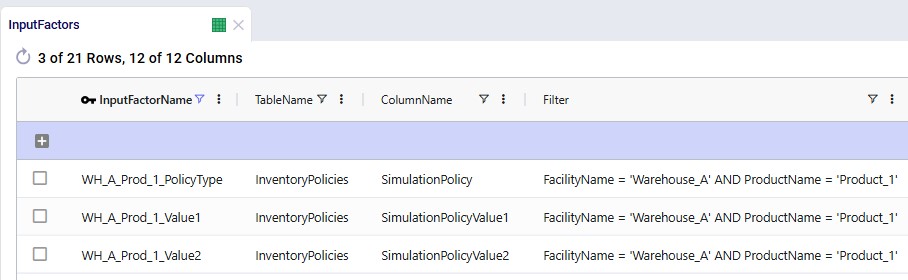
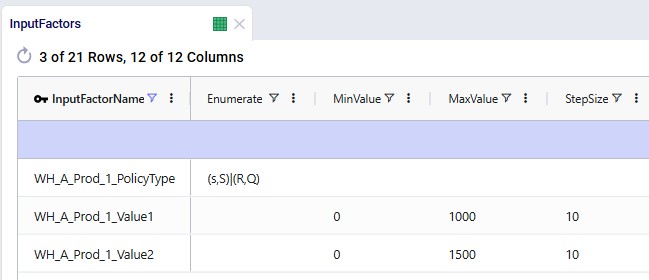
Factor 1: InputFactorName: WH_A_Prod_1_PolicyType TableName: InventoryPolicies ColumnName: SimulationPolicy Filter: FacilityName='Warehouse A' AND ProductName='Product 1' Enumerate: (s,S)|(R,Q) Factor 2: InputFactorName: WH_A_Prod_1_Value1 TableName: InventoryPolicies ColumnName: SimulationPolicyValue1 Filter: FacilityName='Warehouse A' AND ProductName='Product 1' MinValue: 0 MaxValue: 1000 StepSize: 10 Factor 3: InputFactorName: WH_A_Prod_1_Value2 TableName: InventoryPolicies ColumnName: SimulationPolicyValue2 Filter: FacilityName='Warehouse A' AND ProductName='Product 1' MinValue: 0 MaxValue: 1500 StepSize: 10 Automatic policy conversion: When policy type changes from (R,Q) to (s,S):
When changing from (s,S) to (R,Q):
Input factors are configured in the Input Factors input table with the following columns:
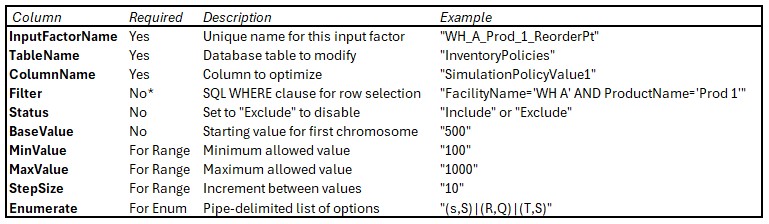
*Filter is required for inventory policy input factors to identify the specific facility-product combination.
The following 2 screenshots show the Input Factors table in Cosmic Frog. It contains 3 records which are set up the same as the example in the "Inventory Policy Sets (Advanced)" section above:
Optimize the reorder point for a single facility-product:
InputFactorName: Seattle_Widget_ReorderPoint TableName: InventoryPolicies ColumnName: SimulationPolicyValue1 Filter: FacilityName='Seattle DC' AND ProductName='Widget A' MinValue: 200 MaxValue: 800 StepSize: 20 BaseValue: 500 Status: Include Result: Dendro will explore reorder points from 200 to 800 in steps of 20 (200, 220, 240, ..., 800).
Optimize order quantity with small increments:
InputFactorName: Boston_Gadget_OrderQty TableName: InventoryPolicies ColumnName: SimulationPolicyValue2 Filter: FacilityName='Boston WH' AND ProductName='Gadget B' MinValue: 50 MaxValue: 500 StepSize: 5 BaseValue: 200 Status: Include Result: Dendro will explore 91 different values (50, 55, 60, ..., 500).
Let Dendro choose between different inventory policies:
InputFactorName: Chicago_Part_PolicyType TableName: InventoryPolicies ColumnName: SimulationPolicy Filter: FacilityName='Chicago Plant' AND ProductName='Part C' Enumerate: (s,S)|(R,Q)|(T,S) BaseValue: (s,S) Status: Include Result: Dendro will test (s,S), (R,Q), and (T,S) policies to see which performs best.
Optimize both policy type and parameters:
Policy Type InputFactorName: LA_Motor_PolicyType TableName: InventoryPolicies ColumnName: SimulationPolicy Filter: FacilityName='LA Warehouse' AND ProductName='Motor D' Enumerate: (s,S)|(R,Q) BaseValue: (s,S) Parameter 1 (reorder point or 's') InputFactorName: LA_Motor_Value1 TableName: InventoryPolicies ColumnName: SimulationPolicyValue1 Filter: FacilityName='LA Warehouse' AND ProductName='Motor D' MinValue: 0 MaxValue: 500 StepSize: 10 BaseValue: 100 Parameter 2 (order-up-to or order quantity) InputFactorName: LA_Motor_Value2 TableName: InventoryPolicies ColumnName: SimulationPolicyValue2 Filter: FacilityName='LA Warehouse' AND ProductName='Motor D' MinValue: 0 MaxValue: 800 StepSize: 10 BaseValue: 300 Result: Dendro will:
The most common input factors for inventory optimization target these columns in the Inventory Policies input table:

Example:
Input Factors:
[0] WH_A_Prod_1_ReorderPoint (Range: 100-1000, Step: 10, Base: 500) [1] WH_A_Prod_1_ReorderPoint (Range: 200-800, Step: 20, Base: 400) [2] WH_A_Prod_1_PolicyType (Enum: (s,S)|(R,Q), Base: (s,S))Results in:
Chromosome 1 (baseline): [500, 400, 0] (0 = first enum value = (s,S)) Chromosome 2 (random): [730, 560, 1] (1 = second enum value = (R,Q)) Chromosome 3 (random): [220, 640, 0] (0 = first enum value = (s,S))When Dendro mutates a chromosome, it changes one or more input factor values:
For Range factors:
For Enumeration factors:
Example mutation:
Original: [500, 400, 0] Mutated: [500, 420, 0] (Position 1 changed: 400 to 420) When Dendro creates a scenario to simulate using the Throg engine:
Result: Each chromosome becomes a complete, runnable supply chain scenario with its specific inventory policy settings.
When turned on, the Automatically Generate Input Factors option (a model run option in the Dendro section of the Technology Parameters) automatically creates input factor configurations based on your inventory policies and service targets.
When to use:
How it works:
The automatic builder uses intelligent rules to set min/max ranges based on current values and service performance:
MinValue: 0 MaxValue: value + 5 (or adjusted based on service) StepSize: 1 Rationale: Small values need fine-grained control and room to explore modest increases.
MinValue: max(1, rounded_value - 15) MaxValue: rounded_value + 15 StepSize: 5 Values are rounded to base 5
Rationale: Medium values can use larger steps (5) while still providing good resolution.
MinValue: max(1, rounded_value - 50) MaxValue: rounded_value + 50 StepSize: 10 Values are rounded to base 10
Rationale: Larger inventories need wider exploration ranges with proportionally larger steps.
MinValue: max(1, rounded_value - 200) MaxValue: rounded_value + 200 StepSize: 20 Values are rounded to base 20
Rationale: Very large inventories benefit from broad exploration with coarse granularity.
The builder adjusts ranges based on current service performance:
When fill rate < target service level: The ratio = target_service / current_fill_rate is used to expand the maximum:
MaxValue = max(value + buffer, ratio * value)
Example:
When fill rate => target service level: The builder is more conservative, allowing exploration below current value:
MaxValue = min(value + buffer, quantity_bounds)
Rationale: If service is already good, there may be opportunity to reduce inventory without harming service.
When fill rate <= 85% (poor service): MinValue is set to current value - does not explore lower values that would worsen service further.
For each inventory policy, the automatic generator typically creates:
Result: A complete Input Factors table ready for Dendro optimization.
Too narrow:
MinValue: 490 MaxValue: 510 StepSize: 1 Problem: Dendro cannot explore significantly different solutions. Only 21 values to test.
Too wide:
MinValue: 0 MaxValue: 100000 StepSize: 1 Problem: 100,000 possible values means Dendro will likely miss the optimal value in the haystack.
Just right:
MinValue: 200 MaxValue: 800 StepSize: 20 Why: Reasonable range around current value (500), coarse enough for efficient exploration (31 values), fine enough for precision.
Rule of thumb: Step size should be 1-5% of the expected optimal value.
For value of approximately 100:
For value of approximately 1000:
Why it matters:
Bad:
MinValue: 100 MaxValue: 1000 StepSize: 40 Problem: (1000-100) / 40 = 22 remainder 20; the max might not be reachable exactly.
Good:
MinValue: 100 MaxValue: 1000 StepSize: 30Check: (1000-100) / 30 = 30 remainder 0; the max can be reached exactly.
Dendro automatically adjusts MaxValue if needed to ensure even division.
Best practice: Set BaseValue to your current policy value.
Why:
When BaseValue is null:
For inventory policies, always configure factors for the same facility-product together:
Good - Coordinated filters:
All three factors have identical FilterWH_A_Prod_1_PolicyType Filter: FacilityName='WH A' AND ProductName='Prod 1' WH_A_Prod_1_Value1 Filter: FacilityName='WH A' AND ProductName='Prod 1' WH_A_Prod_1_Value2 Filter: FacilityName='WH A' AND ProductName='Prod 1' Bad - Mismatched filters:
WH_A_Prod_1_PolicyType Filter: FacilityName='WH A' AND ProductName='Prod 1' WH_A_Prod_1_Value1 Filter: FacilityName='WH A' AND ProductName='Prod 1' WH_A_AllProds_Value2 Filter: FacilityName='WH A' # WRONG - does not match! Why: Dendro groups factors by filter. Mismatched filters create separate uncoordinated genes.
Guideline: More input factors = larger search space = longer optimization
Example calculation:
Search space size: 50^200 = enormous!
Best practice:
Use the Status column: Set Status = 'Exclude' for factors you want to temporarily disable without deleting.
Common mistakes:
Wrong - Missing quotes:
Filter: FacilityName=Warehouse A AND ProductName=Widget
Correct - Proper quotes:
Filter: FacilityName='Warehouse A' AND ProductName='Widget'
Wrong - Incorrect column names:
Filter: Facility='WH A' AND Product='Widget'
Correct - Match actual table column names:
Filter: FacilityName='WH A' AND ProductName='Widget'
Testing tip: Run your filter as a SQL WHERE clause to verify it returns exactly one row (you can use the SQL Editor application on the Optilogic platform for this):
SELECT * FROM InventoryPolicies
WHERE FacilityName='WH A' AND ProductName='Widget';Goal: Keep current policy types and order quantities; optimize reorder points only.
Configuration:
For each facility-product:
InputFactorName: {Facility}_{Product}_ReorderPt TableName: InventoryPolicies ColumnName: SimulationPolicyValue1 Filter: FacilityName='{Facility}' AND ProductName='{Product}' MinValue: [calculated] MaxValue: [calculated] StepSize: [appropriate for value scale] BaseValue: [current value] Result: Dendro explores different reorder points while keeping other policy parameters fixed.
Goal: Let Dendro choose policy types and all parameters.
Configuration:
For each facility-product:
Policy typeInputFactorName: {Facility}_{Product}_Policy TableName: InventoryPolicies ColumnName: SimulationPolicy Filter: FacilityName='{Facility}' AND ProductName='{Product}' Enumerate: (s,S)|(R,Q)Parameter 1 InputFactorName: {Facility}_{Product}_Value1 TableName: InventoryPolicies ColumnName: SimulationPolicyValue1 Filter: FacilityName='{Facility}' AND ProductName='{Product}' [Range configuration] Parameter 2 InputFactorName: {Facility}_{Product}_Value2 TableName: InventoryPolicies ColumnName: SimulationPolicyValue2 Filter: FacilityName='{Facility}' AND ProductName='{Product}' [Range configuration] Result: Maximum flexibility - Dendro explores different policy types and parameter values.
Goal: Optimize top 20% of items by revenue; leave others unchanged.
Approach:
SQL example for selective generation - Create Input Factors for top revenue items only:
INSERT INTO InputFactors (...)
SELECT ... FROM InventoryPolicies ip
JOIN ProductRevenue pr ON ip.ProductName = pr.ProductName
WHERE pr.AnnualRevenue > [threshold]
Result: Focused optimization on items that matter most, faster runtime.
Goal: Use wider ranges for variable-demand products, tighter for stable products.
Configuration:
Stable, predictable products:
MinValue: current_value * 0.8 MaxValue: current_value * 1.2 StepSize: small (fine control) Variable, unpredictable products:
MinValue: current_value * 0.5 MaxValue: current_value * 2.0 StepSize: larger (broader exploration) Result: Appropriate exploration ranges based on demand variability.
Symptom: During loading, you see "no matching inventory policy" in the Job Log.
Cause: The Filter does not match any row in the InventoryPolicies table.
Solutions:
SELECT * FROM InventoryPolicies WHERE [your filter]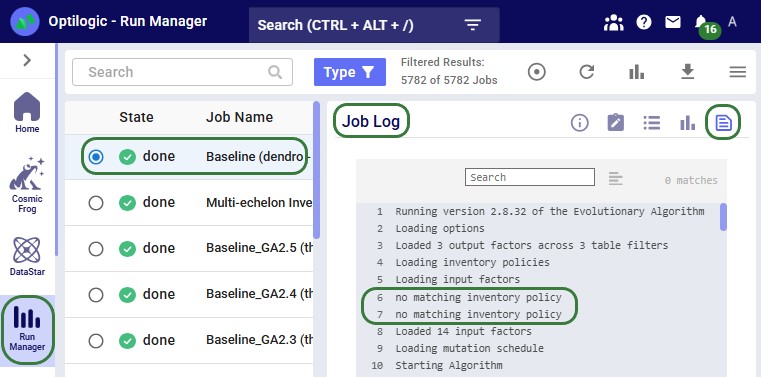
Symptom: Multiple separate genes instead of one coordinated policy set.
Cause: Filters do not match exactly across related factors.
Example problem:
Factor 1 Filter: FacilityName='WH A' AND ProductName='Widget' Factor 2 Filter: FacilityName='WH A' and ProductName='Widget' # lowercase 'and'! Solution: Ensure identical filter text across all factors for the same facility-product.
Symptom: Dendro tests impractical inventory levels (too high or too low).
Cause: Min/Max ranges too wide or poorly set.
Solutions:
Symptom: Fitness scores are not getting better across generations.
Possible causes:
Cause 1: Ranges too narrow
Cause 2: Step size too coarse
Cause 3: Wrong factors optimized
Cause 4: Conflicting objectives
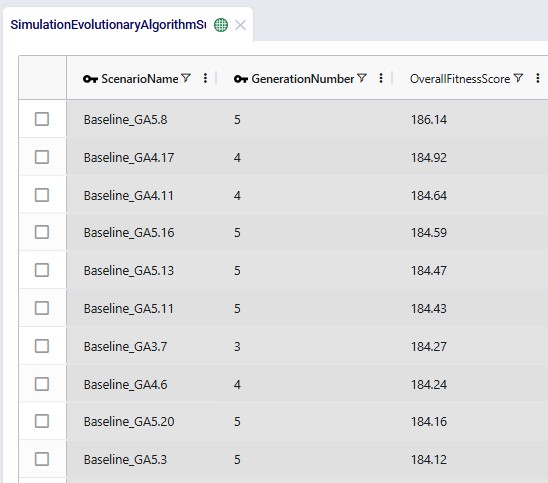
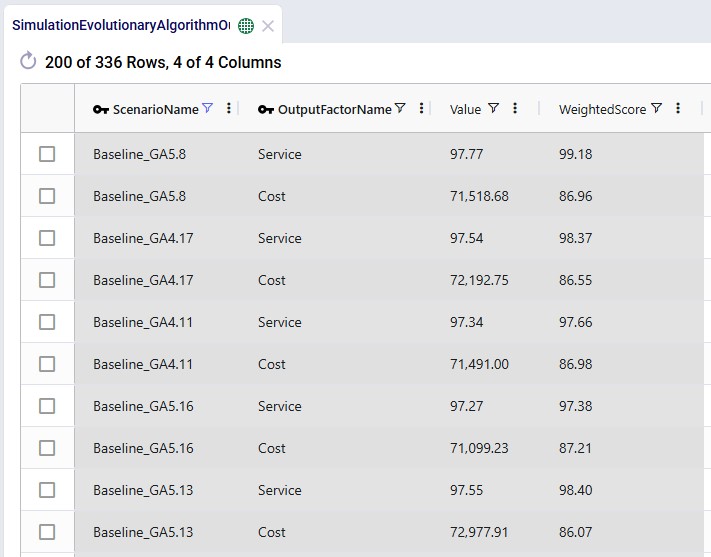
Overall Fitness Scores can be assessed in the Simulation Evolutionary Algorithm Summary output table after a Dendro run has completed, while scores of individual output factors can be reviewed in the Simulation Evolutionary Algorithm Output Factor Report output table:
Symptom: Warnings or errors about order-up-to levels below reorder points.
Cause: Ranges configured without considering logical constraints.
Solution: Dendro handles this automatically through special mutation logic, but you can help by:
Note: Dendro automatically enforces S => s during gene creation and mutation.
Input factors are the foundation of Dendro optimization:
Key takeaways:
Well-configured input factors give Dendro the right level of control to find optimal solutions efficiently. Too much freedom creates an intractably large search space; too little prevents discovering improvements. The art is finding the right balance for your specific supply chain.
You may find these links helpful, some of which have already been mentioned above:
Please do not hesitate to contact the Optilogic Support team on support@optilogic.com for any questions or feedback.

Input factors are at the heart of Dendro optimization - they define what Dendro can change to improve your supply chain performance. Think of input factors as the "knobs" Dendro can turn to find better inventory policies.
Key concepts:
This guide explains how to configure input factors to give Dendro the right level of control over your inventory policies. These can be specified in the Input Factors input table in Cosmic Frog.
Recommended reading prior to diving into this guide: Getting Started with Dendro, a high-level overview of how Dendro works, and Dendro: Genetic Algorithm Guide which explains the inner workings of Dendro in more detail.
An input factor tells Dendro's Genetic Algorithm:
Dendro explores these decisions systematically across your entire network to find the optimal combination.
Dendro supports three types of input factors, each suited for different kinds of optimization variables. These are all specified on the Input Factors input table, see also "The Input Factors Table" section further below.
What they are: Numeric values that can vary within a minimum and maximum range.
Best for:
Configuration fields:
InputFactorName: WH_A_Prod_1_ReorderPoint TableName: InventoryPolicies ColumnName: SimulationPolicyValue1 Filter: FacilityName='Warehouse A' AND ProductName='Product 1' MinValue: 100 MaxValue: 1000 StepSize: 10 BaseValue: 500 How it works:
Example:
Chromosome 1 (baseline): 500 Chromosome 2 (random): 730 Chromosome 3 (random): 220 Chromosome 4 (mutated from 2): 740 (increased by one step) What they are: Values selected from a predefined list of discrete options.
Best for:
Configuration fields:
InputFactorName: DC_Policy_Type TableName: InventoryPolicies ColumnName: SimulationPolicy Filter: FacilityName='Distribution Center' Enumerate: (s,S)|(R,Q)|(T,S) BaseValue: (s,S) How it works:
Example:
Chromosome 1 (baseline): (s,S) Chromosome 2 (random): (R,Q) Chromosome 3 (random): (T,S) Chromosome 4 (mutated from 2): (s,S) (switched from R,Q) What they are: Grouped input factors that manage related inventory policy parameters together as a coordinated set.
Best for:
How they work:
Example configuration:
Factor 1: InputFactorName: WH_A_Prod_1_PolicyType TableName: InventoryPolicies ColumnName: SimulationPolicy Filter: FacilityName='Warehouse A' AND ProductName='Product 1' Enumerate: (s,S)|(R,Q) Factor 2: InputFactorName: WH_A_Prod_1_Value1 TableName: InventoryPolicies ColumnName: SimulationPolicyValue1 Filter: FacilityName='Warehouse A' AND ProductName='Product 1' MinValue: 0 MaxValue: 1000 StepSize: 10 Factor 3: InputFactorName: WH_A_Prod_1_Value2 TableName: InventoryPolicies ColumnName: SimulationPolicyValue2 Filter: FacilityName='Warehouse A' AND ProductName='Product 1' MinValue: 0 MaxValue: 1500 StepSize: 10 Automatic policy conversion: When policy type changes from (R,Q) to (s,S):
When changing from (s,S) to (R,Q):
Input factors are configured in the Input Factors input table with the following columns:
*Filter is required for inventory policy input factors to identify the specific facility-product combination.
The following 2 screenshots show the Input Factors table in Cosmic Frog. It contains 3 records which are set up the same as the example in the "Inventory Policy Sets (Advanced)" section above:
Optimize the reorder point for a single facility-product:
InputFactorName: Seattle_Widget_ReorderPoint TableName: InventoryPolicies ColumnName: SimulationPolicyValue1 Filter: FacilityName='Seattle DC' AND ProductName='Widget A' MinValue: 200 MaxValue: 800 StepSize: 20 BaseValue: 500 Status: Include Result: Dendro will explore reorder points from 200 to 800 in steps of 20 (200, 220, 240, ..., 800).
Optimize order quantity with small increments:
InputFactorName: Boston_Gadget_OrderQty TableName: InventoryPolicies ColumnName: SimulationPolicyValue2 Filter: FacilityName='Boston WH' AND ProductName='Gadget B' MinValue: 50 MaxValue: 500 StepSize: 5 BaseValue: 200 Status: Include Result: Dendro will explore 91 different values (50, 55, 60, ..., 500).
Let Dendro choose between different inventory policies:
InputFactorName: Chicago_Part_PolicyType TableName: InventoryPolicies ColumnName: SimulationPolicy Filter: FacilityName='Chicago Plant' AND ProductName='Part C' Enumerate: (s,S)|(R,Q)|(T,S) BaseValue: (s,S) Status: Include Result: Dendro will test (s,S), (R,Q), and (T,S) policies to see which performs best.
Optimize both policy type and parameters:
Policy Type InputFactorName: LA_Motor_PolicyType TableName: InventoryPolicies ColumnName: SimulationPolicy Filter: FacilityName='LA Warehouse' AND ProductName='Motor D' Enumerate: (s,S)|(R,Q) BaseValue: (s,S) Parameter 1 (reorder point or 's') InputFactorName: LA_Motor_Value1 TableName: InventoryPolicies ColumnName: SimulationPolicyValue1 Filter: FacilityName='LA Warehouse' AND ProductName='Motor D' MinValue: 0 MaxValue: 500 StepSize: 10 BaseValue: 100 Parameter 2 (order-up-to or order quantity) InputFactorName: LA_Motor_Value2 TableName: InventoryPolicies ColumnName: SimulationPolicyValue2 Filter: FacilityName='LA Warehouse' AND ProductName='Motor D' MinValue: 0 MaxValue: 800 StepSize: 10 BaseValue: 300 Result: Dendro will:
The most common input factors for inventory optimization target these columns in the Inventory Policies input table:
Example:
Input Factors:
[0] WH_A_Prod_1_ReorderPoint (Range: 100-1000, Step: 10, Base: 500) [1] WH_A_Prod_1_ReorderPoint (Range: 200-800, Step: 20, Base: 400) [2] WH_A_Prod_1_PolicyType (Enum: (s,S)|(R,Q), Base: (s,S))Results in:
Chromosome 1 (baseline): [500, 400, 0] (0 = first enum value = (s,S)) Chromosome 2 (random): [730, 560, 1] (1 = second enum value = (R,Q)) Chromosome 3 (random): [220, 640, 0] (0 = first enum value = (s,S))When Dendro mutates a chromosome, it changes one or more input factor values:
For Range factors:
For Enumeration factors:
Example mutation:
Original: [500, 400, 0] Mutated: [500, 420, 0] (Position 1 changed: 400 to 420) When Dendro creates a scenario to simulate using the Throg engine:
Result: Each chromosome becomes a complete, runnable supply chain scenario with its specific inventory policy settings.
When turned on, the Automatically Generate Input Factors option (a model run option in the Dendro section of the Technology Parameters) automatically creates input factor configurations based on your inventory policies and service targets.
When to use:
How it works:
The automatic builder uses intelligent rules to set min/max ranges based on current values and service performance:
MinValue: 0 MaxValue: value + 5 (or adjusted based on service) StepSize: 1 Rationale: Small values need fine-grained control and room to explore modest increases.
MinValue: max(1, rounded_value - 15) MaxValue: rounded_value + 15 StepSize: 5 Values are rounded to base 5
Rationale: Medium values can use larger steps (5) while still providing good resolution.
MinValue: max(1, rounded_value - 50) MaxValue: rounded_value + 50 StepSize: 10 Values are rounded to base 10
Rationale: Larger inventories need wider exploration ranges with proportionally larger steps.
MinValue: max(1, rounded_value - 200) MaxValue: rounded_value + 200 StepSize: 20 Values are rounded to base 20
Rationale: Very large inventories benefit from broad exploration with coarse granularity.
The builder adjusts ranges based on current service performance:
When fill rate < target service level: The ratio = target_service / current_fill_rate is used to expand the maximum:
MaxValue = max(value + buffer, ratio * value)
Example:
When fill rate => target service level: The builder is more conservative, allowing exploration below current value:
MaxValue = min(value + buffer, quantity_bounds)
Rationale: If service is already good, there may be opportunity to reduce inventory without harming service.
When fill rate <= 85% (poor service): MinValue is set to current value - does not explore lower values that would worsen service further.
For each inventory policy, the automatic generator typically creates:
Result: A complete Input Factors table ready for Dendro optimization.
Too narrow:
MinValue: 490 MaxValue: 510 StepSize: 1 Problem: Dendro cannot explore significantly different solutions. Only 21 values to test.
Too wide:
MinValue: 0 MaxValue: 100000 StepSize: 1 Problem: 100,000 possible values means Dendro will likely miss the optimal value in the haystack.
Just right:
MinValue: 200 MaxValue: 800 StepSize: 20 Why: Reasonable range around current value (500), coarse enough for efficient exploration (31 values), fine enough for precision.
Rule of thumb: Step size should be 1-5% of the expected optimal value.
For value of approximately 100:
For value of approximately 1000:
Why it matters:
Bad:
MinValue: 100 MaxValue: 1000 StepSize: 40 Problem: (1000-100) / 40 = 22 remainder 20; the max might not be reachable exactly.
Good:
MinValue: 100 MaxValue: 1000 StepSize: 30Check: (1000-100) / 30 = 30 remainder 0; the max can be reached exactly.
Dendro automatically adjusts MaxValue if needed to ensure even division.
Best practice: Set BaseValue to your current policy value.
Why:
When BaseValue is null:
For inventory policies, always configure factors for the same facility-product together:
Good - Coordinated filters:
All three factors have identical FilterWH_A_Prod_1_PolicyType Filter: FacilityName='WH A' AND ProductName='Prod 1' WH_A_Prod_1_Value1 Filter: FacilityName='WH A' AND ProductName='Prod 1' WH_A_Prod_1_Value2 Filter: FacilityName='WH A' AND ProductName='Prod 1' Bad - Mismatched filters:
WH_A_Prod_1_PolicyType Filter: FacilityName='WH A' AND ProductName='Prod 1' WH_A_Prod_1_Value1 Filter: FacilityName='WH A' AND ProductName='Prod 1' WH_A_AllProds_Value2 Filter: FacilityName='WH A' # WRONG - does not match! Why: Dendro groups factors by filter. Mismatched filters create separate uncoordinated genes.
Guideline: More input factors = larger search space = longer optimization
Example calculation:
Search space size: 50^200 = enormous!
Best practice:
Use the Status column: Set Status = 'Exclude' for factors you want to temporarily disable without deleting.
Common mistakes:
Wrong - Missing quotes:
Filter: FacilityName=Warehouse A AND ProductName=Widget
Correct - Proper quotes:
Filter: FacilityName='Warehouse A' AND ProductName='Widget'
Wrong - Incorrect column names:
Filter: Facility='WH A' AND Product='Widget'
Correct - Match actual table column names:
Filter: FacilityName='WH A' AND ProductName='Widget'
Testing tip: Run your filter as a SQL WHERE clause to verify it returns exactly one row (you can use the SQL Editor application on the Optilogic platform for this):
SELECT * FROM InventoryPolicies
WHERE FacilityName='WH A' AND ProductName='Widget';Goal: Keep current policy types and order quantities; optimize reorder points only.
Configuration:
For each facility-product:
InputFactorName: {Facility}_{Product}_ReorderPt TableName: InventoryPolicies ColumnName: SimulationPolicyValue1 Filter: FacilityName='{Facility}' AND ProductName='{Product}' MinValue: [calculated] MaxValue: [calculated] StepSize: [appropriate for value scale] BaseValue: [current value] Result: Dendro explores different reorder points while keeping other policy parameters fixed.
Goal: Let Dendro choose policy types and all parameters.
Configuration:
For each facility-product:
Policy typeInputFactorName: {Facility}_{Product}_Policy TableName: InventoryPolicies ColumnName: SimulationPolicy Filter: FacilityName='{Facility}' AND ProductName='{Product}' Enumerate: (s,S)|(R,Q)Parameter 1 InputFactorName: {Facility}_{Product}_Value1 TableName: InventoryPolicies ColumnName: SimulationPolicyValue1 Filter: FacilityName='{Facility}' AND ProductName='{Product}' [Range configuration] Parameter 2 InputFactorName: {Facility}_{Product}_Value2 TableName: InventoryPolicies ColumnName: SimulationPolicyValue2 Filter: FacilityName='{Facility}' AND ProductName='{Product}' [Range configuration] Result: Maximum flexibility - Dendro explores different policy types and parameter values.
Goal: Optimize top 20% of items by revenue; leave others unchanged.
Approach:
SQL example for selective generation - Create Input Factors for top revenue items only:
INSERT INTO InputFactors (...)
SELECT ... FROM InventoryPolicies ip
JOIN ProductRevenue pr ON ip.ProductName = pr.ProductName
WHERE pr.AnnualRevenue > [threshold]
Result: Focused optimization on items that matter most, faster runtime.
Goal: Use wider ranges for variable-demand products, tighter for stable products.
Configuration:
Stable, predictable products:
MinValue: current_value * 0.8 MaxValue: current_value * 1.2 StepSize: small (fine control) Variable, unpredictable products:
MinValue: current_value * 0.5 MaxValue: current_value * 2.0 StepSize: larger (broader exploration) Result: Appropriate exploration ranges based on demand variability.
Symptom: During loading, you see "no matching inventory policy" in the Job Log.
Cause: The Filter does not match any row in the InventoryPolicies table.
Solutions:
SELECT * FROM InventoryPolicies WHERE [your filter]Symptom: Multiple separate genes instead of one coordinated policy set.
Cause: Filters do not match exactly across related factors.
Example problem:
Factor 1 Filter: FacilityName='WH A' AND ProductName='Widget' Factor 2 Filter: FacilityName='WH A' and ProductName='Widget' # lowercase 'and'! Solution: Ensure identical filter text across all factors for the same facility-product.
Symptom: Dendro tests impractical inventory levels (too high or too low).
Cause: Min/Max ranges too wide or poorly set.
Solutions:
Symptom: Fitness scores are not getting better across generations.
Possible causes:
Cause 1: Ranges too narrow
Cause 2: Step size too coarse
Cause 3: Wrong factors optimized
Cause 4: Conflicting objectives
Overall Fitness Scores can be assessed in the Simulation Evolutionary Algorithm Summary output table after a Dendro run has completed, while scores of individual output factors can be reviewed in the Simulation Evolutionary Algorithm Output Factor Report output table:
Symptom: Warnings or errors about order-up-to levels below reorder points.
Cause: Ranges configured without considering logical constraints.
Solution: Dendro handles this automatically through special mutation logic, but you can help by:
Note: Dendro automatically enforces S => s during gene creation and mutation.
Input factors are the foundation of Dendro optimization:
Key takeaways:
Well-configured input factors give Dendro the right level of control to find optimal solutions efficiently. Too much freedom creates an intractably large search space; too little prevents discovering improvements. The art is finding the right balance for your specific supply chain.
You may find these links helpful, some of which have already been mentioned above:
Please do not hesitate to contact the Optilogic Support team on support@optilogic.com for any questions or feedback.